

[WordPress] 如何将子目录中的网站显示在首页
2022.12.05




大家好!
我是来自Beyond Co., Ltd.大阪办事处的拉面之王Hide。
这是我的第11篇帖子。
上次我写了如何使用 Terraform 向安全组添加多条规则!
使用 Terraform 添加安全组的方法有很多种,但组合使用多种方法时有时会出现问题。
我也介绍了这些问题的解决方案,如果您感兴趣,请查看。
https://beyondjapan.com/blog/2022/10/terraform-how-to-use-security-group/
概述

“我以前会同时显示日语(/jp)和英语(/en)版本的网站,但
现在我不再需要英语网站了,所以我想把日语网站设为首页……请问
该怎么做?真的吗……?”
你是否遇到过类似上述的情况?
最初,你可能向用户展示了两个网站,但现在
它们不再需要了,你只想将其中一个作为首页显示。
虽然这个设置很容易配置,但
如果配置不当,可能会导致诸如空白屏幕之类的问题。
我们还会介绍一些常见的陷阱,让我们一起来看看吧!
如何设置
工作前的配置如下:
| [更改设置前] | ||
| 网站内容 | URL | 目录路径 |
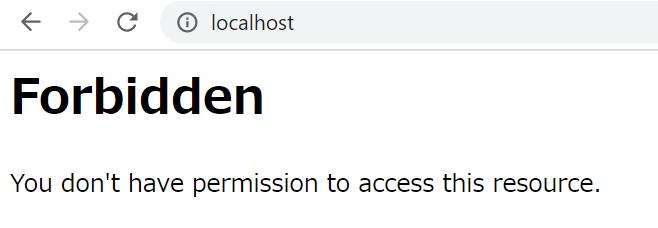
| 未显示任何内容 | http://localhost/ | /var/www/html |
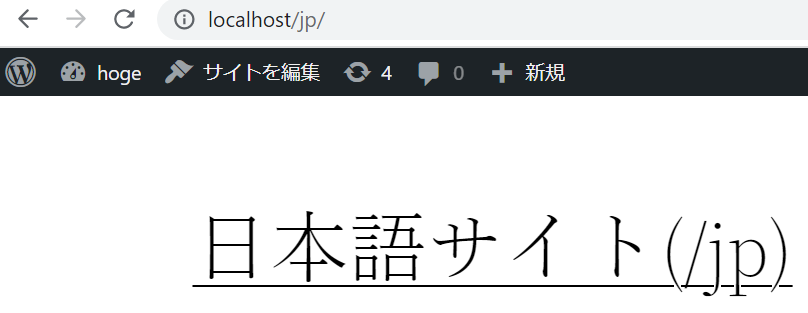
| 日文网站 | http://localhost/jp/ | /var/www/html/jp |
| 英文网站 | http://localhost/en/ | /var/www/html/en |
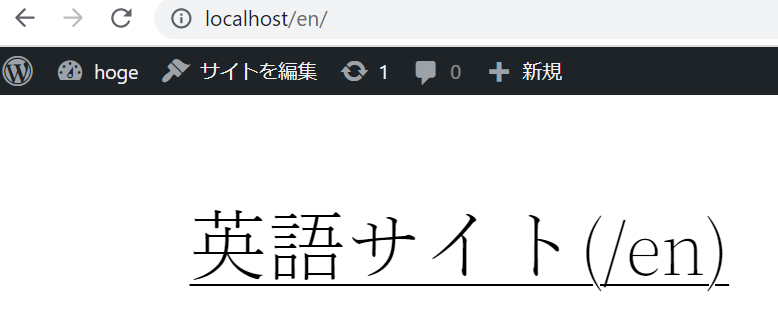
①检查网站运行情况
・http://localhost
・http://localhost/jp/
・http://localhost/en/
②获取备份
*此数据会在流程过程中保存以作回滚之用,因此如果出现任何问题,请使用它。
*如果您不需要此步骤,可以跳过。
②-① 移动目录
cd /var/www/
②-②备份数据库
mysqldump -u root --single-transaction {database} > {database}_$(date +"%Y%m%d").sql
*如果您在以下目录中创建 .my.cnf,则可以在无需密码的情况下对其进行备份。
cat /root/.my.cnf [client] user=root password='{password}'
②-③备份您的内容
tar -czvf html_$(日期+"%Y%m%d").tar.gz html/
③ 复制“index.php”和“.htaccess”文件
cp -ip /var/www/html/jp/index.php /var/www/html/ cp -ip /var/www/html/jp/.htaccess /var/www/html/
④ 编辑“index.php”
编辑目标文件
vi /var/www/html/index.php
*编辑前
<?php /** * Front to the WordPress application. This file doesn't do anything, but loads * wp-blog-header.php which does and tells WordPress to load the theme. * * @package WordPress */ /** * Tells WordPress to load the WordPress theme and output it. * * @var bool */ define( 'WP_USE_THEMES', true ); /** Loads the WordPress Environment and Template */ require __DIR__ . '/wp-blog-header.php'; ←ここを【/jp/】に編集
*编辑后
<?php /** * Front to the WordPress application. This file doesn't do anything, but loads * wp-blog-header.php which does and tells WordPress to load the theme. * * @package WordPress */ /** * Tells WordPress to load the WordPress theme and output it. * * @var bool */ define( 'WP_USE_THEMES', true ); /** Loads the WordPress Environment and Template */ require __DIR__ . '/jp/wp-blog-header.php';
⑤ 编辑“.htaccess”文件
请编辑复制的文件。
此时,网站应该可以在根目录及其子目录中查看。
vi /var/www/html/.htaccess
*编辑前
<IfModule mod_rewrite.c>RewriteEngine On RewriteRule .* - [E=HTTP_AUTHORIZATION:%{HTTP:Authorization}] RewriteBase /jp/ ←编辑为 [/] RewriteRule ^index\.php$ - [L] RewriteCond %{REQUEST_FILENAME} !-f RewriteCond %{REQUEST_FILENAME} !-d RewriteRule . /jp/index.php [L] ←编辑为 [/index.php]</IfModule>
*编辑后
<IfModule mod_rewrite.c>RewriteEngine On RewriteRule .* - [E=HTTP_AUTHORIZATION:%{HTTP:Authorization}] RewriteBase / RewriteRule ^index\.php$ - [L] RewriteCond %{REQUEST_FILENAME} !-f RewriteCond %{REQUEST_FILENAME} !-d RewriteRule . /index.php [L]</IfModule>
⑥ 更改网站地址(URL)
我们将介绍两种方法,请选择您喜欢的方法。
如果您要通过管理面板进行更改,
请务必在保存前从网站地址(URL)中移除 (/jp)。
更改 WordPress 地址(URL)将导致您无法访问管理面板。
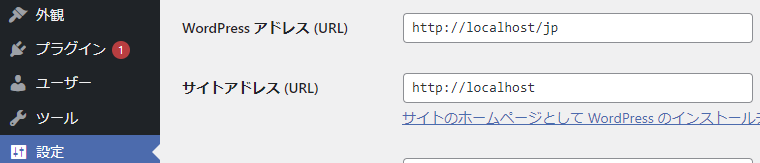
通过 WordPress 配置文件进行更改时
:*WP_HOME 对应于网站地址(URL),请务必指定此项。
* *WP_SITEURL 对应于 WordPress 地址(URL),如果指定此项,您将无法访问管理后台,并且会出现诸如空白屏幕之类的问题,因此请谨慎操作。*
vi /var/www/html/jp/wp-config.php define( 'WP_HOME', 'https://{domain}' );
⑦检查网站运行情况
工作完成后的配置如下:
| [更改设置后] | ||
| 网站内容 | URL | 目录路径 |
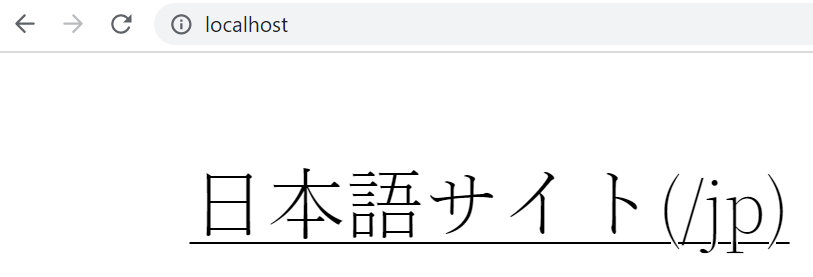
| 日文网站 | http://localhost/ | /var/www/html |
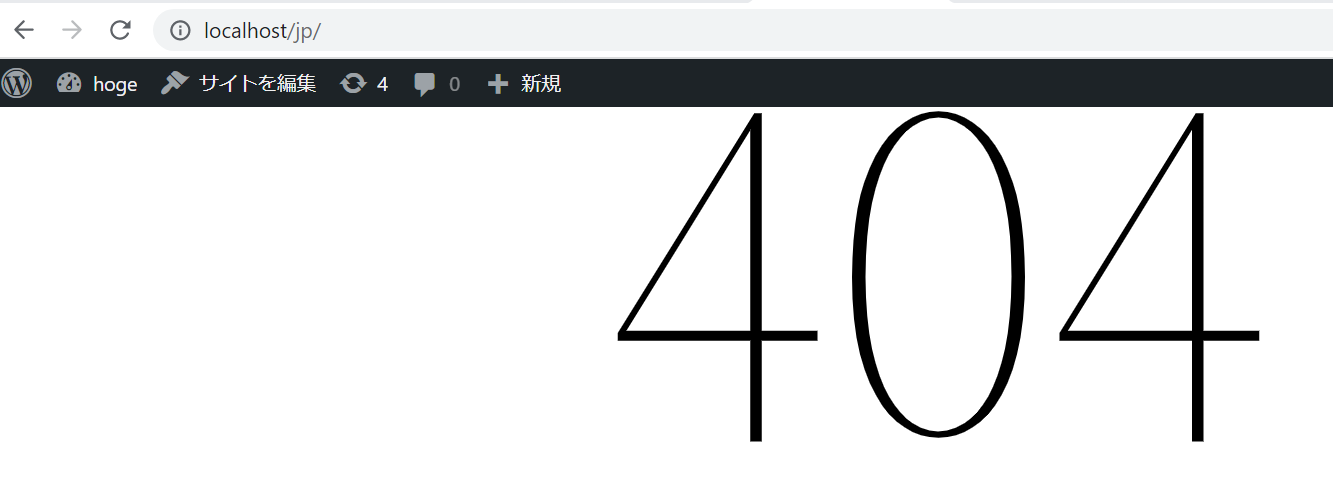
| 未显示任何内容 | http://localhost/jp/ | /var/www/html/jp |
| 英文网站 | http://localhost/en/ | /var/www/html/en |
・http://localhost
・http://localhost/jp/
• http://localhost/en/
*英文网站将会显示,但如果您不打算使用它,请将其删除或从公共目录中移走。
概括
感觉如何?
现在您应该可以轻松地在首页显示子目录中的网站了,但您也了解到,
错误的设置可能会导致一些问题,例如无法访问管理面板或网站显示空白。如果您
仔细检查容易出错的地方,就不会遇到任何问题,所以请在配置之前仔细检查所有内容!
感谢观看!
这篇文章的作者
关于作者









