

[WordPress] How to display a site displayed in a subdirectory on the top page
2022.12.05





Hello!
This is Hide, the Ramen King from Beyond Co., Ltd.'s Osaka office.
This is my 11th post.
Last time, I wrote about how to add multiple rules to a security group using Terraform!
There are various ways to add security groups with Terraform, but problems can sometimes arise when using multiple methods in combination.
I also introduced solutions to these problems, so if you're interested, please check it out.
https://beyondjapan.com/blog/2022/10/terraform-how-to-use-security-group/
overview

"I used to display my website in both Japanese (/jp) and English (/en), but
now I no longer need the English site, so I want to display the Japanese site as the top page...
How do I do that, seriously...?"
Have you ever encountered a situation like the one described above?
Initially, you might have displayed two websites to users, but now
that they're no longer needed, you want to display only one as the homepage.
While this setting is easy to configure,
doing it incorrectly can lead to problems such as a blank screen.
We'll also cover some common pitfalls to avoid, so let's work through this together!
How to set it up
The configuration before work is as follows:
| [Before changing settings] | ||
| Site Contents | URL | Directory Path |
| Nothing is displayed | http://localhost/ | /var/www/html |
| Japanese site | http://localhost/jp/ | /var/www/html/jp |
| English site | http://localhost/en/ | /var/www/html/en |
①Check the operation of the website
・http://localhost
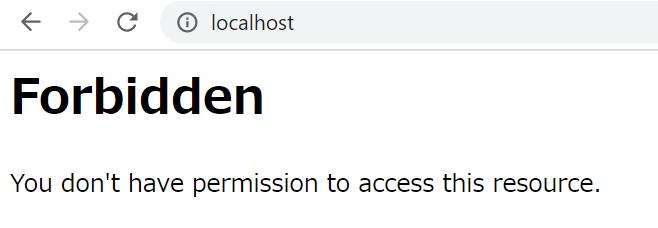
・http://localhost/jp/
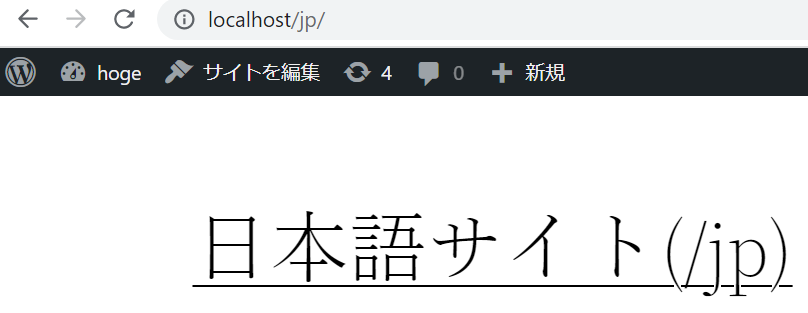
・http://localhost/en/
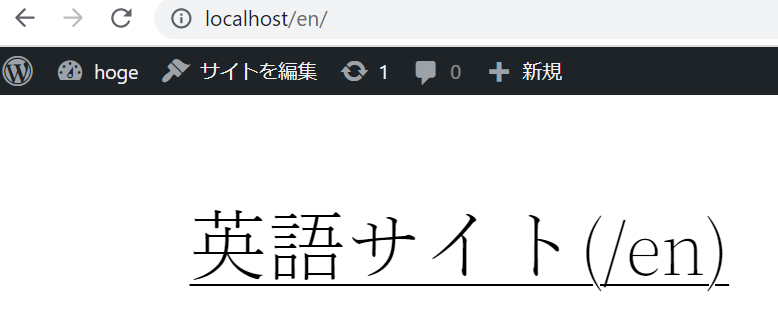
②Get a backup
*This data is saved for rollback purposes during the process, so please use it if any problems occur.
* You can skip this step if you don't need it.
②-① Move directory
cd /var/www/
②-②Back up the database
mysqldump -u root --single-transaction {database} > {database}_$(date +"%Y%m%d").sql
*If you create .my.cnf in the following directory, you can back it up without a password
cat /root/.my.cnf [client] user=root password='{password}'
②-③Back up your content
tar -czvf html_$(date +"%Y%m%d").tar.gz html/
③ Copy “index.php” and “.htaccess”
cp -ip /var/www/html/jp/index.php /var/www/html/ cp -ip /var/www/html/jp/.htaccess /var/www/html/
④ Edit “index.php”
Edit the destination file
vi /var/www/html/index.php
*Before editing
<?php /** * Front to the WordPress application. This file doesn't do anything, but loads * wp-blog-header.php which does and tells WordPress to load the theme. * * @package WordPress */ /** * Tells WordPress to load the WordPress theme and output it. * * @var bool */ define( 'WP_USE_THEMES', true ); /** Loads the WordPress Environment and Template */ require __DIR__ . '/wp-blog-header.php'; ←ここを【/jp/】に編集
*After editing
<?php /** * Front to the WordPress application. This file doesn't do anything, but loads * wp-blog-header.php which does and tells WordPress to load the theme. * * @package WordPress */ /** * Tells WordPress to load the WordPress theme and output it. * * @var bool */ define( 'WP_USE_THEMES', true ); /** Loads the WordPress Environment and Template */ require __DIR__ . '/jp/wp-blog-header.php';
⑤ Edit “.htaccess”
*Please edit the copied file.
* At this point, the site should be viewable in both the root directory and subdirectories.
vi /var/www/html/.htaccess
*Before editing
<IfModule mod_rewrite.c>RewriteEngine On RewriteRule .* - [E=HTTP_AUTHORIZATION:%{HTTP:Authorization}] RewriteBase /jp/ ←Edit this to [/] RewriteRule ^index\.php$ - [L] RewriteCond %{REQUEST_FILENAME} !-f RewriteCond %{REQUEST_FILENAME} !-d RewriteRule . /jp/index.php [L] ←Edit this to [/index.php]</IfModule>
*After editing
<IfModule mod_rewrite.c>RewriteEngine On RewriteRule .* - [E=HTTP_AUTHORIZATION:%{HTTP:Authorization}] RewriteBase / RewriteRule ^index\.php$ - [L] RewriteCond %{REQUEST_FILENAME} !-f RewriteCond %{REQUEST_FILENAME} !-d RewriteRule . /index.php [L]</IfModule>
⑥ Change the site address (URL)
*We will introduce two ways, so please use the method you prefer
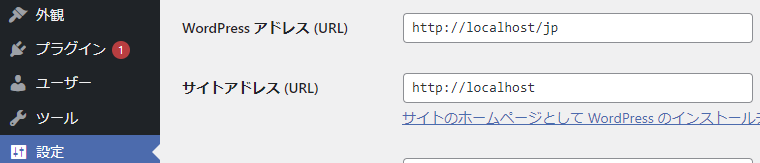
If you are making changes from the admin panel,
*be sure to remove (/jp) from the site address (URL) before saving.
* Changing the WordPress address (URL) will prevent you from accessing the admin panel.
When making changes via the WordPress configuration file
: *WP_HOME corresponds to the site address (URL), so be sure to specify this.
* *WP_SITEURL corresponds to the WordPress address (URL), so if you specify this, you will not be able to access the administration screen and problems such as a blank screen will occur, so please be careful.*
vi /var/www/html/jp/wp-config.php define( 'WP_HOME', 'https://{domain}' );
⑦Check the operation of the website
The configuration after the work is as follows:
| [After changing the settings] | ||
| Site Contents | URL | Directory Path |
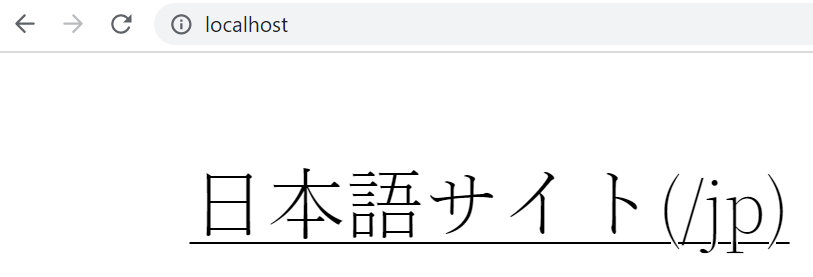
| Japanese site | http://localhost/ | /var/www/html |
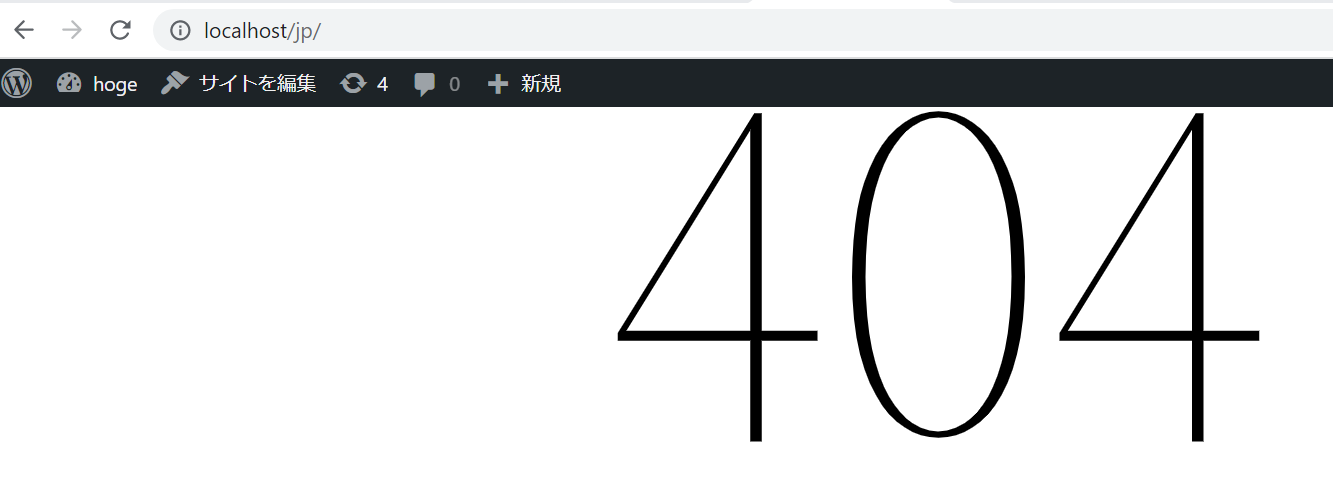
| Nothing is displayed | http://localhost/jp/ | /var/www/html/jp |
| English site | http://localhost/en/ | /var/www/html/en |
・http://localhost
・http://localhost/jp/
• http://localhost/en/
*The English site will be displayed, but if you do not intend to use it, please delete it or move it from the public directory.
summary
How was it?
You should now be able to easily display sites in subdirectories on the homepage, but you've also learned that
incorrect settings can cause problems such as being unable to access the admin panel or the site going blank. If you
pay close attention to the points where mistakes are likely to occur, you shouldn't encounter any problems, so please double-check everything before configuring!
Thank you for watching!
The person who wrote this article
About the author









