[Anaconda×Diagrams] Drawing a configuration diagram using Python

table of contents
Introduction
It's been a while.
I'm Mikoto from the System Solutions Department, and I'm feeling anxious as my second year is coming to an end.
I think it would be very powerful if I could use IaC freely, such as Ansible and Terraform, but Python so I haven't been able to play around with it much lately.
When I was a student, I only had a little experience with Unity (C#), but I got carried away and Anaconda , but I failed miserably and hated Python ever since.
generating a configuration diagram in code Anaconda my arch rival, like an infrastructure engineer .
About the execution environment
Ubuntu 22.04 (Vagrant)
conda 25.11.1
Python 3.10
Vagrant.configure("2") do |config| config.vm.box = "bento/ubuntu-22.04" config.vm.network "private_network", ip: "192.168.55.15" config.vm.network "forwarded_port", guest: 8888, host: 8888 # config.vm.provider "virtualbox" for Jupyter do |vb| vb.memory = "4096" end end
(⌒3⌒)<Why not just set up the Anaconda environment when Vagrant is up?
Since the purpose of this post is to overcome my trauma with Anaconda, I've taken the trouble to manually install it.
*The more I use it, the more I think venv is better. I'm just using Anaconda because I don't want to continue to dislike it, so please use venv
Building a virtual environment
Setting up Anaconda
download the latest version of
Anaconda installer .
$ wget https://repo.anaconda.com/archive/Anaconda3-2025.12-2-Linux-x86_64.sh
Run the downloaded Anaconda installer to begin the installation.
In this example, anaconda3 is extracted to the home directory of a test user named conda-test.
$ sh Anaconda3-2025.12-2-Linux-x86_64.sh
------Omitted------- Anaconda3 will now be installed into this location: /home/conda-test/anaconda3 - Press ENTER to confirm the location - Press CTRL-C to abort the installation - Or specify a different location below [/home/conda-test/anaconda3] >>> PREFIX=/home/conda-test/anaconda3 ------Omitted-------- To install conda's shell functions for easier access, first activate, then: conda init Thank you for installing Anaconda3!
The installation is complete!
As the English instructions say, run the following immediately after installation to enable use of anaconda:
conda init
Reload to reflect the settings.
At this point you will be inside the anaconda environment.
source ~/.bashrc (base) conda-test@vagrant:~$
Once you have the path set, check the version
$ conda --version conda 25.11.1
By the way, once the Anaconda installation is complete, Python is included, which is very convenient!
/home/conda-test/anaconda3/bin/python Python 3.13.9
Furthermore, once installed, the following popular libraries will be included.
This means you don't have to install them one by one using pip install.
(Diagrams, which we will use this time, is not included, though.)
Pandas
, NumPy
, Matplotlib
, Seaborn
, Jupyter
You can also check from the command line whether the library you want is available.
(⌒3⌒)<I don't know what it's all about, but there are so many, it's amazing!
$ conda list
Installing Graphviz
Graphviz is a graph creation tool that uses a data description language called DOT
Diagrams is a library used to create configuration diagrams, and requires Graphviz to run in a local environment, so we will install it
$ sudo apt install graphviz
Once installed, check the version and location
$ dot -V dot - graphviz version 2.43.0 (0)
$ which dot /usr/bin/dot
Setting up a virtual environment
Next, I'll install Diagram. Instead of installing it, I'll set up a virtual environment.
I'm a Python beginner and have had a lot of trouble with library dependencies (smug face), so I'll install libraries in a virtual environment so I can easily discard them if they break.
To create a virtual environment with Anaconda, use the following command.
This time, I'll draw a configuration diagram, so I named it draw-env.
$ conda create -n draw-env python=3.10
By default, the virtual environment is stopped, so start it.
Now the virtual environment is ready!
From here, we will proceed with preparation and development on draw-env.
$ conda activate draw-env (draw-env) conda-test@vagrant:~$
At this moment, I thought:
(⌒3⌒)<Huh, doesn't it look like venv?
...That thought crossed my mind for a moment, but since my main goal is to overcome trauma, this is fine.
Installing Diagrams
Now we will finally get to the main topic, installing Diagrams.
As mentioned above, simply installing Anaconda will not be enough to use it, so you will need to install it separately.
$ pip install diagrams
Diagrams will be installed within the draw-env we created.
Once you've reached this point, you can finally start coding the configuration diagram!
Draw a configuration diagram
Now we finally move on to drawing the diagram.
I'd like to say goodbye to the time I spent drawing it bit by bit using VS Code's draw.io.
the documentation , it looks like you can use a set of well-known icons.
Diagrams currently supports main major providers including:
AWS,Azure,GCP,Kubernetes,Alibaba Cloud,Oracle Cloudetc... It also supportsOn-Premisesnodes,SaaSand majorProgrammingframeworks and languages.
Create a python file
The goal this time is to create the following structure.
(I drew it using drawio for this purpose ;;)
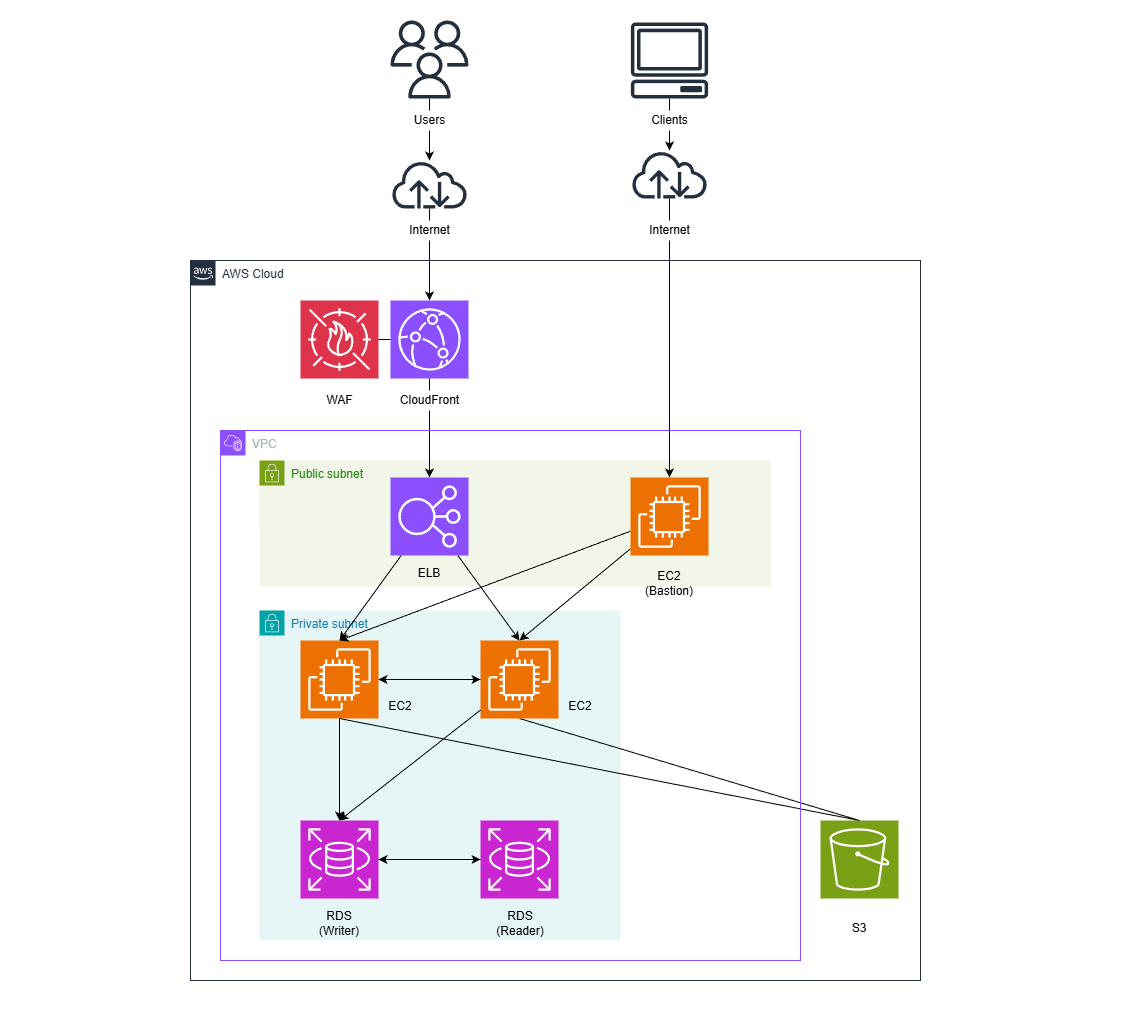
Personally, I find it difficult to write code in the terminal, so I create my Python files in VS Code
from diagrams import Cluster, Diagram, Edge from diagrams.aws.compute import EC2 from diagrams.aws.database import RDS from diagrams.aws.network import VPC, PrivateSubnet, PublicSubnet, CF, ELB from diagrams.aws.security import WAF from diagrams.aws.storage import S3 from diagrams.aws.general import Users, Client with Diagram("", direction="LR", show=False) as diag: # 1. User layer user = Users("Users") client = Client("Clients") # 2. External service layer s3 = S3("S3") with Cluster("", graph_attr={"style":"none", "penwidth":"0"}): waf = WAF("WAF") cf = CF("CloudFront") waf - cf # 3. Network layer (VPC) with Cluster("VPC"): with Cluster("Public Subnet"): lb = ELB("ALB") bastion = EC2("EC2(Bastion)") with Cluster("Private Subnet"): webs = [EC2("EC2"), EC2("EC2")] db_primary = RDS("Writer") db_replica = RDS("Reader") db_primary - Edge(style="dashed") - db_replica # 4. Route definition user >> cf >> lb >> webs >> db_primary client >> bastion >> webs webs >> s3
Try it out
It's very easy to run.
Just run the file you created in python!
python draw-test.py
What will the result be?
drwxrwxr-x 2 conda-test conda-test 4096 Feb 21 11:55 ./ drwxr-x--- 9 conda-test conda-test 4096 Feb 21 11:55 ../ -rw-rw-r-- 1 conda-test conda-test 1440 Feb 21 11:55 draw-test.py -rw-rw-r-- 1 conda-test conda-test 132253 Feb 21 11:55 web_services.png
Oh, the image file is created!
So I tried downloading it...
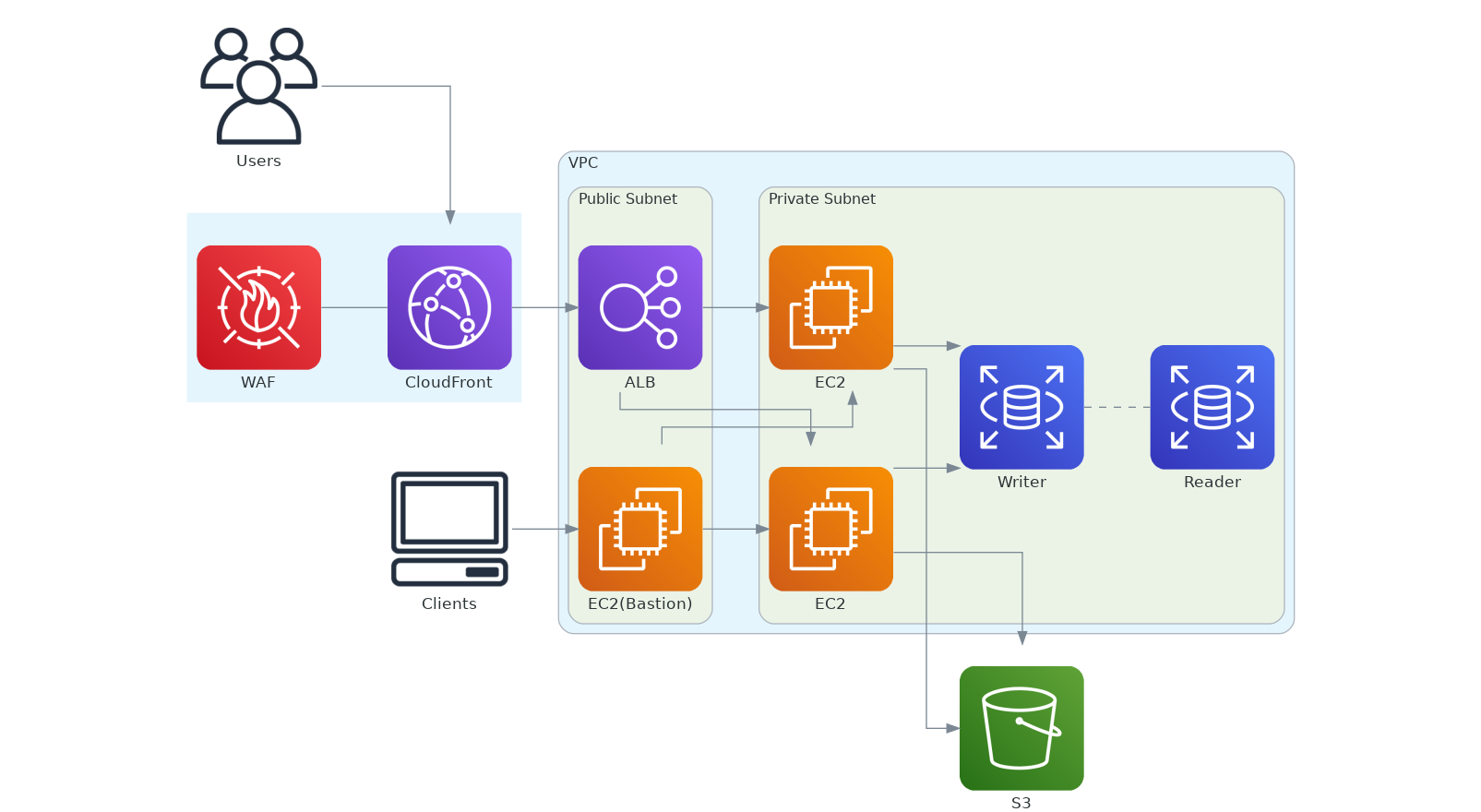
Oh, wow, they're lined up properly!!! 🎉🎉🎉
It was too long in vertical (TB) format, so I changed it to horizontal (LR) to make it neater.
(⌒3⌒)<(However, the arrows are a bit too crowded and hard to see)
How to write Python files
From here on, this is just a bonus, so if you don't need it, feel free to skip it, but for my own reference, I'll give a brief explanation of the contents
This should be easy to understand, but here is the process for bringing in the AWS icon. The
documentation explains how to write each resource to be imported , so please refer to it for reference.
from diagrams import Cluster, Diagram, Edge from diagrams.aws.compute import EC2 from diagrams.aws.database import RDS from diagrams.aws.network import VPC, PrivateSubnet, PublicSubnet, CF, ELB from diagrams.aws.security import WAF from diagrams.aws.storage import S3 from diagrams.aws.general import Users, Client
The user layer describes resources that cannot be contained within a VPC, Subnet, etc. In this case, there is no need to enclose them in a Cluster and they can be described independently
# 1. User layer user = Users("Users") client = Client("Clients")
This is a description of the external service layer and network layer. If you want to create a framework for easier understanding and place the resources within it, you can describe the internal resources in a class called Cluster.
*Cluster can also be named, and its visibility can be set separately.
*To hide it, leave the argument empty.
# 2. External service layer s3 = S3("S3") with Cluster("", graph_attr={"style":"none", "penwidth":"0"}): waf = WAF("WAF") cf = CF("CloudFront") waf - cf
This is a description of each resource.
If you want to draw them in parallel, use an array of [] to arrange them.
You can change the appearance of the line by using Edge.
with Cluster("Private Subnet"): webs = [EC2("EC2"), EC2("EC2")] db_primary = RDS("Writer") db_replica = RDS("Reader") db_primary - Edge(style="dashed") - db_replica
Finally, there is the route section.
The destination is specified with ">>". This is easy to understand!
If you are configuring S3 to be delivered directly from CloudFront, just write cf >> s3 and the layout will change.
# 4. Route definition user >> cf >> lb >> webs >> db_primary client >> bastion >> webs webs >> s3
lastly
What did you think?
This time, I tried to overcome my trauma from Anaconda by creating a virtual environment and generating a configuration diagram.
When I actually started using it after starting work as an engineer, I found that I was able to set up the execution environment and run it without much difficulty
Next time, I'll try to learn how to use Anaconda more effectively!
See you!!!
reference
https://qiita.com/sakai_noriko/items/53d65f3177b891f6cfcc
https://qiita.com/lighlighlighlighlight/items/8f624751df808d89d48c
https://dev.classmethod.jp/articles/graphviz-beginner/
https://qiita.com/hiesiea/items/860c42a96b031f929b94
https://dev.classmethod.jp/articles/diagrams-introduction/
 2
2 Loading...2



The person who wrote this article
About the author