

Perfect for studying over the New Year holidays! Loading and analyzing Datastore data into GCP BigQuery

Hello.
I'm Mandai, the Wild team member in charge of development.
I wanted to analyze the monitoring data from Appmill, but the volume has grown to a considerable size, making it difficult to store in the database.
At this point, GCP is the answer.
Yes, that's where BigQuery comes in
This time, we will show you how to import Datastore data on GCP into BigQuery, run queries on it, and export it for reuse
Preparing to load data from Datastore
First, please note that you cannot import data directly from Datastore to BigQuery
Therefore, we first move the data from Datastore to Cloud Storage
To move data from Datastore to Cloud Storage, you will use Datastore's backup feature.
Make sure you have a bucket set up in Cloud Storage beforehand to store your backups.
As will be explained later, we recommend creating this bucket in the Tokyo region (asia-northeast1).
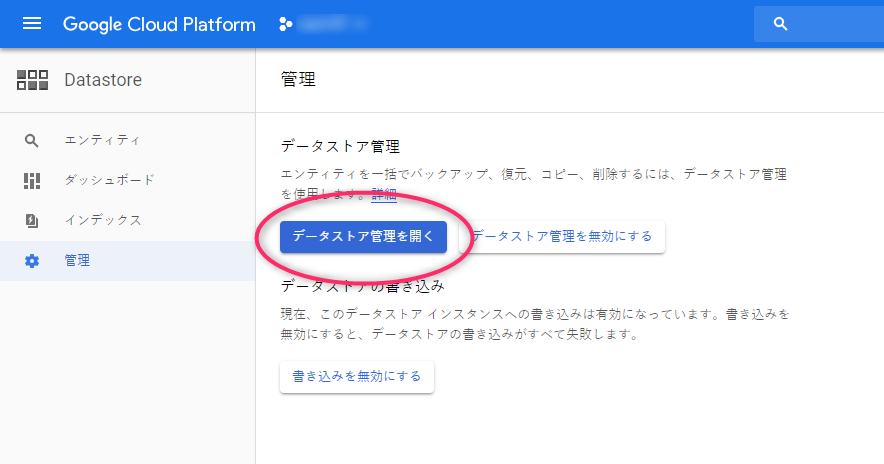
There is an item called "Management" in the Datastore menu, so select that
Next, you will see a button that says "Open Data Store Management," so please click on it.
Please note that there is a lot of blurring because we are capturing real data.
You will be asked to confirm only the first time you run the program, but a separate window will open and display a list of the data sizes for each kind in the Datastore in the selected project
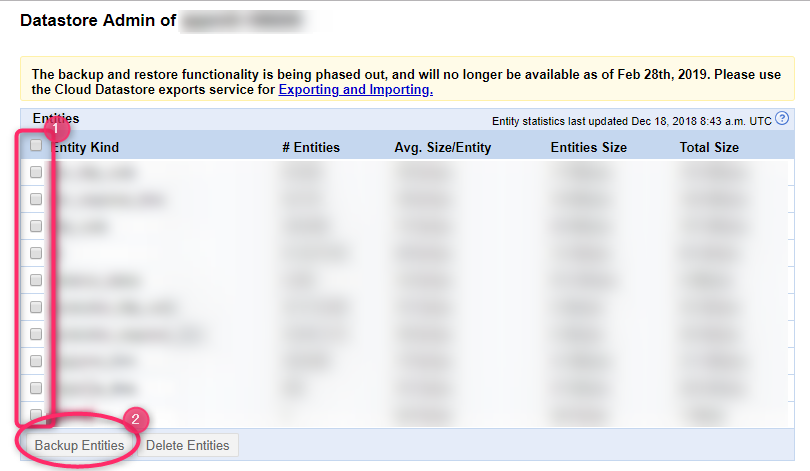
Check the Kind of the entities you want to extract and click "Backup Entities" to start the backup.
The export will not finish immediately, so please wait for a while.

Try reloading it a few times, and once you see the screen above, it's complete
Registering data in BigQuery
Once the data preparation is complete, we'll load it into BigQuery.
Since the UI has been updated, I'll include plenty of screenshots (apologies for the heavy blurring).
Once you're on the BigQuery screen, click the "Add data" link under the "Resources" section in the left-hand menu.
Select "Pin project" and choose the Cloud Storage project ID where you saved your Datastore data.

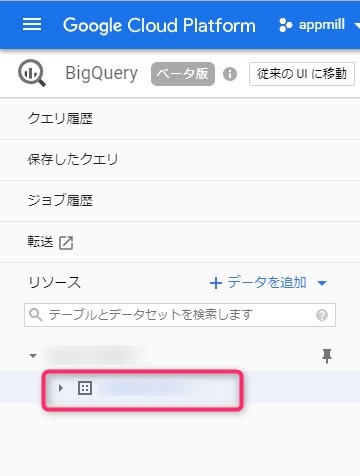
If the specified project appears below the search box as shown below, you have succeeded

Next, we'll create a dataset in the project.
Let's click on the project ID that was just added.
The right-hand pane will then switch to the query editor.

Below the query editor, there is a link called "Create dataset." If you click on it, the dataset creation screen will pop up from the right
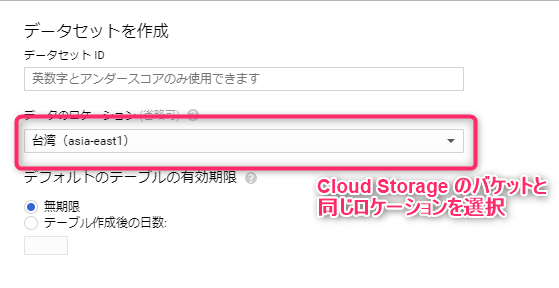
Enter a dataset ID that makes it easy to identify the data you are about to input, and then select the data location.
It's important that the location matches the region where you initially placed the Cloud Storage bucket.
For example, if you create a Cloud Storage bucket in the Tokyo region, you would select asia-northeast1.
If you create BigQuery data in multiple regions, the Cloud Storage bucket can be located in any region within the selected multi-region.
As of the time of writing, BigQuery offers two multi-region options: US and EU. Asia is not available.
If you followed this article, you will have created a Cloud Storage bucket in asia-northeast1, so you will also have to create a BigQuery dataset in asia-northeast1
Once you have created the dataset, you can then create a table
A tree with the dataset you just created hanging below the project ID on the left will be created, so now click on the dataset name
The right pane will then switch and a link called "Create Table" will appear, so click on it

There are many input fields, but we will explain each one!
- Table created by
- Choose where to get the data from. If you choose upload, the uploader will appear. In this example, select Cloud Storage
- Select a file from a GCS bucket
- Enter the path to the file with the extension ".[Datastore Entity Kind].backup_info" from the Cloud Storage bucket name. You can also browse through the directory tree, but since the file name of the .backup_info file is too long and gets cut off, we recommend copying and pasting it from the Cloud Storage screen, even though it is a hassle
- File formats
- Select Cloud Datastore Backup
- Project Name
- For this step, it is already selected
- Dataset Name
- For this step, it is already selected
- Table Name
- Give it a name that will make it easy to identify within the dataset
Other items do not need to be changed unless there are special requirements
Once you press the Create button, a data loading job will be created and added to the job history
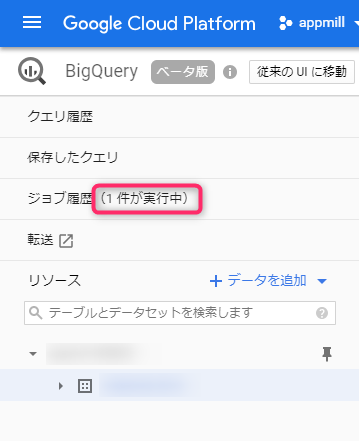
Once the job is complete and the table is populated with data, you're ready to run queries
Execute the query
Before executing a query, let's write it in the editor

The image above shows an error because it specifies a dataset and table that do not exist.
However, the queries that can be written here are designed to be standard SQL queries.
The table name after "from" should be specified by connecting the dataset name and the table name with a dot.
If you specify an existing dataset and table, it will look like this:
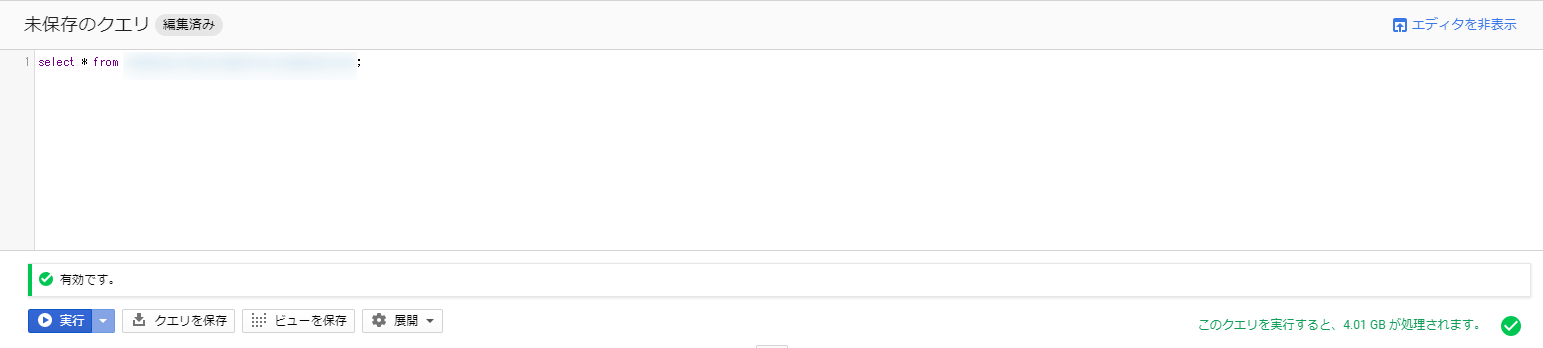
The important part to note is the bottom right section, which shows the size of the data output from the search results.
A larger size in this section will increase the cost of executing the query.
As of December 19, 2018, it costs $5 per TB, so you can probably use it without worrying too much
about the cost. Also, there's a free 1TB allowance each month, which should be enough to try it out.
Based on the data used in this test, the calculation estimates that 4.01GB of data will be processed, meaning you can run the query approximately 250 times for free.
Furthermore, the same query is cached for 24 hours, so it won't be recalculated and you won't be charged.
Make full use of the generous free quota and get used to using even small amounts of data!
The current BigQuery includes standard SQL compatible with SQL 2011, making it easy for those who have only used MySQL or PostgreSQL to get started.
However, there are still some things that were possible in MySQL but not in BigQuery, which I will cover in a separate article.
Export the results
If you want to move the resulting data somewhere, it's convenient to export the results
Here we will show you how to export the execution results to CSV and store them in Cloud Storage
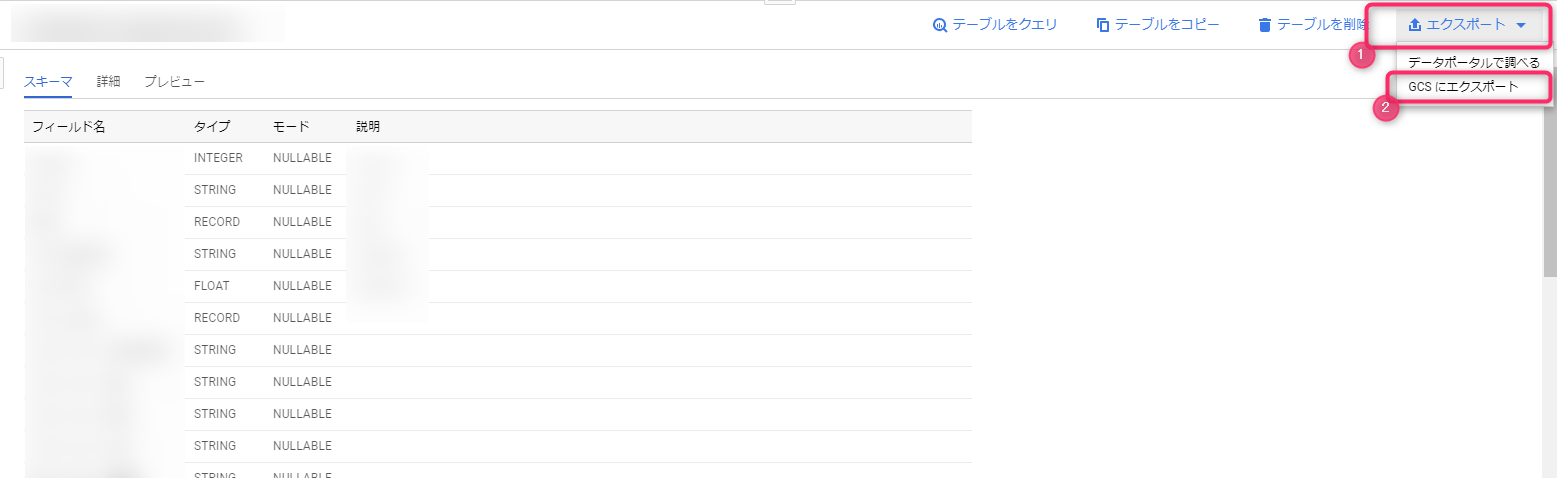
There are several ways to export query results, but for small result sets, directly exporting to CSV and downloading it is the easiest and most convenient method, as it allows for easy processing.
Other options include JSON for programmatic use, and Google Sheets for companies utilizing G Suite.
However, if the result set becomes large, you will need to export it to a BigQuery table first, as you will only be able to download the first part

To save a large result set to a BigQuery table, select BigQuery Table from "Save results as" next to the query result title
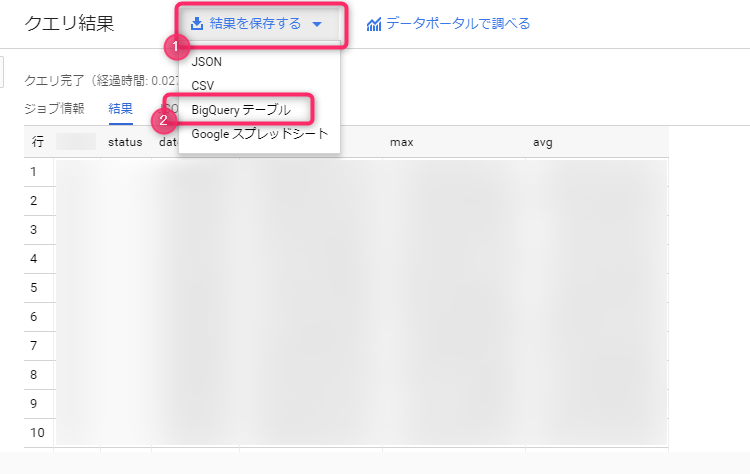
A modal will appear asking you to save the results as a table. Simply select the project name, dataset name, and enter the name of the table to export to
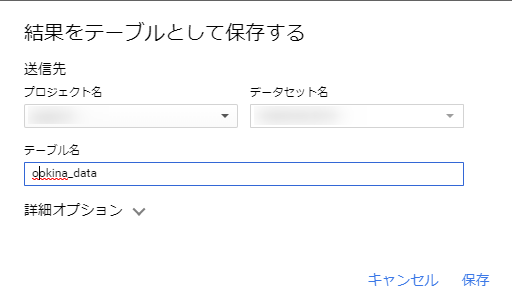
Depending on the data size, this may take some time, but once completed, a new table will be added to the registered dataset.
This table will be treated the same as the table used for querying, so you should export it to Cloud Storage using the export function.
When creating a table within BigQuery, charges will apply for data exceeding 10GB, so please be careful if you are using it for testing or other purposes.
All you have to do is enter the full path starting with the name of the Cloud Storage bucket to which you want to export, select the export format and whether or not to compress the data, and the export will begin
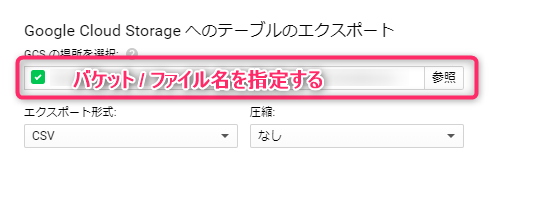
This is also managed as a job and you can check the status

It was difficult to capture this because the resulting data size was small
summary
This time, we have summarized the process of registering data from Datastore to BigQuery and saving it in Cloud Storage in CSV format
The key points are
- BigQuery is a pay-as-you-go system where the price is determined by the amount of data processed by the query (there is a flat rate option, but careless use will result in a huge loss)
- BigQuery's standard SQL is slightly different from that provided by MySQL
- Cloud Storage makes data transfer easy
- This is just my personal opinion, but I think BigQuery is easy to use
- Exporting from Datastore to Cloud Storage takes a surprisingly long time
I guess that's it
Query execution time is incredibly fast; it's a stress-free and excellent service!
It's no wonder it's so popular.
There are various destinations available for exporting data from BigQuery, and Google Sheets is suitable for communicating with non-engineers, so it may be useful to remember it in case of emergency
That's all




The person who wrote this article
About the author









