

A simple introduction to AR using ARFoundation
Hello.
This is Matsuyama from the Development Department at the Yokohama office.
I did some AR testing because it might lead to some work opportunities. I
'll be documenting it on my blog as a memo.
Advance preparation
■ Tools and Plugins
First, let's prepare the environment.
Testing with Unity is probably the quickest way to do this.
・Unity 2019.3.0b11
Although it's a beta version, the latest fixed version (2019.2.13f1) didn't display the AR camera correctly, so I'm using 2019.3.
Unity Hub is really convenient.
*While I was writing this blog post, a fixed version of 2019.3 (2019.3.0f1) was released.
The AR camera works correctly in this version.
• AR Plugin
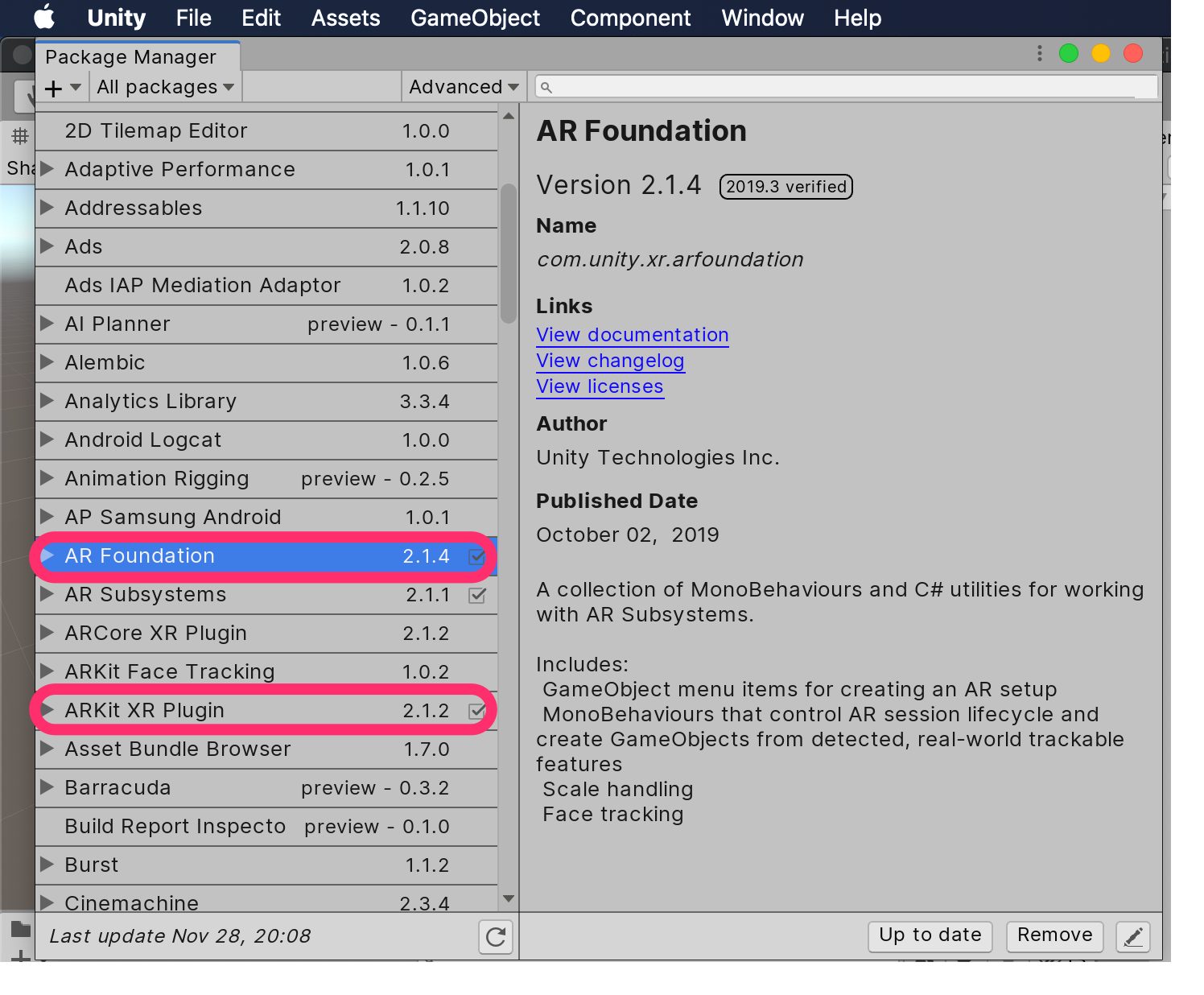
• AR Foundation (2.1.4)
• ARKit XR Plugin (2.1.2) * For iOS
Once you create a new project, import it from the Package Manager.
By the way, the previously available UnityARKit Plugin is no longer usable, and it seems that AR development should now be done through AR Foundation.
This time, we are only planning to test it on iOS, so we will only import ARKit. If you also need to support Android, you will need to import ARCore as well.
The Package Manager is really convenient.
■ Project Settings (iOS)
・Company Name, Product Name, and Build Identifier can
be anything you like. ・Automatically Sign is convenient if you do it in Preferences
. ・Since the camera is used, enter an appropriate description in Camera Usage Description
. ・Check Require ARKit support
. ・Requires iOS Version 11 or later, so set minimum iOS Version to "11.0".
・Architecture is "ARM64".
■ Build Settings
Since we are running on iOS,
select iOS for Platform
, change Run in Xcode as to "Debug"
, check Development Build
, and then run Switch Platform.
* AR Foundation is
a multi-platform AR utility that supports both operating systems:
ARKit is for iOS
, ARCore is for Android
Adding AR functionality to a scene
Create a suitable scene (the default scene is fine)
, delete the MainCamera as we will be using the AR Camera instead
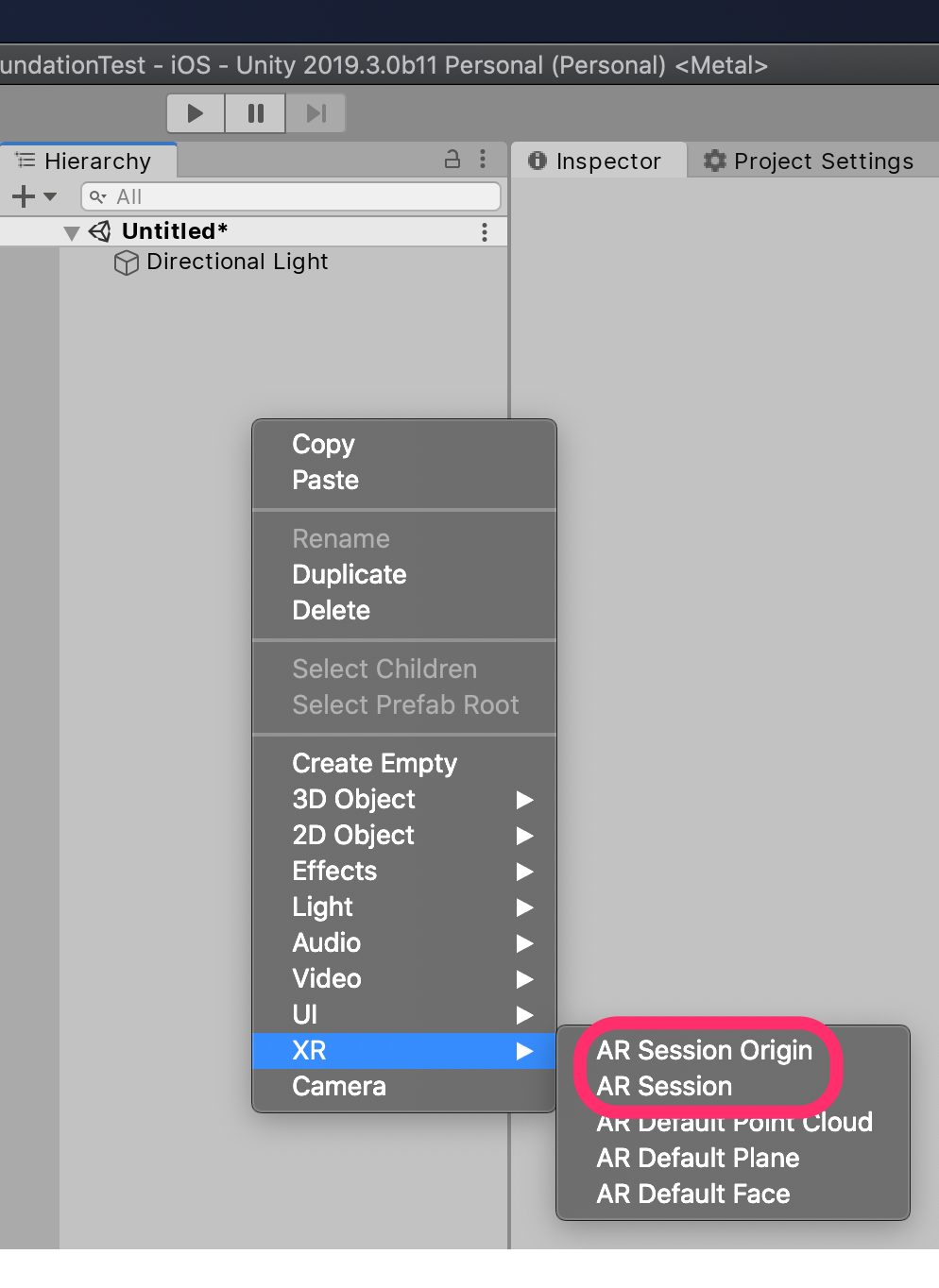
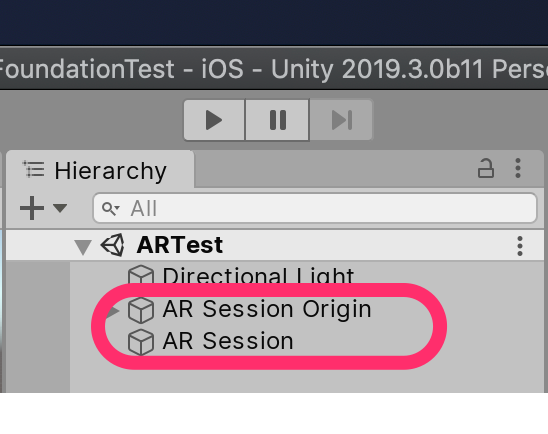
, add the following objects to the Hierarchy as AR functionality:
AR Session Origin
and AR Session.
That's all there is to it. It's that simple.
Graphical display of planes
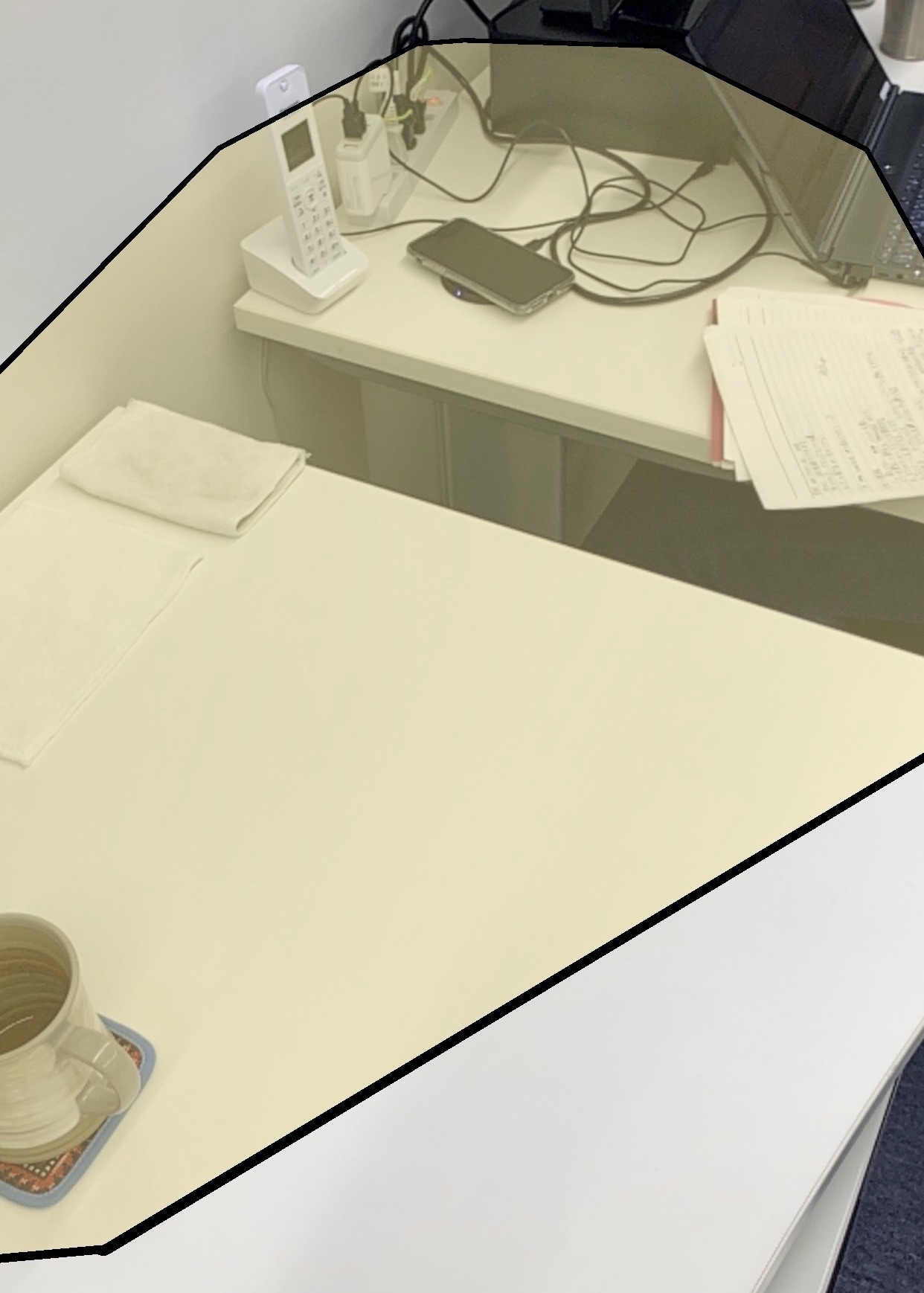
This is how you set it up to display the detected plane with a black frame and a translucent plate
1. Create a Plane to display as a plane (XR → AR Default Plane)
2. Convert the created Plane into a Prefab and remove it from the Hierarchy
3. Add the "AR Plane Manager" component to the AR Session Origin to display the detected plane
4. Set the Prefab from step 2 to the "Plane Prefab" of the AR Plane Manager component
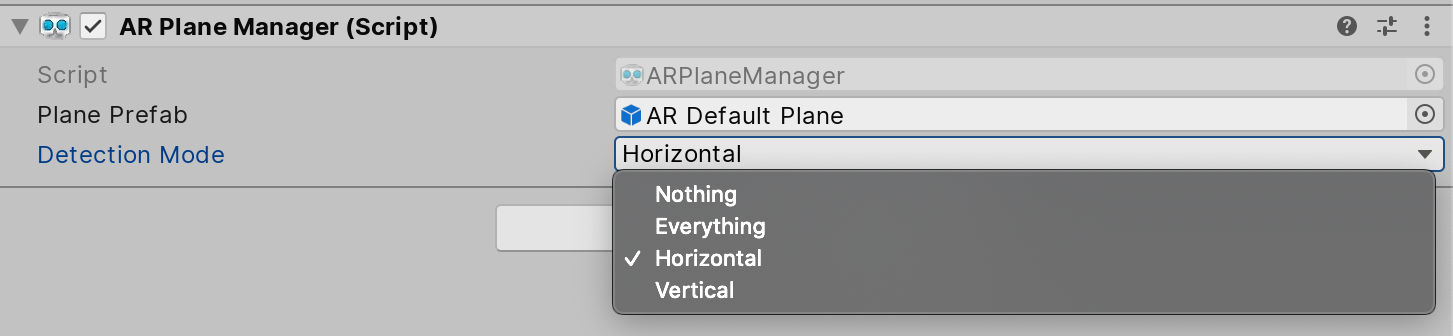
5. If only horizontal planes are needed, set "Detection Mode" to Horizontal
Place objects in the AR space
Touch the detected plane to display an object. This involves:
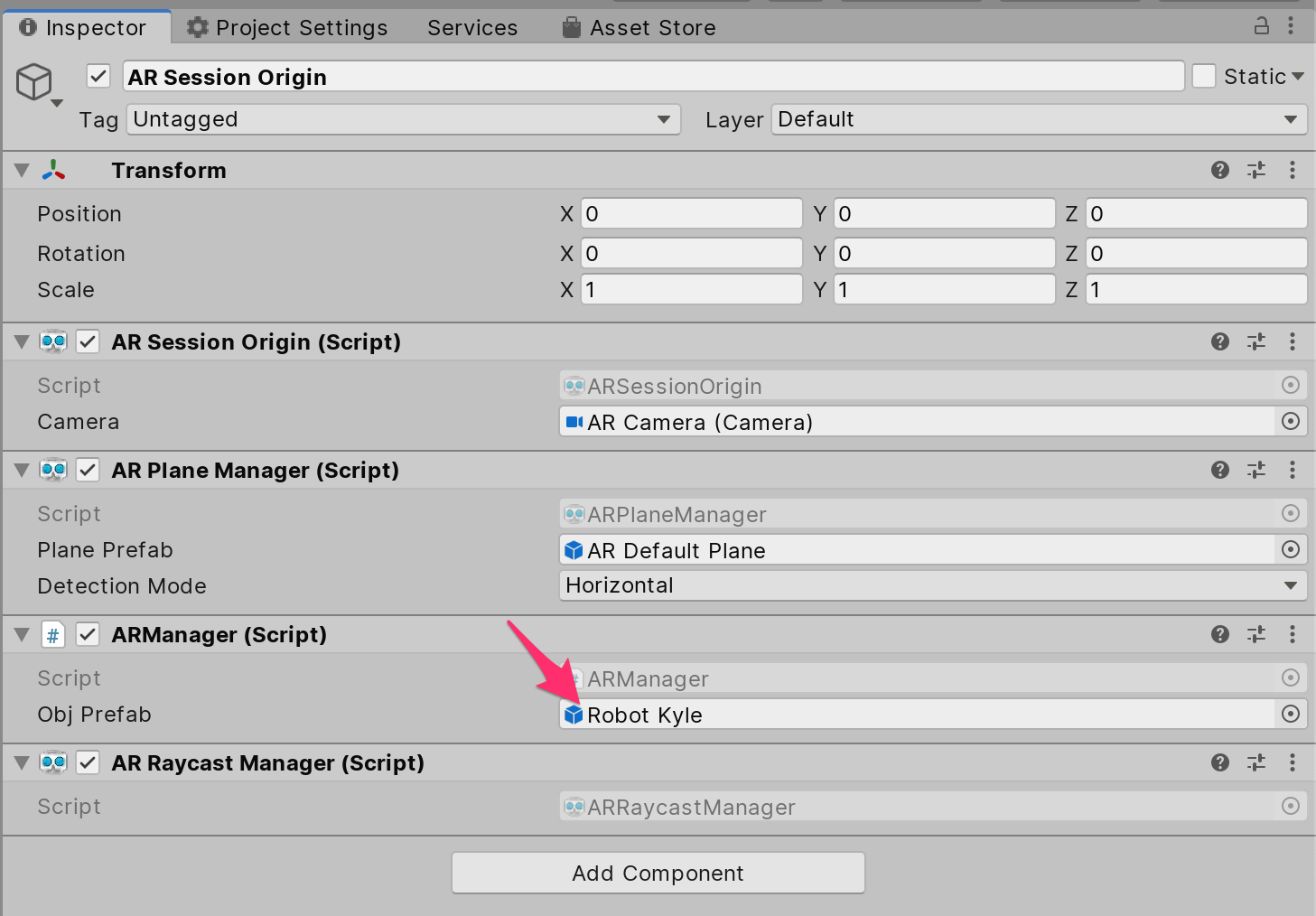
adding "AR Raycast Manager" to the AR Session Origin to detect touch coordinates,
and creating code to generate an object at the touch coordinates.
using System.Collections; using System.Collections.Generic; using UnityEngine; using UnityEngine.XR.ARFoundation; using UnityEngine.XR.ARSubsystems; public class ARManager : MonoBehaviour { [SerializeField] private GameObject objPrefab; private ARRaycastManager raycastMan; private List<ARRaycastHit> hitResults = new List<ARRaycastHit> (); void Awake() { raycastMan = GetComponent<ARRaycastManager> (); } void Update() { if (Input.touchCount > 0) { Touch touch = Input.GetTouch(0); if (touch.phase != TouchPhase.Ended) { return; } if (raycastMan.Raycast (touch.position, hitResults, TrackableType.All)) { Instantiate (objPrefab, hitResults[0].pose.position, hitResults[0].pose.rotation); } } } }
- Add the created code (class) to the AR Session Origin as a component.
- Register the object you want to display as an ObjPrefab.
The object you want to display
A cube or a sphere would work, but since I'm at it, I'll look for a suitable model from the Asset Store.
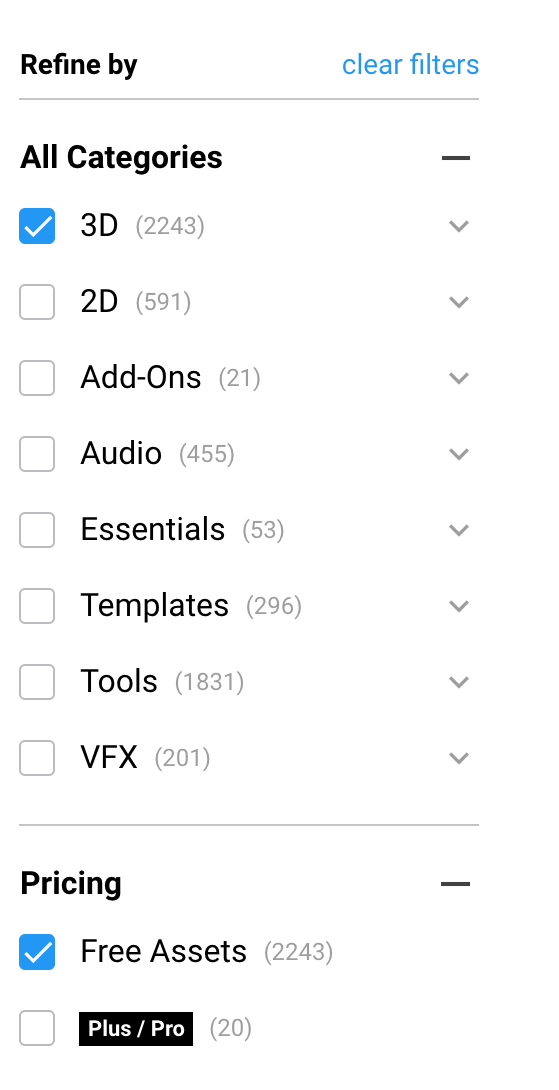
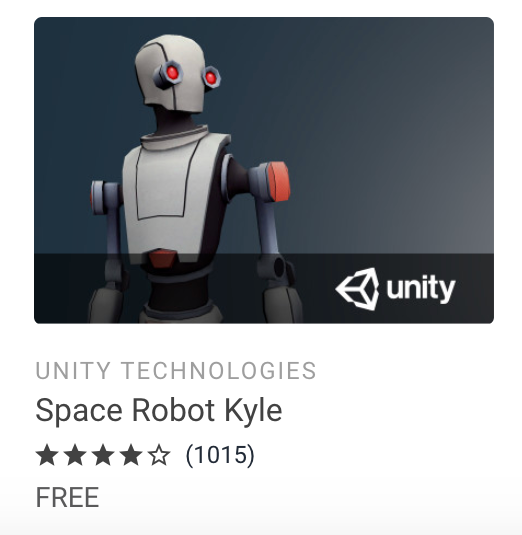
I narrowed my search to 3D, Free Assets and decided to use "Space Robot Kyle".
I imported it, created an avatar to make it move, and adjusted it so that it could play UnityChan's motions.
This part is just a hobby, so I'll omit the details.

Check on the actual device
Let's build and test it on a real device.
- Open Build Settings and run Build
- Launch the generated Xcode project
- Connect the device you want to install it on and select it in Xcode
- Press ▶︎ to build and run
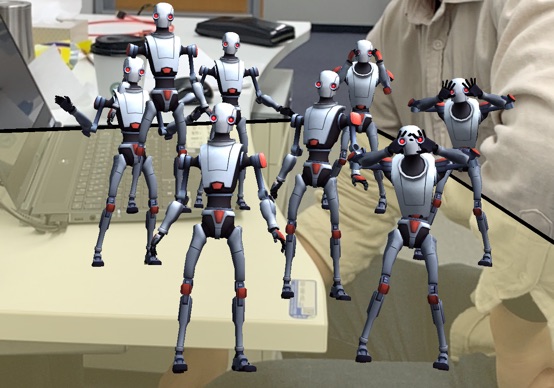
When you run it, an object will be generated at the touch location like this.
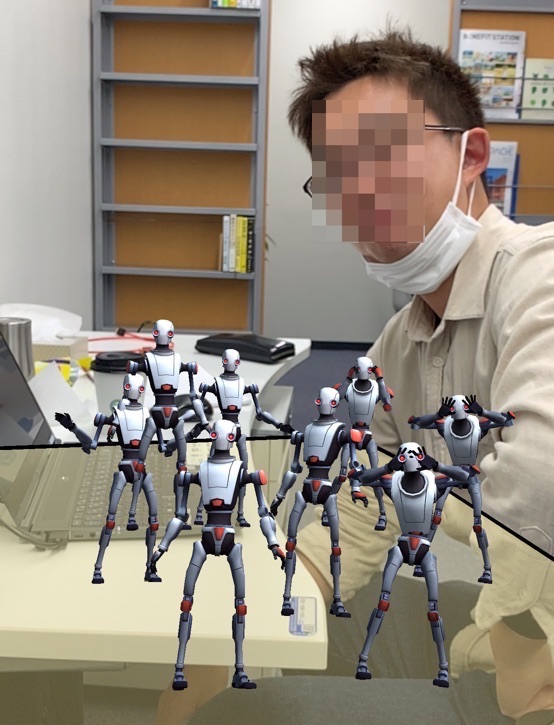
*I blurred the face for privacy reasons, but it looks rather suspicious...
Something to summarize
The setup was really easy.
With just these steps, you can implement something like the "Monster AR" feature from "DQ Walk".
At first, I almost ran into a problem with the Unity version (the AR camera wouldn't display in the 2019.2 series), but
other than that, I don't think there were any major issues.
If I had to point out a drawback,
it would be that you can't test it in the Unity Editor, so you have to build it every time, which is a bit of a hassle.
Next time, I'll try to test linking GPS and Google Maps!
lastly
I have launched "SEKARAKU Lab," a service site for the system development company I belong to.
Beyond offers a one-stop service for everything from server design and construction to operation, so please feel free to contact us if you have any problems with server-side development.
SEKARAKU Lab:[https://sekarakulab.beyondjapan.com/](https://sekarakulab.beyondjapan.com/)
Well, that's all for today




The person who wrote this article
About the author









