

Talking about audio effects
Good work today.
This is Matsuyama from the Systems Development Department.
I suddenly realized that
while there are audio filters, I've only ever used reverb, so I decided to look into other filters (effects)
Audio Filter
First, let's check what filters are available.
The official documentation is here.
Low Pass Filter
Since it's a low-pass filter, it cuts out high frequencies.
This results in a sound that is attenuated in situations such as listening from behind a wall or other obstruction, or from behind a speaker.
High Pass Filter
Unlike a low-pass filter, this filter cuts out low frequencies.
Physically, it should attenuate from high frequencies upwards, so it might sound like low frequencies aren't being reproduced properly with cheap earphones.
The sound will have a somewhat tinny or choppy quality.
Echo Filter
It's an echo effect. It repeats the same sound while attenuating it.
Imagine singing with echo in a karaoke booth.
If you widen the interval, it might sound like an echo.
Distortion Filter
This increases the volume regardless of the volume setting.
Because it's low quality, it distorts the sound, almost like clipping.
Reverb Filter
Personally, this is the filter I use most often.
It gives the impression of reverberation in a closed space, like a hall or an underground passage.
It also sounds like audio coming through a microphone. It
has the most adjustable parameters, and as an amateur, I feel like I can't fully utilize all the settings.
Chorus Filter
This is a filter that plays modulated audio in a way that sounds like a choir.
I tried it with a sample, but it didn't work properly.
If anyone knows how to fix it, please let me know...
Requirements
As usual, we'll create a sample in Unity and try it out.
① Set various filters on the Audio Listener
② Make each filter turn on/off with checkboxes
③ Specify the frequency of the Low Pass and High Pass filters with sliders
④ Make it possible to play BGM, SE, and jingles respectively
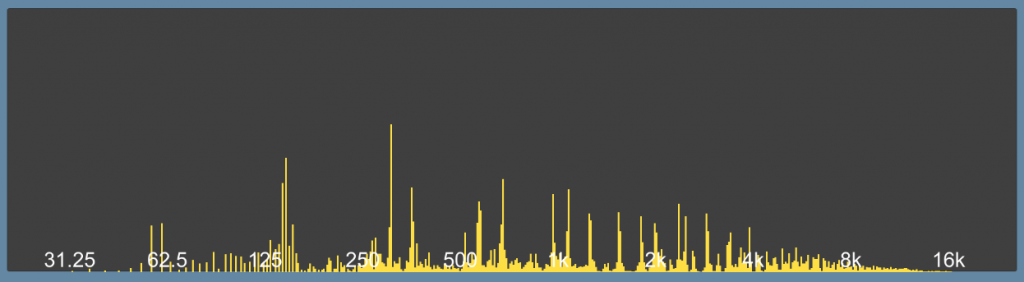
⑤ Try displaying something like an audio spectrum
It looks something like this.
The parameters for each filter are set to their default values.
I'm just going to create a UI that plays a few audio tracks. I
'll be happy if the audio spectrum works reasonably well.
Setting a filter on the Audio Listener
The MainCamera component has an Audio Listener, so we'll add each filter below it.
Except for the Low/High Pass Filter, you can toggle them with checkboxes, so leave them off by default.
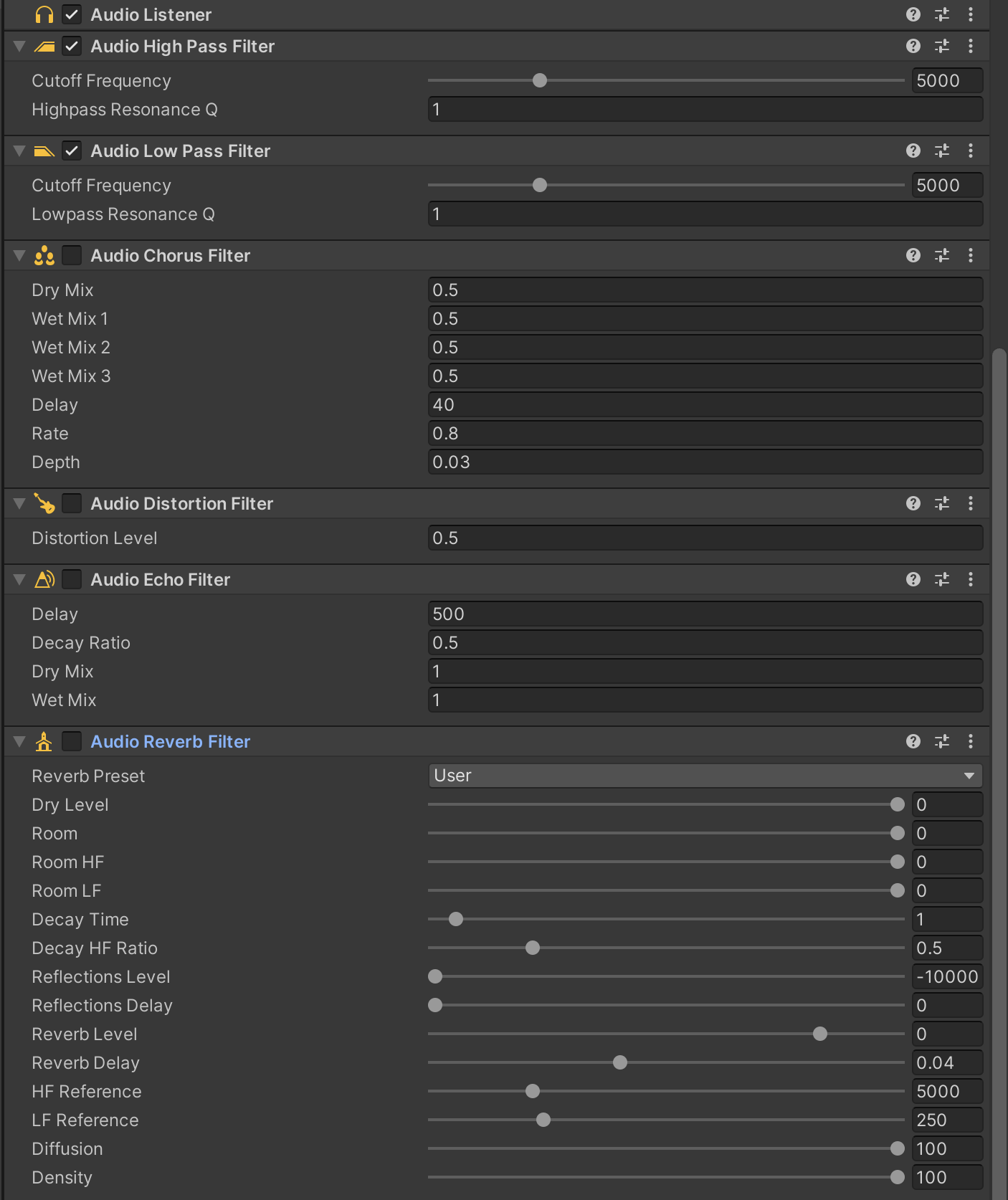
Each filter can be turned on/off with a checkbox
Created using UI.Toggle. (Like this↓)

Prepare a trigger method,
// Toggle for Filter public void OnClickToggleFilter(int no) { switch ((FilterNo)no) { case FilterNo.Chorus: fltChorus.enabled = tglChorus.isOn; break; case FilterNo.Distortion: fltDistortion.enabled = tglDistotion.isOn; break; case FilterNo.Echo: fltEcho.enabled = tglEcho.isOn; break; case FilterNo.Reverv: fltReverb.enabled = tglReverv.isOn; break; } }
Just set it in OnValueChanged

The Low Pass and High Pass filters have sliders to specify the frequency
The Low Pass and High Pass filters will be adjustable with sliders.
While we're at it, we'll also create volume and pitch controls.
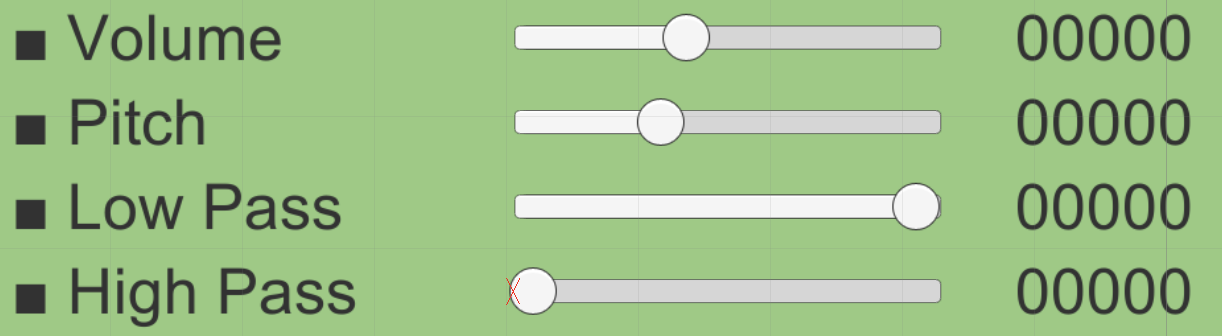
The slider's j reflection looks like this
① Set the event listener
// Bass pass sldLoPass.onValueChanged.AddListener((value) => { setLoPass(value); });
② Set a value for the filter
// Low-pass filter setting private void setLoPass(float val) { var loPassHz = ExpHz(val); fltLoPass.cutoffFrequency = loPassHz; txtLoPass.text = string.Format("{0:#}", loPassHz); }
* ExpHz values of 0.0 to 1.0 are converted to 10 to 22000 Hz
float ExpHz(float logHz) { var t = Mathf.Log(LowHz) - Mathf.Log(HighHz); return Mathf.Exp(logHz * t) * 10f; }
Allows you to play BGM, SE, and Jingle separately
Use a UI.Button to play a sound

Set up an event listener to toggle playback/stop.
Use AudioSource.Play() and Stop().
// BGM play/stop btnBgmPlay.onClick.AddListener(() => { if (!bgmSource.isPlaying) bgmSource.Play(); else bgmSource.Stop(); });
Displaying something like an audio spectrum
Finally, let's display the waveform data.
It's the one shown in the title image.
Use the AudioListener's GetSpectrumData() method
I used this as a reference for the implementation. (Thank you!)
I want to see the sound spectrum analysis on a real smartphone.
The audio samples obtained by GetSpectrumData() are divided into 512 frequency bands for UI display
AudioListener.GetSpectrumData(spectrumData, 0, FFTWindow.Hanning); var outputF = AudioSettings.outputSampleRate; // Initialize all bins for (int i=0; i <bins.Length; i++) { bins[i] = 0f; } var logMaxF = Mathf.Log(graphMaxFrequency); // 上のbinの周波数のlog var logMinF = Mathf.Log(graphMinFrequency); var logRange = logMaxF - logMinF; if (logRange <= 0f) { logRange = 8f; } // まず周波数分類 for (int i=0; i<spectrumData.Length; i++) { var f = outputF * 0.5f * (float)i / (float)spectrumData.Length; if (f == 0f) { f = float.Epsilon; } // 対数を取ってどのビンに入るか確定 float binValue = (float)bins.Length * (Mathf.Log(f) - logMinF) / logRange; int binIndex = Mathf.FloorToInt(binValue); if ((binIndex > = 0) && (binIndex < bins.Length)) { // Add data to that bin bins[binIndex] += spectrumData[i]; } }
Create a base Prefab for displaying each block.
This is a UI.Image with Width: 3, Height: 0.
Arrange these from left to right on the screen and set their heights according to their values.
// Reflected in the bar for(int i=0; i
Now, when you play the audio, the waveform data should appear similar
summary
I tried out all the audio filters.
The Chorus filter didn't work well for me (sigh)
. It seems that only the reverb and low pass filters are really useful.
Unity also an Audio Mixer , so if you want to make more detailed settings, you might want to use that.
To be honest, I feel like this is not an area for amateurs to mess with...
Anyway, that's all for today.
I've uploaded this to Git as well.
I hope it will be of some use.
Unity Sample
Additionally, the audio data was used from the following sources:
OtoLogic and
Oto no Mori
lastly
I have launched "SEKARAKU Lab," a service site for the system development company I belong to.
Beyond offers a one-stop service for everything from server design and construction to operation, so please feel free to contact us if you have any problems with server-side development.
SEKARAKU Lab:[https://sekarakulab.beyondjapan.com/](https://sekarakulab.beyondjapan.com/)
thank you




The person who wrote this article
About the author









