

A method to dramatically improve the display of the top command that I learned for the first time after 20 years of work as an infrastructure engineer

Hello, I'm Seiken. I've been in Canada for just under a year, but my English hasn't improved at all and I still respond to "how are you?" with "I'm fine, thank you."
The `top` command is a favorite among infrastructure engineers, and it's probably one of the first commands you learn when working with servers at Beyond. It's
actually a surprisingly deep command with a lot of capabilities, and I've been proudly showing off my knowledge to juniors, boasting about its capabilities—or rather, my experience as a senior colleague. However, I'd like to share a super-useful technique I recently discovered myself. It's
a bit long, but please bear with me.
When you run the top command, the following screen will be displayed:
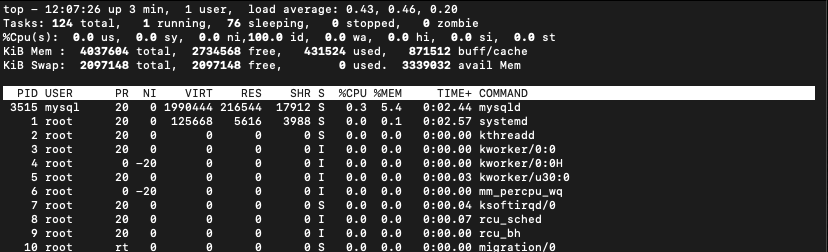
This alone is packed with important information for server operation, but I think there are many other articles that explain how to use the top command, so I will skip it this time
This time, let's make the final display of this top command look like this:
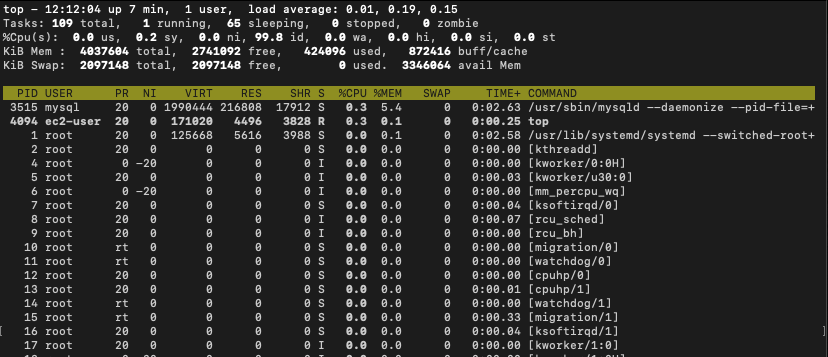
There are five points
- Display detailed information such as process arguments
- Add display items and change the display order
- Show processes with a status of RUNNING and the sorting column in bold
- Change the sort order
- Save your settings (this is the most important part)
Let's try it now
Display detailed information such as process arguments
This is easy, just press c
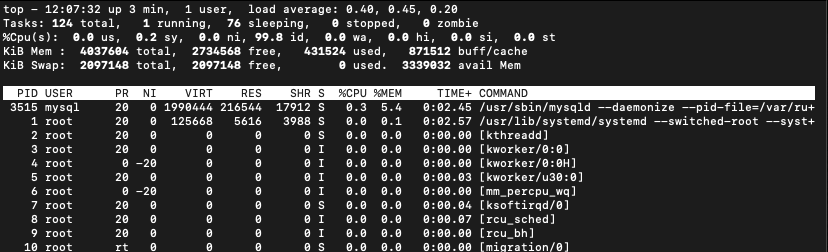
You can achieve the same result by running the top command with the -c option the first time, but this
is also useful if
Add display items and change the display order
In our daily operations, we monitor not only critical situations such as when a customer's service or process stops, but also CPU and memory usage to quickly detect situations where server resources are about to be depleted and take preventative measures.
Three metrics that are often used in this regard are CPU usage, memory usage, and SWAP usage, but SWAP usage is not displayed by default with the top command.
However, there are several fields that are normally hidden in top, and it is possible to display SWAP usage as well.
let's do it
Pressing Shift+f will change the Field Management screen to the following:
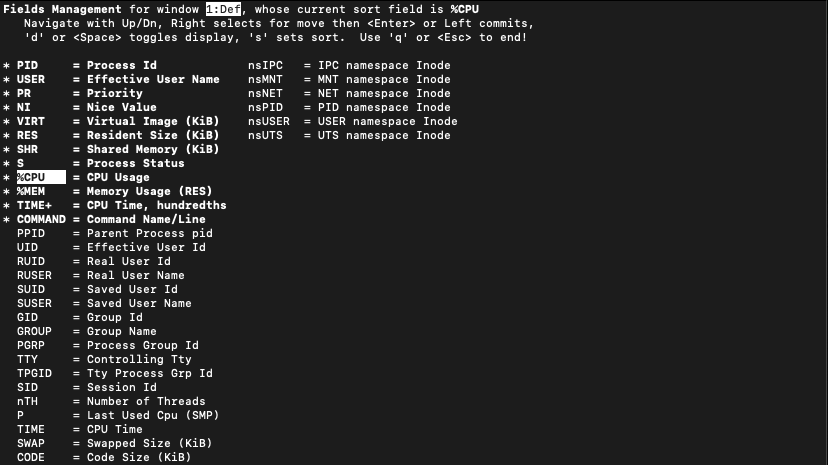
This time, we want to add the SWAP usage to the display, so use the up and down arrow keys to move to the SWAP item
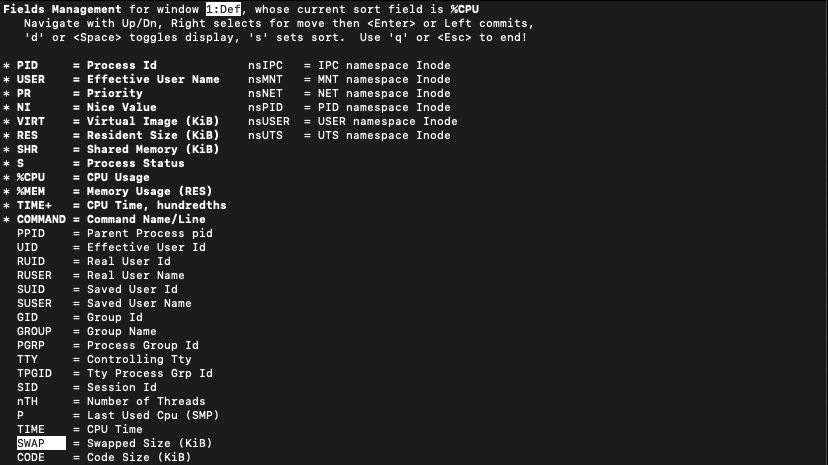
Press the space bar to add an * to the left of the item, and it will be added to the display items
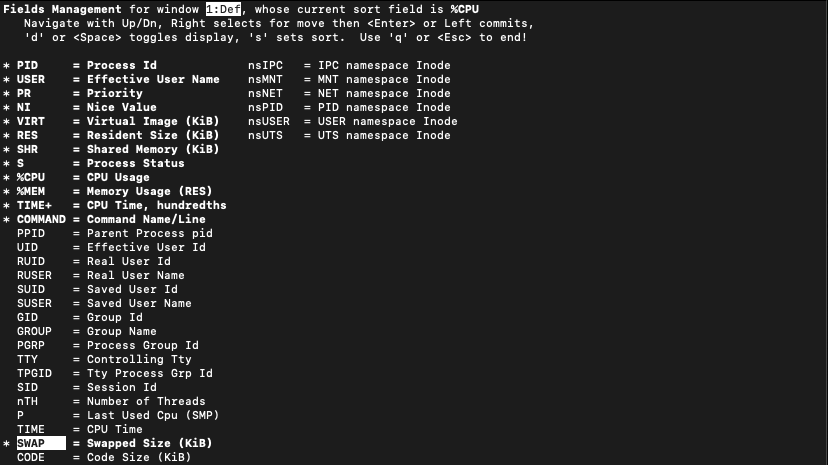
If left as is, it will be displayed after COMMAND, so we will display it after %MEM to make it easier to compare with other indicators
Pressing the right cursor key will expand the selection cursor slightly, allowing it to be moved
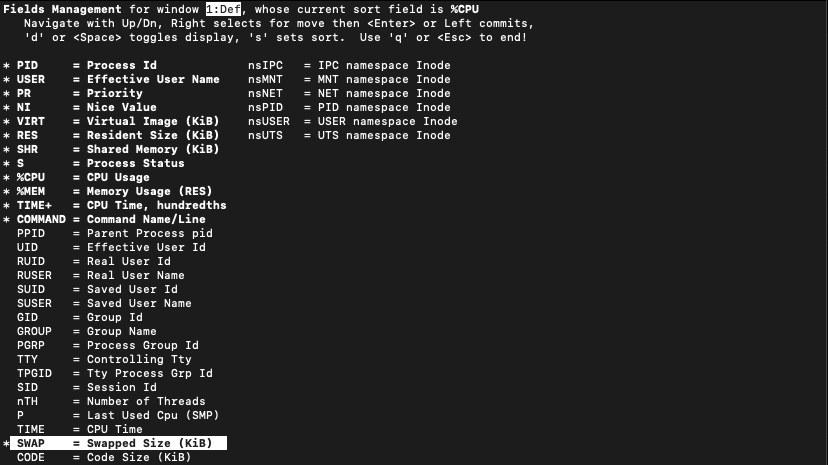
Use the up and down cursor keys to move to the desired location
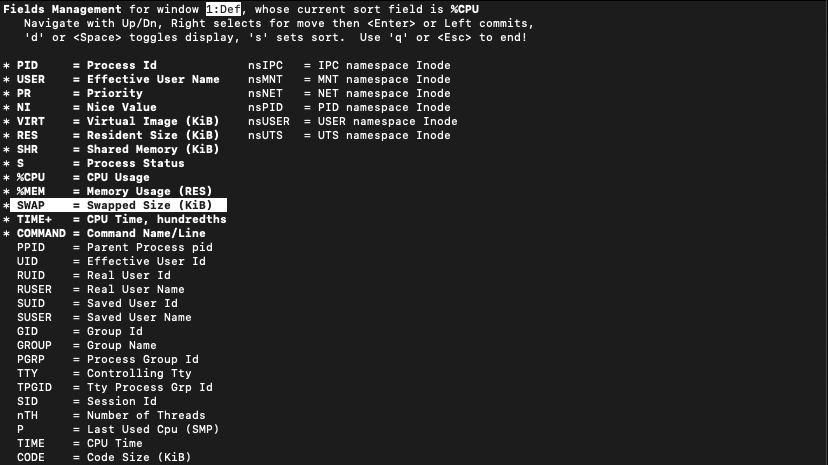
Once you have finished moving it, press the left cursor key to return it to its original selection state and fix its position
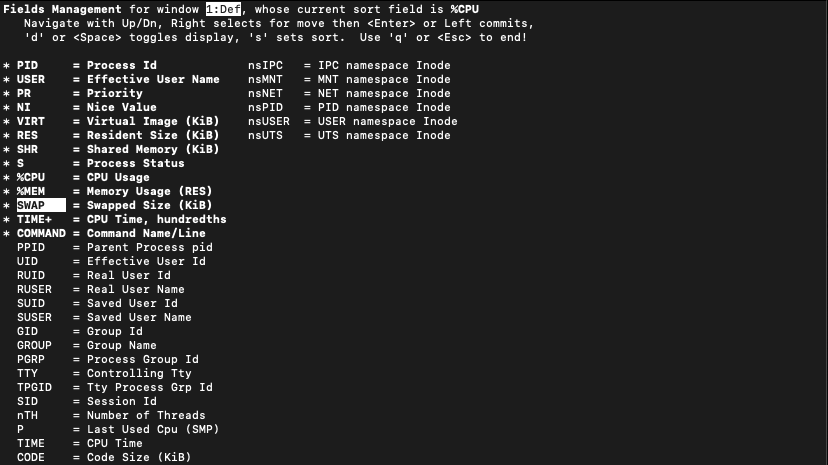
Press q or Esc to exit the Field Management screen
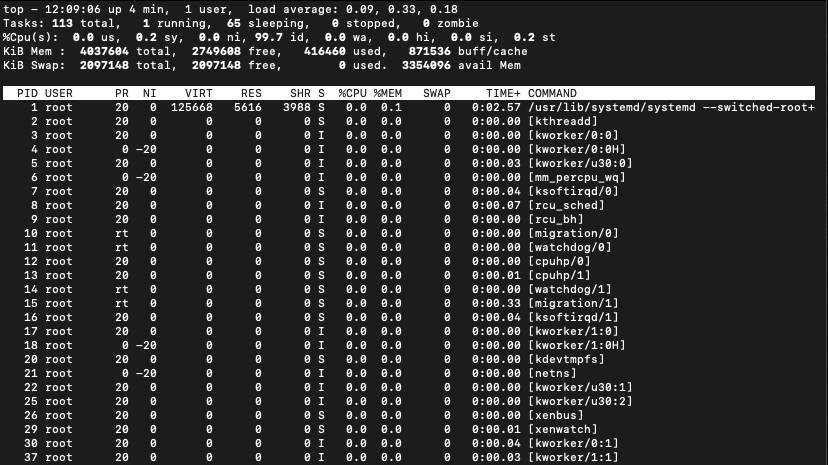
The SWAP item has been added next to %MEM
Show processes with a status of RUNNING and the sorting column in bold
Since we've already made it visually clearer, let's make the processes with a RUNNING status and the currently sorted column bold.
Let's also change the colors of the displayed screen.
Press Shift+z to display the following screen:
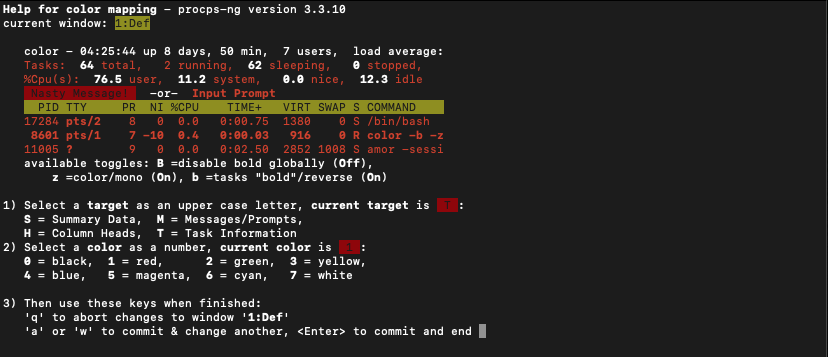
You can change the color for each field, but for some reason the default is red
It looks a little poisonous, so press 7 to change it to white
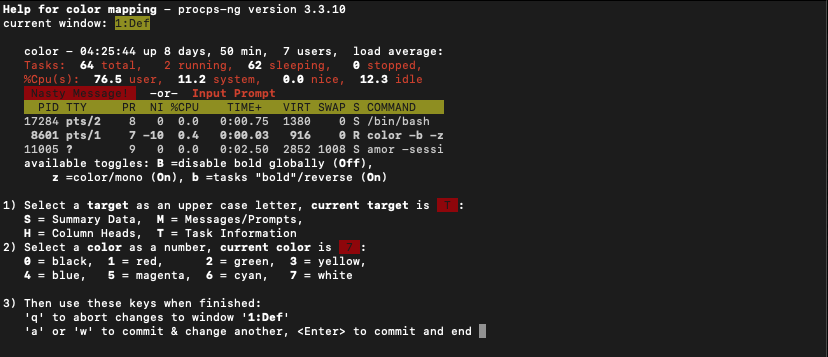
The "Summary Data" column above is also red, so use "shift+S" to switch the field whose color you want to change and press 7 in the same way to change it to white
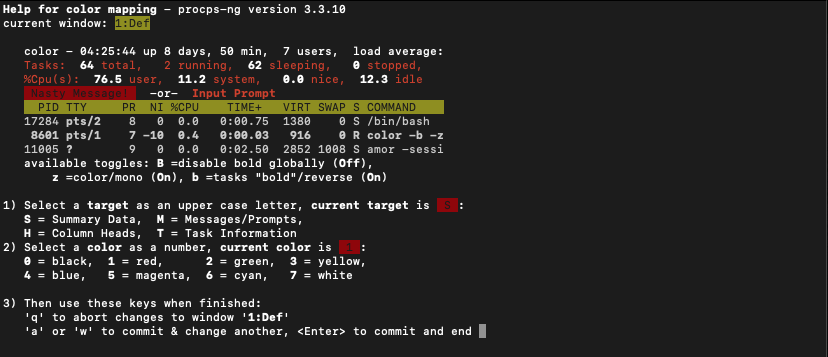
If you press shift+s, the part "1) Select a target asu an upper case letter....." will change, which is a little confusing
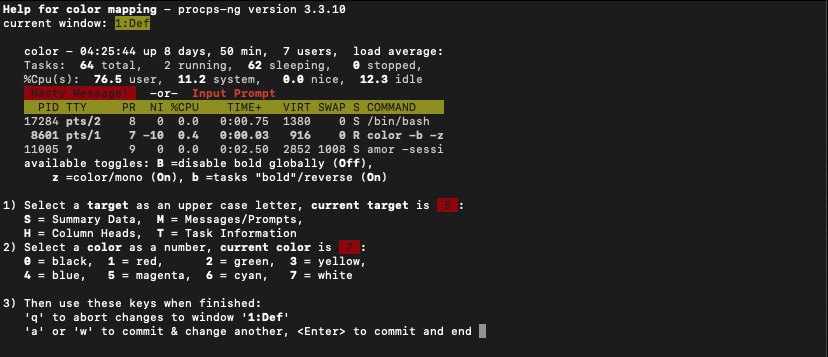
Enter a number and it will change to your preferred color. I tried various colors, but I finally settled on 7 (white).
There are many other colors besides white, so please choose your favorite.
To save this state and exit, press "Enter"
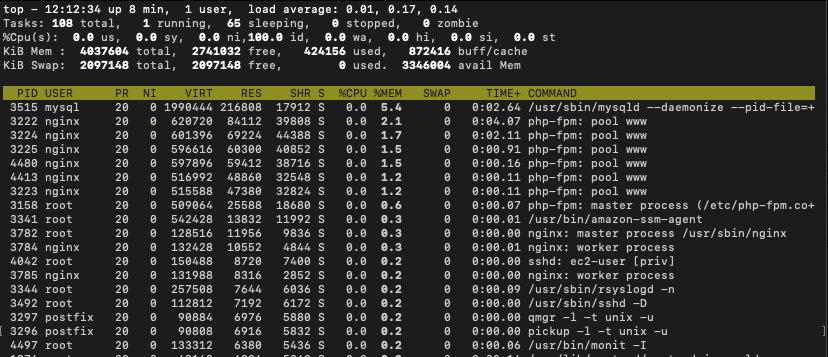
If the screen color settings you selected earlier are saved, you've succeeded
Furthermore, let's bold processes with a status of RUNNING, and also bold the field we're currently sorting by
Pressing the x key will make the field you are sorting bold, and pressing y will also make processes with a status of RUNNING bold
It's a little hard to see in the Mac terminal, but can you see that the sorting field (%CPU) and the status (S) of the process with RUNNING (R) status (in this case, the top command) are highlighted in bold?
Change the sort order
I think the `top` command has become much easier to use by now.
In our daily operations, we often need to investigate the cause of alerts that occur on our customers' servers, so we frequently want to sort not only by the default CPU usage but also by memory usage and SWAP usage.
In such cases, you can move the sort field left or right by pressing "shift+<" or "shift+>"
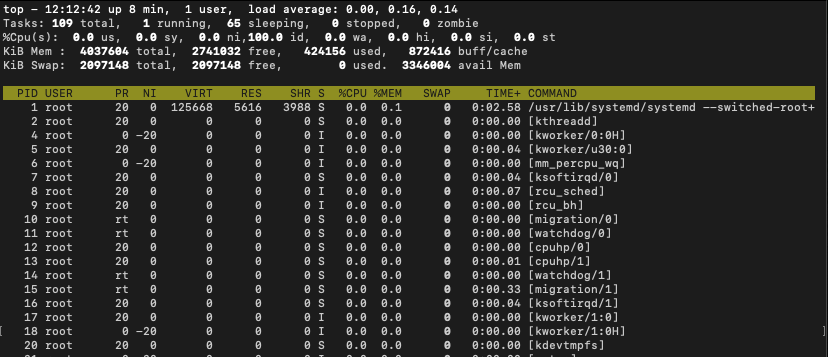
It's a little hard to see, but I tried changing the sort order to %CPU → %MEM → SWAP using shift+>
. There are also shortcuts like shift+p (sort by %CPU) and shift+m (sort by %MEM).
Save your settings (this is the most important part)
Finally, let's save the settings we've made so far.
We've changed various display settings, but if you exit the top command now, the next time you run the top command, it will revert to its original state.
It's a hassle to repeat these steps every time,
If you want to save the current display state, press "shift+w"
The current settings are saved in a file called .toprc in the home directory of the user running the top command
By the way, some of the explanations so far are specific to the top command in Red Hat 7-based systems (CentOS 7, Amazon Linux 2).
You may need to perform slightly different operations with the top command on other operating systems, but you can do almost the same thing, so
if you have any requests for how to do it on other operating systems (though I doubt there will be any), I'll be happy to answer them.
This will definitely make responding to monitoring alerts from tomorrow onwards much easier!
Or maybe it's just us who think that, but we hope this article will be of some help to someone out of nowhere.




The person who wrote this article
About the author









