[TypeScript] Example of using Google Maps API with ionic2 [Android/iOS]
table of contents
Hello, this is Goto from the web team
This is an example of using the Google Maps API within Ionic 2. There is plenty of information available in English, but I think this might be helpful for people who find reading English difficult
This article may be helpful for getting started with ionic2
Learning how to use Ionic with The Ionic Book by @tyoshikawa1106 on @Qiita
http://qiita.com/tyoshikawa1106/items/cec9e893cb7449ba9ce7
Starting Angular 2 + Ionic 2 by @creativewebjp on @Qiita
http://qiita.com/creativewebjp/items/6986f97f8843e0157691
Installing the Plugin
We will use a plugin called "Google Maps plugin for Cordova" . By using this plugin, you will not need to write separate code for Android and iOS. Also, because it uses the native Google Maps SDK rather than the Google Maps JavaScript API, it can reduce data usage and display maps quickly.
$ ionic plugin add cordova-plugin-googlemaps
*From now on, I will omit the code that I have already written
View the map
Here's how to use it:
Place a `div` element where you want to display the map, then
call `new GoogleMap('ID of the `div` you placed');`.
*Note: The sample code on the official website has a 's' at the end (`GoogleMaps`), which is a trap. That class doesn't exist!
import {Component} from '@angular/core'; import {GoogleMap, GoogleMapsEvent} from 'ionic-native'; @Component({ selector: 'map-canvas', template: '<div id="map_canvas" style="height: 100%; width: 100%;"></div> ' }) export class MapComponent { private map: GoogleMap; constructor() { console.log("map component constructor"); this.map = new GoogleMap('map_canvas'); } }
Determine the display position
Once the map is displayed, we'll now decide on the display location.
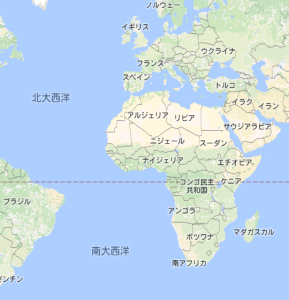
The initial display position is set to a magnification that shows a world map at 0 degrees latitude and longitude.
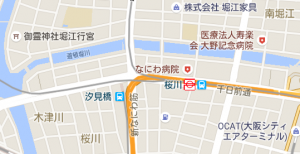
Let's determine the map's center position and magnification.
//Import GoogleMapsLatLng. import {GoogleMap, GoogleMapsEvent, GoogleMapsLatLng} from 'ionic-native'; export class MapPage { constructor() { this.map = new GoogleMap('map_canvas'); GoogleMap.isAvailable().then(() => { this.map.one(GoogleMapsEvent.MAP_READY).then(() => { //Create a coordinate object with GoogleMapsLatLng. let myPosition = new GoogleMapsLatLng('34.6687443', '135.4876302'); //Set the center coordinate with GoogleMap.setCenter. this.map.setCenter(myPosition); //Set the magnification with GoogleMap.setZoom. The larger the number, the narrower the area displayed. this.map.setZoom(15); }); }); } }
* The then method that receives a Promise
.then((/* Promise */) => { /** ...process... **/ });
Promise.prototype.then()
https://developer.mozilla.org/ja/docs/Web/JavaScript/Reference/Global_Objects/Promise/then
Arrow functions
https://developer.mozilla.org/ja/docs/Web/JavaScript/Reference/arrow_functions
Place a marker
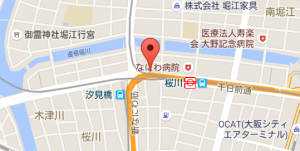
Place a marker
//New import GoogleMapsMarkerOptions, GoogleMapsMarker. import {GoogleMapsMarker, GoogleMapsMarkerOptions} from 'ionic-native'; export class MapComponent { private marker: GoogleMapsMarker; //Declare a variable to hold the value constructor() { GoogleMap.isAvailable().then(() => { this.map.one(GoogleMapsEvent.MAP_READY).then(() => { let myPosition = new GoogleMapsLatLng('34.6687443', '135.4876302'); this.map.setCenter(myPosition); this.map.setZoom(15); //Place the marker. this.map.addMarker({ position: myPosition //Specify latitude and longitude using GoogleMapsLatLng type. }).then((marker)=>{ this.marker = marker; //Store in this.marker }); }); }); } }
Allows you to move markers by dragging them
The reason we stored the marker in this.marker when placing it is so that we can manipulate it later like this
//Set the option to be draggable this.marker.setDraggable(true);
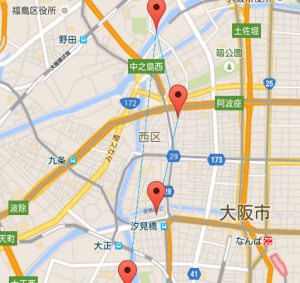
Connect markers with lines
//New import of GoogleMapsPolyline. import {GoogleMapsPolyline} from 'ionic-native'; export class MapComponent { private positions: Array<GoogleMapsLatLng> ; //Declare the type of variable that will hold multiple positions private markers: Array<GoogleMapsMarker> ; //Declare the type of variable that holds multiple markers private poly_lines: Array<GoogleMapsPolyline> ; //Declare a variable type to hold multiple lines //Initialize multiple positions this.positions = [ new GoogleMapsLatLng('34.669', '135.485'), new GoogleMapsLatLng('34.68', '135.488'), new GoogleMapsLatLng('34.69', '135.485'), new GoogleMapsLatLng('34.66', '135.481'), ]; this.markers = Array(); //Initialize an array to hold markers this.poly_lines = Array(); //Initialize an array to hold lines this.map.one(GoogleMapsEvent.MAP_READY).then(() => { //Place a marker on a position this.positions.forEach((position) => { this.map.addMarker({ position: position }).then((marker) => { this.markers.push(marker); //Keep the placed marker }); }); //Place lines between positions this.positions.forEach((position, index, positions) => { this.map.addPolyline({ if (index != 0) { points: [positions[index], positions[index-1]], //Start and end points of the line color: '#00A8E8', //Line color width: 1 //Line thickness } }).then((poly_line) => { this.poly_lines.push(poly_line); //Keep the placed line }); }); } }
Place a circle
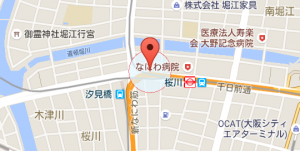
//Newly import GoogleMapsCircle. import {GoogleMapsCircle} from 'ionic-native'; export class MapComponent { private circle: GoogleMapsCircle; //Declare the type of the variable that will hold the circle this.map.one(GoogleMapsEvent.MAP_READY).then(() => { //Place the circle let circle_position = new GoogleMapsLatLng('34.6687443', '135.4876302'); this.map.addCircle({ center: circle_position, //Set the center coordinate of the circle radius: 100, //Set the radius of the circle (in meters) strokeColor: '#f53d3d', //Set the color of the line around the circle strokeWidth: 1, //Set the thickness of the line around the circle fillColor: '#E6F7FF' //Set the color of the inside of the circle }).then((circle) => { this.circle = circle; //Keep the placed circle }); } }
others
I might write about this again, but if you want to do something other than these, you should read {project}/node_modules/ionic-native/dist/plugins/googlemaps.d.ts
There are a variety of methods like this
/** * Get the visible region */ getVisibleRegion(): Promise<VisibleRegion> ; showDialog(): void; closeDialog(): void; getLicenseInfo(): Promise<string> setCenter(latLng: GoogleMapsLatLng): void; setZoom(zoomLevel: number): void; setMapTypeId(typeId: string): void; setTilt(tiltLevel: number): void; animateCamera(cameraPosition: CameraPosition): void; moveCamera(cameraPosition: CameraPosition): void; setMyLocationEnabled(enabled: boolean): void; setIndoorEnabled(enabled: boolean): void; setTrafficEnabled(enabled: boolean): void; setCompassEnabled(enabled: boolean): void; setAllGesturesEnabled(enabled: boolean): void; addMarker(options: GoogleMapsMarkerOptions): Promise<GoogleMapsMarker> ; addCircle(options: GoogleMapsCircleOptions): Promise<GoogleMapsCircle> ; addPolygon(options: GoogleMapsPolygonOptions): Promise<GoogleMapsPolygon> ; addPolyline(options: GoogleMapsPolylineOptions): Promise<GoogleMapsPolyline> ; addTileOverlay(options: GoogleMapsTileOverlayOptions): Promise<GoogleMapsTileOverlay> ; addGroundOverlay(options: GoogleMapsGroundOverlayOptions): Promise<GoogleMapsGroundOverlay> ; addKmlOverlay(options: GoogleMapsKmlOverlayOptions): Promise<GoogleMapsKmlOverlay> setDiv(domNode: HTMLElement): void; setVisible(visible: boolean): void; setOptions(options: any): void; setBackgroundColor(backgroundColor: string): void; setPadding(top?: number, right?: number, bottom?: number, left?: number): void; clear(): void; refreshLayout(): void; fromLatLngToPoint(latLng: GoogleMapsLatLng, point: any): Promise<any> ; fromPointToLatLng(point: any, latLng: GoogleMapsLatLng): Promise<GoogleMapsLatLng> toDataURL(): Promise<any> ; remove(): void; panBy(): void;
The option definitions are below these, so if you take a look at them you'll probably get the hang of using them!!
That's it!!
 0
0 Loading...0



The person who wrote this article
About the author