

I tried delivering a static site using AWS S3
2016.08.23





My name is Teraoka and I am an infrastructure engineer
AWS offers a storage service called S3, but it
be used not only for general storage
but also to host static content as a website.
This time,
we'll try serving a static site using S3's web hosting feature without using EC2.
It might seem difficult at first glance, but it's actually relatively easy to set up, so please give it a try!
■ Try it out
When you place files in S3, you need a container called a bucket.
According to Google Translate, it means "bucket" in Japanese.
First, we'll create a new bucket in S3 to put static content into.
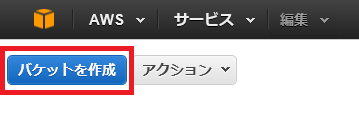
From the AWS Management Console, select S3 and click Create Bucket in the upper left corner of the screen
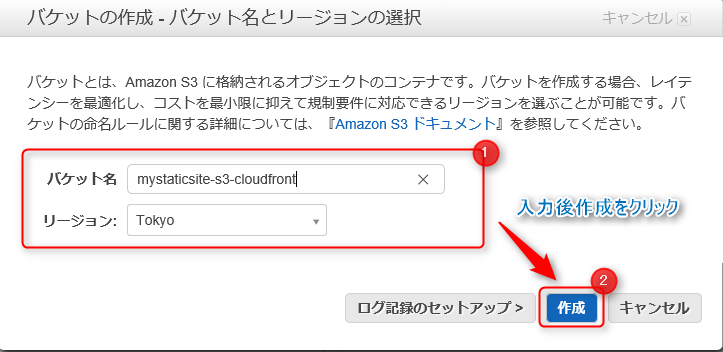
Enter a name for the new bucket you want to create and select a region.
Then click Create.
If you look at the bucket list, you should see the bucket you created added!

Next, we will add settings to use the bucket we created as a host for a static site
Click the magnifying glass icon to the left of the bucket name, and the properties will appear on the right side of the screen.
From there, select "Enable website hosting" under "Static website hosting"!
The S3 endpoint will be displayed on this screen, and since you will eventually access this from your browser, it's a good idea to make a note of it
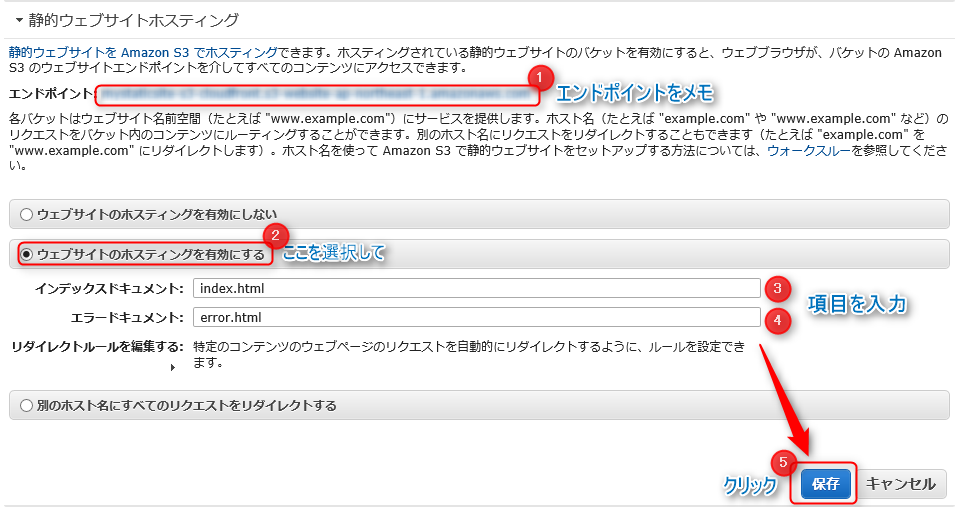
You should now see two input fields, so let me explain them in detail
| Input items | detail |
|---|---|
| Index Document | Enter the page you want users to access first when they visit your site. It's a good idea to specify the top page |
| Error Document | Specify the page to be displayed when a 404 error occurs |
Once you're done, click Save!
The settings have now been saved, but the site is still inaccessible.
To make the content you've placed in S3 publicly available on the internet,
you need to allow all users to perform the S3 "GetObjects operation".
In short, you don't currently have permission to view the site.
To allow the "GetObjects operation," you need to change something called the S3 bucket policy.
Under Bucket Properties, select Permissions and click Add Bucket Policy
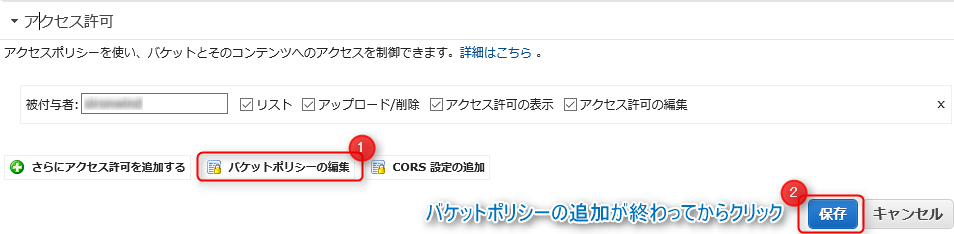
The Bucket Policy Editor will appear
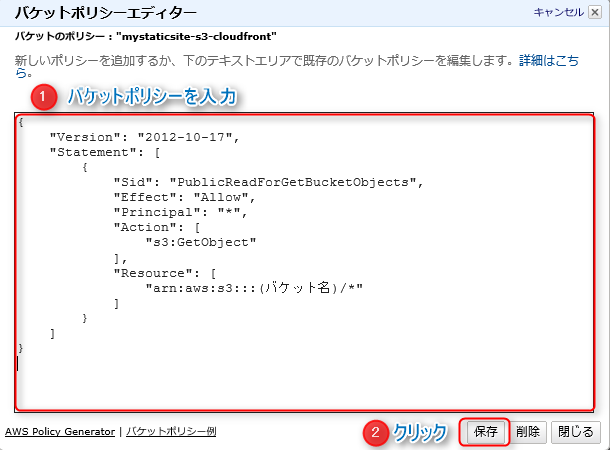
Enter the following:
{ "Version": "2012-10-17", "Statement": [ { "Sid": "PublicReadForGetBucketObjects", "Effect": "Allow", "Principal": "*", "Action": [ "s3:GetObject" ], "Resource": [ "arn:aws:s3:::(bucket name)/*" ] } ] }
To summarise the settings..
| Setting items | detail |
|---|---|
| "Principal" | Enter the users to whom you want to allow or deny access to the resource. In this case, * means all users |
| "Action" | Specify the operation you want to grant permission for. Since we want to grant permission for the GetObject operation, we enter s3:GetObject |
| "Resource" | Specify the bucket to which you want to grant permissions |
Once you've finished entering the bucket policy, click Save!
That completes the S3 setup!
Finally, upload some content and check how it displays!
Click on the bucket name you created in the list.
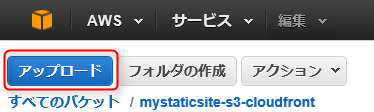
Click "Upload" in the upper left corner of the screen to upload your HTML file, etc.
A file and folder selection screen will appear, so
add your content by clicking "Add File".
Clicking "Start Upload" will actually upload the content to S3.
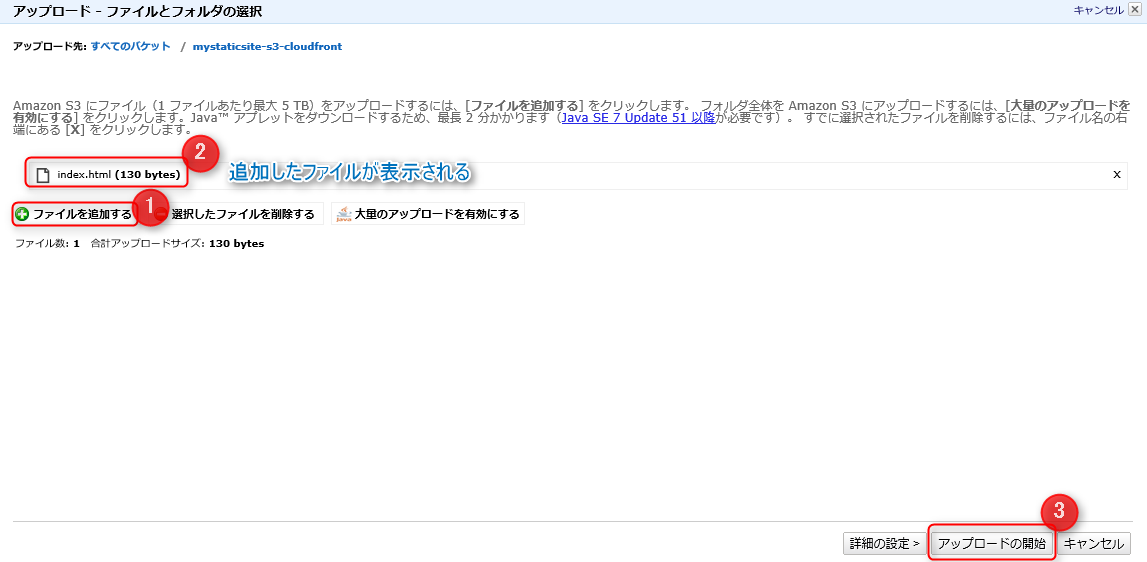
It's been uploaded!

Try accessing the S3 endpoint you noted down.
The site should appear!

What did you think?
It's so convenient that you can deliver a website with just this much effort, without even building a server!
Next time, I'd like to write about how to deliver content by integrating with CloudFront.
That's all for now, thank you.
The person who wrote this article
About the author









