

Disable "Prepare Document for Reading" in Adobe Acrobat Reader DC

The most widely used tool for viewing PDFs is probably "Adobe Acrobat Reader DC." (
PDF Reader, PDF Viewer | Adobe Acrobat Reader DC)
I myself have been using Acrobat Reader since version 5, back when it was still numbered. Back then, people
complained a lot about it being "slow and sluggish."
I don't really notice it as much these days, but the startup time has become extremely slow.
This is because the "text-to-speech" function automatically activates when the computer starts up.
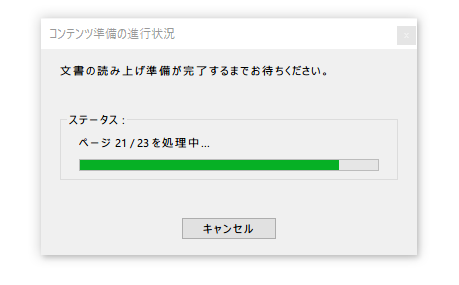
Since this is an accessibility feature, it is completely unnecessary for those who do not need it
Here's how to disable that feature
Disable files used for accessibility
By disabling the function used for accessibility, the "read-aloud function" will be disabled at startup
First, go to the following directory (for 32-bit, it will be "Program Files")
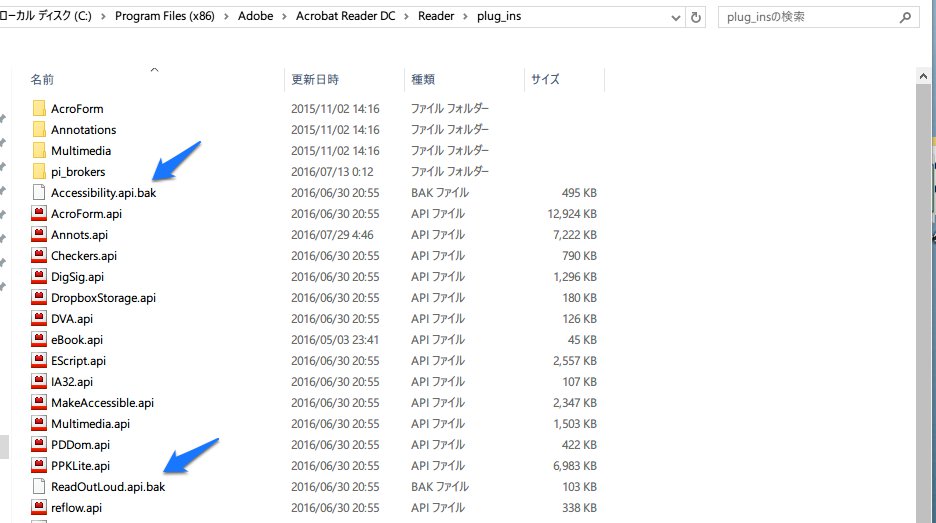
C:\Program Files (x86)\Adobe\Acrobat Reader DC\Reader\plug_ins
Rename the following two files.
Add ".bak" to the end of the file extension to disable the target API files.
Accessibility.api → Accessibility.api.bak ReadOutLoud.api → ReadOutLoud.api.bak
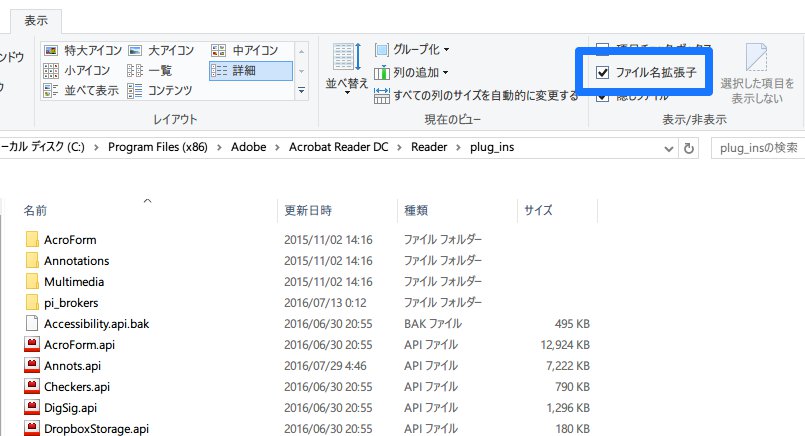
If the file extensions are not displayed, go to "View" in File Explorer and check "File name extensions."
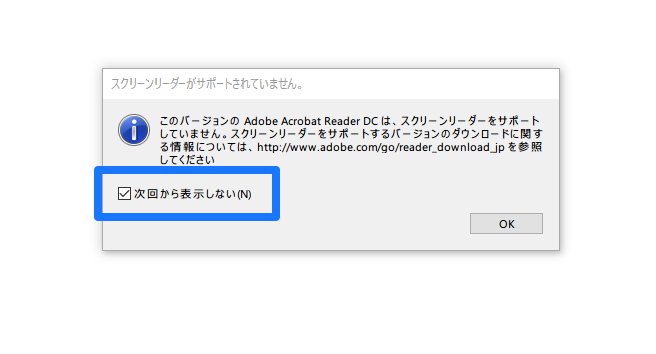
If you open the PDF file again now, a warning will appear, but this is because we disabled it earlier by changing its name.
If you check "Don't show this again," it will no longer appear from the next time you open the file.
Now your PDF files open faster!




The person who wrote this article
About the author









