

[WordPress] Display related articles in conjunction with CPT UI! YARPP Modification Notes

Hello.
I'm Mandai, the Wild team member in charge of development.
Have you noticed that related articles are now being displayed on Beyond Inc.'s technical blog?
As the number of articles has increased, linking to related articles is an excellent way to increase site engagement, and I think it's a common technique.
Our company website is entirely managed with WordPress, and we
initially tried implementing SimilarPosts with multiple categories, but it didn't work as expected, possibly due to incompatibility with CPT UI.
In this article, we will take a look at the YARPP settings one by one to make use of the CPT UI settings and retrieve related articles as desired
First, install
We will proceed under the assumption that CPT IU has been pre-installed and that multiple categories have been registered
Next, you'll need to install YARPP. Again, you can easily find it by searching for "YARPP" in the plugins section of the WordPress admin panel.
There was a warning that the latest version hadn't been tested with the latest WordPress version, but it ultimately worked without any problems, so you don't need to worry too much about it.
Register the category you want to publish related articles in on YARPP
This is the key part of the configuration, but since there is no setting area on the configuration screen, we will modify the source code
First, display the list of custom post types you have registered in the CPT UI under "Registered Types/Taxes" in the side menu of the admin panel
Information for each Post Type will be displayed, so find the "Get code" link in the category you want to display (blog in our case) and click it
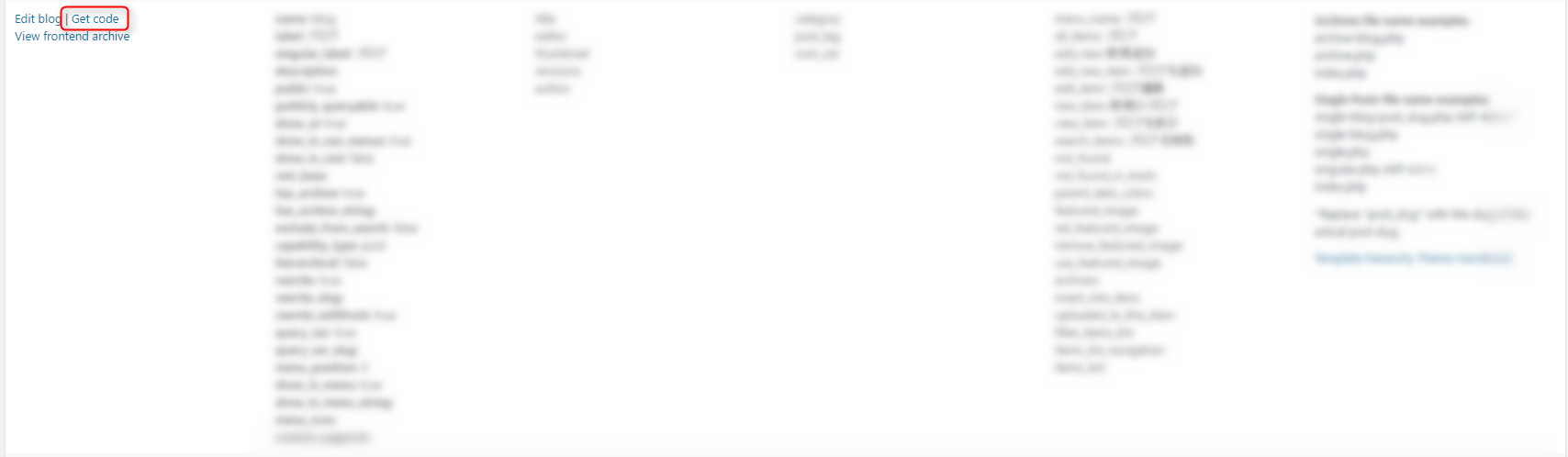
The link will display code to copy and paste into functions.php, so copy it
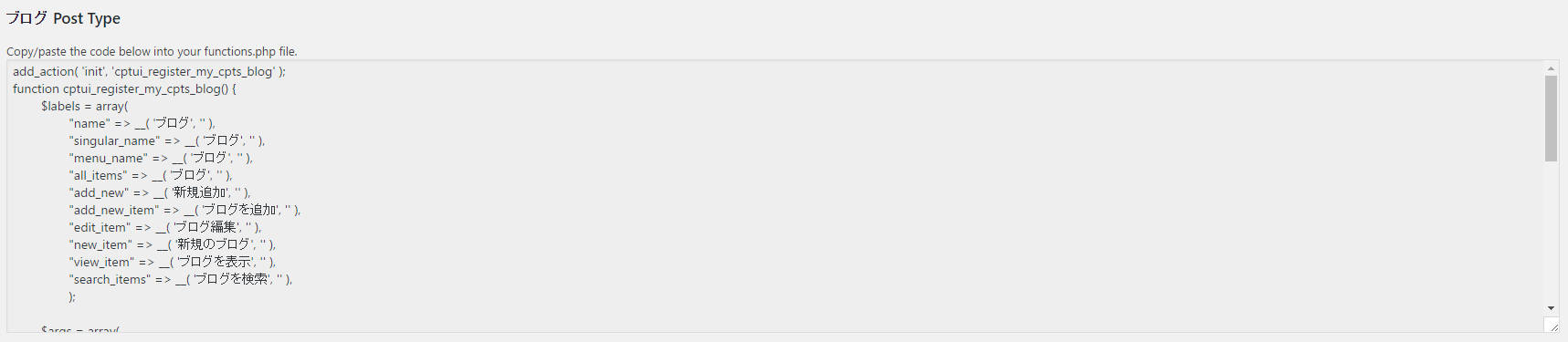
The code prepared for the blog is as follows:
add_action( 'init', 'cptui_register_my_cpts_blog' ); function cptui_register_my_cpts_blog() { $labels = array( "name" => __( 'Blog', '' ), "singular_name" => __( 'Blog', '' ), "menu_name" => __( 'Blog', '' ), "all_items" => __( 'Blog', '' ), "add_new" => __( 'Add New', '' ), "add_new_item" => __( 'Add Blog', '' ), "edit_item" => __( 'Edit Blog', '' ), "new_item" => __( 'New Blog', '' ), "view_item" => __( 'View Blog', '' ), "search_items" => __( 'Search blog', '' ), ); $args = array( "label" => __( 'Blog', '' ), "labels" => $labels, "description" => "", "public" => true, "publicly_queryable" => true, "show_ui" => true, "show_in_rest" => false, "rest_base" => "", "has_archive" => true, "show_in_menu" => true, "exclude_from_search" => false, "capability_type" => "post", "map_meta_cap" => true, "hierarchical" => false, "rewrite" => array( "slug" => "blog", "with_front" => true ), "query_var" => true, "menu_position" => 5, "supports" => array( "title", "editor", "thumbnail", "revisions", "author" ), "taxonomies" => array( "category", "post_tag", "com_cat" ), ); register_post_type( "blog", $args ); // End of cptui_register_my_cpts_blog() }
Now, go to "Theme Editor" under Appearance and paste the code we just created into functions.php.
It seems you can paste it anywhere, so we'll paste it at the very end.
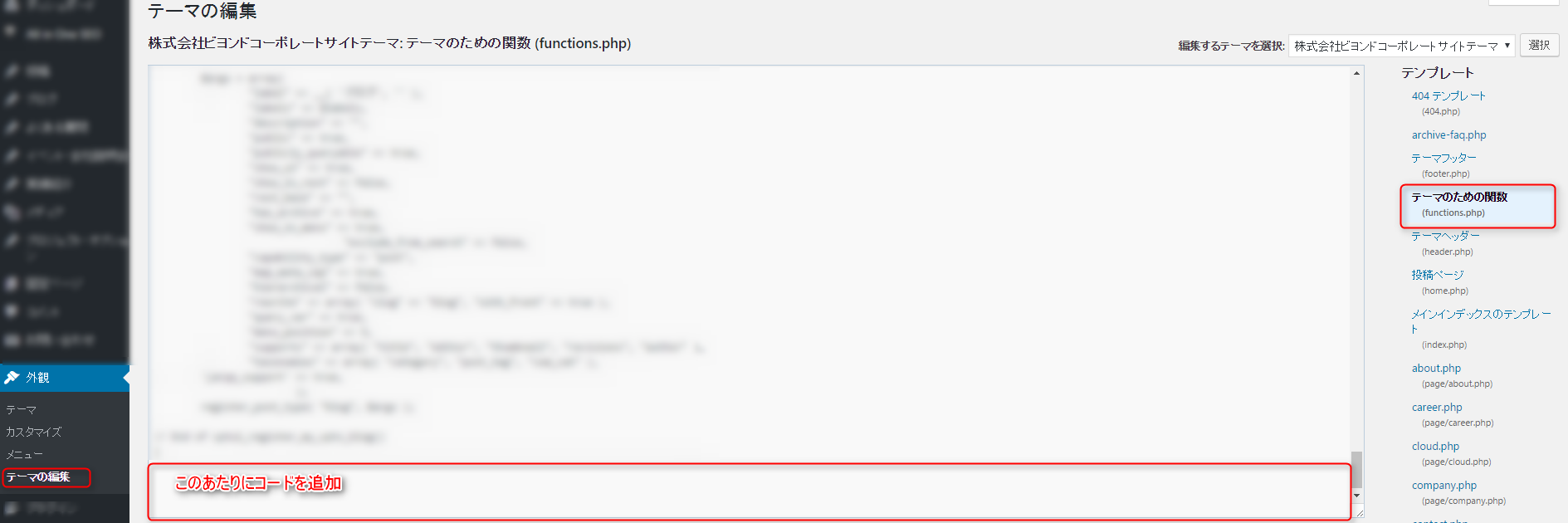
After pasting and saving, the registered blog will appear as a setting item in the YARPP settings screen, so
please check it.
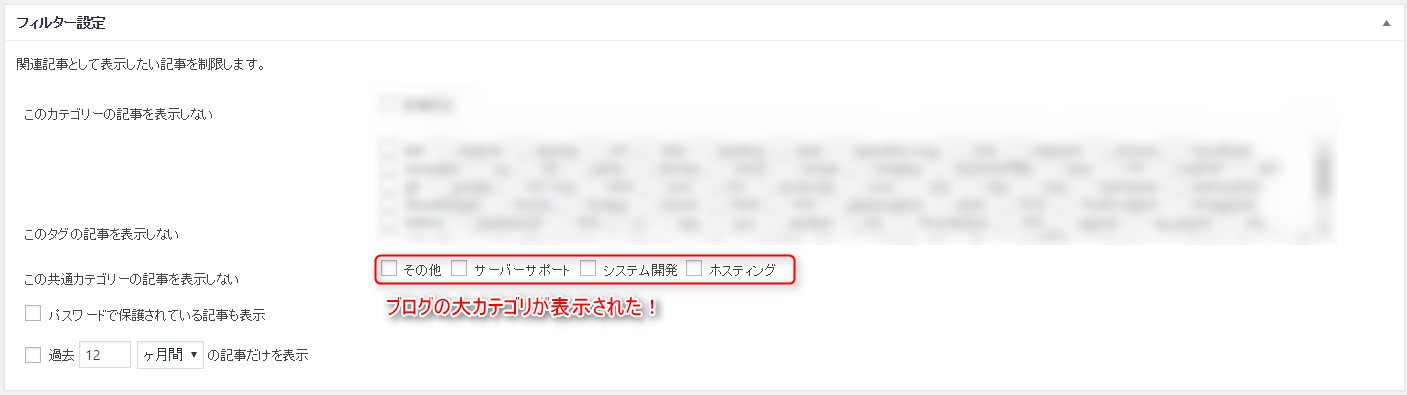
At this point, related articles were displayed on each blog, so the setup was mostly complete, but
there were some parts where the existing layout was broken, so we will fix those as well.
Where's the CSS?
The YARPP-related files are stored under “path/to/wp-content/plugins/yet-another-related-posts-plugin” (where path/to is the absolute path to wp-content)
Since I didn't intend to make any major changes, I decided to
simply remove the "yarpp-related" class from the div tag that largely encloses the section where related articles are displayed, and leave the rest to the existing CSS
This part is located in a file called YARPP_Core.php.
In the plugin editor, select "Yet Another Related Posted Plugin," then find YARPP_Core.php on the left and click it.
In the version I modified (4.3.1), I simply deleted the string on line 1105
If you search for yarpp-related, it will come up right away
$output .= "
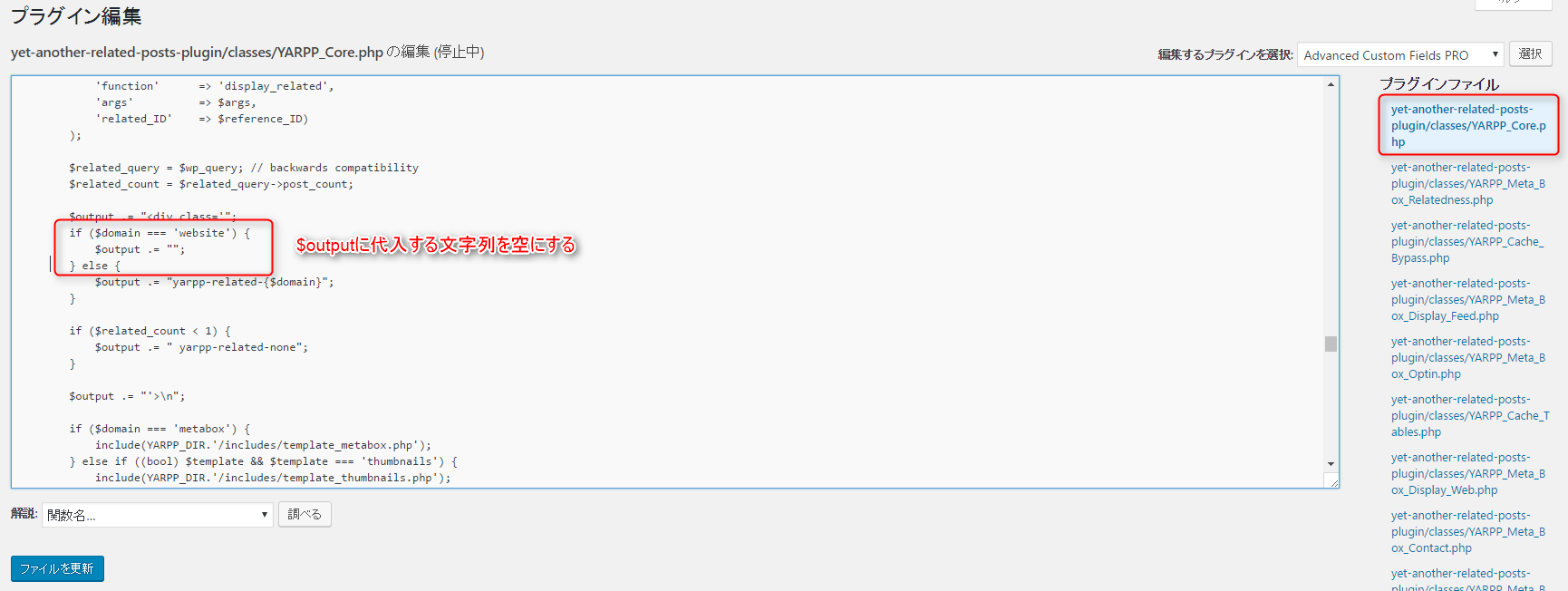
This will prevent the CSS related to yarpp from being applied, so a design that matches the layout of the site will be applied
Once you have finished setting up the articles and categories to be associated, the setup is complete
I want to turn off the score display for associations
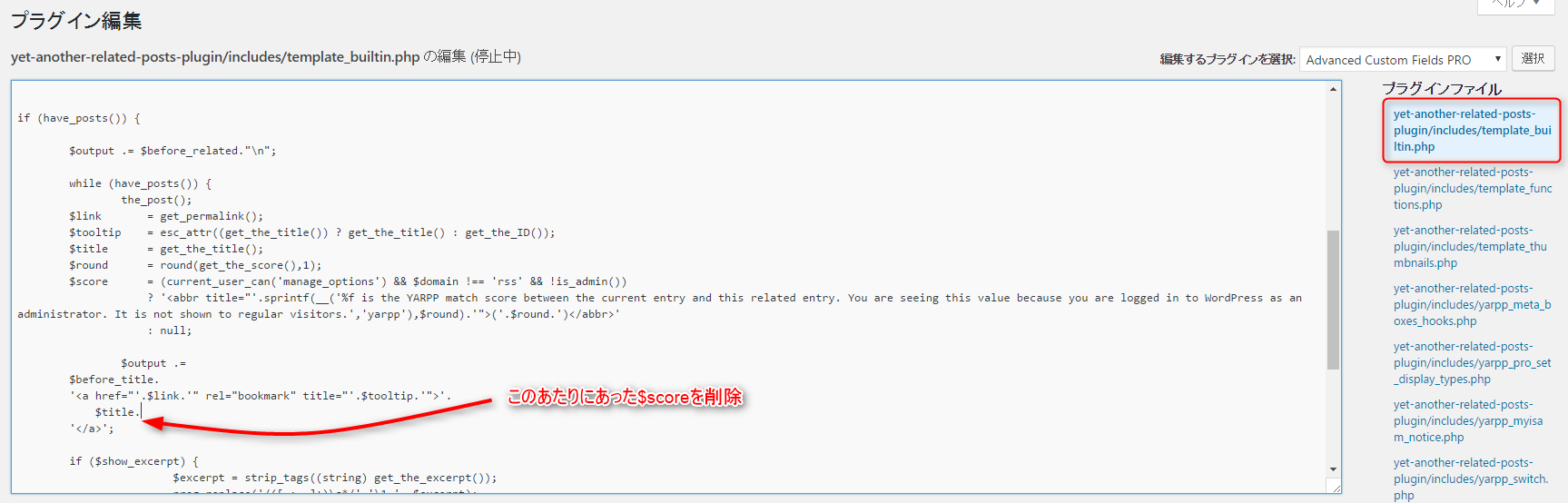
I felt that the association score information wasn't necessary, so I deleted it.
The processing for this is written in the file "yet-another-related-posts-plugin/includes/template_builtin.php", so I think you can just delete or comment out the relevant section.
That's all




The person who wrote this article
About the author









