

Fetching Google Analytics data using Node.js (without OAuth authentication)
Hello.
I'm Mandai, the Wild team member in charge of development.
In addition to my regular work, I also (occasionally) work for the web marketing team, which is made up of people from across the company, and my main job is to look at Google Analytics data and say, "Is it going up? Is it going down?"
I'm using Node.js to retrieve data from Google Analytics via the API and analyze it in a similar way, but even creating a basic program is a lot of work, so I'd like to share a sample program with you
I haven't written the main text yet, but I feel like I'll be devoting more space to settings related to Google accounts than to the program
Google account settings
Create a project
Create a project from https://console.developers.google.com
Alternatively, if you have an existing project and that's acceptable, that's fine too.
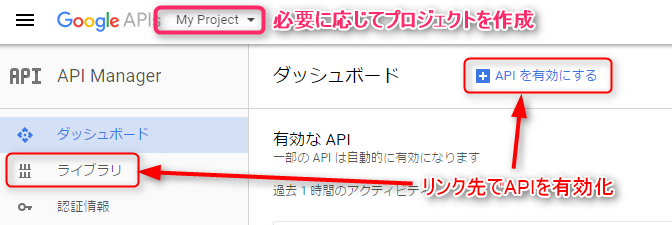
Enable Google APIs
Enable the Google Analytics Reporting API from the "Library" section of "API Manager".
However, there is no link on this page, so you will need to search for it by typing "analytics reporting" or similar into the search bar.

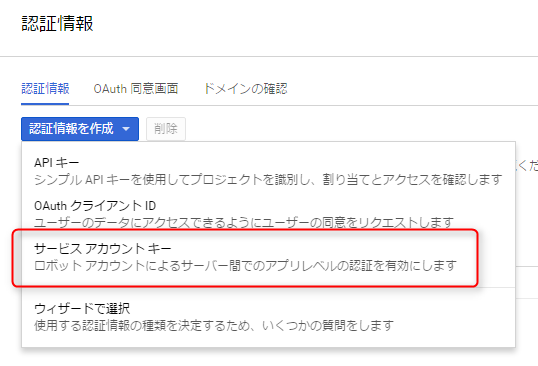
Create a service account key from your credentials
Once you have enabled the API, create credentials by clicking the "Credentials" link on the left
The type of credential you will create is a "service account key."
Give the service account a suitable name and set its role to "Project Viewer."
(Actually, I'm not very confident about these settings, so if there's a better way to configure the roles, please let me know!)
The "Key Type" will be created in JSON format.
You will download a JSON file containing authentication information; please keep it safe.
You will need this later.

Register the service account key you created on the Google Analytics side
I thought I was all set after creating a service account with access to a project with the Google Analytics Reporting API enabled, but there was one more step I needed to configure
You must go to the admin panel from https://analytics.google.com and register the "service account key" in the user management section of the view from which you want to collect data
Here's a question
Is it necessary to register a service account key even if the user who created it has access to the view?
The answer is of course yes
I think the Google account permission structure is broken, but at least from Google Analytics, it seems that the service account key is recognized as belonging to a different user than the user who created it
Therefore, we will register the service account key again with the permission "View and Analyze"
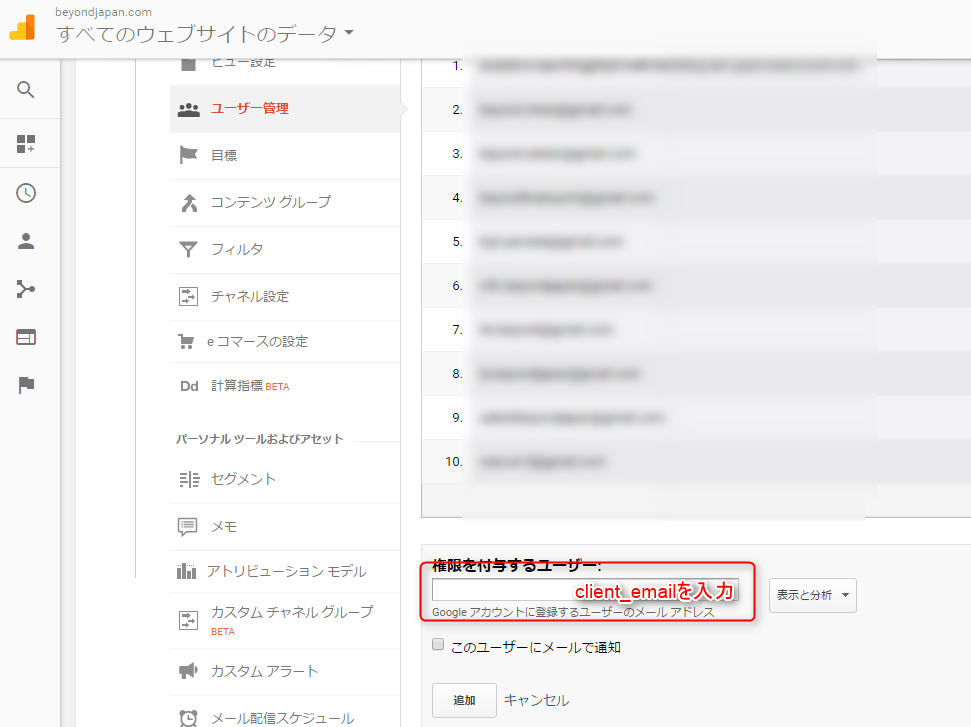
You will need an email address to register, but the JSON file for the service account key you downloaded earlier contains a key called "client_email", so that value will be your email address
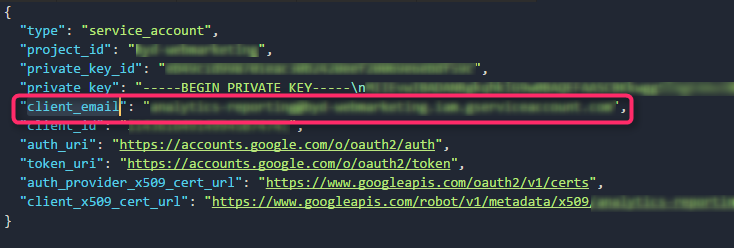
Since you've already opened the Google Analytics screen, take a moment to note down the ID of the view you want to retrieve data from
This completes the Google Analytics setup
Node.js configuration
Install the googleapis package from npm.
As the name suggests, it's a package made by Google to access the Google API.
npm install googleapis
If you just want to communicate with the Google Analytics Reporting API, no other packages are required
Get the data
It's not a sauce that's worth exaggerating, so please take a look at it first
var google = require('googleapis'); var analytics = google.analyticsreporting('v4'); // Specify the JSON file of the service account key var credential = require('./xxxxxxxx.json'); // Specify the Google Analytics view ID you want to retrieve data from var viewId = 'XXXXXXXXX'; // Target data period var startDate = "xxxx-xx-xx"; var endDate = "xxxx-xx-xx"; var jwtClient = new google.auth.JWT(credential.client_email, null, credential.private_key, ["https://www.googleapis.com/auth/analytics.readonly"], null); jwtClient.authorize((error, tokens) => { if (error){ console.log(error); return; } analytics.reports.batchGet({ resource: { "reportRequests": [ { "dateRanges": [ { "startDate": startDate, "endDate": endDate } ], "viewId": viewId, "dimensions": [ { "name": "ga:pagePath" } ] } ] }, auth: jwtClient }, (error, response) => { if (error){ console.log(error); } console.log(response); }) });
There are four changes required for testing:
- Path to the service account key JSON file
- View ID
- Start date of the target data period
- End date of the target data period
By simply changing the above, the number of accesses for the target period will be aggregated for each URL and data will be obtained
As I expected, the source isn't that great, but they did spend a lot of space on the settings related to Google accounts
That's all




The person who wrote this article
About the author









