

Let's connect GCP to our home network (RTX1200) via VPN
2019.11.20




Hello everyone.
I'm Hirata from the Operations Management Section of the Systems Solutions Department.
In my previous blog post, I introduced how to connect AWS to your local VPN, so
this time I will explain how to connect GCP to your home network (RTX1200) via VPN.
The content was presented at an internal study session, so the slides are uploaded below
https://www.slideshare.net/BeyondCorporation/20191017-byd-lthirata-194555992
The main points I want to cover are mostly covered in the slides above, so
this blog post will mainly provide supplementary information.
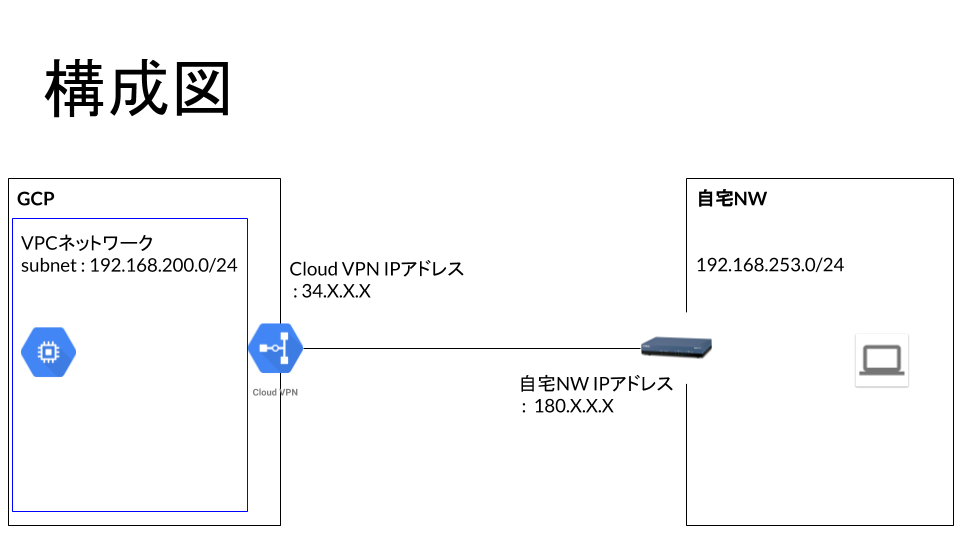
Configuration diagram
The configuration diagram is shown below
Configuring GCPs
The following four settings need to be configured on the GCP side:
• VPC network settings
• Instance settings
• Firewall settings
• Cloud VPN settings
We will not cover the configuration of VPC networks, instances, and firewalls as this is outside the scope of this blog
Configuring Cloud VPN
Follow the steps below to display the Cloud VPN settings in GCP
Hybrid connection -> VPN
If you have not set up a VPN before, entering this screen will start the VPN setup wizard
VPNsto choose from: "High Availability (HA) VPN" and "Traditional VPN."
The difference between the two is whether or not the VPN tunnel is redundant.
This time, we will configure it using "Traditional VPN."
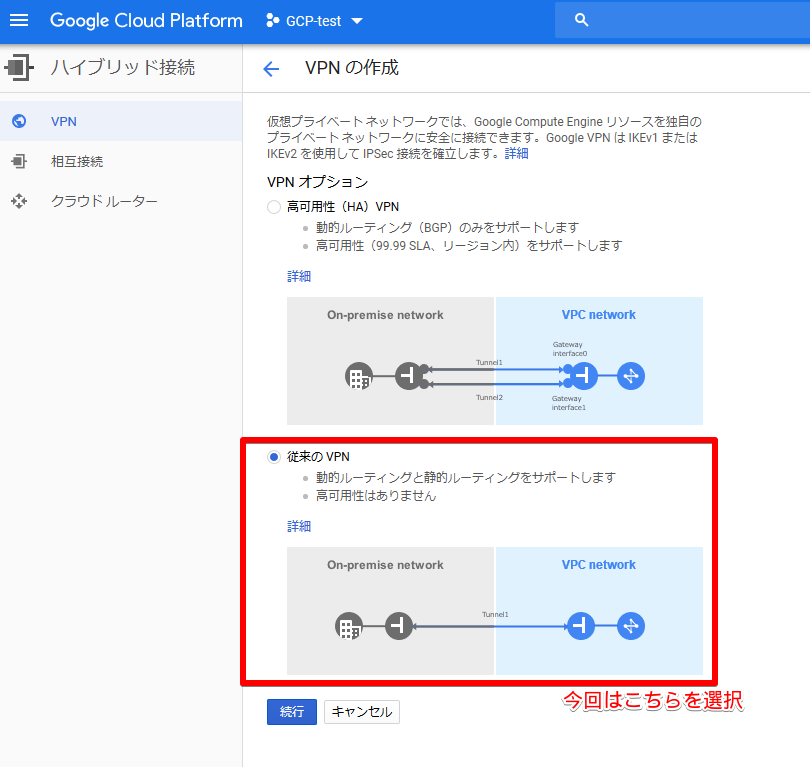
For the following settings, we have introduced the settings screen with images in the slides, but since they are difficult to see, we will also introduce the settings screen here
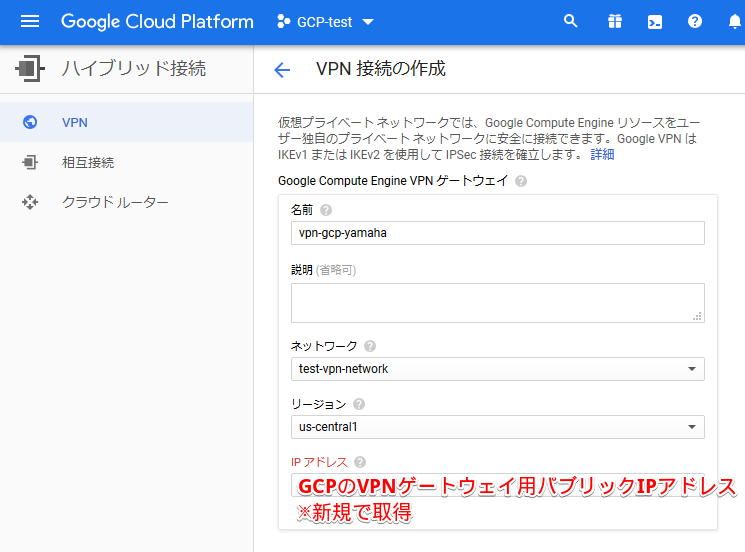
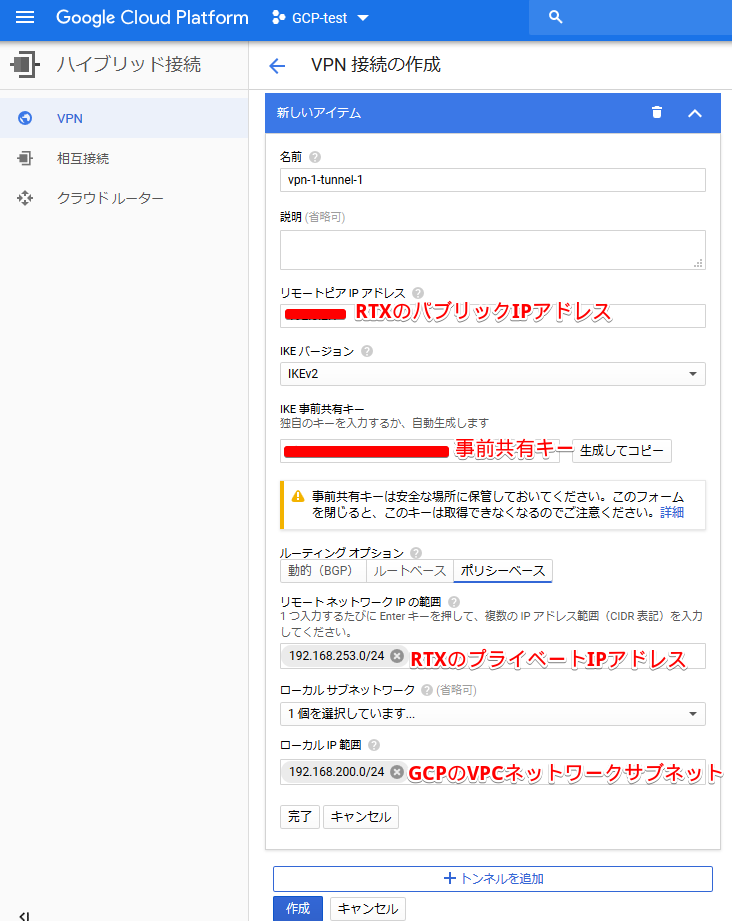
This completes the VPN settings on the cloud side
Router Configuration
The router configuration is shown below. The router is an RTX1200
[gcp-vpn-test]# show config login password * administrator password * console character ascii console prompt [gcp-vpn-test] login timer 1200 ip route default gateway pp 1 ip route (GCP VPC network) gateway tunnel 1 ip lan1 address (router's private IP address)/24 ip lan1 proxyarp on pp select 1 pp always-on on pppoe use lan2 pppoe auto disconnect off pp auth accept pap chap pp auth myname (ISP connection ID) (ISP connection password) ppp lcp mru on 1454 ppp ipcp ipaddress on ppp ipcp msext on ip pp mtu 1454 ip pp secure filter in 210000 ip pp secure filter out 201000 ip pp intrusion detection in on ip pp nat descriptor 1 pp enable 1 tunnel select 1 ipsec tunnel 1 ipsec sa policy 1 1 esp aes-cbc sha-hmac ipsec ike version 1 2 ipsec ike always-on 1 on ipsec ike encryption 1 aes-cbc ipsec ike group 1 modp1024 ipsec ike hash 1 sha ipsec ike keepalive log 1 off ipsec ike local address 1 (private IP address of router) ipsec ike local name 1 (public IP address of router) ipv4-addr ipsec ike nat-traversal 1 on ipsec ike pfs 1 on ipsec ike pre-shared-key 1 text (VPN private key passphrase) ipsec ike remote address 1 (public IP address reserved in GCP for VPN) ipsec ike remote name 1 (public IP address reserved in GCP for VPN) ipv4-addr ipsec auto refresh 1 on ip tunnel tcp mss limit auto tunnel enable 1 ip filter 201000 pass * * ip filter 210000 pass * * nat descriptor type 1 masquerade nat descriptor masquerade static 1 3 (router's private IP address) esp nat descriptor masquerade static 1 4 (router's private IP address) udp 500 ipsec use on ipsec auto refresh on dhcp service server dhcp server rfc2131 compliant except remain-silent dhcp scope 1 192.168.253.2-192.168.253.39/24 dns server 8.8.4.4 8.8.8.8 dns server pp 1 dns private address spoof on
Since we are using a router initialized for testing purposes, all filters are allowed. Please be careful when actually using it!
Important points to note when setting up RTX
There are some things to note when setting up RTX
These are the settings called "ipsec ike local address" and "ipsec ike local name"
that with "ipsec ike local address," you need to set the private IP address configured on the router's LAN, whereas
with "ipsec ike local name," you need to set the public IP address of the router.
The GCP settings, specifically "ipsec ike remote address" and "ipsec ike remote name,"
require you to configure both with the public IP address reserved for the VPN in GCP, which makes things a bit complicated.
However, other than that, the settings are standard, so as long as you keep this in mind, you should have little trouble with the RTX settings
confirmation
This completes the VPN setup
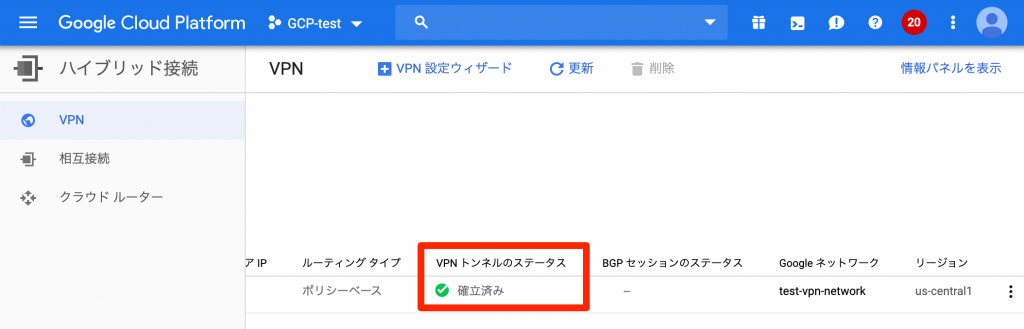
Once the VPN is established, the status will be displayed as "Established" on the GCP VPN screen
VPN Comparison between GCP and AWS
We will introduce the results of a comparison of VPN between GCP and AWS
| AWS | GCP | |
| Automatic router configuration generation function | can be | none |
| Cloud-side settings | many | few |
| Configuration and Routing | With HA: Dynamic (BGP), Static | With HA: Dynamic (BGP) Without HA: Dynamic (BGP), Static |
The configuration is described as having "HA enabled" and "no HA enabled,"
which refers to whether or not the VPN tunnel is redundant.
In AWS, VPNs are always configured with redundant VPN tunnels
To explain the distinctive features of each,
GCP has fewer cloud-side settings and they are all consolidated on a single screen, making configuration easy.
AWS has a feature that automatically generates router configurations,
which not only makes router setup easier, but also
has the advantage of making it easier to introduce to customers because AWS publishes the vendors it supports.
summary
Following on from the previous article on AWS, we introduced VPN connections on GCP
We hope to continue creating articles introducing how to connect the cloud services we handle to local networks via VPN, so please look forward to them!
The person who wrote this article
About the author









