

Introducing RainBow Query Language for CSV, a must-have extension for VSCode!

Hello.
I'm Mandai, the Wild team member in charge of development.
CSV and TSV are convenient for transferring data because they can be easily edited with a text editor, but their inconveniences become apparent when the file size gets large.
That's when I'd like to introduce Rainbow Query Language (RBQL), a fantastic VSCode extension that you should definitely try.
What kind of extension is it?
RBQL is generally introduced as a tool that makes CSV and TSV files easier to read in VS Code.
I was also one of those who initially tried it out based on that description.
First of all, the ease of viewing CSV files when you open them has changed dramatically, and as the name suggests, the color of the data changes for each column
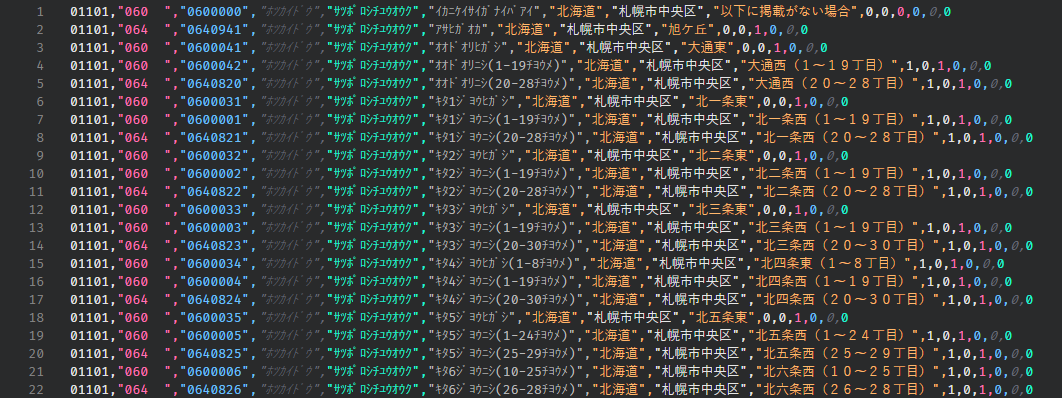
The despair you feel when you open data like this, where each line has a different data length, in a text editor...!
Just being freed from that seems like enough reason to install it.
But this is just the beginning
A wave of useful features 1: Select all specified columns in all rows
Now, let's move on to the editing function, which will select all data in the same column position across all records using multiple cursors.
Perhaps that's a bit too advanced for a sudden jump?
I think this is a function that should have a shortcut assigned to it, but unfortunately it is not assigned by default, so you will need to assign a shortcut that suits you best
As you would expect, even if the data length is different and the starting position of the column is off, or even if it is off by a lot, it will still be selected quickly without any problems
If you want to use this function, just type "edit select" in the command palette and select "Rainbow CSV: Column edit select"
Other similar features include
- A feature that sets the cursor to the beginning of each column instead of the selected state (Rainbow CSV: Column edit before)
- A feature that sets the cursor to the end of each column instead of the selected state (Rainbow CSV: Column edit after)
There are also similar features such as these.
You can choose the optimal feature for each situation, making data editing smarter than ever before.
Please note that this feature does not work for files with more than 1000 lines
A wave of useful features 2: When you place the cursor over the column, the number of columns and headers are displayed in a tooltip
"Which data point is this again...? 1...2...3..."
"Are you free right now?"
"Yes, I'm free (but I've lost track)."
Has this ever happened to you?
With RBQL, you no longer need to count columns!
Simply hover your mouse cursor over the data in the editor, and the number of columns and header information will be displayed instantly.
Regarding header information, the information on the first line is treated as the header, so for CSV files where the data section starts from the first line, only the data on the first line will be visible
A wave of useful features 3: Adjust column width to align vertical starting positions
A convenient function that adjusts the starting position of the data for each row, aligning the vertical starting position and making it easier to read
This feature might be useful when you want to view data in full screen.
However, since it modifies the data itself, you should ask for confirmation before closing it to ensure you want to save the changes.
If you want to use this function, search for "align" in the command palette and select "Rainbow CSV: Align CSV Columns."
Truly useful feature RBQL
We have introduced many useful features, but the truly useful feature is the SQL-like query engine called RBQL, which is also the name of the extension
If you type "RBQL" in the command palette, the command "Rainbow CSV: RBQL" will appear, so select it
This will launch another editor with a table and some input forms, like the one below
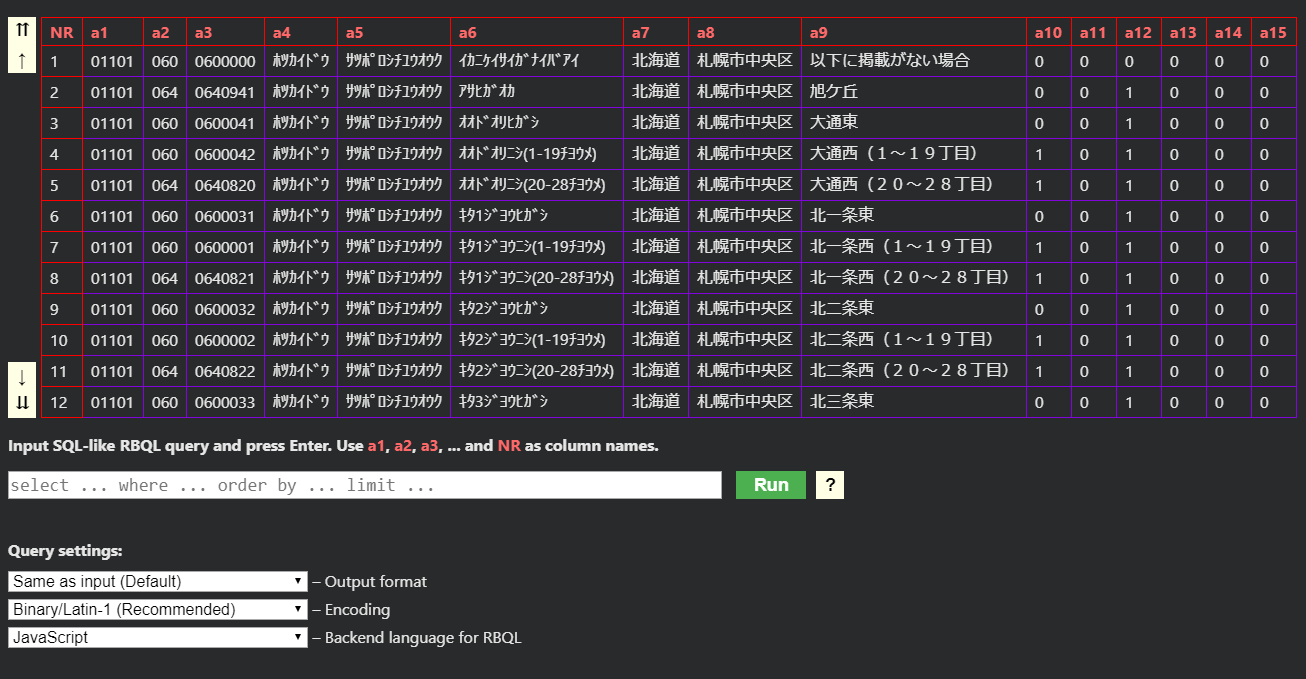
The table displayed at the top is a table of the CSV file generated by executing the RBQL command.
You can scroll the table using the arrow on the left, but unfortunately, you cannot scroll with the mouse wheel.
The input form below the table is the core of this screen, the form for entering queries
The CSV file used in this sample has 15 columns, so they are labeled with column names from a1 to a15, which correspond to the column names in SQL.
NR is the row number automatically generated by RBQL.
SELECT a1
This will open a new editor with only the first line of information extracted
SELECT a1, a2
This will display the CSV with the first and second lines extracted
At this point, anyone with a basic understanding of SQL should be fine.
You can even rearrange the order of values and concatenate strings using the "+" operator, so I think it opens up a wide range of potential uses.
Although we won't go into detail here, there is also a JOIN function that uses a separate CSV file, allowing for complex data combinations
The select box below the query input form is an option setting
- Select the format (csv/tsv) of the output information
- Character encoding in the query (select UTF-8 if you are using Japanese in your search)
- A programming language that executes RBQL
You will be able to select
The output format is particularly useful when combined with the "select *" query, as it makes it easy to convert between csv and tsv
Furthermore, since it supports not only SELECT but also UPDATE, you can edit data for rows narrowed down by the WHERE clause
summary
This time, we introduced RBQL, a great extension that makes CSV/TSV dramatically easier to use
I think this is a great extension that has a wide range of useful and convenient functions that can be used for a variety of purposes, whether you are just making small edits in the editor, checking data, or completely rewriting data
We have introduced several features, but there are actually many more that we have not covered, so we encourage you to install RBQL alongside VSCode
That's all




The person who wrote this article
About the author









