

[Radius] Testing Radius authentication via global (radtest)
2020.05.27





Hello, this is Nagatani from the Systems Development Department.
This time, I will introduce the procedure for verifying Radius authentication via the global network using the radtest command.
To be honest, the method itself is quite simple and not particularly complicated, but when I searched online, I could only find instructions for local verification...
Also, it is highly unlikely that Radius authentication can be completed locally, and I wanted to conduct testing in a manner close to actual operation, so I decided to introduce it here
What you need
- A local server with FreeRadius installed
- AWS server with FreeRadius and DaloRadius installed
Server 1 is solely for enabling the radtest command.
To use the radtest command, you need to have FreeRadius installed.
2 is the Radius server used for verification via the global network from the local server built in step 1.
Since we want to create a Radius account, let's install DaloRadius, which allows for account management.
In this example, we are building a server on AWS, but you can use other platforms, so please use the one you prefer. The basic steps are the same
The idea is that 1 is the Radius client and 2 is the Radius server
Building a local server with FreeRadius installed
The setup procedure is clearly explained on this website
Also, since the goal this time is to enable the radtest command, client and user settings are not necessary.
Building an AWS server with FreeRadius and DaloRadius installed
Launch an EC2 instance on AWS and install FreeRadius and DaloRadius.
are clearly explained on this website , so please refer to it
Registering a RADIUS account
Create a Radius account on the AWS server created above to verify Radius authentication
Log in to the DaloRadius admin page
Access the installed DaloRadius and log in.
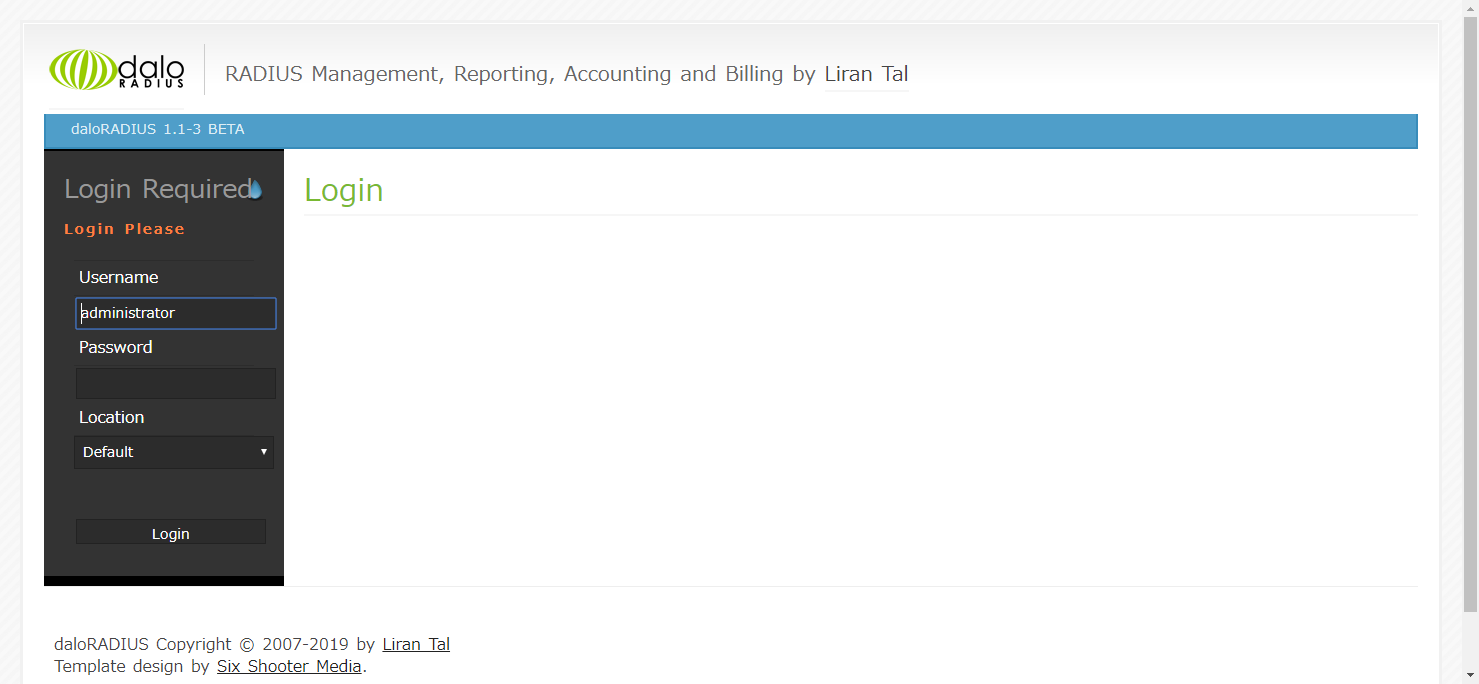
Unless you've changed any settings, you can log in with Username:administrator and Password:radius.
Create an account
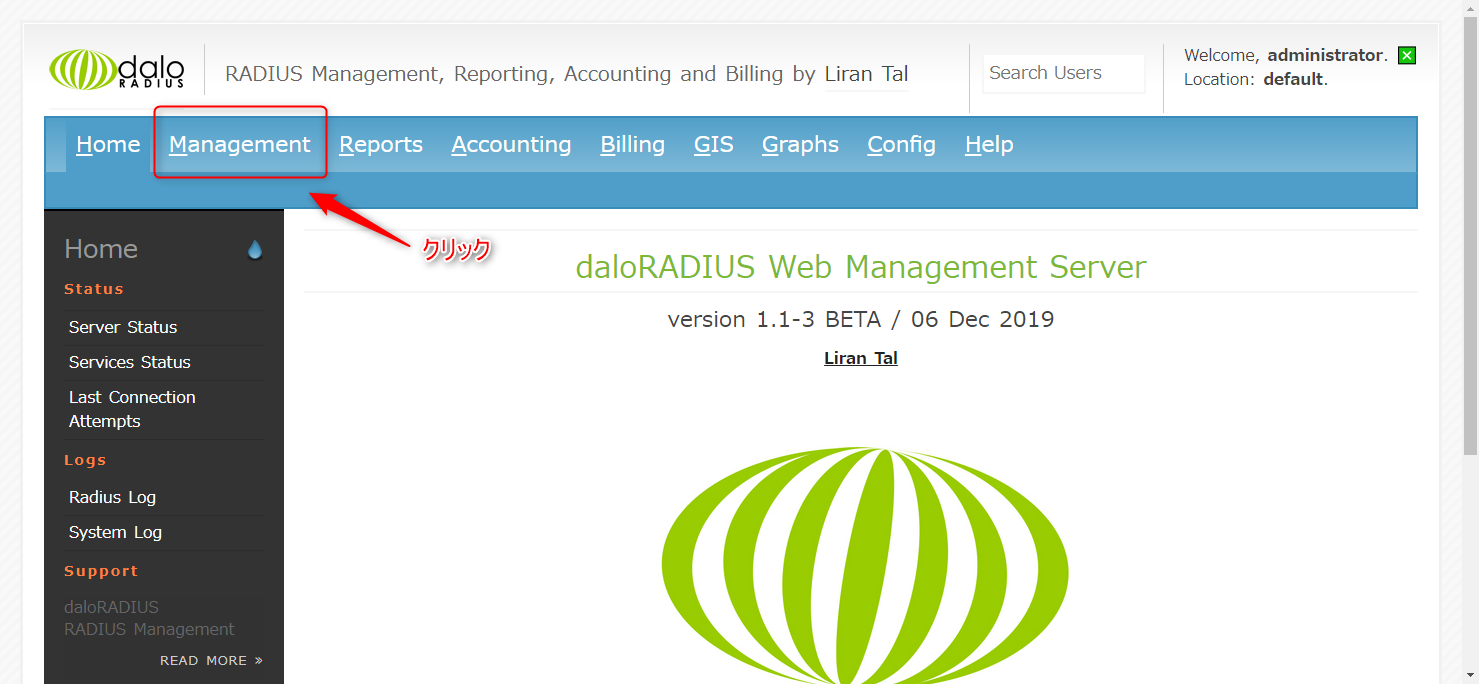
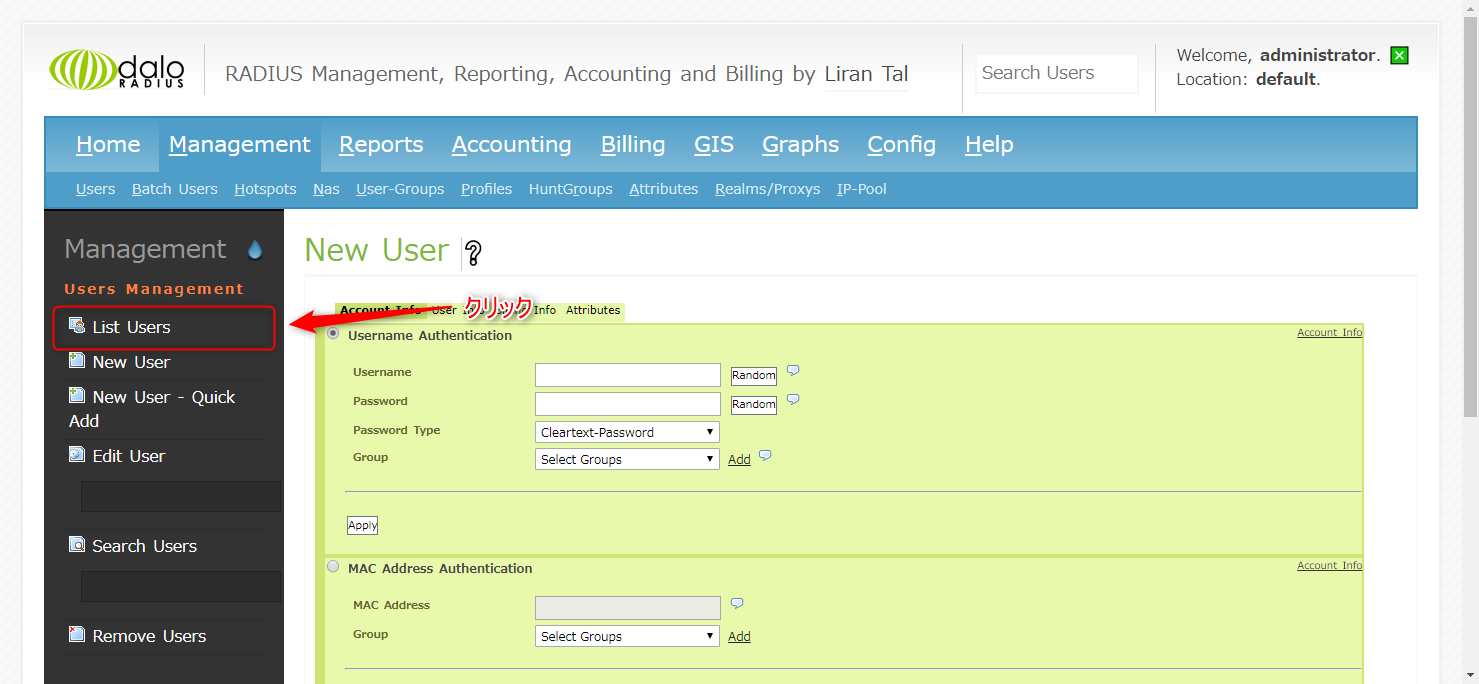
1. Select Management ⇒ New User
↓
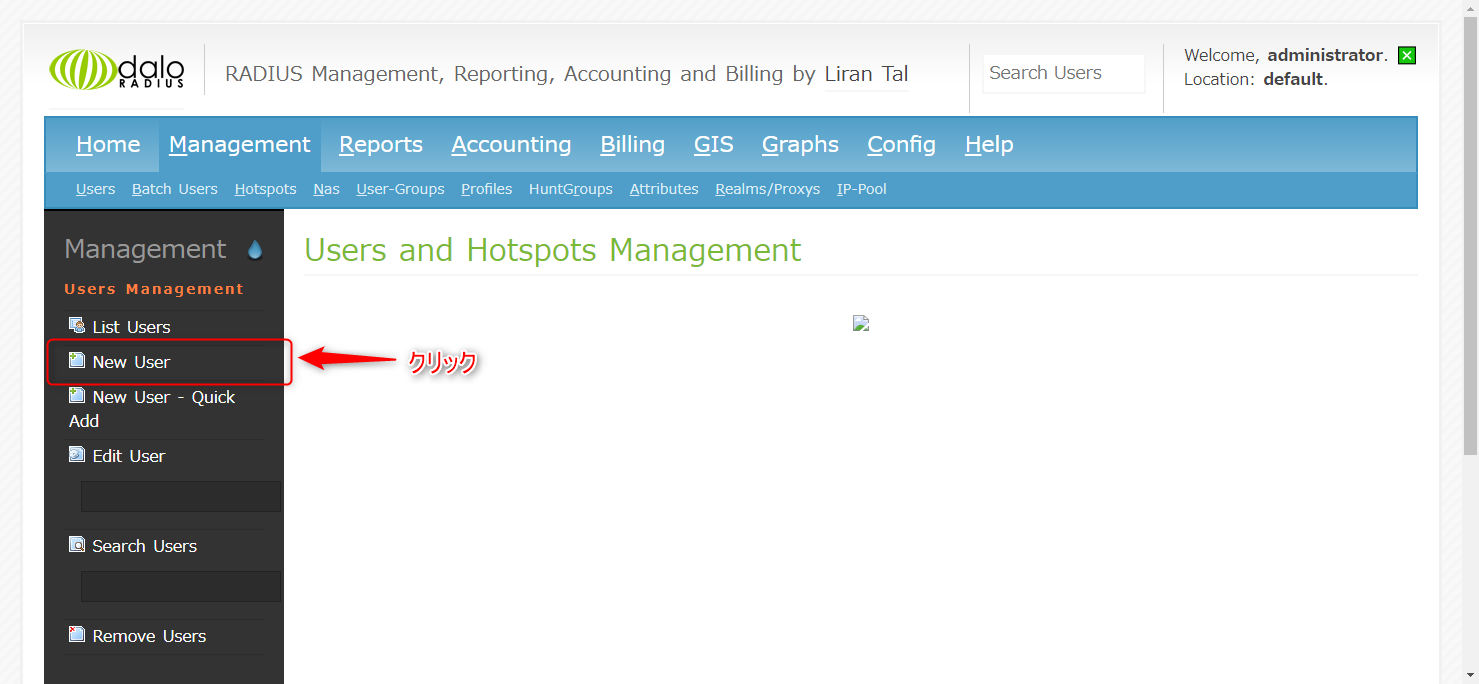
2. Enter your Username and password in Username Authentication and click Apply
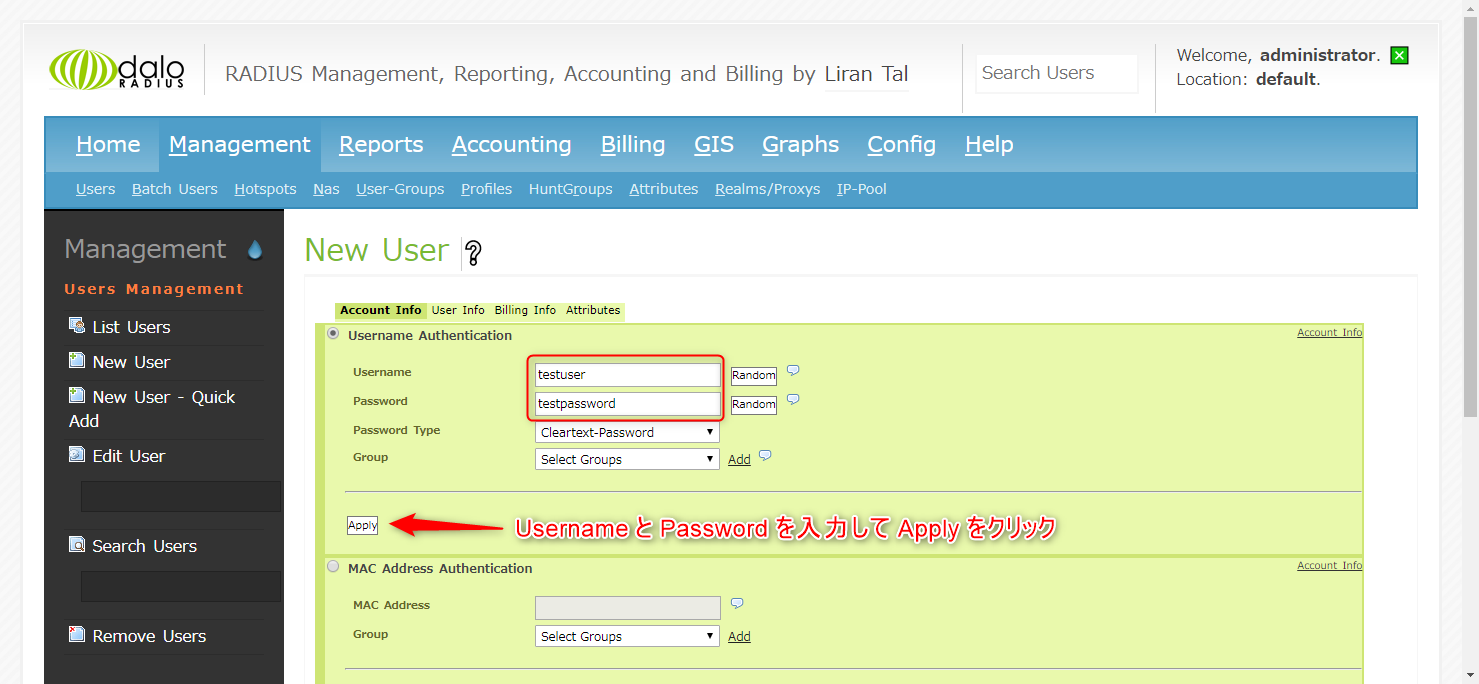
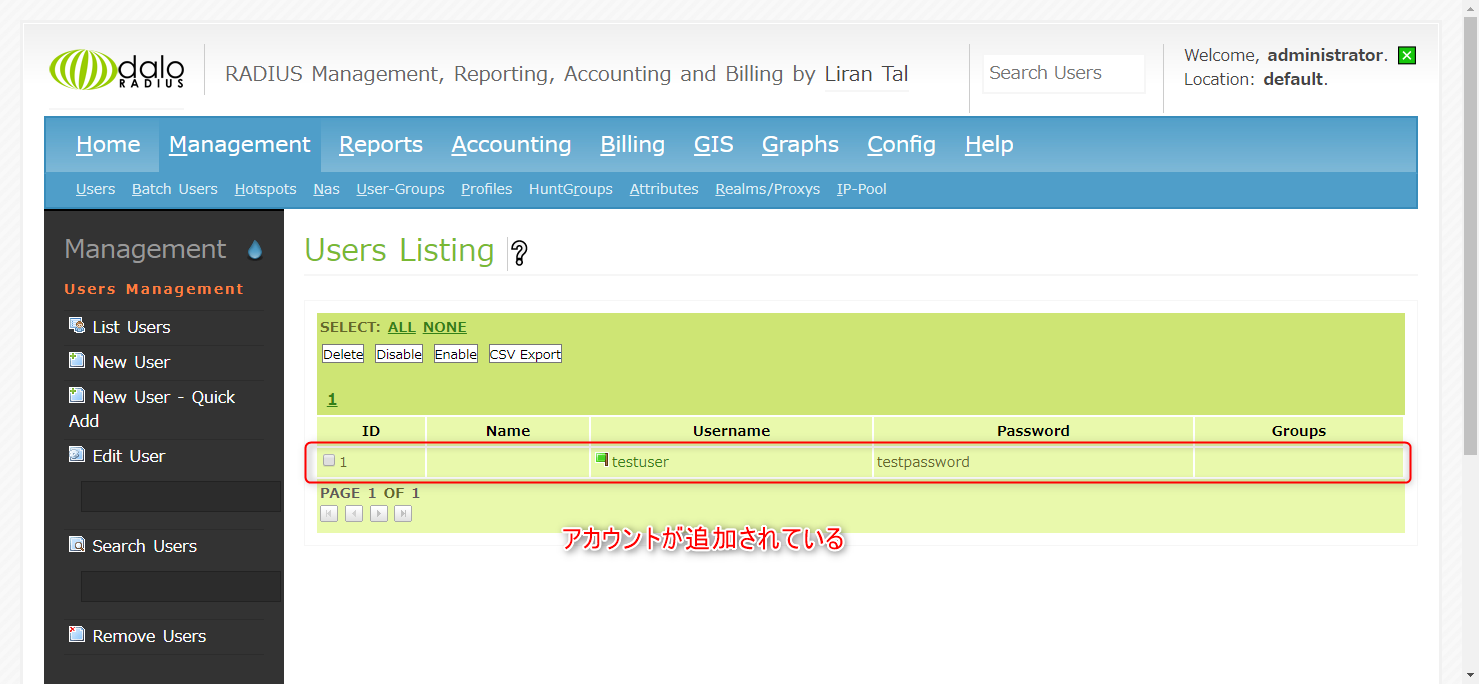
Your account has now been created. In this example, we created it with the usernames testuser and testpassword.
You can also view the created account in List Users.
↓
Change the client settings to allow authentication from the global IP address
Since we will be authenticating from a global client this time, add the following settings to clients.conf
client all { ipaddr = 0.0.0.0/0 secret = testing123 }
Authentication from all IP addresses is allowed in the 0.0.0.0/0 range.
Let's use testing123 as the secret key for now.
Restarting Radius will complete the process.
Radius authentication from local server to AWS server
Now that we're ready, let's actually perform Radius authentication from our local machine to the AWS server.
Run the following radtest command on your local server.
$ radtest testuser testpassword {AWS server IP} 1812 testing123
In terms of configuration,
radtest {username} {password} {AWS server IP} 1812 {secret key}
It will look something like this
If successful, Access-Accept will be returned as shown below
Sent Access-Request Id 43 from 0.0.0.0:48774 to {AWS server IP}:1812 length 78 User-Name = "testuser" User-Password = "testpassword" NAS-IP-Address = 127.0.0.1 NAS-Port = 1812 Message-Authenticator = 0x00 Cleartext-Password = "testpassword"
Now you have successfully authenticated via Radius globally
If Radius authentication fails
If there is no response when you run the above radtest and it times out as shown below
(0) No reply from server for ID 43 socket 3
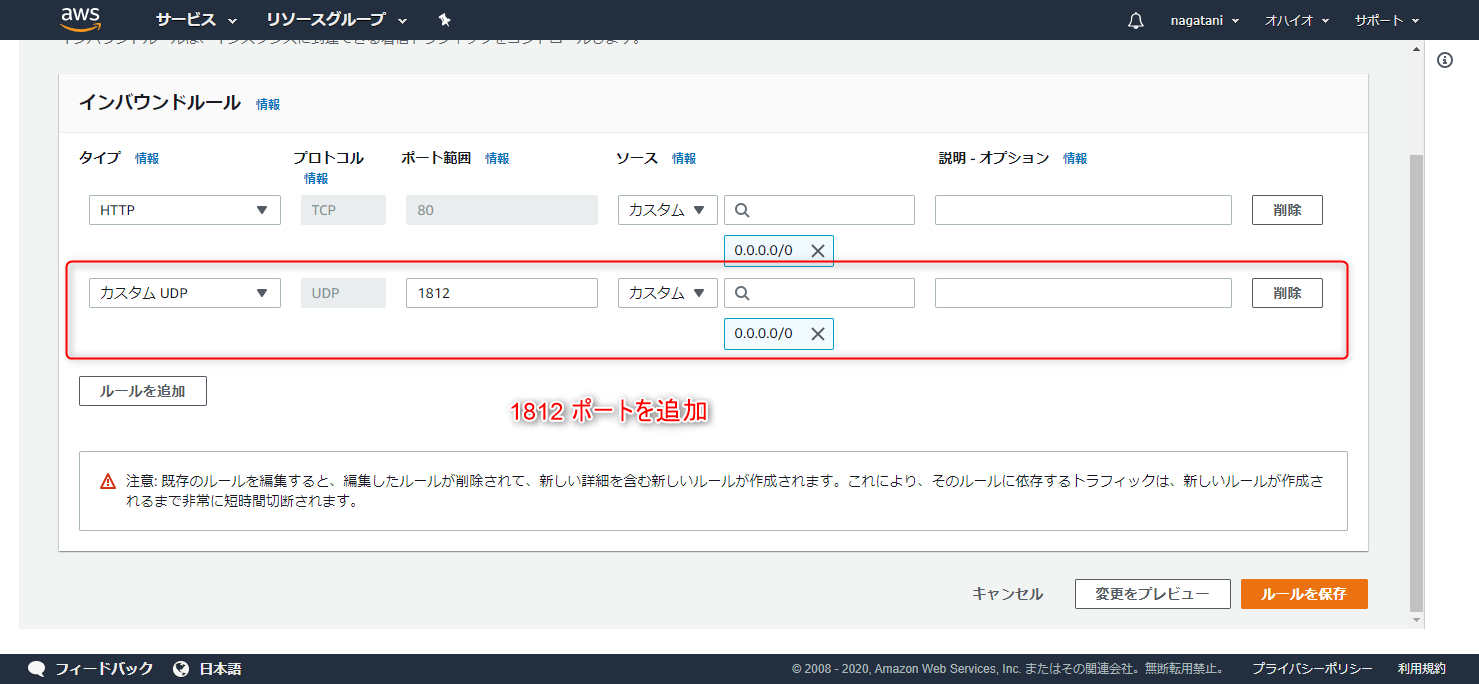
There may be access restrictions on port 1812 on the AWS server
Edit the inbound rules to add UDP on port 1812
summary
what did you think?
Well, it's basically the same as how you normally do it locally, so I don't think it was that difficult.
However, I didn't see this method mentioned anywhere, so I decided to share it this time.
I hope this is of some help to you
lastly
I have launched "SEKARAKU Lab," a service site for the system development company I belong to.
Beyond offers a one-stop service for everything from server design and construction to operation, so please feel free to contact us if you have any problems with server-side development.
SEKARAKU Lab:[https://sekarakulab.beyondjapan.com/](https://sekarakulab.beyondjapan.com/)
That concludes our presentation.
Thank you very much!
The person who wrote this article
About the author









