

Use docker commands easily with Makefile!


*Fukuryu Ramen Wadachi Main Branch (Honmachi, Osaka City)
Hello!
This is Hide, the Ramen King from Beyond Co., Ltd.'s Osaka office.
This is my first post, so I'm extremely nervous (sweat).
The inspiration for this article came from my job search.
During my job search, I was using Vagrant to create a development environment for my portfolio, but
my PC specs were poor...it was extremely slow...the environment was terrible.
I learned about the popular Docker through the internet and social media, and tried setting it up...but
what I realized then was..."Docker commands are seriously long and cumbersome..." (TДT)
It's such a shame because it runs so smoothly...
Adding various options makes the command over 20 characters long, and typing it all out every time is incredibly tedious.
Plus, with such a long command, typos are inevitable...it really doubles the frustration.
I'm sure many of you reading this have had a similar experience ( ・`ω・´)キリッ
So let's take a look at how you can run docker commands with just a few characters!
What is docker?

First of all, do you know what Docker is?
"That's the container technology thing!"
"The whale thing!" "
It operates very lightly, right?"
All of the above is correct
Docker refers to a platform that uses container-based virtualization technology
to run programs very quickly and efficiently.
That explanation alone might not be clear, so let's take a closer look!
The difference between hypervisor-based virtualization and container-based virtualization
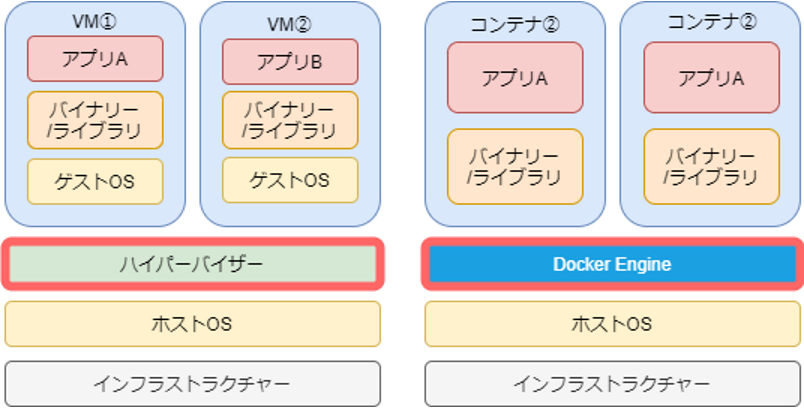
There are two virtualization technologies that are often compared when explaining Docker:
hypervisor-based virtualization and container-based virtualization. Docker uses the latter type of virtualization.
First, to explain the difference between the two, we need to understand hypervisors and the Docker Engine
hypervisor
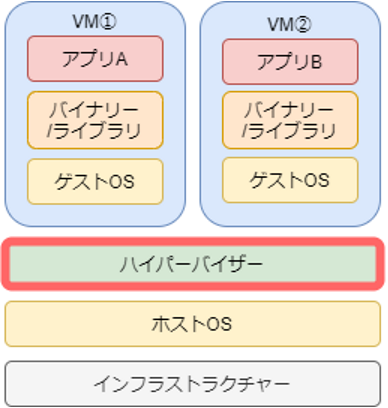
A hypervisor acts as an intermediary between the host OS and the VM (virtual machine),
emulating and controlling the hardware used by the VM, such as the CPU and memory.
This feature allows you to create multiple guest operating systems on the host OS,
resulting in a setup where the host OS and guest OS are isolated from each other.
However, using multiple operating systems means using multiple kernels, which
causes overhead, slows down processing, and makes it take longer to start and create VMs.
Docker Engine
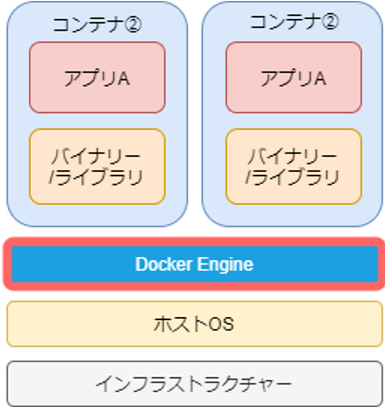
The Docker Engine controls the creation, startup, stopping, and deletion of Docker containers.
It becomes available after installing a resident Docker client such as Docker Desktop.
Unlike hypervisors, Docker Engine does not create a guest OS and
shares its kernel with the host OS, resulting in less overhead and extremely fast and lightweight operation.
While Docker seems to offer only advantages, one drawback is the extremely long command length.
Specifically, you might encounter commands like the following...
docker-compose exec db bash -c 'mysql -u root -psecret'
What is the Make tool?
This Make tool
frees us from having to type these long Docker commands ! Yay! \(`∇\)(/`∇)/ Yay!
How easy is it?...
docker-compose exec db bash -c 'mysql -u root -psecret'
This command
make mysql
You can run it with just this command ヽ(´∀`*)ノ
This make tool is originally
designed to easily build programs written in compiled programming languages such as C and C++.
However, as shown above, it can also be used to shorten commands!
Now, let's get started with the installation!
Install the Make tool
⚠If you are using a Mac, it is installed in the terminal by default, so please see if you are using Windows
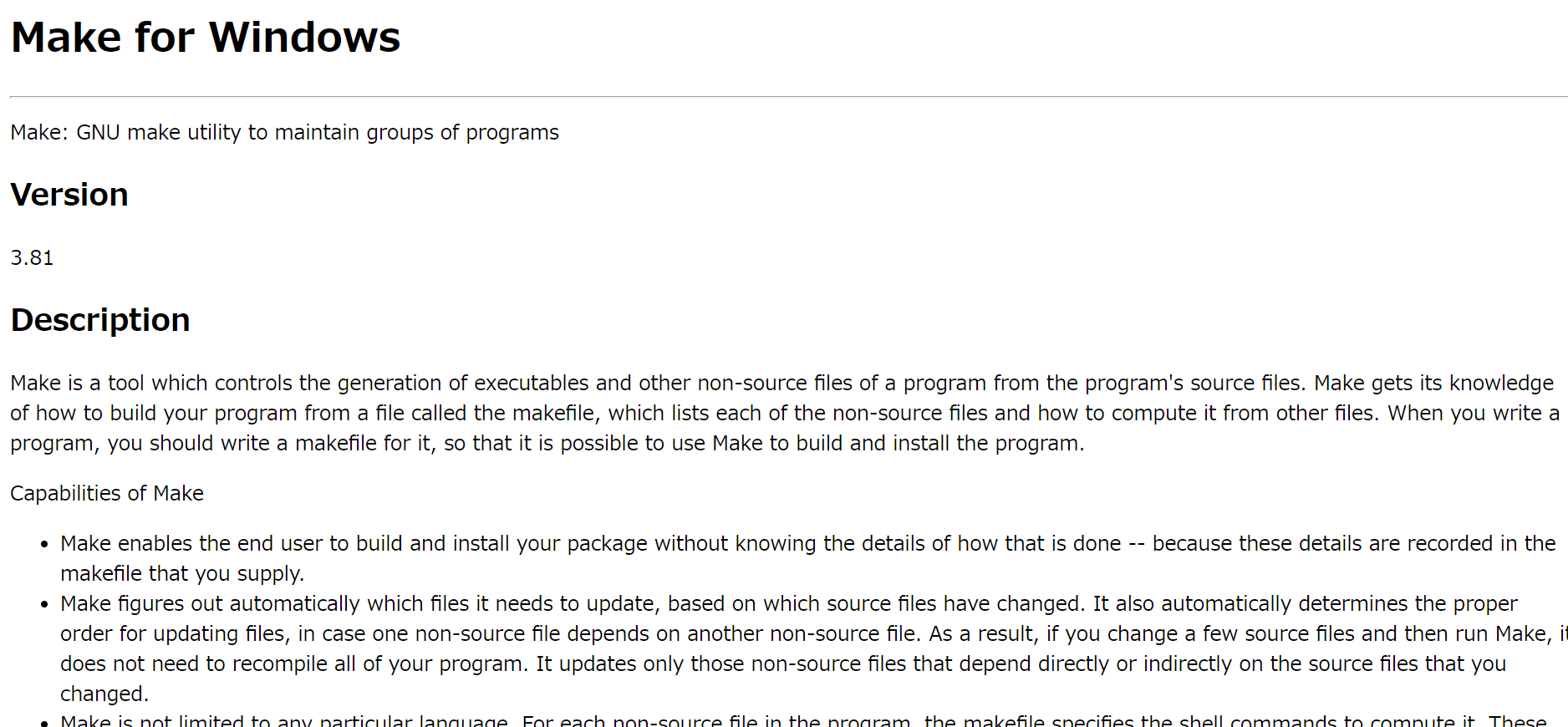
Install from the official installer
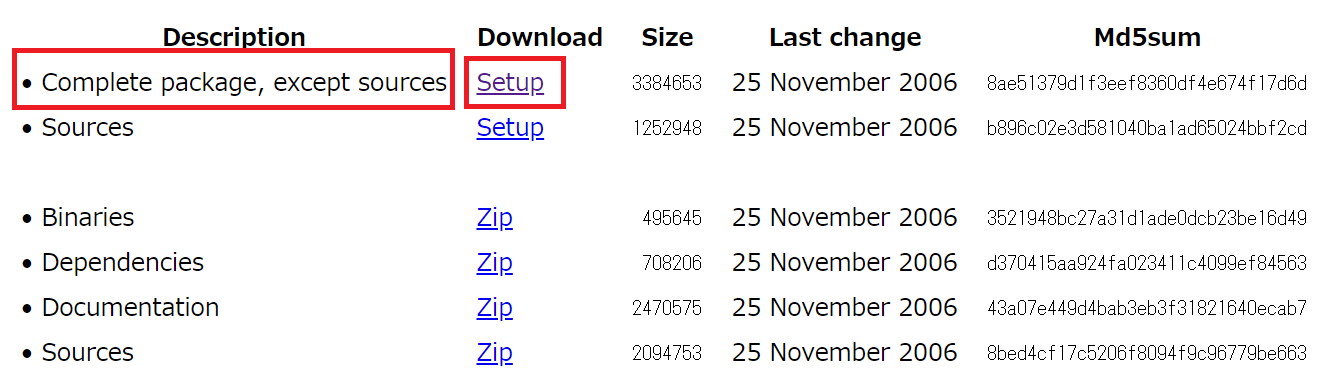
Click Setup under [Complete package, except sources] to install the installer

Click [Next] and follow the instructions in the installer
Configure your Windows environment so you can use Make anywhere
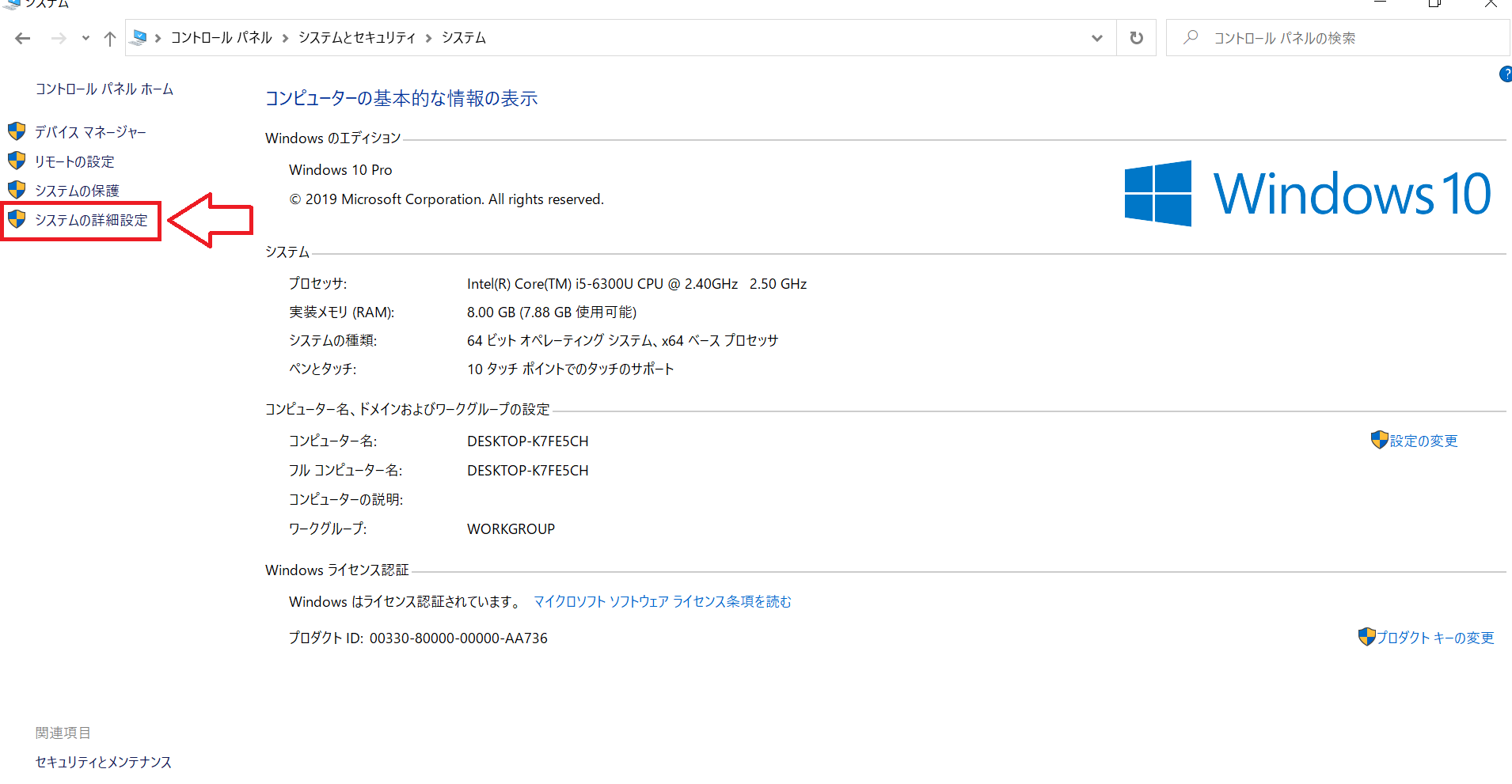
Go to Control Panel > System and Security > System and click Advanced System Settings
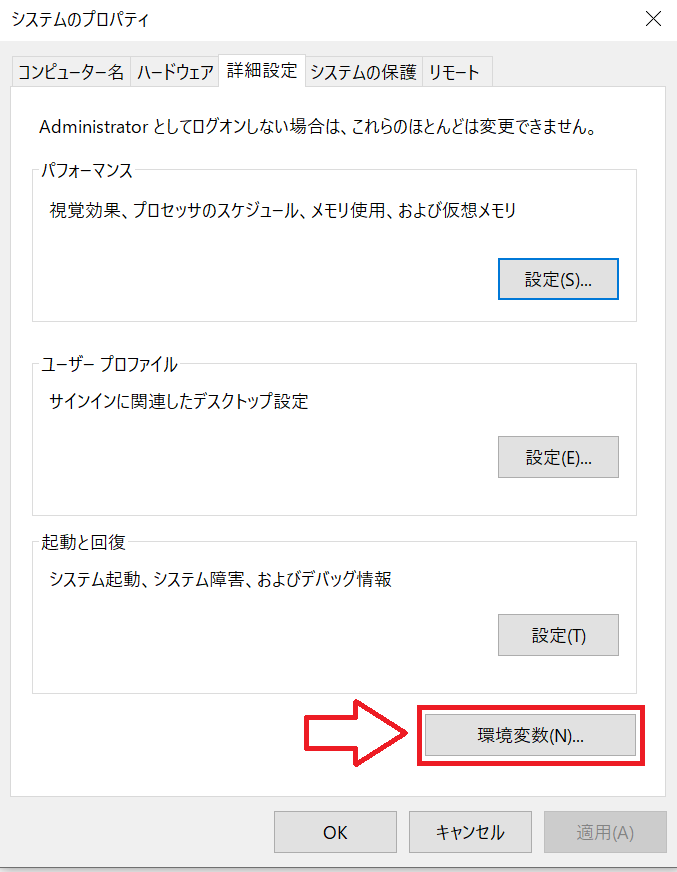
Click [Environment Variables (N)..]
You can choose whether to set it as a user environment variable or a system environment variable.
If "Path" is already set in the variable list, please see ①; otherwise, please see ②.
① Add to “Path” variable
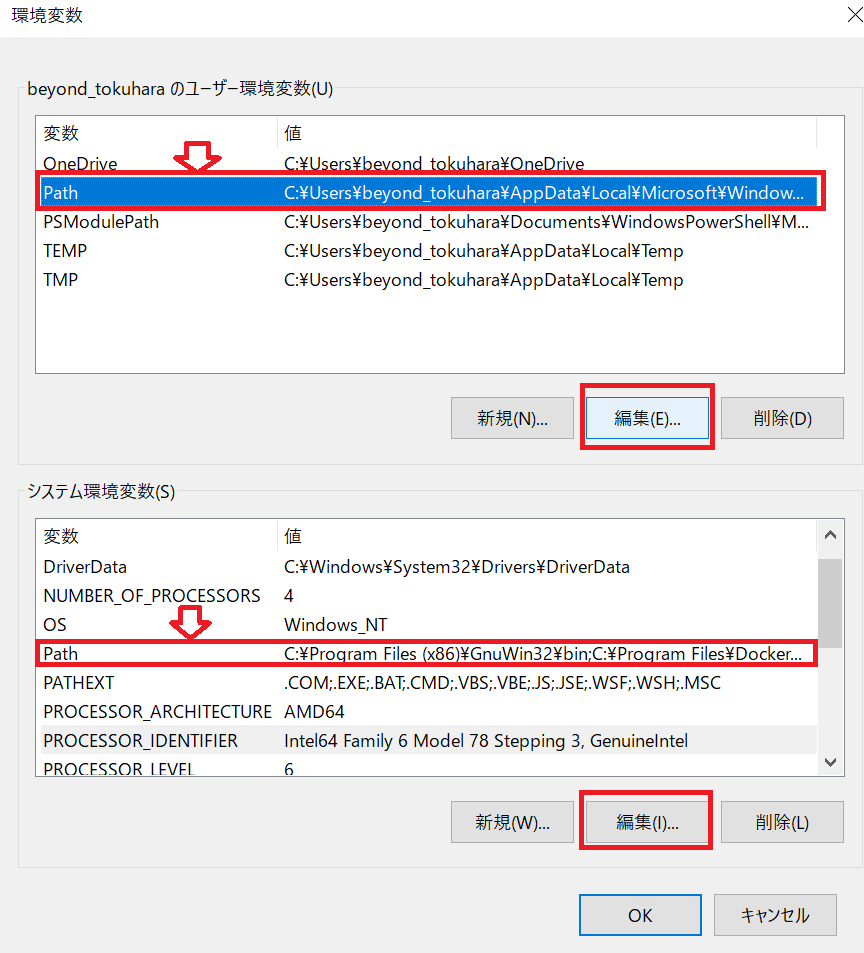
Select “Path” from the variables list and click Edit
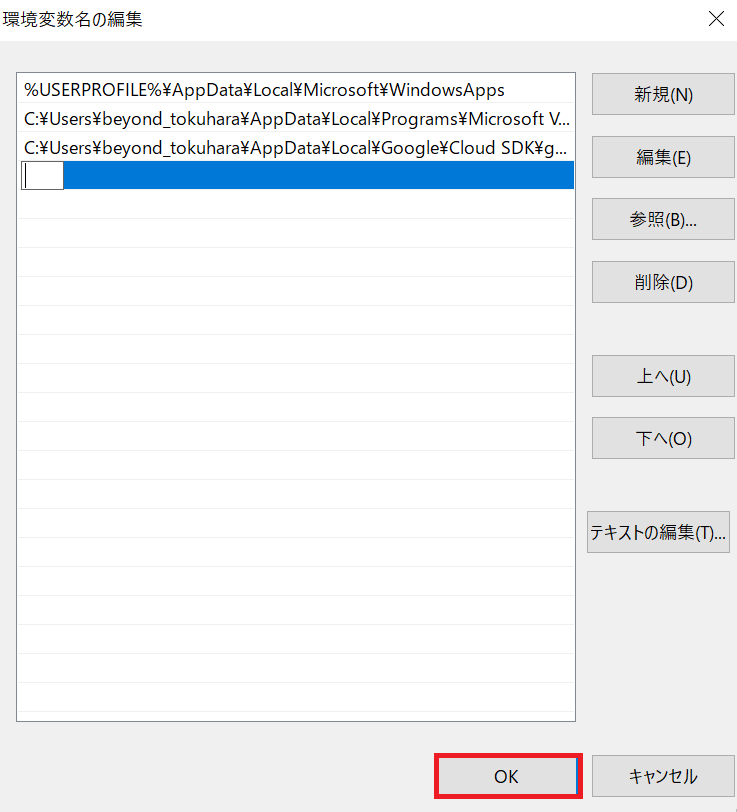
Double-click the blank field, paste the absolute path below, and press the [OK] button to complete the setup!
C:\Program Files (x86)\GnuWin32\bin
②Add a new “Path” variable
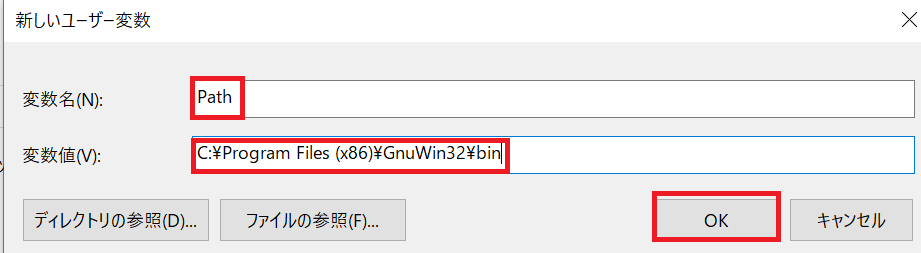
Click on "New," enter the variable name and variable value as shown in the image, and
then click the "OK" button to finish the setup!
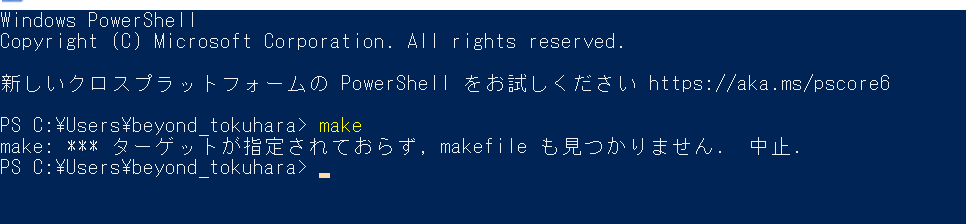
After entering "make" in Powershell, if you see the following, the setup is complete!
PS C:\Users\beyond_tokuhara>make make: *** No targets specified and no makefile found. Aborting.
What is a Makefile?
Make is now installed! Yay!
However, simply installing it doesn't mean you can skip the docker command...
To skip it, you need to create a Makefile.
A Makefile is a file that describes the rules
for performing tasks such as compilation and dependency management.
executes the process based on those rules.
Now, let's look at how to write one!
The method of writing it is very simple.
You can write it in the following four steps!
① Enter the arguments to set for the make command.
② Press a newline.
③ Windows users press the tab key, Mac users press the right arrow key.
④ Write the docker command.
mysql: docker-compose exec db bash -c 'mysql -u root -psecret'
⚠If you are using UTF-8 with a BOM and run the program with a space between the characters, the following error will occur.
please press the Tab key
instead of the Space key to create a space
make mysql makefile:5: *** Missing separator. Abort.
Enter the Make command
Now that everything is set up, let's start typing commands!
If it looks like the one below, you've succeeded ヽ(*·ᗜ·)ノヽ(·ᗜ·* )ノ High touch!
PS C:\Users\beyond_tokuhara>make mysql docker-compose exec db bash -c 'mysql -u root -psecret' Welcome to the MySQL monitor. Commands end with ; or \g. Your MySQL connection id is 14 Server version: 8.0.21 MySQL Community Server - GPL Copyright (c) 2000, 2020, Oracle and/or its affiliates. All rights reserved. Oracle is a registered trademark of Oracle Corporation and/or its affiliates. Other names may be trademarks of their respective owners. Type 'help;' or '\h' for help. Type '\c' to clear the current input statement. mysql>
⚠Note
: Abbreviating Docker commands is not possible if there is no Makfile in the current directory.
- You can use the specified Makefile anywhere by specifying it with `make -f`, but be careful
as the following error will occur if you run the Make command
in a directory higher up than the directory where `docker-compose.yml` and `docker-compose.yaml` are located
PS C:\Users>make -f \Users\beyond_tokuhara\Makefile sql docker-compose exec db bash -c 'mysql -u root -psecret' ERROR: Can't find a suitable configuration file in this directory or any parent. Are you in the right directory? Supported filenames: docker-compose.yml, docker-compose.yaml make: *** [sql] Error 1
summary
How was it? It was
very easy!
And I think you were able to execute a docker command with just a few characters (-`ω-) How about that!
Also, you can modify artisan commands as follows!
seed: docker-compose exec app php artisan db:seed
Compared to aliases, Makefiles
are much more convenient because they are less dependent on the environment and can be used simply by sharing the file.
I encourage you all to experience a comfortable Docker life with Makefiles!
Thank you for reading this article!




The person who wrote this article
About the author









