

Create a simple drawing app using the Python library "TKEasyGUI"
Hello,
I'm Kawai from the Volatile Systems Solutions Department, and I'm here
my interests and curiosity
It's already December, time flies!
The other day I was playing around with a Python TKEasyGUI , and since it said you could easily create desktop applications with it, I decided to make a drawing application.
What is TKEasyGUI?
PySimpleGUIlibrary being discontinued as open source.
More details can be found here:https://github.com/kujirahand/tkeasygui-python
Preparation
Let's install it and play around with it
■ Verification environment
Ubuntu 24.04 LTS Python 3.12.3
This time we will use venv. You can use anything you like
$ python3 -m venv env $ source env/bin/activate
We also need TKEasyGUI and tkinter, so install them
(env)$ pip install TKEasyGUI (env)$ sudo apt install python3-tk
That's all you need to prepare. It's super easy
Try the sample app
Now let's try running the sample application posted on GitHub.
>> "How to use - popup dialogs"
import TkEasyGUI as eg name = eg.input("What is your name?") eg.print(f"Hello, {name}.")
(env)$ python3 question.py
It will ask for your name, so enter it. It
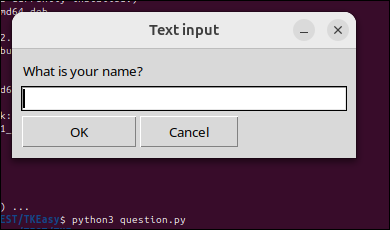
will then greet you.
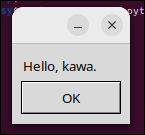
It's easy because you only need to write two lines of code, excluding the import statement.
Next, I'll try making a simple drawing app.
Drawing app.py
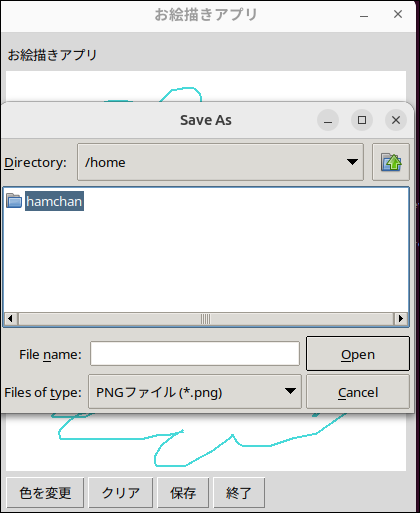
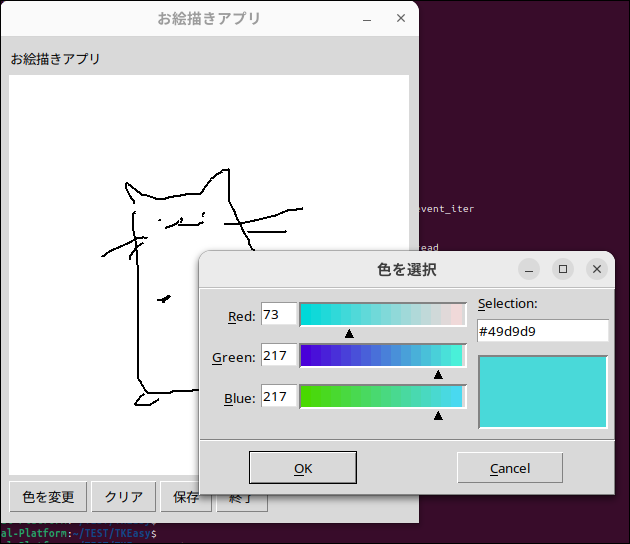
For now, anything would do, so I'll make it so that it can save as a PNG, is easy to draw on, and allows color selection.
The following Canvas elements seem to be usable for drawing:
https://github.com/kujirahand/tkeasygui-python/blob/main/docs/TkEasyGUI/widgets-py.md#canvas
The following is the complete code.
Regardless of its contents, if you just want to get it working, try inserting and running it.
import TkEasyGUI as eg from tkinter import filedialog, colorchooser from PIL import Image, ImageDraw # Drawing settings drawing_color = "black" # Initial color last_x, last_y = None, None # Record the previous position # File save function def save_canvas_as_image(): file_path = filedialog.asksaveasfilename(defaultextension=".png", filetypes=[("PNG file", "*.png")]) if file_path: canvas_image.save(file_path) eg.popup("Saving completed", "Image saved.") # Color chooser function def choose_color(): global drawing_color color_code = colorchooser.askcolor(title="Choose a color") if color_code: drawing_color = color_code[1] # Get the hex code of the selected color # Drawing function def start_draw(event): global last_x, last_y last_x, last_y = event.x, event.y def draw(event): global last_x, last_y x, y = event.x, event.y if last_x is not None and last_y is not None: # Draw a line on the canvas canvas.get().create_line(last_x, last_y, x, y, fill=drawing_color, width=2) # Also draw on the PIL Image draw_on_image.line([last_x, last_y, x, y], fill=drawing_color, width=2) last_x, last_y = x, y # Clear the function def clear_canvas(): canvas.clear() draw_on_image.rectangle((0, 0, 400, 400), fill="white") # Reset the image as well # Layout definition layout = [ [eg.Text("Drawing app")], [eg.Canvas(key="-CANVAS-", size=(400, 400), background_color="white")], [eg.Button("Change color", key="-COLOR-"), eg.Button("Clear"), eg.Button("Save"), eg.Button("Exit")] ] # Create a PIL image and get an object for drawing canvas_image = Image.new("RGB", (400, 400), "white") draw_on_image = ImageDraw.Draw(canvas_image) # Create a window with eg.Window("Drawing app", layout) as window: canvas = window["-CANVAS-"] # Bind mouse events canvas.get().bind("<Button-1> ", start_draw) canvas.get().bind("<B1-Motion> ", draw) # Event loop for event, values in window.event_iter(): if event == "-COLOR-": choose_color() elif event == "Clear": clear_canvas() elif event == "Save": save_canvas_as_image() elif event == "Exit" or event is None: break
Let's try starting it
(env)$ python oekaki.py
A blank canvas was displayed
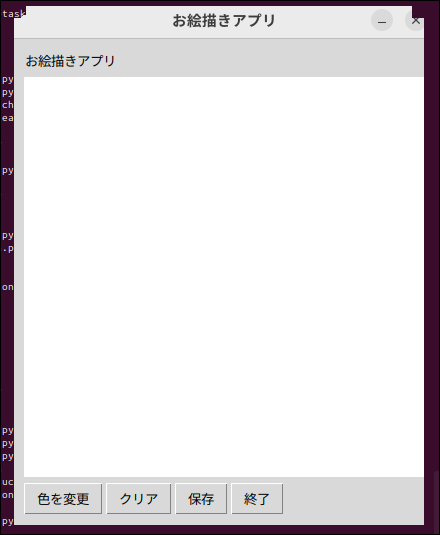
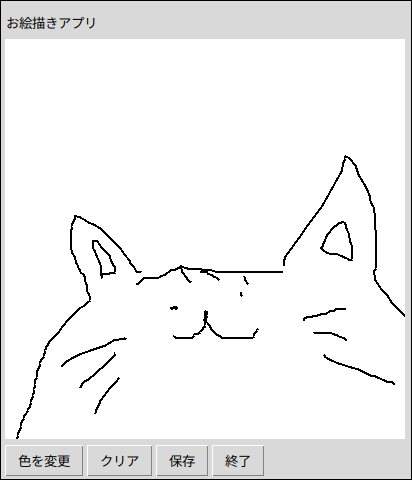
Let's try drawing a cat.
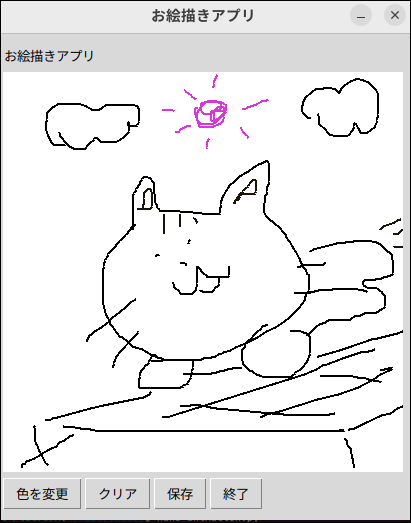
Let's save it.
You can also change the colors.
That looks good!
I'll try making it again when I have time. See you later!
complete




The person who wrote this article
About the author









