

Block access from specific regions using AWS Cloudfront's geo-restriction feature
2016.09.13




My name is Teraoka and I am an infrastructure engineer
This time, I tried setting up
AWS CloudFront
The setup itself is simple, but I thought it was practical, so I'm summarizing it here.
Amazon CloudFront CDN (Content Delivery and Streaming) | AWS
■What is Cloudfront?
Cloudfront is AWS's CDN (Content Delivery Network) service, which
called "edge locations"
located all over the world for delivering content.
By using these "edge locations,"
when a user requests a URL, the system determines the location information from the IP address and
returns a response from the nearest server.
Thanks to this system, simply by installing Cloudfront in front of services such as EC2 and S3,
you can easily speed up your website
because you no longer need to access servers in distant locations
■What is the geographic restriction function?
I'll try using the "geographic restriction feature" mentioned in the title.
Cloudfront's default settings
deliver requested content regardless of the user's location.
While this is convenient and appreciated,
- I want to restrict access because I frequently receive attacks from a specific area
- Access is not permitted in some countries due to copyright reasons
It can be a problem if there are reasons such as:
In situations like this, CloudFront's features allow you to grant or deny access at the country level.
This is the regional restriction feature.
Let's actually set it up and try using it.
■Let's try it out
I have already created a CloudFront distribution
for delivering S3 content
Trying out static site delivery with AWS S3 | Beyond Inc
If you have configured your system to deliver content stored in S3,
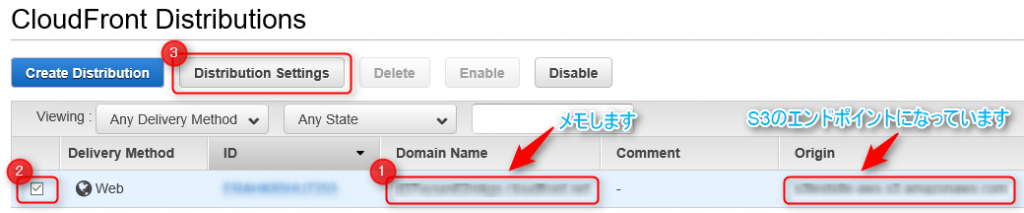
the "Origin" field will be the S3 endpoint.
Note down the "Domain Name" field, as you will need to access it later in your browser.
Check the checkbox on the left and
click "Distribution Settings".
This will take you to the distribution settings screen, so
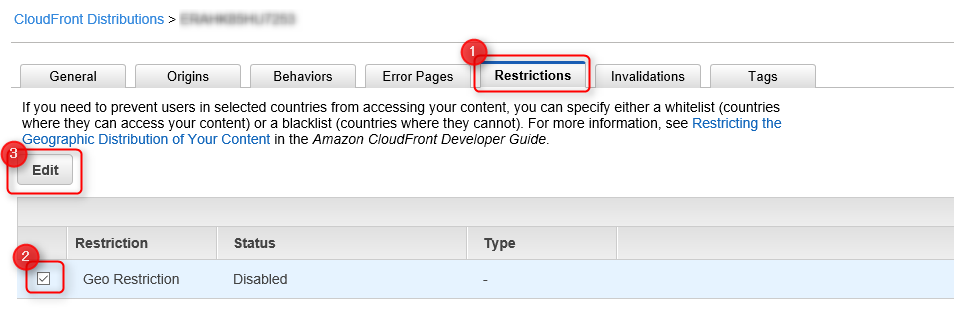
select the Restrictions tab.
The Geo Restriction item should be disabled.
Enabling this will enable the geo-restriction feature.
Check the checkbox on the left and click Edit.
This will take you to the Geo-Restriction settings screen
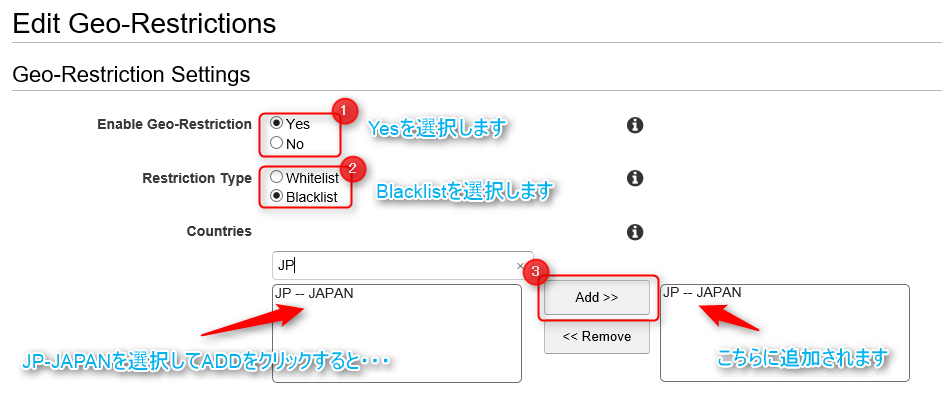
The "Enable Geo-Restriction" option should be set to "No," so
select "Yes." Two new options should then appear.
Under "Restriction Type," select the type of restriction you want to apply.
Here's a brief summary of each:
| Item name | overview | |
|---|---|---|
| Whitelist | "Whitelist" allows you to set the countries you want to allow access to, and only allows users to access content if they are in one of the countries on the list | |
| Blacklist | "Blacklist" allows you to set countries you want to block access from, and if a user is from one of the countries on the list, they will be denied access to the content |
This time, we want to block access from a specific region, so we'll use the "Blacklist."
Select Blacklist and choose a country in the Countries section.
Let's select Japan to see if access will be blocked.
Select JP (Japan) from the list of countries on the left and click the ADD>> button.
It should then be added to the right.
Now click Yes, Edit to complete the editing.
CloudFront takes a little time for the settings to take effect.
Go back to the distribution list and
wait until the status changes from "in progress" to "deployed".

Try accessing the CloudFront endpoint from your browser
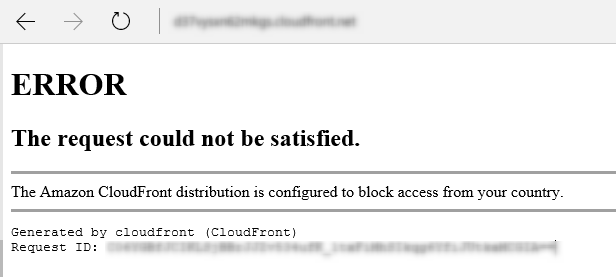
Yes, I was blocked by Cloudfront, which I created myself
So, what did you think?
You can restrict access with just these steps, and
I think it's a feature you won't regret using, so please do try it out.
Until next time, thank you very much.
The person who wrote this article
About the author









