

Trying out GCP's Vision API

Hello.
I'm Mandai, the Wild team member in charge of development.
I previously experimented with Microsoft's Emotion API, but Google Cloud Platform (GCP) also has a similar machine learning-based image detection API.
This time, I've put together a guide on how to prepare to play around with this Vision API.
A Google Account is required
All you need to use GCP is a Google account and a credit card.
GCP APIs have a free tier, which is sufficient for a little experimentation, but some require credit card registration.
The Vision API is exactly that type of API; if you haven't registered a credit card, a dialog box will appear saying "Charging is required."
It's understandable to be hesitant to click the button when it says you need to pay, but don't worry, it will ask for confirmation before you're charged beyond your free tier!
This psychological barrier is quite significant.
To enable billing, you will be taken to the billing account creation page.
New users will receive $300 in credits that can be used for 60 days from the date of registration.
Additionally, there is a free tier for using the Vision API itself, so you can enjoy it sufficiently within the free tier as long as you don't overuse it.
Enable the Vision API on GCP
Create a suitable project and open the API Manager from the hamburger in the top left
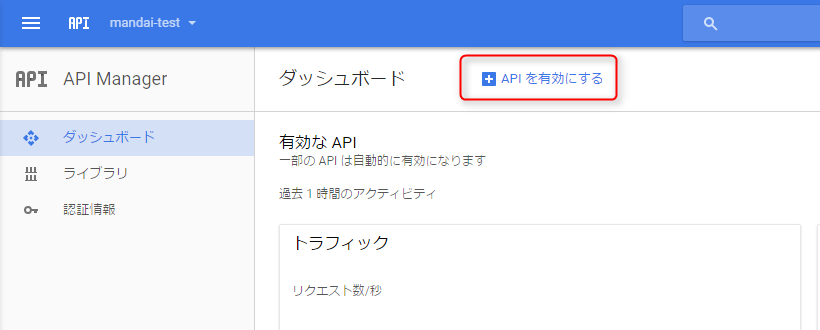
Click the "Enable API" link next to the dashboard title
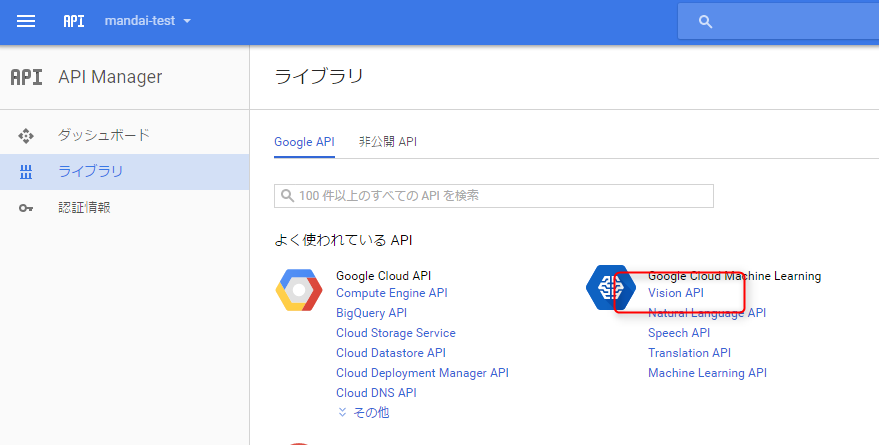
Click "Vision API" in the "Google Cloud Machine Learning" list in the library
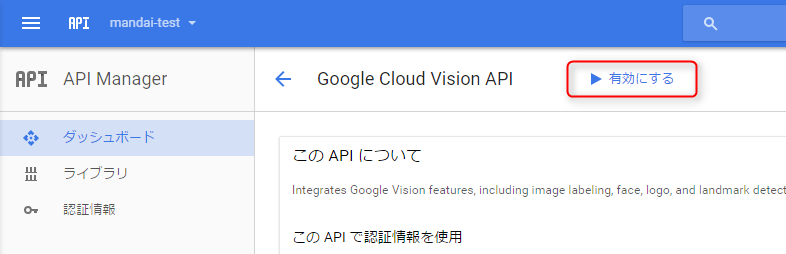
Click "Enable" next to the Google Cloud Vision API title to enable the API
Obtaining an API key
Once you have enabled the API, you will need to create an API key to access the API
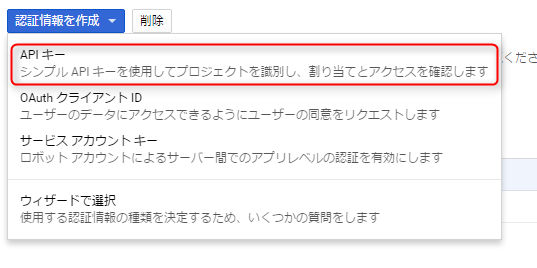
Select "Credentials" from the left side menu and click the "Create Credentials" button
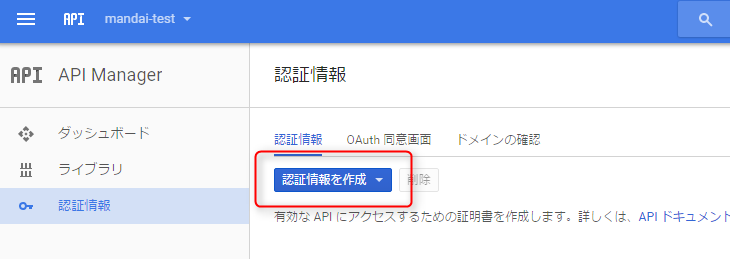
Select "API Key" from the drop-down menu
A dialog will appear showing the API key, so copy and paste it and save it locally
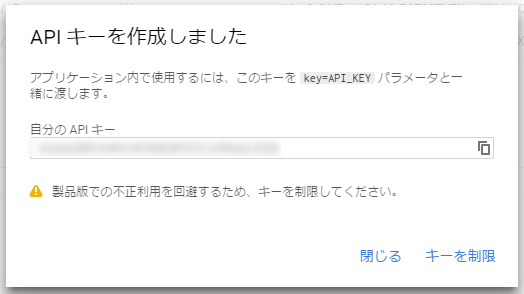
At the time of creation, the API key is available to anyone who includes it in the request parameters, so you need to restrict its use by clicking the "Restrict Key" link.
There are four ways to restrict the key.
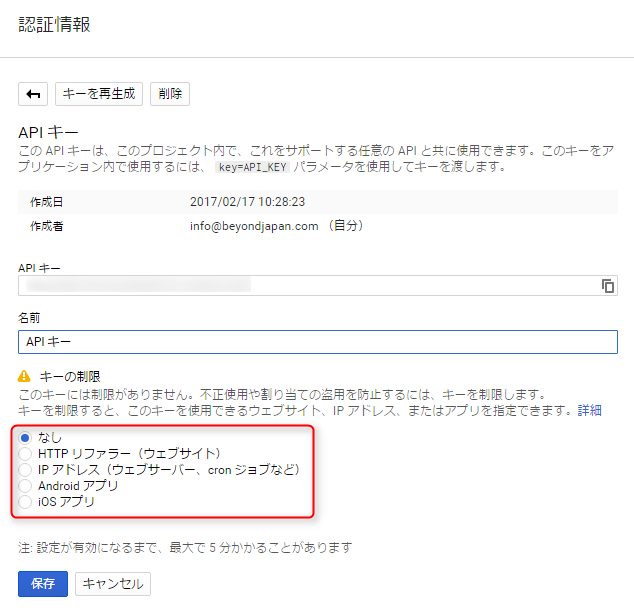
HTTP Referrer
This type restricts API usage based on referrer information embedded in the HTTP header. This
method is effective when used in browsers and similar applications.
IP address
Restricting access by IP address (IPv4/IPv6) is used when running batch processing or similar tasks on a server.
Multiple IP addresses can be registered to allow access from multiple servers, and range specification using subnet masks is also possible.
Android app
To restrict usage from Android apps, obtain the SHA-1 signing certificate fingerprint in your development environment and register it along with the package name
iOS app
If you want to restrict usage from an iOS app, you will need to register a bundle ID
Even if you are only using it for testing purposes, it is better to impose restrictions, but if you absolutely must, you can create an API key as many times as you like, so we strongly recommend deleting it immediately after you have finished using it
Now you're ready to use the API
Test Code
Now that we're ready, let's test the API from PHP
All the basic information is available in the Google Cloud Vision API documentation | Google Cloud Vision API | Google Cloud Platform , but the tutorial sample source code is only for Python, Node.js, Java, Go, and C#, so if you want to implement it in PHP, you'll either need to install Google API Client Libraries from something like Getting Started | API Client Library for PHP (Beta) | Google Developers , or do it manually with curl or something similar.
This time, I'll take this opportunity to write it using curl
Since the Vision API is an image recognition API, you need to include image information in the request data
The following image information is available:
- Local image data
- Image data stored on Google Cloud Storage
As a side note, when sequentially analyzing locally stored image data, traffic is a bit of a concern.
When deploying this to a full-fledged production environment, you might want to pay attention to bandwidth usage.
In this case, you also need to pay attention to the server's storage, so you might as well consider storing the images in Google Cloud Storage.
Since it doesn't accept public internet URIs as external sources, you'll need to do something different if you want to integrate with AWS S3 or similar services.
Using the Vision API with an API key is very easy, so let's quickly post the code
<?php $path = '/path/to/image.jpg'; $url = 'https://vision.googleapis.com/v1/images:annotate?key='. 'YOUR_SECRET_API_KEY'; $body = []; $res = []; file_exists($path) or die("file not found. path:". $path); $image = base64_encode(file_get_contents($path)); $body = [ 'requests' => [ [ 'image' => ['content' => $image], 'features' => [ ['type' => 'LABEL_DETECTION'], ['type' => 'TEXT_DETECTION'], ['type' => 'FACE_DETECTION'], ['type' => 'LANDMARK_DETECTION'], ['type' => 'LOGO_DETECTION'], ['type' => 'SAFE_SEARCH_DETECTION'], ['type' => 'IMAGE_PROPERTIES'], ], ], ], ]; $ch = curl_init($url); curl_setopt_array($ch, [ CURLOPT_HTTPHEADER => [ 'Content-Type: application/json', ], CURLOPT_POST => true, CURLOPT_RETURNTRANSFER => true, CURLOPT_HEADER => true, CURLOPT_VERBOSE => true, CURLOPT_POSTFIELDS => json_encode($body), ]); try { $response = curl_exec($ch); } catch (Exception $ex){ var_dump($ex->getMessage()); } $header_size = curl_getinfo($ch, CURLINFO_HEADER_SIZE); echo "-- header --\n". substr($response, 0, $header_size). "\n"; echo "-- body --\n". substr($response, $header_size). "\n";
You can parse the image by specifying the absolute path of your local image file in $path and entering your API key in the "YOUR_SECRET_API_KEY" section.
(Tested on my PHP 5.6 environment)
One major pitfall I encountered was forgetting to include the Content-Type header. Since it worked without it in Microsoft's Motion API
You might think, "You can tell just by looking at the request," but Google is incredibly strict about these kinds of specifications...
So, were you able to receive a response successfully?
When you streamed it through the console, depending on the image, didn't the screen scroll by incredibly fast?
This API is easy to analyze, but it is the most difficult API to organize the response data
There's too much data returned!
Looking at the response data seems like it would be a lot of work, so I'll try again later
That's all




The person who wrote this article
About the author









