

Using AWS Lambda to automatically generate thumbnail images triggered by S3 image upload
2017.04.17





My name is Teraoka and I am an infrastructure engineer
This time, the theme is "Lambda," one of the AWS services.
AWS Lambda (Serverless code execution and automated management) | AWS
By the way, it's pronounced "lambda". Where did the "b" in between go?
Leaving that aside...
there are already tons of articles like this, and I don't even know how many times this has been done before, but I
decided to try it out a bit as part of my own learning.
This time, we'll use lambda to create thumbnail images. See below for details ↓
■What is “lambda” in the first place?
Yes, let's start with an overview of Lambda.
As is customary, I'll quote from the official AWS documentation (
What is AWS Lambda? - AWS Lambda - AWS Documentation)
AWS Lambda is a compute service that lets you run code without provisioning or managing servers
...I see.
Lambda
allows you to execute pre-registered code triggered by some kind of "event.
Also, because the process is executed asynchronously in response to this event,
there is no need to keep EC2 instances or similar running at all times.
This is what it means to not have to provision or manage servers.
Now, the word "event" has come up several times, but
in short, it is as follows:
- A file was uploaded to an S3 bucket
In short, it becomes possible to
automatically execute some process whenever a file is uploaded to an S3 bucket
Of course, this doesn't involve calling any APIs on an EC2 instance.
It's all done using only S3 and Lambda.
Yes, as you may have guessed from the content so far and the blog title,
time we're going to do
"automatically generate thumbnail images of files when they are uploaded to an S3 bucket" ..
■The journey to creating thumbnail images
- Prepare an S3 bucket to upload images to
- Writing lambda functions
- Testing the function
- Setting up a lambda trigger
- Operation check
① Prepare an S3 bucket to upload images to
First, we need to prepare a container, so let's quickly create a bucket in S3.
For instructions on creating a bucket and setting policies, please see the following article.
I'm promoting it here since I wrote it previously
②Writing the lambda function
Now, let's get down to business and write the Lambda function.
We'll write the code to "automatically generate thumbnail images" and register it with Lambda.
The code can be written in Python or Node.js, but
this time, respecting my personal preference, I'll write it in Node.js (sorry to those who prefer Python).
First, click the button to create a Lambda function, and you should see a screen like the one below.
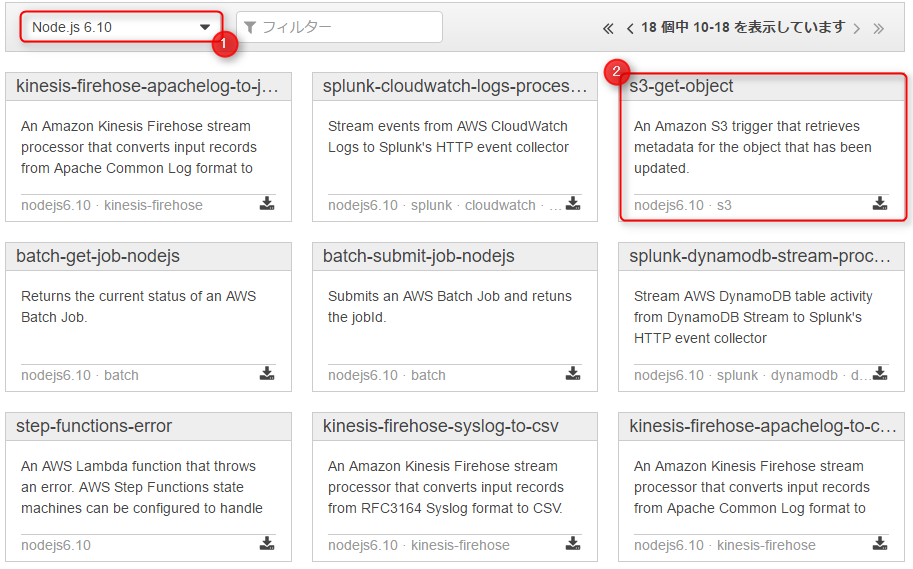
On this screen, select the blueprint for your lambda function.
They've already prepared templates tailored to different uses, so we'll gratefully use those.
First, select "Node.js 6.10" from the runtime options.
For the blueprint, since we want to handle S3-related operations, we'll use "s3-get-object".
Clicking the blueprint...
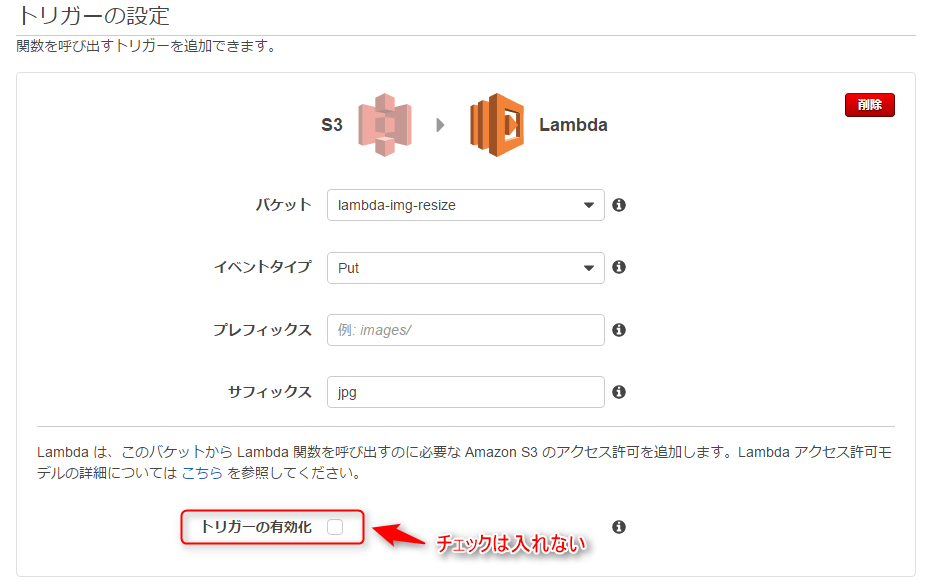
This will take you to the trigger settings screen
| bucket | Select the bucket you created in ① |
|---|---|
| Event Type | This time, we want to execute the function "when the image is uploaded", so we will select Put |
| prefix | This time we will upload directly to the bucket, so we will omit this |
| suffix | The function will only be executed on files whose file names end in "jpg" |
Do not check the box to enable the trigger.
You will manually enable it later after you have finished testing the function described below.
Click Next when you have finished entering the information.
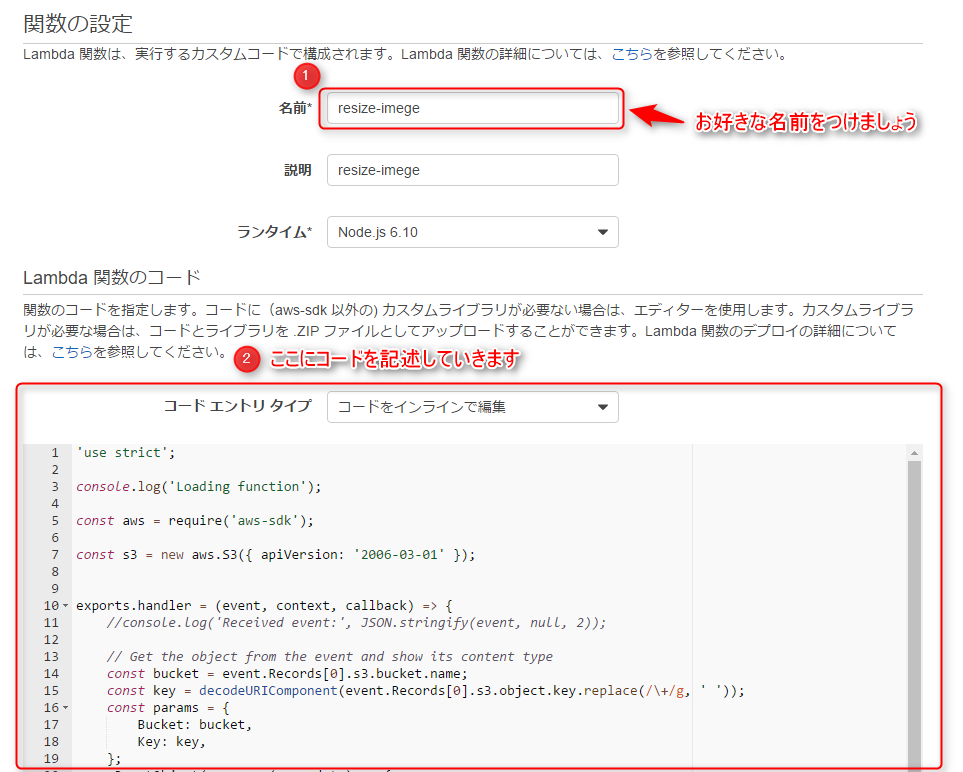
On this screen, you will actually write the function.
There is a field to enter the function name, but you can use any name you like.
Since we selected "s3-get-object" on the blueprint selection screen,
the code for retrieving files from S3 is already written.
'use strict'; console.log('Loading function'); const aws = require('aws-sdk'); const s3 = new aws.S3({ apiVersion: '2006-03-01' }); exports.handler = (event, context, callback) => { //console.log('Received event:', JSON.stringify(event, null, 2)); // Get the object from the event and show its content type const bucket = event.Records[0].s3.bucket.name; const key = decodeURIComponent(event.Records[0].s3.object.key.replace(/\+/g, ' ')); const params = { Bucket: bucket, Key: key, }; s3.getObject(params, (err, data) => { if (err) { console.log(err); const message = `Error getting object ${key} from bucket ${bucket}. Make sure they exist and your bucket is in the same region as this function.`; console.log(message); callback(message); } else { console.log('CONTENT TYPE:', data.ContentType); callback(null, data.ContentType); } }); };
However, as it is, we can retrieve files from S3, but
we cannot generate thumbnail images.
Let's add a little to this code.
'use strict'; console.log('Loading function'); var fs = require('fs'); var im = require('imagemagick'); const aws = require('aws-sdk'); const s3 = new aws.S3({ apiVersion: '2006-03-01' }); exports.handler = (event, context, callback) => { const bucket = event.Records[0].s3.bucket.name; const key = decodeURIComponent(event.Records[0].s3.object.key.replace(/\+/g, ' ')); const params = { Bucket: bucket, Key: key, }; s3.getObject(params, (err, data) => { if (err) { console.log(err); const message = `Error getting object ${key} from bucket ${bucket}. Make sure they exist and your bucket is in the same region as this function.`; console.log(message); callback(message); } else { var contentType = data.ContentType; var extension = contentType.split('/').pop(); console.log(extension); im.resize({ srcData: data.Body, format: extension, width: 100 }, function(err, stdout, stderr) { if (err) { context.done('resize failed', err); } else { var thumbnailKey = key.split('.')[0] + "-thumbnail." + extension; s3.putObject({ Bucket: bucket, Key: thumbnailKey, Body: new Buffer(stdout, 'binary'), ContentType: contentType }, function(err, res) { if (err) { context.done('error putting object', err); } else { callback(null, "success putting object"); } }); } }); } }); };
To add to that, it looks like this: The process
is the same up to retrieving the file from S3, but
then ImageMagick is used to resize the retrieved image,
and the processed image is uploaded back to S3 as a thumbnail image.
After writing the code, you would normally configure the IAM Role as follows.
For this example, we'll skip this step and automatically create a new Role from the template.
The policy for manipulating S3 objects will be attached to this role, so if it
's not configured correctly, the function may fail.
(Access Denied errors due to insufficient S3 access permissions are a common issue.)
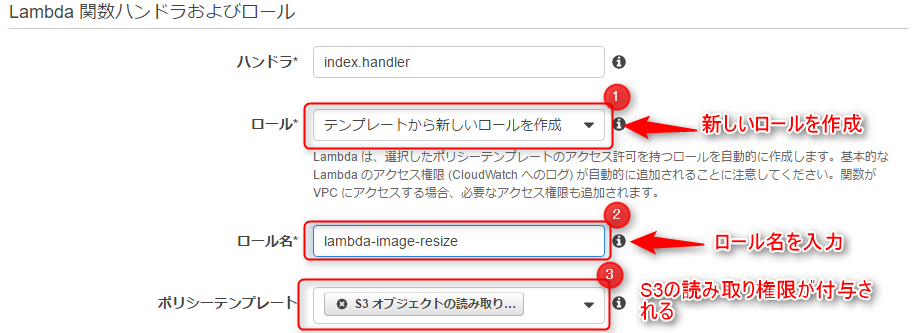
Clicking "Next" will take you to a confirmation screen, where you should click the "Create Function" button.
This will create the lambda function.

The function you just created is displayed in the list
③ Function operation test
Test your function to make sure it works correctly
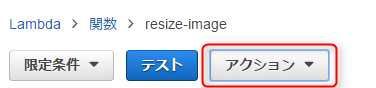
Select Set test event from the Actions menu at the top of the screen
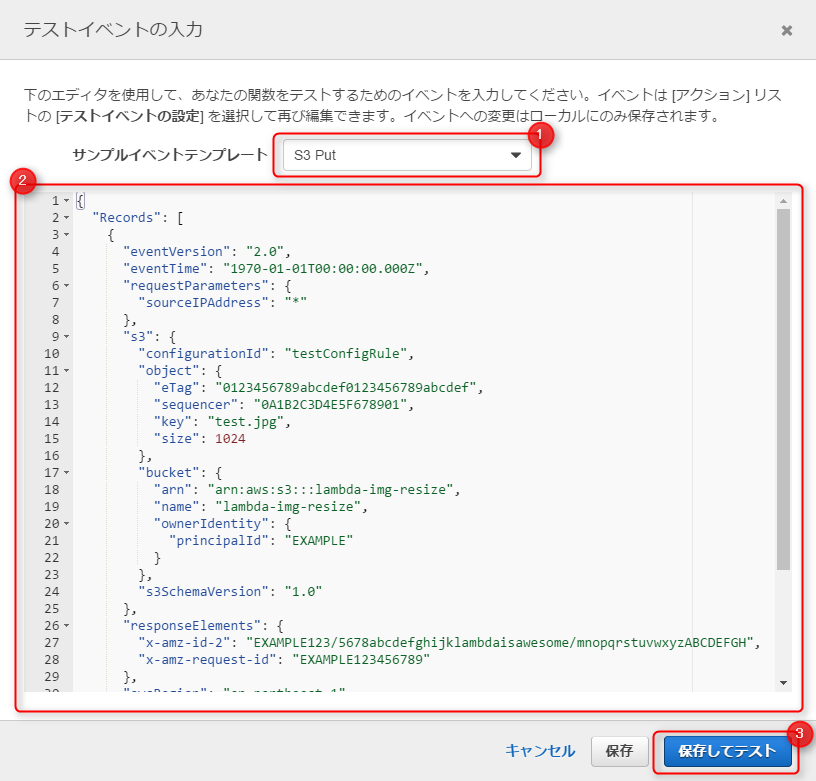
This will take you to the test event input screen.
You will write the test event in JSON format, and
think of it as Lambda receiving this JSON from S3 and executing the function.
In this case, we will upload an image file called test.jpg to the S3 bucket beforehand
and test whether the Lambda function works correctly assuming that the image has been uploaded.
A template is available for this test event, so
let's use the "S3 Put" template.
Enter the following information, save, and click Test.
{ "Records": [ { "eventVersion": "2.0", "eventTime": "1970-01-01T00:00:00.000Z", "requestParameters": { "sourceIPAddress": "*" }, "s3": { "configurationId": "testConfigRule", "object": { "eTag": "0123456789abcdef0123456789abcdef", "sequencer": "0A1B2C3D4E5F678901", "key": "test.jpg", "size": 1024 }, "bucket": { "arn": "arn:aws:s3:::lambda-img-resize", "name": "lambda-img-resize", "ownerIdentity": { "principalId": "EXAMPLE" } }, "s3SchemaVersion": "1.0" }, "responseElements": { "x-amz-id-2": "EXAMPLE123/5678abcdefghijklambdaisawesome/mnopqrstuvwxyzABCDEFGH", "x-amz-request-id": "EXAMPLE123456789" }, "awsRegion": "ap-northeast-1", "eventName": "ObjectCreated:Put", "userIdentity": { "principalId": "EXAMPLE" }, "eventSource": "aws:s3" } ] }
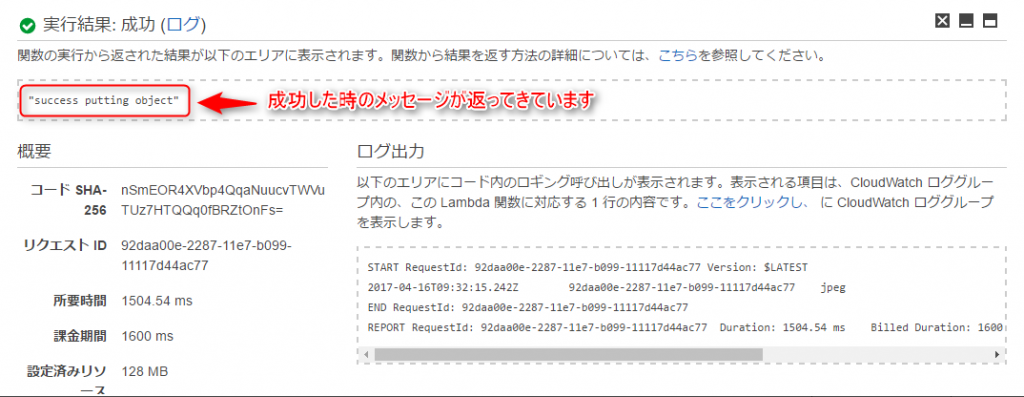
The execution result was successful, and a message indicating success was returned!
Let's check if there have been any changes to the contents of the S3 bucket.

Yes, the thumbnail image is being generated as if nothing happened.
The function execution itself seems to be working fine.
④Setting lambda trigger
We're finally nearing the end, and we'll set up the trigger.
Up until now, this has only been a test, so
even if you upload a new image at this stage, a thumbnail image will not be created.
We need to set up a trigger so that the function will run automatically when an image is uploaded.
Click the trigger tab in the lambda function you created.

Since the trigger itself is created when you create the function, all that's left is to activate it.
Click Activate.
⑤ Operation check
Now let's actually upload an image to S3 and check it

...It's been created, that's wonderful..
Summary
So, what did you think?
It gets a little complicated because you have to write some code, but
it's convenient and interesting that you can do all this without EC2.
This time we just played around with it briefly, but I'd like to try something a bit more advanced next time.
That's all for now, thank you.
The person who wrote this article
About the author









