

Use AWS Chatbot to notify CloudWatch alarms to Slack!
2022.05.25






*Miki Jet (Kobe Maya)
Hello!
This is Hide, the Ramen King from Beyond Co., Ltd.'s Osaka office.
This is my fifth post.
Last time, I talked about notifying CloudWatch alarms to Teams and Chatwork, which I recently implemented in a project
This time, I will talk about how to use AWS Chatbot to notify CloudWatch alarms to Slack
In my previous blog post, I wrote an interesting article about using AWS Lambda and Python to create notifications, so if you're interested, please take a look!
Configuration diagram
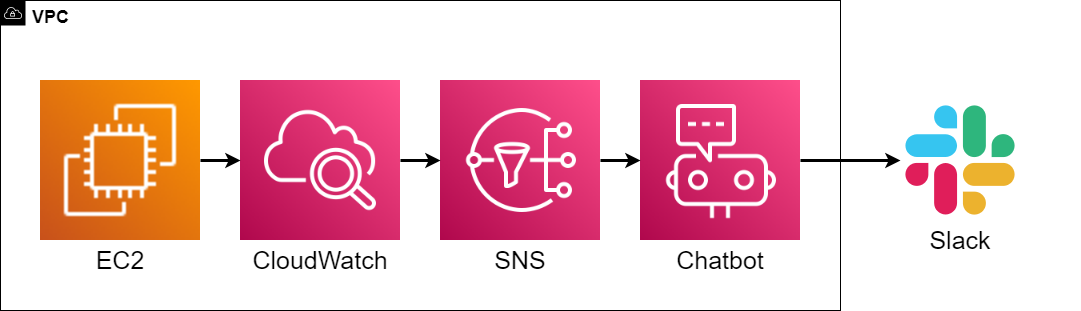
The configuration diagram is shown above
CloudWatch retrieves EC2 metrics and notifies SNS when an alarm occurs. SNS then sends the alarm sent from CloudWatch to the Chatbot
The Chatbot then sends the alarm to Slack. This configuration does not use AWS Lambda, which makes it easier to implement than Teams or Chatwork
So let's work hard and build it together!
Construction procedure
① Social media
①-①: Click SNS > Topics > Create Topic

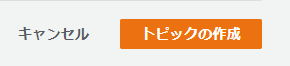
①-②: Specify the following information and click [Create Topic]
● Type: Standard
● Name: Please enter your preferred name
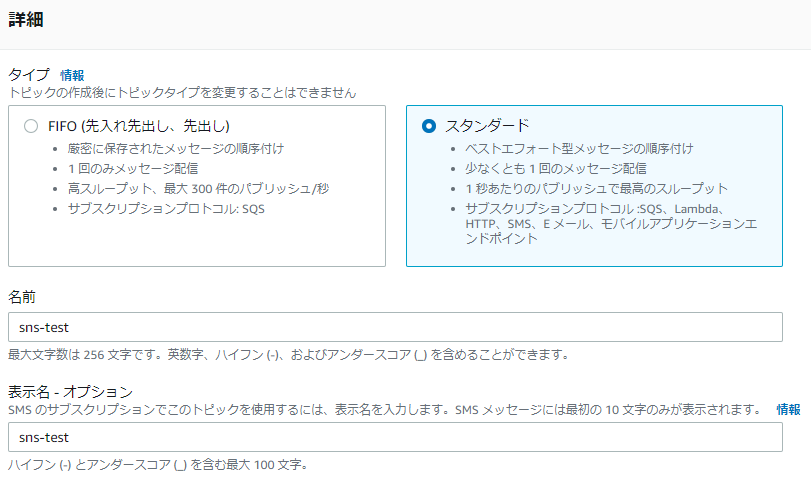
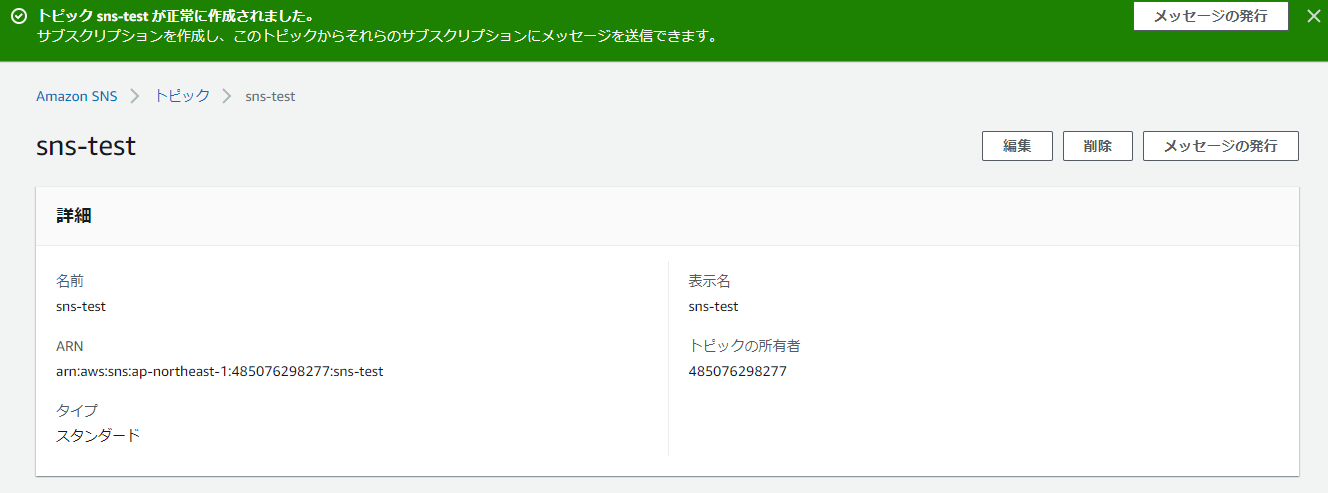
①-③: Verify that it was created successfully
② Chatbot
②-①: Chatbot > Configured clients > Click [Set up a new client]
②-②: Select Slack and click [Settings]

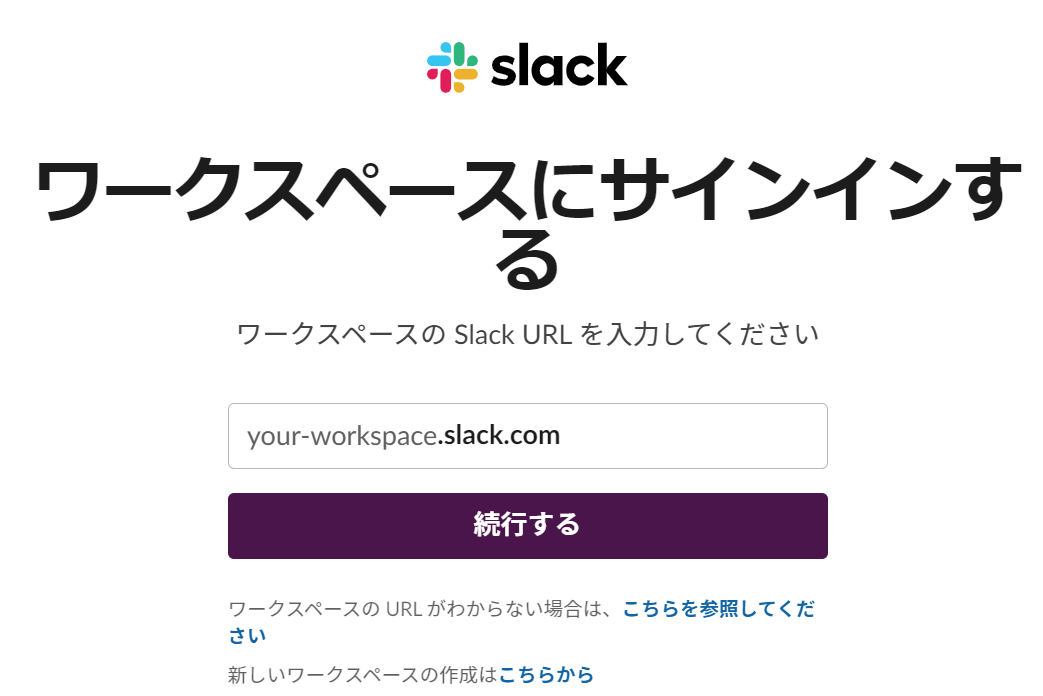
②-③: Sign in to your workspace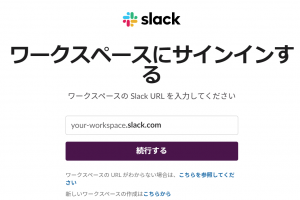
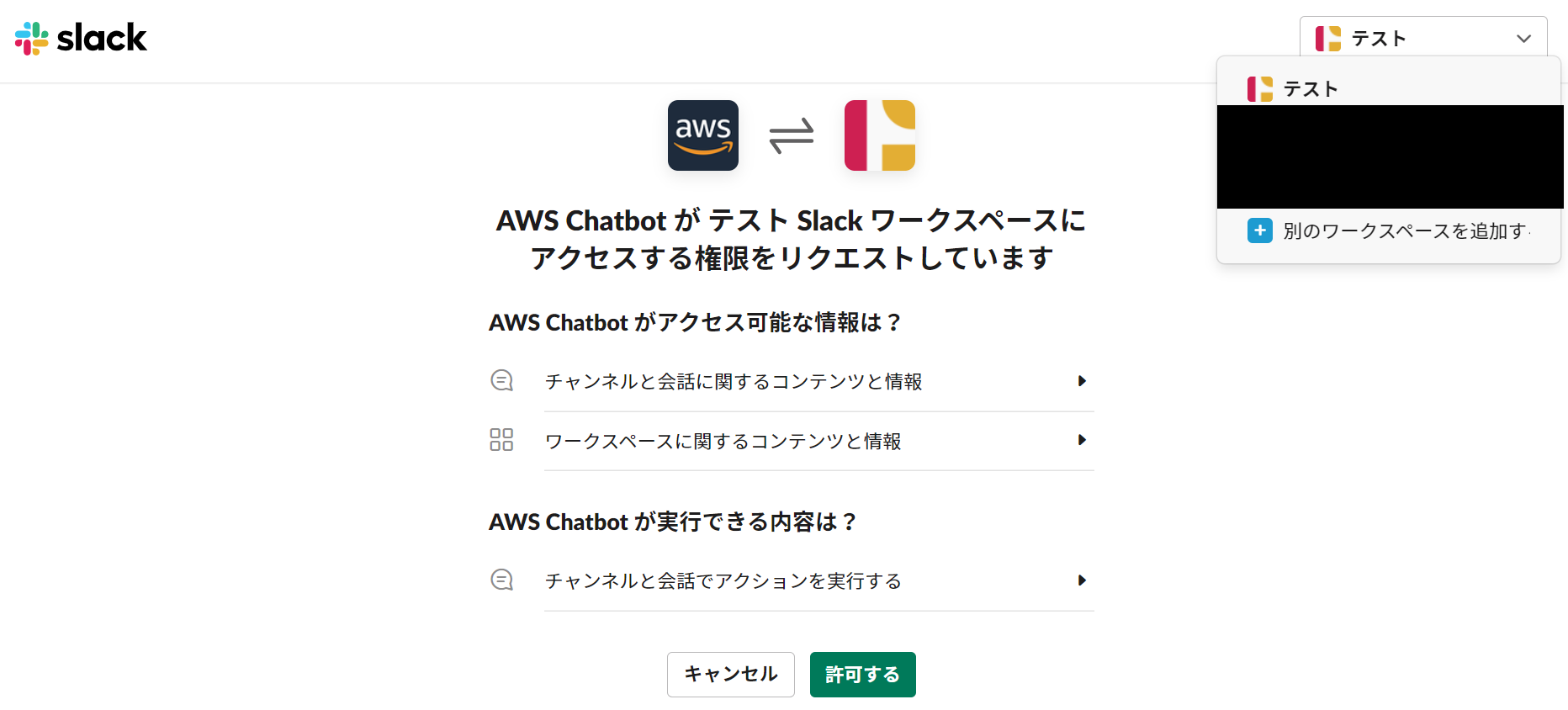
*If you have already logged in, you will see the following screen.
To create a new workspace, click "Add another workspace" in the upper right corner.
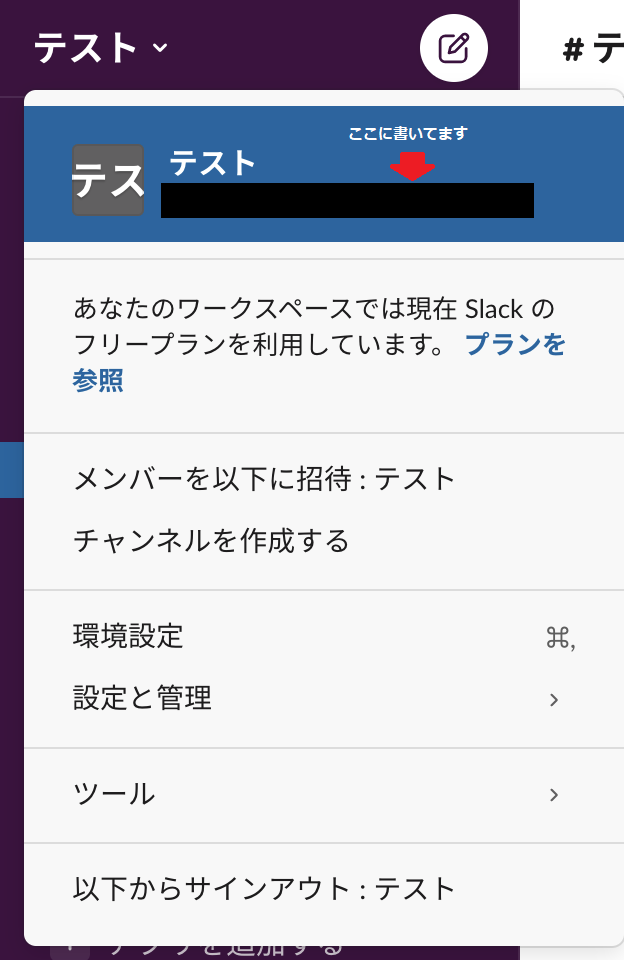
*Here's how to find your Slack workspace URL:
Reference:Check the Slack URL of the workspace you are participating in.
1. Click on the name of the workspace you're participating in
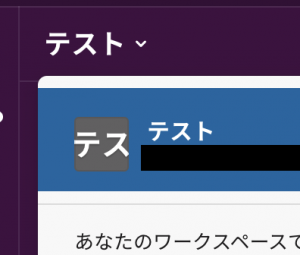
2. Under the workspace name, find the Slack URL for the workspace you're joining
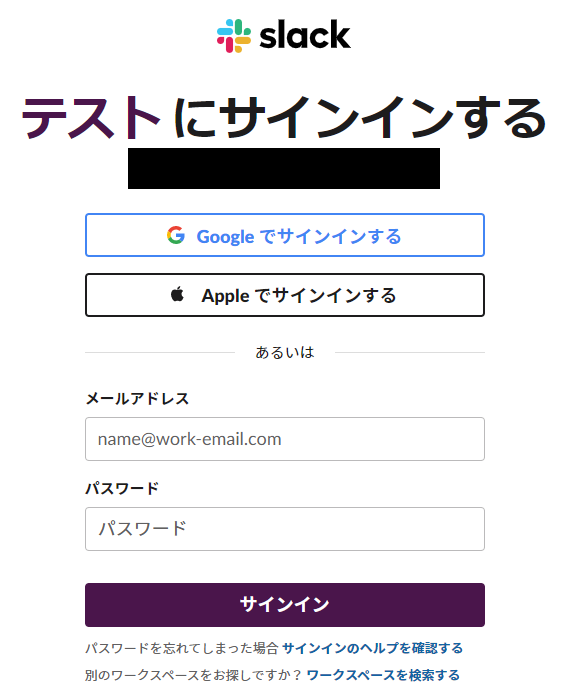
②-④: Log in to the specified workspace
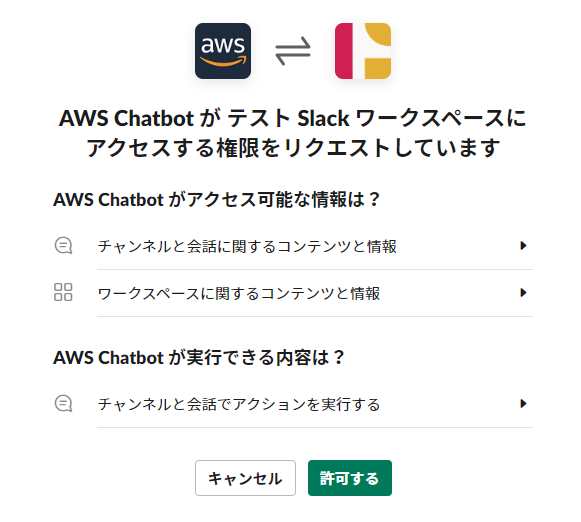
②-⑤: Allow permissions
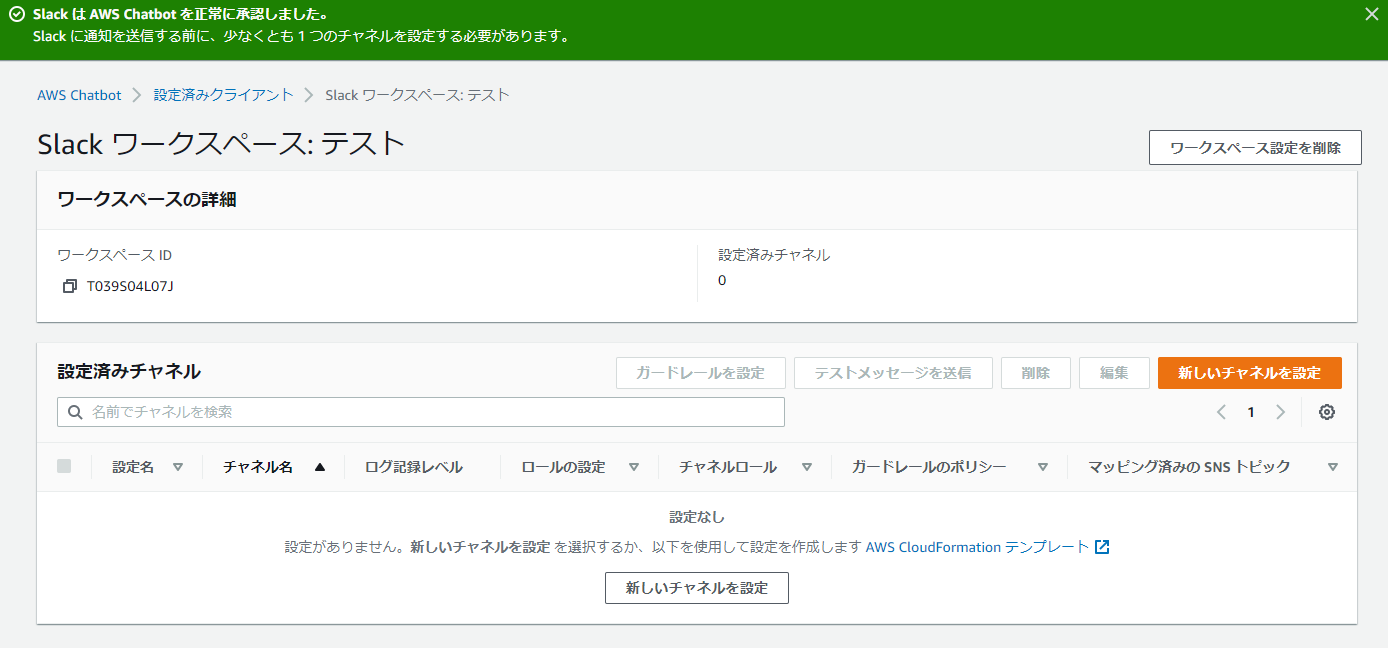
②-⑥: After confirming approval, click [Set up new channel]
②-⑦: Enter the setting name
*Please set a name of your choice for the setting.
*Check this box if you want to record logs to CloudWatch Logs.
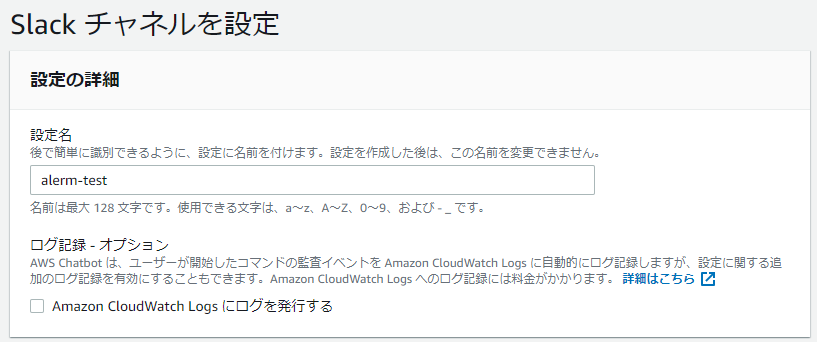
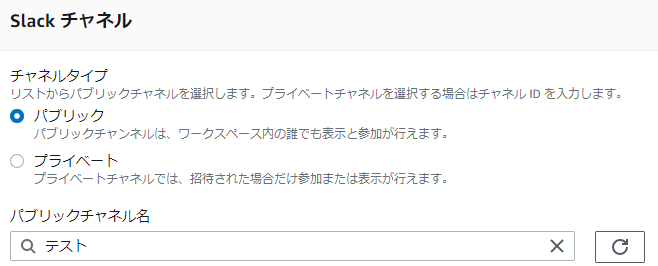
②-⑧: Select a Slack channel
*Select public or private, then select the channel name
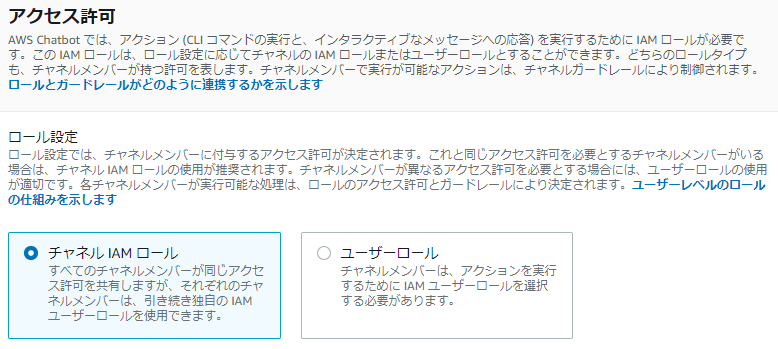
②-⑨: Set the role
● Channel IAM Role:
A role that grants the same permissions to all members in a Slack channel.
● User Roles:
Roles that grant different permissions to each member in a Slack channel.
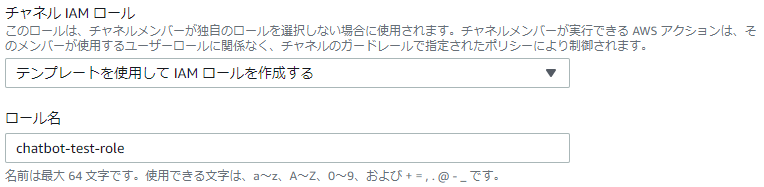
②-⑩: Set the channel IAM role
* For the channel IAM role, select "Create an IAM role using a template".
* Choose any role name you like.
②-⑪: Set policy template
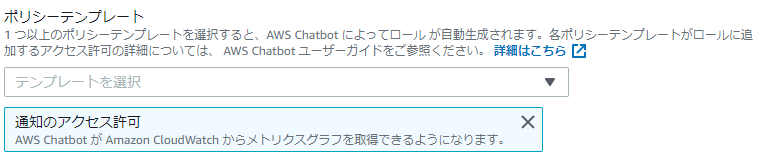
②-⑫: Channel guardrail policy
● Channel Guardrail Policy:
This policy takes precedence over channel IAM roles and user roles.
Enabling CloudWatchReadOnlyAccess allows you to view graphs.

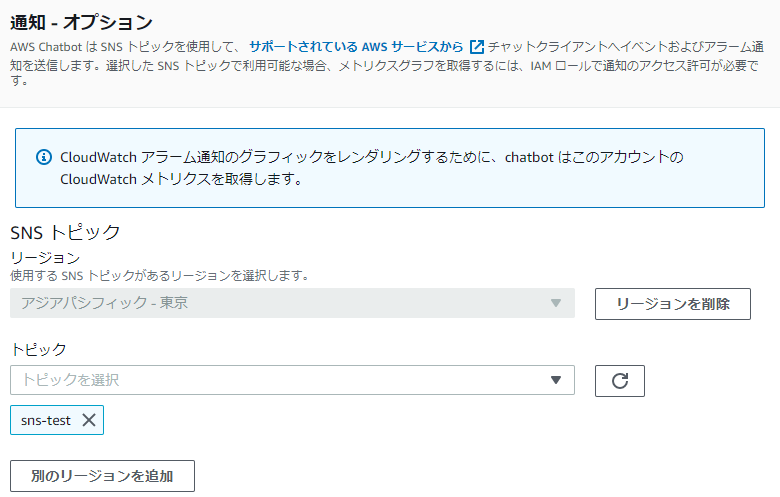
②-⑬: Notification settings
*Please specify the topic you created on SNS
③ CloudWatch
*We will proceed under the assumption that EC2 has been created
③-①:Click Cloudwatch > Alarms > Create Alarm

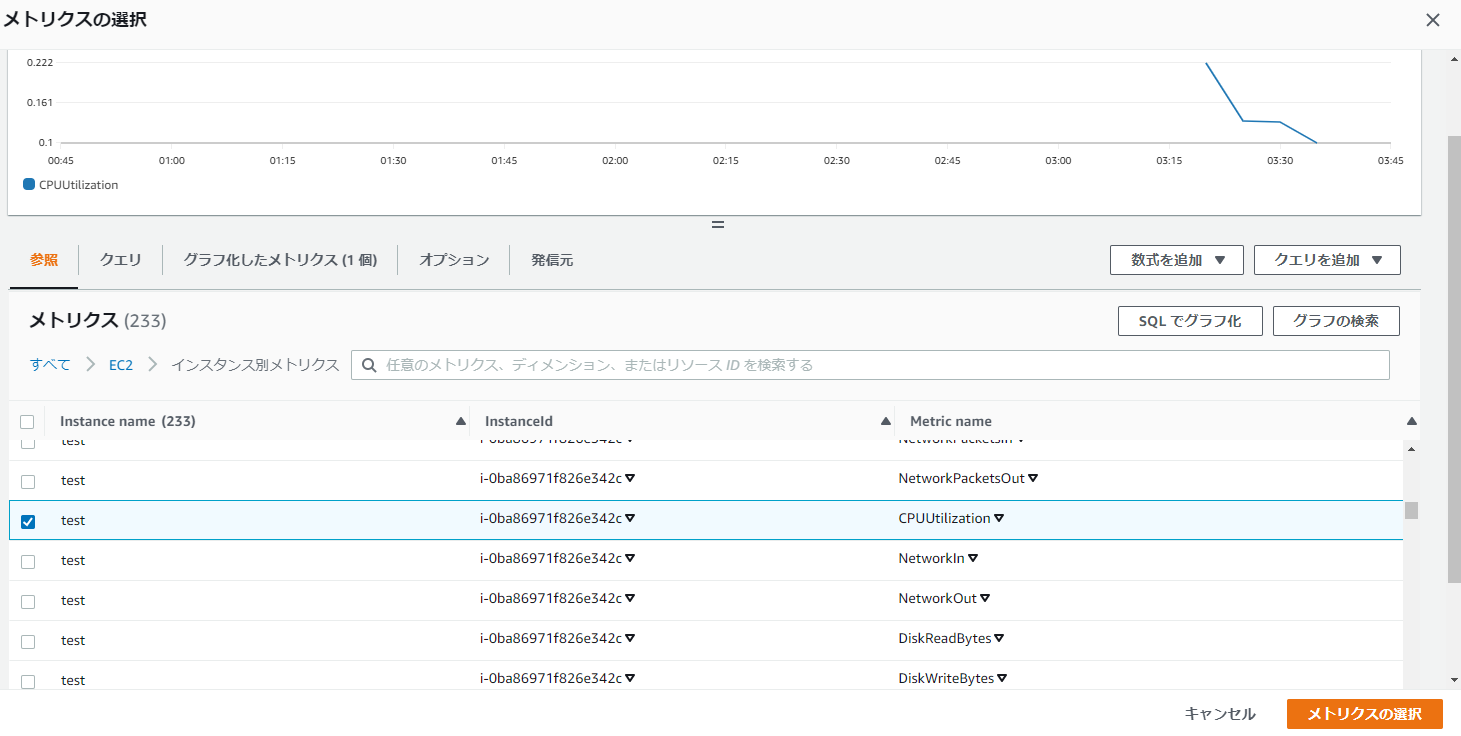
③-②; Select your preferred metrics.
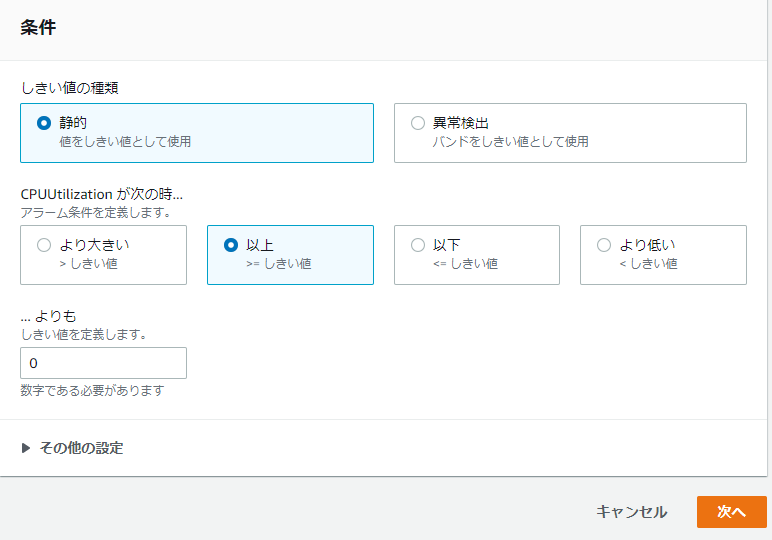
③-③: Select the alarm condition
③-④: Notification settings
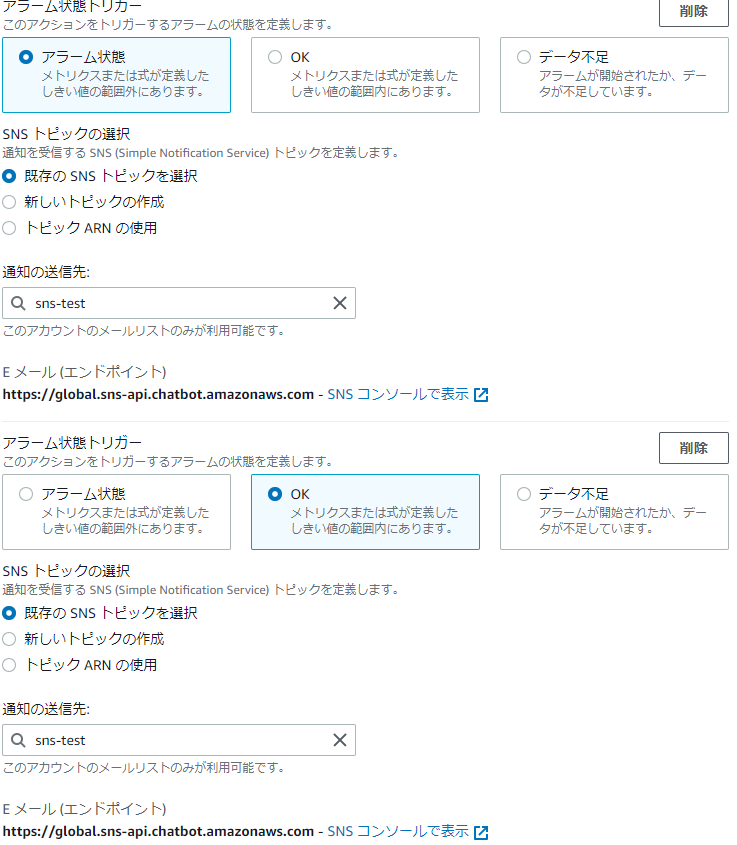
③-⑤: Specify the alarm name
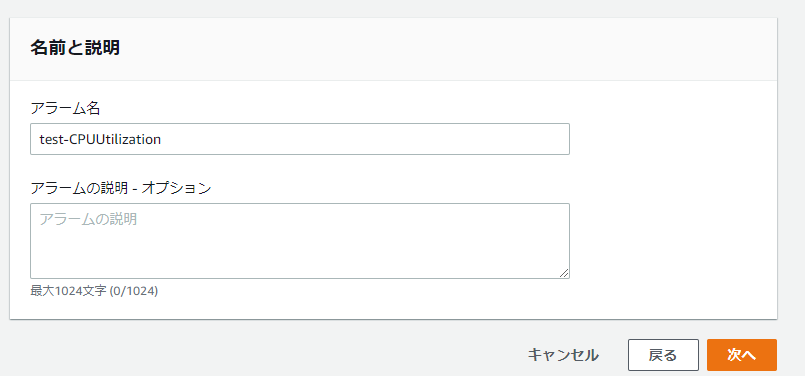
③-⑥Click [Create alarm]

④ Notification test
④-①: Check if an alarm is in effect

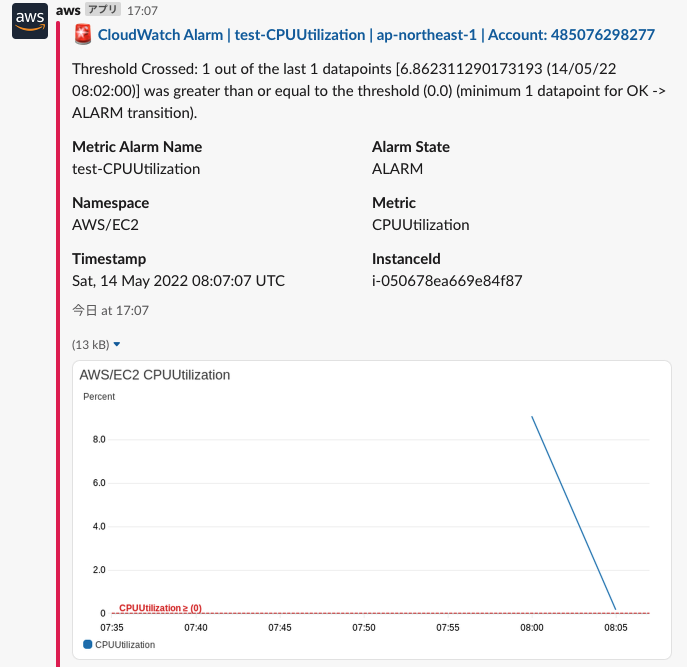
④-②: Check if the alarm has been notified
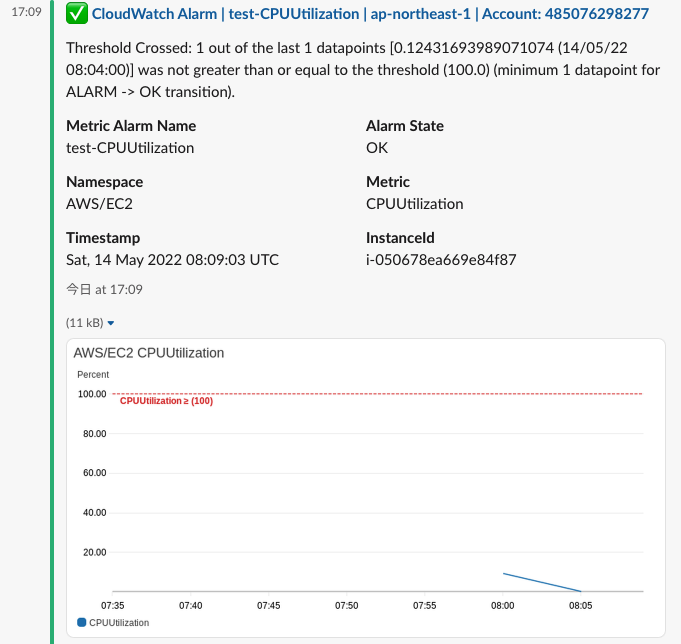
*If you set the threshold so that an alert does not occur, you can confirm the recovery as shown below
summary
This time, we introduced an article on how to notify CloudWatch alarms to Slack using a Chatbot
When sending alarm notifications via Slack, you can easily do so using the chatbot.
It even includes graph URLs and graph images, making the alarms very easy to read!
While it's easy to implement with Slack, setting up alarm notifications with Teams or Chatwork requires a lot of work, such as writing Python code with AWS Lambda and setting up a Webhook...
I really hope AWS will make Teams and Chatwork compatible with Chatbots (although that's probably not possible...)
The person who wrote this article
About the author









