

[24th Graduate] A beginner innocently tried setting up a redirect [Apache] [AWS]

Hello. I'm Inu, a trainee infrastructure engineer with a liberal arts background, graduating in 2024.
Lately, I've been wishing my brain would work faster than my eyes.
This time, I'd like to share what I, a complete beginner, have learned about redirect settings in a primitive, physical, and fetishistic way
What is a redirect?
First, let's take a look at Wikipedia's explanation
A redirect (forwarding) is a function that redirects a link to an article to another page. Such a page is called a redirect page (forwarding page)
That's exactly it
Have you ever been automatically redirected to a new page when you accessed an old homepage?
That's exactly what a "redirect" is.
Let's try setting up a redirect
How do you set up the redirect?
So, this time, I'd like to show you how to redirect from "hogehoge.info" to "www.hogehoge.info" using both server-side configuration and AWS ALB
Verification environment
the server-side configuration method, we used the following test environment for the setup.
Virtualbox: Version 7.0.20
Vagrant: Version 2.4.1
Here's how to set up a testing environment with Vagrant:
Vagrant box: AlmaLinux 9
Apache: Version 2.4.57
Step 1: Set it up on the server side
If you want to set it up on the server side, try adding an alias to the virtual host's conf file + adding a line to the virtual host's ".htaccess"
① Add an alias to the virtual host conf file
First, check the list of virtual hosts using the command below
httpd -S
The execution results show that this server contains "www.hogehoge.info" and "nova-prod.byd-edu.info"
■Execution result VirtualHost configuration: *:80 is a NameVirtualHost default server www.hogehoge.info (/etc/httpd/conf.d/hogehoge.conf:1) port 80 namevhost www.hogehoge.info (/etc/httpd/conf.d/hogehoge.conf:1) port 80 namevhost nova-prod.byd-edu.info (/etc/httpd/conf.d/nova-prod.byd-edu.info.conf:1) ServerRoot: "/etc/httpd" ~Omitted~
Now, let's use the less command to look at the conf file for "www.hogehoge.info"
less /etc/httpd/conf.d/hogehoge.conf
The settings are left as default, so we will add a "ServerAlias" here
■Execution results<VirtualHost *:80> ServerName www.hogehoge.info DocumentRoot "/var/www/vhosts/hogehoge.info/public_html" DirectoryIndex index.php index.html index.xml<Directory /var/www/vhosts/hogehoge.info/public_html > Options FollowSymLinks AllowOverride all</Directory> CustomLog "/var/log/httpd/hogehoge.info-access_log" combined ErrorLog "/var/log/httpd/hogehoge.info-error_log"</VirtualHost>
Use the vi command to edit the conf file for "www.hogehoge.info"
vi /etc/httpd/conf.d/hogehoge.conf
Enter edit mode and then add "ServerAlias" under ServerName
<VirtualHost *:80>ServerName www.hogehoge.info ServerAlias hogehoge.info ←Here!! DocumentRoot "/var/www/vhosts/hogehoge.info/public_html" DirectoryIndex index.php index.html index.xml<Directory /var/www/vhosts/hogehoge.info/public_html > Options FollowSymLinks AllowOverride all</Directory> CustomLog "/var/log/httpd/hogehoge.info-access_log" combined ErrorLog "/var/log/httpd/hogehoge.info-error_log"</VirtualHost>
Once you've added the entry, exit edit mode with esc, and save and exit with :wq.
After confirming that "ServerAlias" has been added correctly using the cat command, proceed to the next step.
② Write in the virtual host's ".htaccess"
Next, let's create the ".htaccess" file.
First, navigate to the document root of "www.hogehoge.info".
cd /var/www/vhosts/hogehoge.info/public_html
Once you've moved, create a ".htaccess" file inside " public_html "
vi .htaccess
When you open the vi screen, a blank editing screen will appear, so add the following code
RewriteEngine on RewriteCond %{HTTP_HOST} ^hogehoge\.info [NC] RewriteRule ^(.*)$ http://www.hogehoge.info/$1 [L,R=301]
Let's take a look at what each of these means
| RewriteEngine on | Enable URL rewriting |
| RewriteCond %{HTTP_HOST} ^hogehoge\.info [NC] | Define the condition so that the variable representing the URL host name = hogehoge.info, regardless of case |
| RewriteRule ^(.*)$ http://www.hogehoge.info/$1 [L,R=301] | Define a rule that rewrites requests that meet the above conditions to www.hogehoge.info and redirects them with a status code of 301 |
Hmm, that's difficult.
This article was very easy to understand.
Once you're done editing, reload the configuration with the following command:
systemctl reload httpd
Finally, try actually accessing "hogehoge.info" and see if it redirects to "www.hogehoge.info"
Open Notepad with administrator privileges and remember to add your local IP address and hostname to the bottom of the "C:\windows\system32\drivers\etc\hosts" file and save it!
If you don't do this, nothing will appear when you access "hogehoge.info"! Here's how to do it:
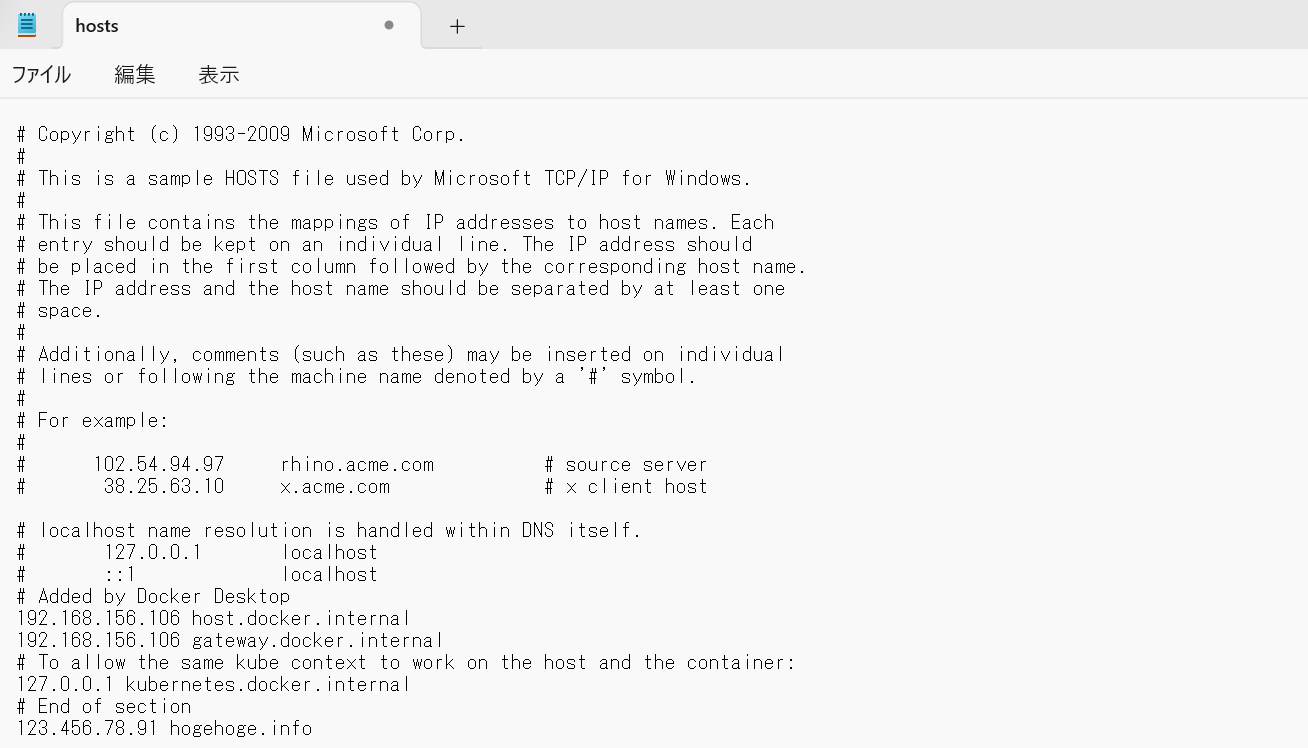
After access..
■ Access log 192.168.33.1 - - [14/Oct/2024:08:22:03 +0000] "GET / HTTP/1.1" 301 233 "-" "Mozilla/5.0 (Windows NT 10.0; Win64; x64) AppleWebKit/537.36 (KHTML, like Gecko) Chrome/129.0.0.0 Safari/537.36"
I confirmed that Chrome actually redirected to "www.hogehoge.info", andthe access logsalso showed that a 301 code was being returned for requests to "hogehoge.info".
Part 2: Let's try using AWS ALB
In an AWS environment, it seems that redirection can be set on the load balancer side before the data reaches the server
First, open the AWS console and navigate to the settings screen using the path below
EC2 > Load Balancer > Target ALB > Target port > In the Listener Rules section, click "Add rule"
Once you have made the move, fill in the required fields in steps 1 to 5
Step 1: Add a rule
This is the setting screen for the rule name and tag. Both can be left blank

Step 2: Define the rule conditions
From "Add Condition", select "Rule Condition Type". This is the item to set the access of the transition source

| Host Header | This corresponds to the "https:// hogehoge.info , so this time we will enter the source host, "hogehoge.info". |
| path | This corresponds to the "https://hogehoge.info/test.txt " part. If the source of the redirection is a specific path, you need to specify it. |
| HTTP request method | You can specify GET, POST, etc |
| Source IP | You can specify which IP the request is coming from |
Step 3: Define rule actions
Next, we will set the transition destination

| Action Routing | Select "Redirect to a URL" |
| Redirect to URL | Select URI Part |
| protocol | Select any protocol. For this test in a local environment, we will select "HTTP". |
| port | Select any port. In this case, since we selected "HTTP" as the protocol, enter "80". |
| Use custom hosts, paths, queries... | I'll check |
| host | This corresponds to the part "https:// hogehoge.info/test.txt enter the destination " www.hogehoge.info " |
| path | This corresponds to the "https://hogehoge.info/test.txt " part . In this case, we want to apply it to all paths under "www.hogehoge.info", so we enter " /* " |
| Query - optional | This refers to the query parameters, specifically the part "https://beyondjapan.com/ ?s=test&post_type=pt-blog . Include them if necessary. |
| Status Code | It's generally recommended to use a 301 redirect for permanent redirects and a 302 redirect for temporary redirects due to maintenance, etc. In this case, assuming a permanent redirect, we'll select "301 - Moved Permanently". |
Step 4: Set rule priorities
This setting determines the priority of redirect settings. Priority is a numerical value that specifies which redirect setting takes precedence when multiple redirect settings exist.
Lower numbers indicate higher priority, with 0 being the highest priority.
Since we are only setting one this time, "1" is fine

Things to note when setting:
In addition to the above settings, if you want to set up a redirect from a specific path in "hogehoge.info" (for example, hogehoge.info/test.txt) to another page, give this setting a higher priority
The condition "hogehoge.info/test.txt" is included in the existing condition "hogehoge.info/*" which uses a wildcard, so if the priority is incorrect the redirection will not work properly
Priority 1: "hogehoge.info/test.txt" → "somewhere"
Priority 2: "hogehoge.info/*" → "www.hogehoge.info/*"
Let's make it so!
Step 5: Review and create
Check that the information you entered is correct and if there are no problems, click Create
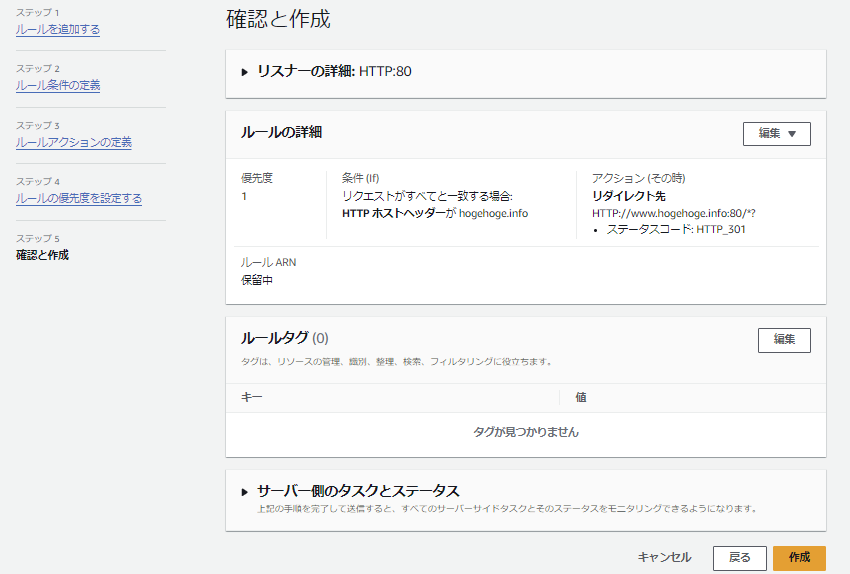
Check that it works and if you can confirm that the redirection is successful, then it's OK!
Here too, remember to open Notepad with administrator privileges, add your local IP and hostname to the bottom of the "C:\windows\system32\drivers\etc\hosts" file, and save it!
By the way, this time you'll need to add the ALB's public IP, so I'll share how to do that as well.
① Go to the details screen of the ALB you are using for verification and copy the "DNS name"
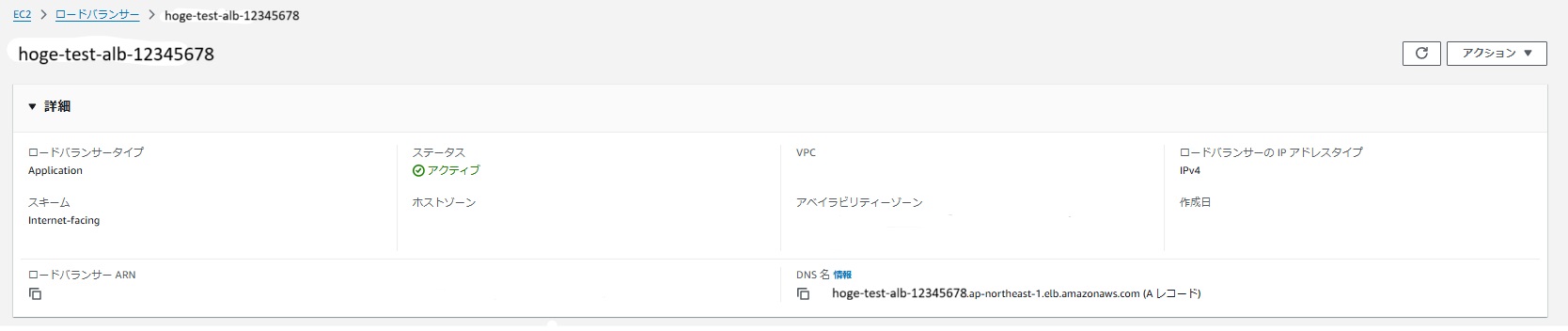
② Open your WSL or Ubuntu and check the IP address using the dig command
dig hoge-test-alb-12345678.ap-northeast-1.elb.amazonaws.com
■Execution result ;; ANSWER SECTION: hoge-test-alb-12345678.ap-northeast-1.elb.amazonaws.com. 60 IN A 12.345.678.90 ←This!
③ Copy the IP address that appears in the ANSWER SECTION and paste it at the bottom of the hosts file as before and save it
summary
The above is how a beginner can set up a redirect
I hope this article will be of some help to beginners... (Prayer)




The person who wrote this article
About the author









