

I want to control cache using Cache-Control on Cloud CDN (Google Cloud)

Introduction
My name is Sumi and I work in the System Solutions Department, where I am involved in a little bit of infrastructure
Today, we'll show you how to configure a server using an application load balancer to cache only specific files using Cloud CDN.
Cloud CDN itself helps reduce server load and tune response times by caching content on edge servers.
This article provides an example of configuration for controlling caching via HTTP headers to prevent specific static content from being cached.
refer to Google Cloud's recommended setting "Cache static content" or the official documentation " Disable cached content "
*We strongly recommend that you conduct verification before making any adjustments
Cloud CDN cache control parameters
Cache Mode
Cloud CDN offers three caching modes that control how content is cached. For more detailed information, please refer to the official documentation
- CACHE_ALL_STATIC:Caches all static content (HTML, CSS, JavaScript, images, etc.).
- USE_ORIGIN_HEADERS: Caches only static content with the extension specified in
the Content-Typeheader - FORCE_CACHE_ALL: Caches content based on the
Cache-Controlheader
Cloud CDN official documentation
Cache duration
The cache duration specifies how long the cached content remains valid
- CACHE_ALL_STATIC /USE_ORIGIN_HEADERS mode:
- Client TTL:Specifies the duration for which browsers and clients should retain cached data.
- Default TTL: Specifies the cache duration that applies when the response from the origin server does not include
a Cache-Controlheader - Maximum TTL:Specifies the maximum retention period for cached content.
- DYNAMIC_CACHE mode:
- The cache duration is specified using the
max-agedirective inthe Cache-Controlheader included in the response from the origin server
- The cache duration is specified using the
Example: Cache-Control: max-age=3600 (1 hour)Cache Key
Cloud CDN uses the entire URL as the cache key.
When receiving a request, it identifies it using the protocol (HTTP/HTTPS), hostname, query string, HTTP headers, and cookies.
protocol
Identifies whether the request is HTTP or HTTPS.
Default: Enabled
| setting | behavior | Use Cases |
|---|---|---|
| Enable | Separate caching of HTTP and HTTPS requests | When serving different content via HTTP and HTTPS |
| Disable | Does not distinguish between HTTP and HTTPS requests | Serving the same content over HTTP and HTTPS |
When using a Cloud CDN, it's common practice to deliver both HTTP and HTTPS content using the same hostname. However,
there are use cases where different delivery methods are permitted, such as when certain browsers require TLS. For more details, please see:
Using the Same Hostname for HTTP/HTTPS.
host
This is used when delivering different content using multiple hostnames.
Default:Enabled
Query string
Identifies the parameters following the "?" in the URL.
Default:Enabled, includes all items except selected ones, no value.
| setting | behavior | Use Cases |
|---|---|---|
| Include only selected items | Include the specified parameters in the cache key | When content changes based on specific parameters, such as search results or product detail pages |
| Include all but selected | Exclude certain parameters from the cache key and include others | When there are multiple parameters and you want to use only some of them as the cache key |
| invalid | Do not use parameters to identify | Providing identical content regardless of query |
Custom query string settings, if enabled, allow you to specify parameters in the form of a whitelist or an exclusion list
HTTP header
Identifies additional information to be included in the request.
Default:Disabled
| setting | Use Cases |
|---|---|
| include | Optimizing content with HTTP headers such as User-Agent |
| exclude | Serve the same content regardless of headers |
Named Cookies
We use cookies to identify specific users.
Default:Disabled
| setting | Use Cases |
|---|---|
| valid | When content changes depending on login status or user |
| invalid | To provide the same content regardless of cookies |
Use cases for each parameter
| Use Cases | protocol | host | Query string | HTTP header | Named Cookies |
|---|---|---|---|---|---|
| When delivering the same content over HTTP/HTTPS | exclusion | include | exclusion | exclusion | exclusion |
| Serving the same content under multiple hostnames | include | exclusion | exclusion | exclusion | exclusion |
| When the content doesn't change depending on the query string | include | include | exclusion | exclusion | exclusion |
| Optimizing content for different user agents | include | include | include | User-Agent | exclusion |
| When content changes depending on login status | include | include | include | exclusion | session_id |
How to use DYNAMIC_CACHE mode
To use DYNAMIC_CACHE mode, you can configure Cache-Control on the server side.
The Cache-Control header is one of the HTTP response headers used to instruct browsers and cache servers on how to cache content.
The following directives can be specified in this header:
max-age: Specifies the cache expiration time in seconds.
s-maxage: Specifies the cache expiration time in seconds for shared caches (such as CDNs).
public: Allows objects to be stored in the public cache.
private: Allows objects to be stored only in the private cache.
no-cache: Does not store objects in the cache.
no-store: Does not store objects in the cache or in the browser.
How to set it up
Environment (Rocky Linux9 + Nginx):
For this simple test environment, we will use Rocky Linux9 + Nginx. *Server setup details are omitted. Since this is a test of cache hit conditions only, we will not use a CMS such as WordPress.
Preparation on the server side
Cache control is performed for each directory
Create a directory to place your test files
mkdir -p /(document root path)/cache mkdir -p /(document root path)/nocache
Place a test file in each directory
touch /(document root path)/cache/test.html touch /(document root path)/nocache.html touch /(document root path)/nocache/nocache.html
Add the following settings to Nginx Conf
server { listen 80; # Listen on HTTP port (80) server_name example.com www.example.com; # Domain name to use () root /var/www/example.com/public_html/; # Document root (where website files are located) index index.html index.htm; # File to display by default location / { try_files $uri $uri/ =404; # Return a 404 error if the file does not exist } location / { add_header Cache-Control "private"; # Other requests are private } location /cache/ { add_header Cache-Control "public, max-age=3600"; # Cache for 1 hour #add_header X-Cache-Status $upstream_cache_status; By removing #, a header will be displayed to indicate whether the cache was hit. #The same header can be returned on the CDN side, so we will set it on the CDN side this time. } location /nocache/ { add_header Cache-Control "no-cache"; # Disables caching #add_header X-Cache-Status $upstream_cache_status; By removing #, the header will indicate whether the cache was hit. #The same header can be returned on the CDN side, so this time we will set it on the CDN side. } }
After completing the configuration, run a syntax check and restart Nginx
nginx -t
If you see something like the following, there are no syntax errors
nginx: the configuration file /etc/nginx/nginx.conf syntax is ok nginx: configuration file /etc/nginx/nginx.conf test is successful
If there are no problems, restart Nginx
systemctl restart nginx
Header Check
After applying the settings, check the test site to confirm that a Cache-Control header is added to each directory.
If you haven't registered it in DNS, register the server's IP address in Hosts and use a debug tool (F12) in a browser like Chrome to check the headers.
The Cache-Control for each path should look like this:
/cache/test.html
⇒Cache-Control public, max-age=3600 Cached and retained for 1 hour
/nocache/nocache.html
⇒Cache-Control no-cache Not cached and always retrieved from the origin server
/nocache.html
⇒Cache-Control private Treated as private, allowing only browser caching
Cloud CDN settings
Cache Mode
⇒Use the sender's settings based on the Cache-Control header
Cache Key
⇒
You can edit the default path and more detailed settings by selecting "Custom" for the cache key.
Custom Response Headers
⇒Header name: cdn_cache_status
⇒Header value 1: {cdn_cache_status}
The cache hits and misses will be added to the header, allowing you to check the cache status using debugging tools, etc.
The setup is now complete.
Click "Finish" to save immediately.
Check the cache status
Open an incognito window or similar in your browser and check each path again.
*Note that response headers may not be visible due to browser cache, etc. If necessary, try accessing the site using a different browser.
/cache/test.html
⇒Cache-Control public, max-age=3600 #Cached and retained for 1 hour ⇒cdn_cache_status : hit #If it's the first access, there will be no cache, so it will be a miss. If you open the same site again in a separate window, it will be a hit
/nocache/nocache.html
⇒Cache-Control no-cache #Not cached, always retrieved from the origin server. ⇒cdn_cache_status : miss #Not cached, so it will be a miss
/nocache.html
⇒Cache-Control private #Treats as private and only browser caching is allowed. ⇒cdn_cache_status : miss #Since it is not cached on the CDN side, it will be miss
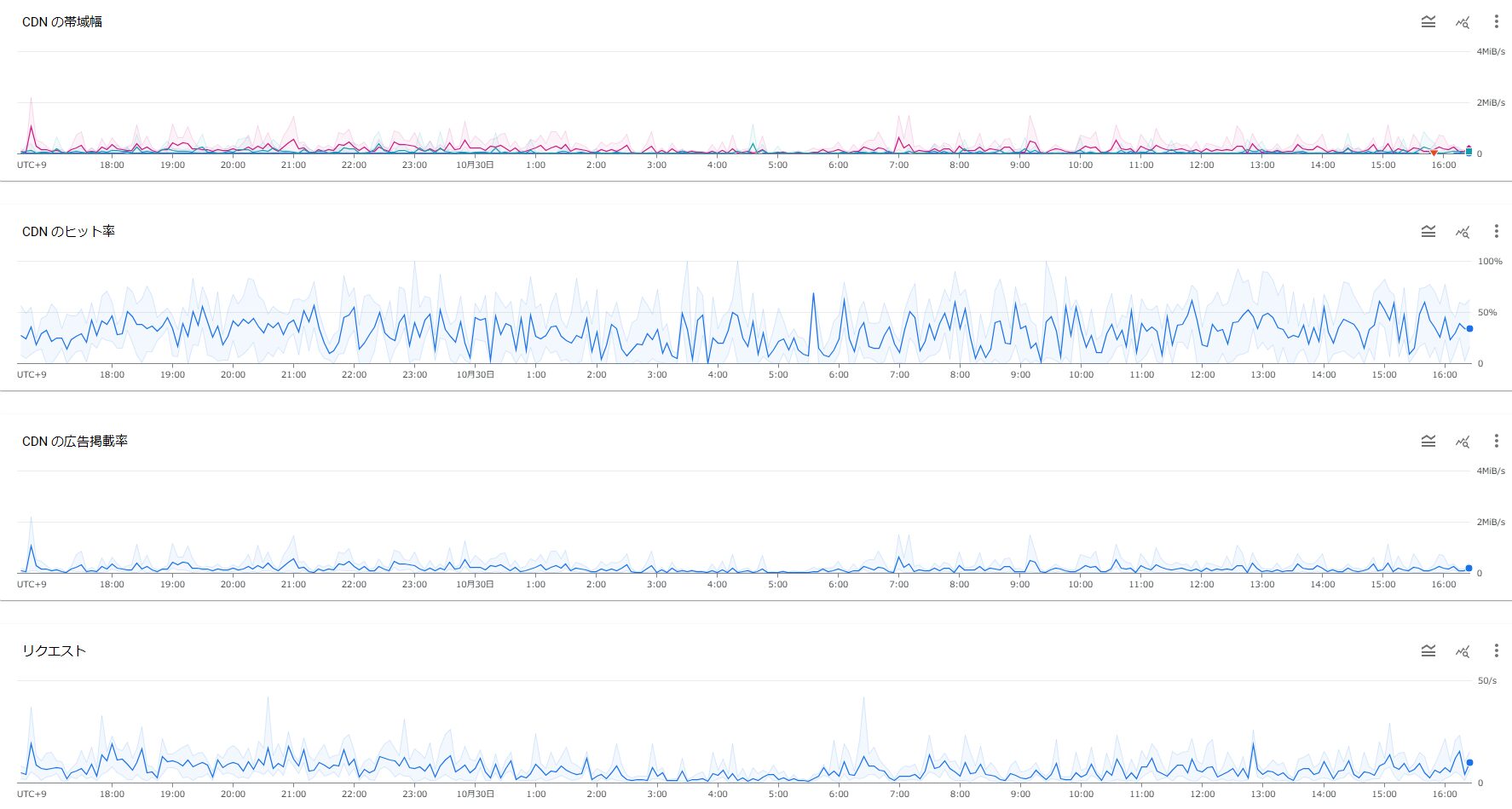
After confirming cache hits several times, you can check the hit rate from the console by going to GCP, clicking on CLB > CDN > Origin Name > Monitoring, and then looking at Cloud CDN.
By monitoring the hit rate and bandwidth, you can roughly determine the scope of the cache's impact, so adjust the cache scope according to your conditions.
summary
Using the Cache-Control header with Cloud CDN allows for granular control over static content
, speeds up content delivery, and reduces the load on origin servers.
We hope this blog post helps you utilize caching with Cloud CDN.
Beyond provides CDN construction, operation, and maintenance services, so
please feel free to contact us with any inquiries related to CDNs!
https://beyondjapan.com/service/cdn/




The person who wrote this article
About the author









