

Expanding a disk in a Hyper-V environment
2016.07.15




My name is Ito and I am an infrastructure engineer
When it comes to virtual environments for Windows, Hyper-V is the go-to.
The convenient thing about virtual environments is that you can change the specifications later.
However, adding a disk is a bit more complicated than adding a CPU or memory.
So, here are the steps for adding a disk in Hyper-V!
The procedure can be broadly divided into two steps
- On the Hyper-V side
- Working in a virtual OS
Procedure on Hyper-V side
First, on the Hyper-V side, increase the capacity of the virtual HDD used for the virtual OS
*To expand the virtual HDD, you must shut down the virtual OS.*
The following steps will be taken after shutdown
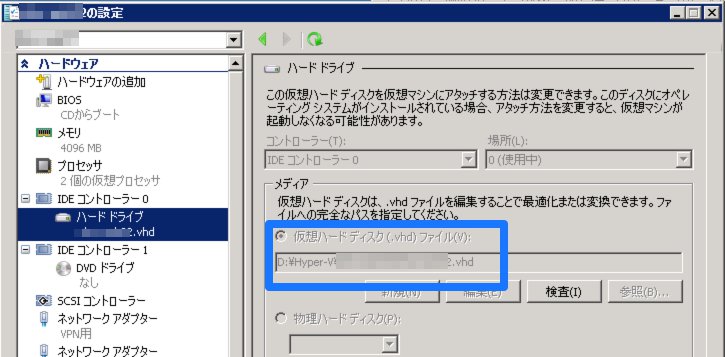
Locate the VHD file
Check the location of the HDD you are using for the virtual OS
Check the settings of the target virtual OS.
The enclosed area shows the location of the VHD file.
Expanding a VHD file
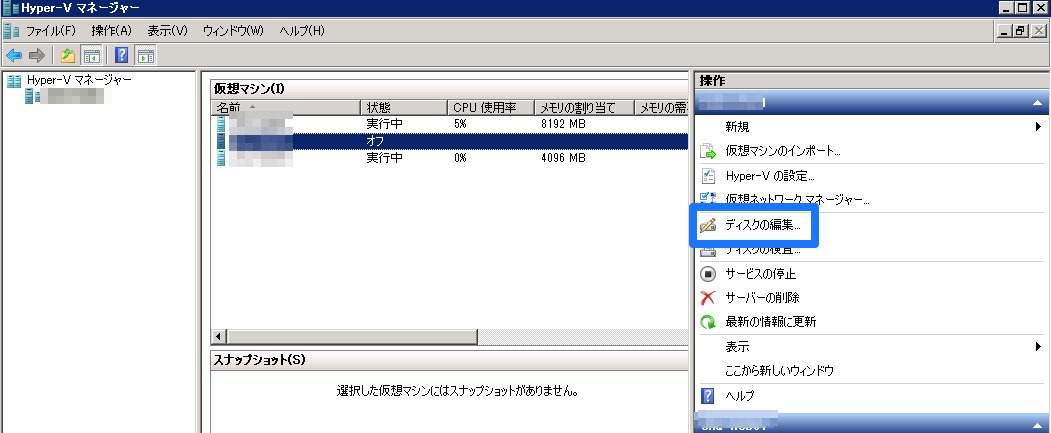
Once you have confirmed the location of the VHD file, you can actually expand it
From the Hyper-V management screen, click "Edit Disk."
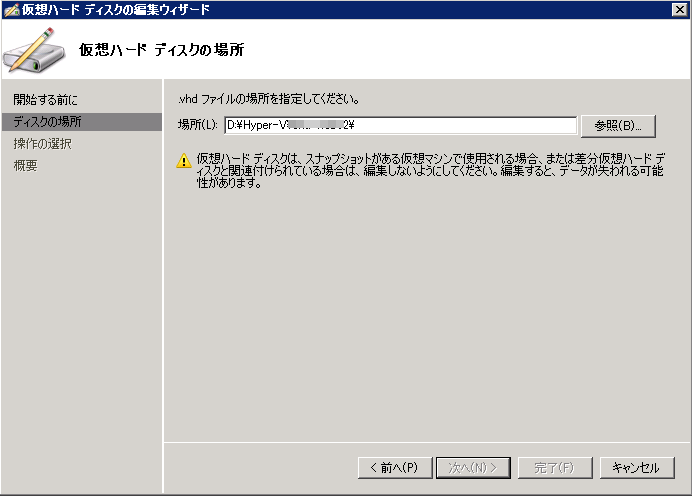
Select the location of the VHD file you found earlier
"Extend"
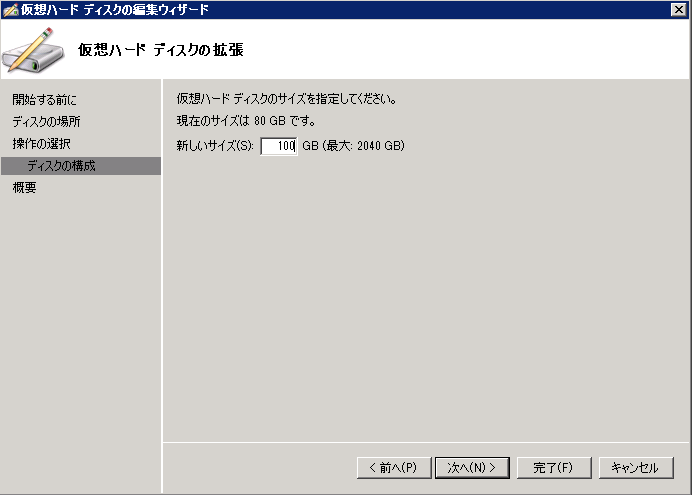
Determine the size of the VHD file after expansion
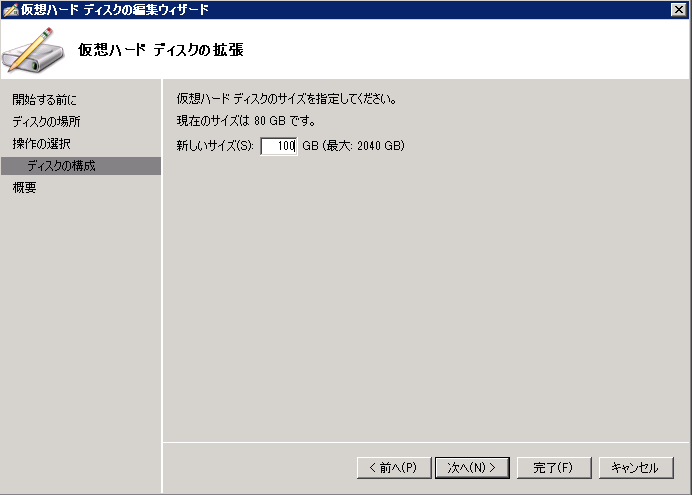
The VHD file has now been expanded.
However, while the VHD file has been expanded, the virtual OS has not yet been expanded.
It is recognized in Windows, but no partition has been allocated.
So you need to expand the partition in the OS
Working in a virtual OS
We will start up the virtual OS that was shut down and expand it
From "Server Manager," go to [Storage] - [Disk Management].
(For client operating systems, this is "Computer Management.")
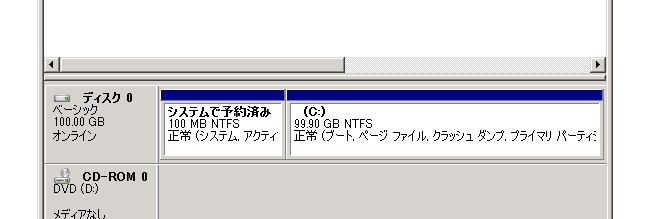
Since you are expanding the disk capacity, you will probably have some "unallocated" space
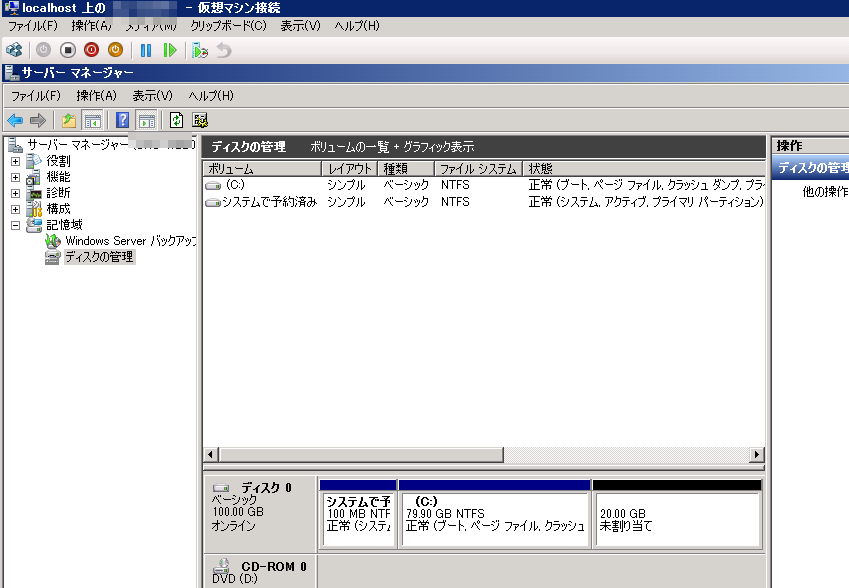
Right-click the drive you want to expand and select "Extend Volume."
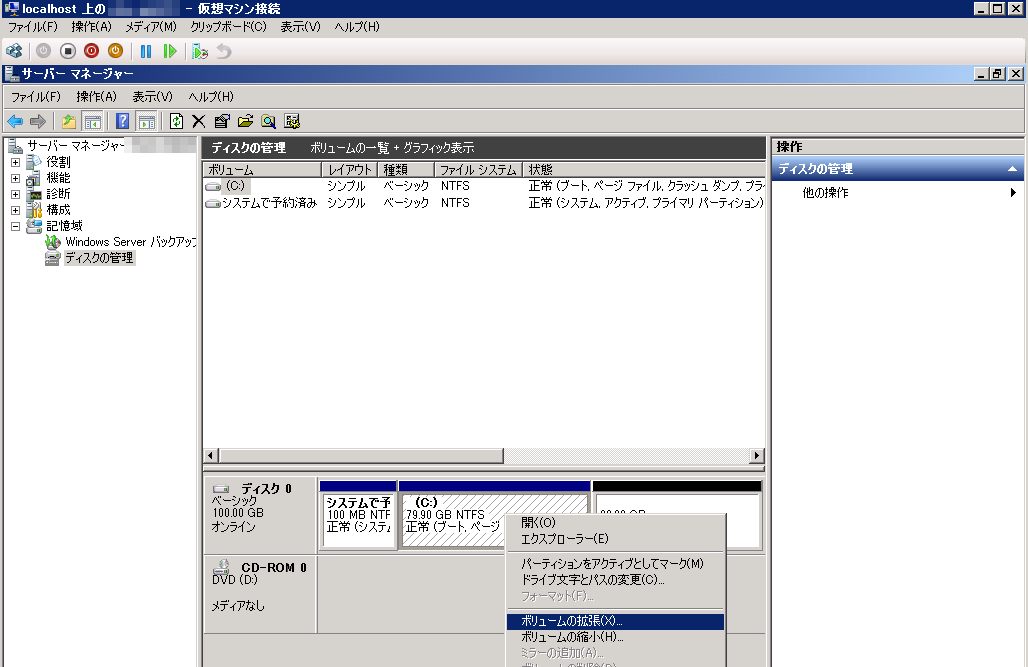
The Volume Expansion Wizard will appear.
If you want to expand the entire volume, simply click "Next" without worrying about anything else to complete the process.
Done!!!
Points to note
Generally, partition expansion is only possible for drives that have unallocated space to the right of them
your partitions are set up as "C drive, D drive, unallocated," and
you want to extend the C drive, you will need to delete the D drive first.
Be careful as it's quite a hassle
The person who wrote this article
About the author









