

Improve your security in just 5 minutes! Set up two-factor authentication
This is Morita from the Technical Sales Department .
Leaks of email addresses and passwords from large-scale services happen frequently, don't they?
Many people probably remember the recent data breaches at the Japan Pension Service and Yahoo! JAPAN.
Even just looking at the major personal data breach incidents listed on Wikipedia, there are quite a few.
It's a frightening world...
No matter how trustworthy a company is, it is extremely difficult to guarantee 100% security, and there is a limit to what individuals can do to prevent data leaks
However, even if your email address and password are stolen, there is a way to prevent unauthorized use of your account.
That is two-factor authentication, which we will introduce today.
table of contents
- What is two-factor authentication?
- What services support two-factor authentication?
- All the basics: Setting up Google Authenticator
- Other two-factor authentication apps
- summary
◆What is two-step authentication?
This is a system that authenticates your identity by going through a two-step process when using a service
Typical examples include
the passwords set by users
and the one-time passwords issued by tokens
used in online banking
Furthermore, the Google Authenticator system we will introduce here
uses
• Password (an element known by the user)
• Smartphone (an element owned by the user)
Other similar terms include two-way authentication, two-factor authentication, and multi-factor authentication, but we will not explain them here
What services support two-step authentication?
Many services that you may use for work or personal purposes support this feature. If you use these services, we recommend that you set up two-factor authentication
- Amazon
- Amazon Web Services
- Backlog
- Dropbox
- Evernote
- GitHub
- Google Account
- Google Apps for Work
- Microsoft account
- Slack *Installation instructions are available.
- Tumblr
- WordPress.com
*We plan to add instructions on how to set up each service in the future
As of March 23, 2017, it's unfortunate that ChatWork, which we use at our company, is not yet supported..
New Feature Development & Improvements
This year, we are planning ChatWork Ver4.0, and the following features are currently under development:
Complete redesign of the mobile app (iOS, Android)
Enhanced task and video conferencing functions
Introduction of two-factor authentication
the desktop app
API
Improved response time and more stable operation
Enhanced response to user feedback
ChatWork Feedback Forum
(We are also developing various other features that we cannot yet announce.)
Monday, April 27, 2015 ChatWork moves to the next stage - Announcement of funding from GMO VP
There are articles about this, but...
ChatWork, we're waiting for you to add this feature!
◆ All the basics: Setting up Google Authenticator
Now, let's set up Google two-step authentication, which serves as the basis for authenticating various services
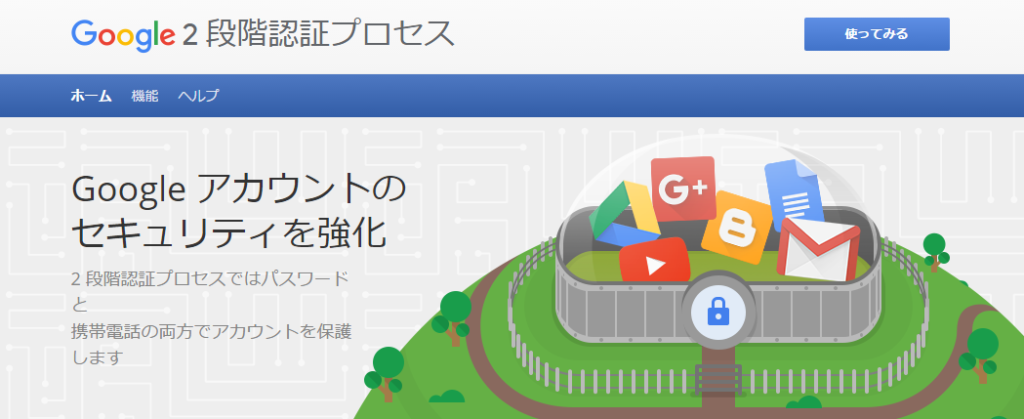
First, open Google's 2-Step Verification process
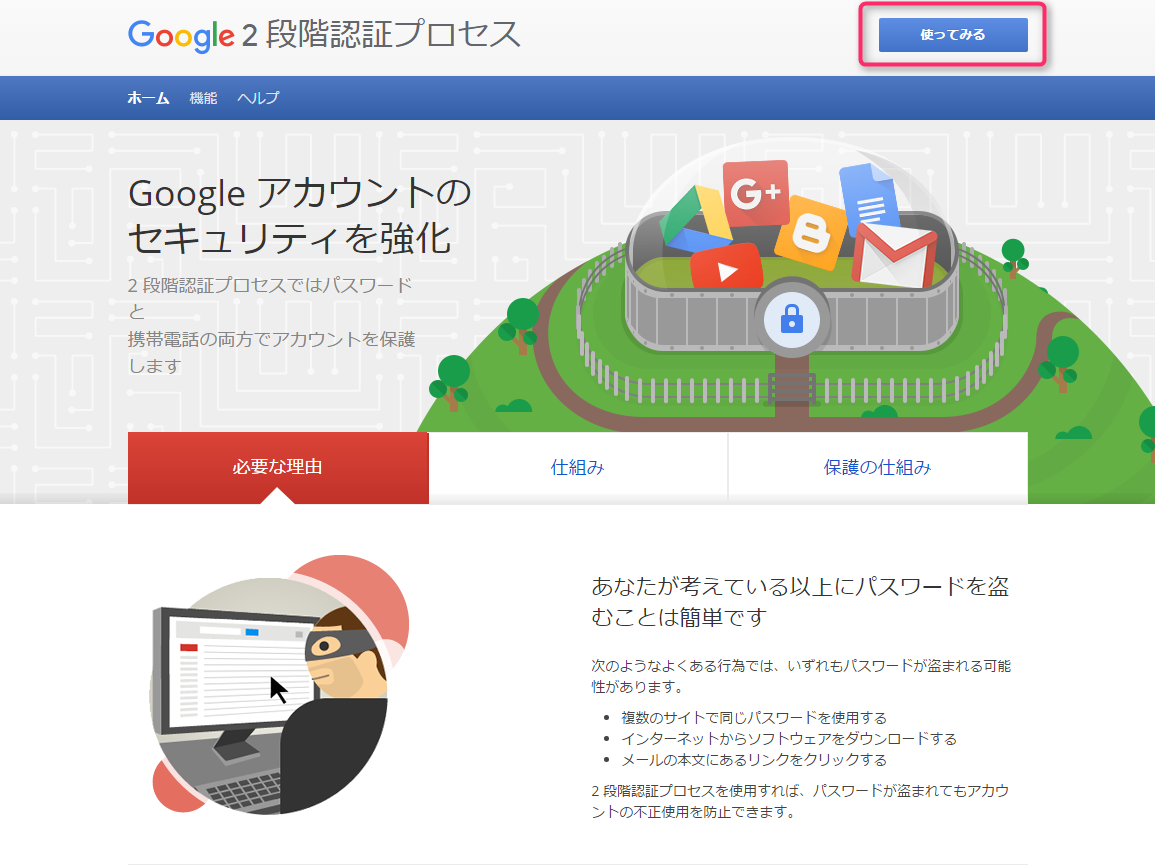
Click "Get started" in the upper right corner.
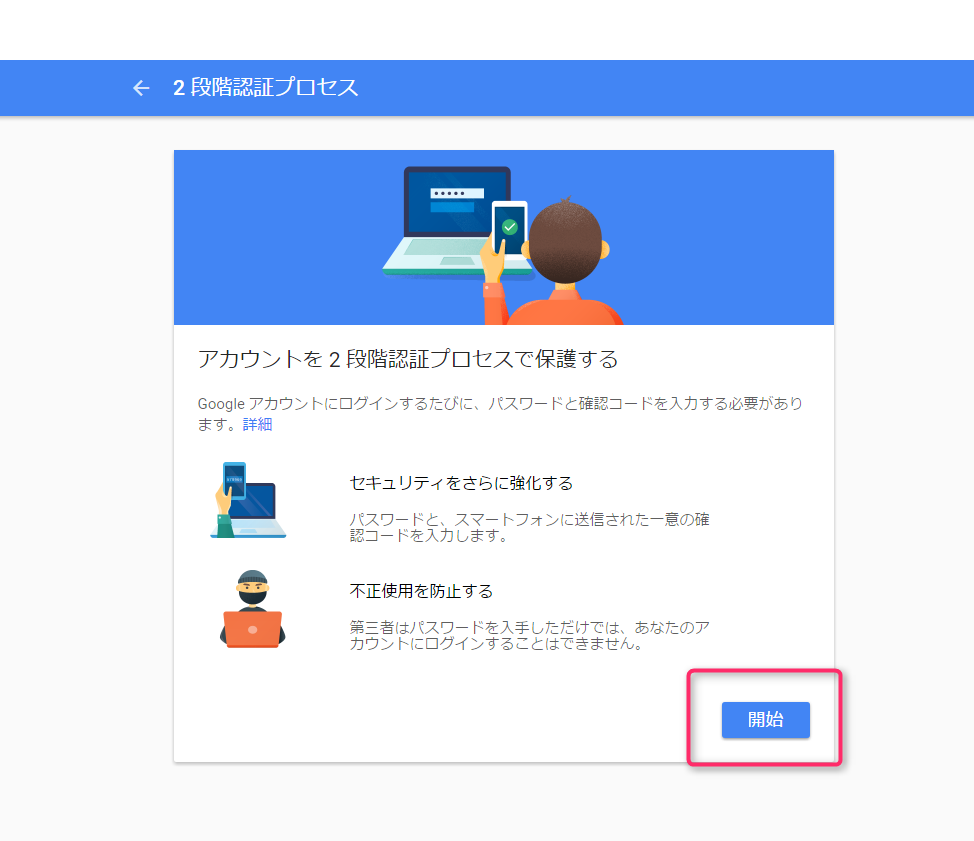
Click "Start" at the bottom right
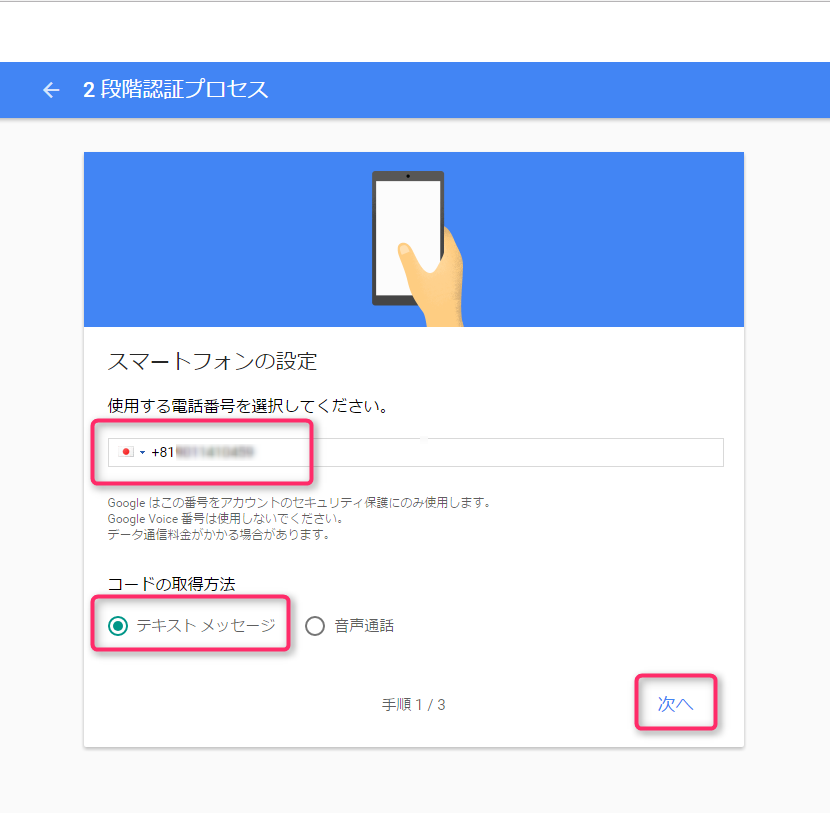
Enter "+81" followed by your mobile phone number, omitting the leading "0".
This time, select text message and press "Next".
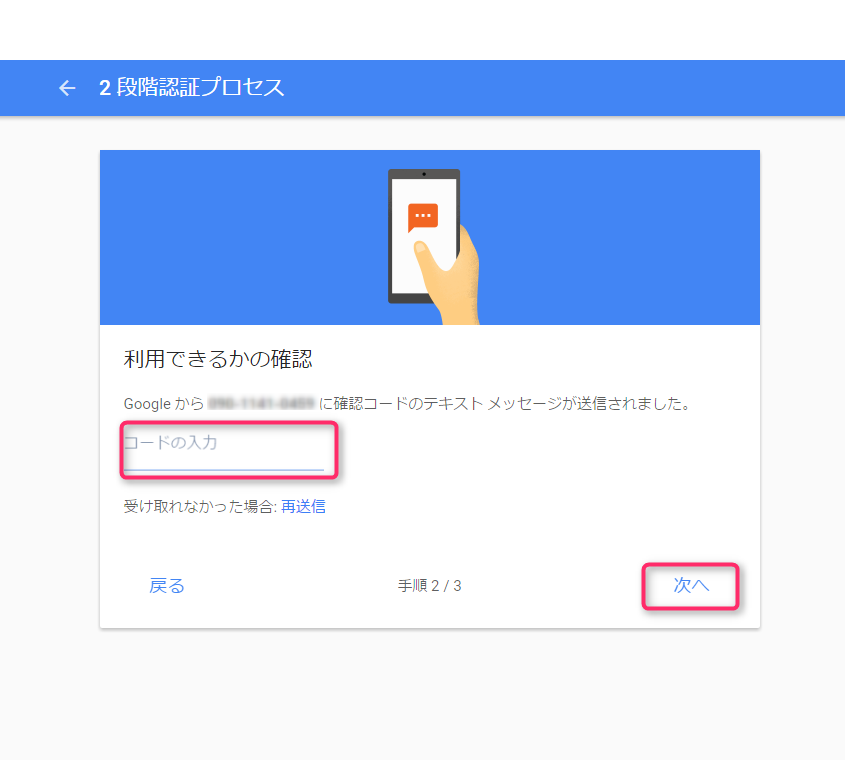
Google will send a code to the mobile number you entered above.
Enter the code you received and press "Next".
Click "Turn On"
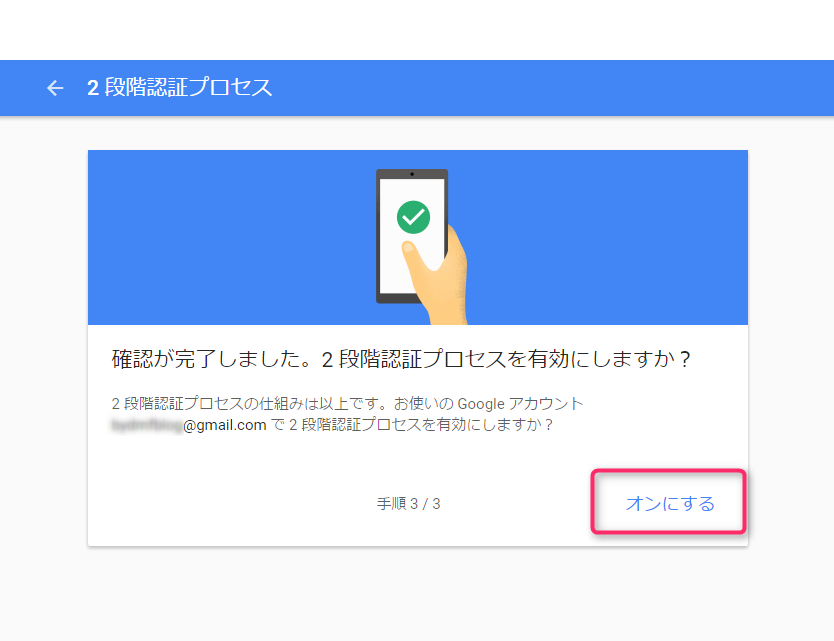
Now the two-step verification process is enabled. It's super easy
Next, let's set up Google's Authenticator app.
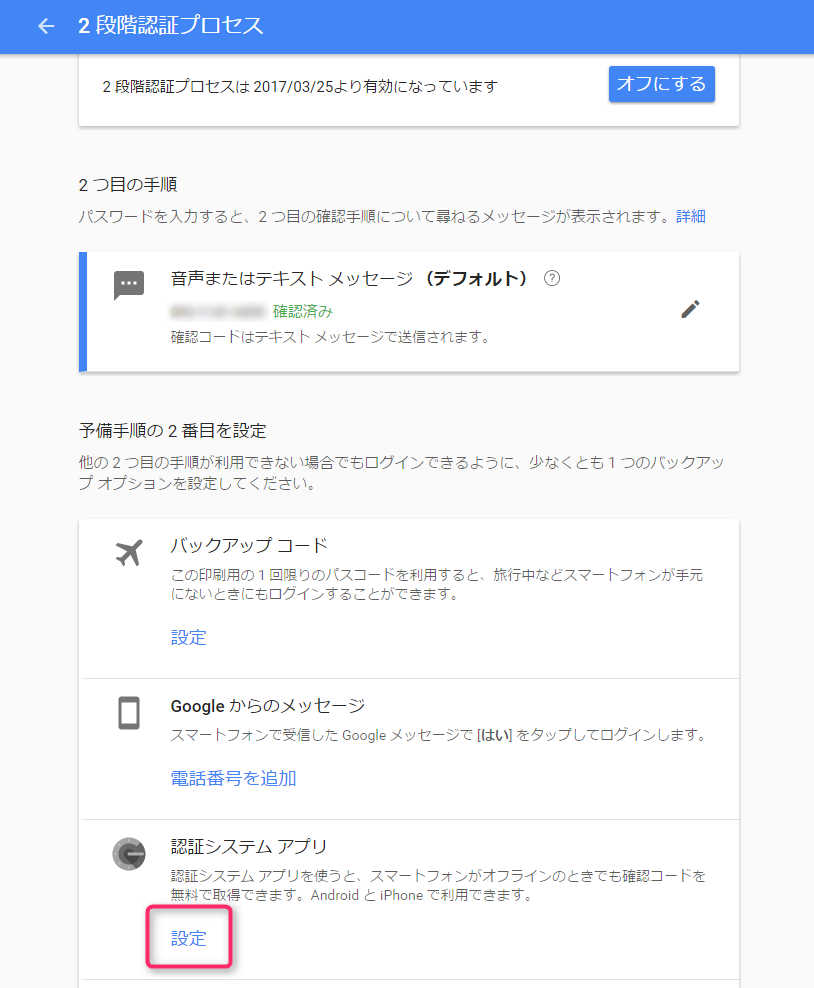
Scroll down the screen a little and tap "Settings" under "Authenticator app".
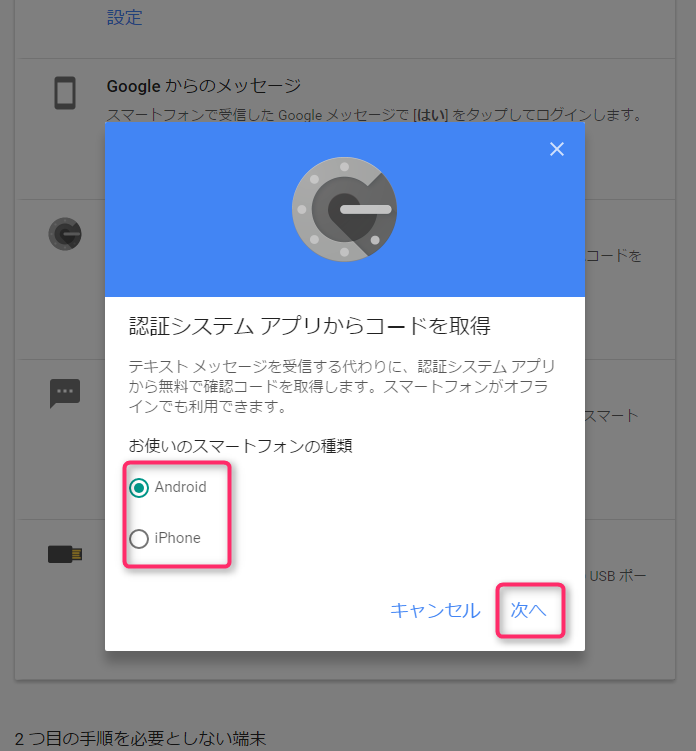
Please enter the type of smartphone you are using.
In this example, we have selected Android.
Google will send a code to the mobile number you entered above.
Enter the code you received and press "Done".
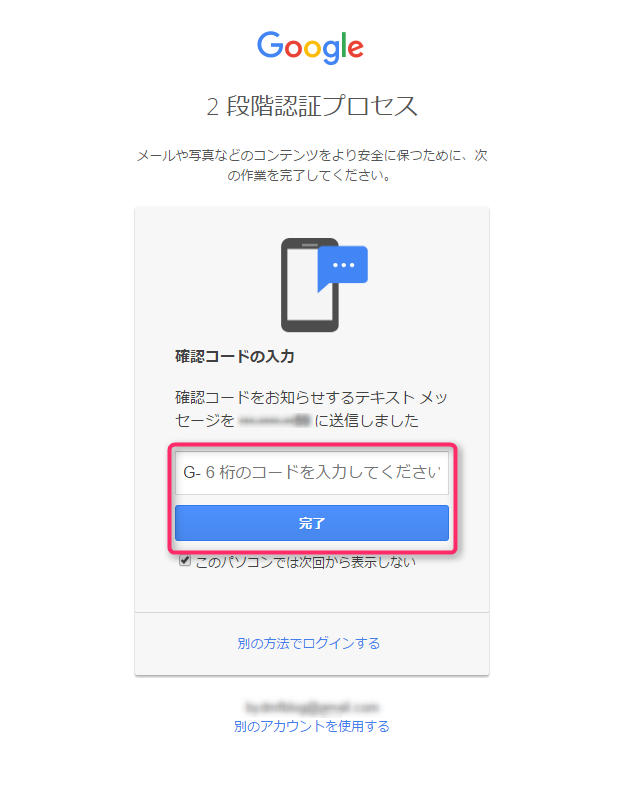
Then, click "Settings" in the "Authentication System App" again and enter the type of smartphone you are using
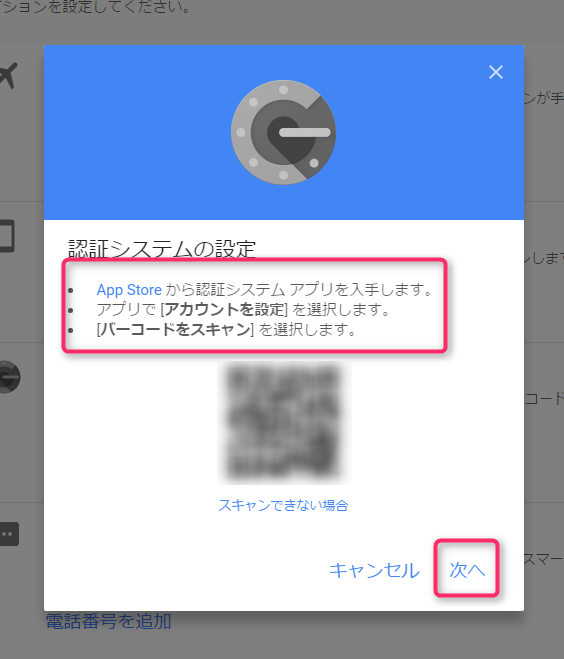
Download and launch Google Authenticator
After launching, tap the "+" button in the upper right corner of the app screen, then tap "Scan barcode" displayed at the bottom of the screen. Scan
the QR code displayed on the screen below.
After that, "google" will be added to the app and a 6-digit code will be displayed.
Return to the computer screen and click "Next."
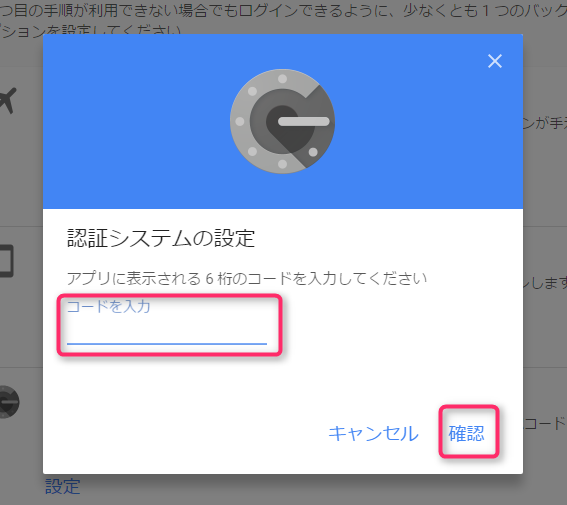
Enter the code displayed in the app and click "Confirm."
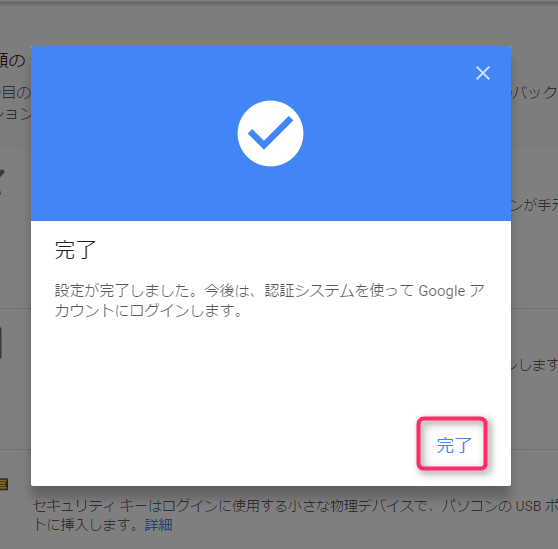
Finally, click "Done" to complete the Google Authenticator setup
◆Other two-factor authentication apps
In addition to the Google Authenticator introduced here, other apps that can be used for two-step authentication include:
In Japan, IIJ SmartKey is also widely used
Summary
Why not take this opportunity to reassess your account management?
In addition to setting up the two-step authentication mentioned above, we would like you to reconsider your username and password management policies
For example,
you can: not use the same password on multiple sites
; not use easily guessable passwords
; use password generators
; and change your passwords regularly
.
There's a software called keepass that conveniently solves these kinds of problems , so please try it out if you're interested. I'll also put together a summary of some useful ways to use keepass sometime in the future.




The person who wrote this article
About the author









