

Learn about the dig command
2017.04.16





What is the dig command?
This command queries a DNS server for domain information and retrieves the results.
For example, entering the following will retrieve the records for the domain you want to know about.
$ dig {nameserver name} {domain name} {record type}
However, there are no specific requirements for the arguments entered after `dig`, so you can enter them as you like.
This is used to check the settings and operation after adding domain settings to your company's DNS server.
What is a record?
This refers to the contents of the zone file (a table mapping domain names to IP addresses) managed by the target DNS server.
There are several types, each with a different meaning.
| Record Name | explanation |
|---|---|
| A | Linking IPs to Domains |
| ANY | Contains all the domain information |
| MX | Domain email exchange (email address) information |
| CNAME | Forward a domain to another domain |
| NS | Authoritative name server information for the domain |
| SOA | Authoritative DNS server for the domain and its details |
| TXT | Linking domains to text |
Run the dig command
Now, let's use the domain "google.com" as an example and run the dig command!
First, run the dig command without any options.
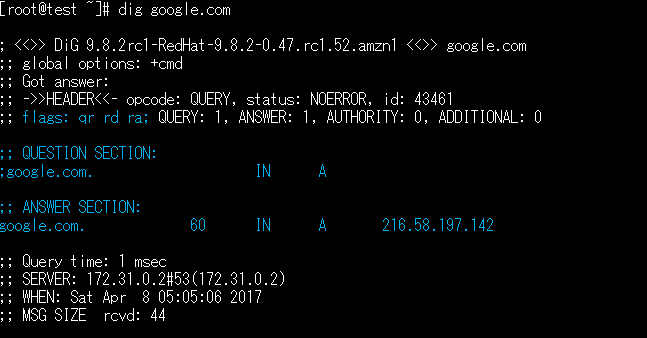
The A record information for google.com is displayed.
There are three points to pay attention to.
1.;;flags:qr rd ra;
This represents the response from the DNS server.
`qr` means the answer to the query.
`rd` means the answer was obtained by recursively querying servers other than the one queried.
`ra` means the cache server allows recursive queries.
2. QUESTION SECTION:
This displays the results of your query to the name server.
In this case, since the dig command was executed without any options, it indicates that an A record was queried.
3. ANSWER SECTION:
The result of the query to the name server is displayed
Next, let's query the name servers for google.com.
The result is as follows.
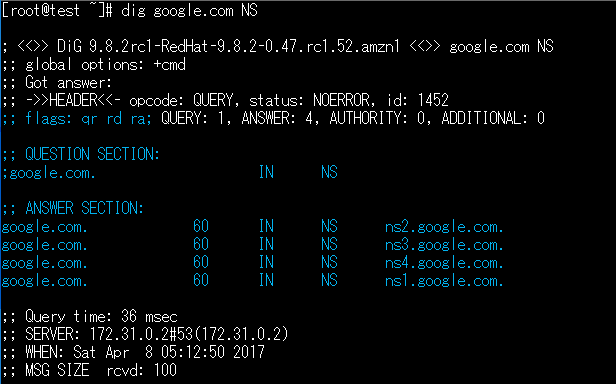
The flags: output is the same as before.
Looking at the ANSWER SECTION, we can see that there are four name server names that google.com points to.
Conclusion
How was it?
When I first ran it, I struggled to figure out what information to glean from the command results.
But after researching and breaking it down, I became more comfortable with it.
There are many useful options that I haven't introduced here, so
I plan to try combining them freely.
The person who wrote this article
About the author









