

Display dotted hostname in prompt
2017.05.24





This is Nakagawa from the System Solutions Department.
I recently re-examined the prompt display format when setting up a server, so I
'd like to share that information with you.
The prompt is the following section that appears when you log into a server.
[root@test ~]#
By default,the username@hostname and current directoryare displayed from left to right.
This guide will show you how to change the displayed hostname.
Please note that this method is only for CentOS 6 and earlier versions; CentOS 7 may have different behavior.
1. Temporarily change the host name
First, here's how to change it temporarily:
hostname {hostname}
After executing the command, running the `hostname` command without any options will display the entered hostname.
In this case, restarting will invalidate the setting and revert the hostname to its previous state.
2. Make the hostname you set valid even after rebooting
Even if you successfully change the hostname using step 1, the hostname displayed in the prompt will not change.
To retain the change after a reboot and change the prompt display,
you need to modify two configuration files.
/etc/hosts
127.0.0.1 localhost localhost.localdomain {hostname}- /etc/sysconfig/network
HOSTNAME={hostname}
After configuring the settings, restarting `/etc/init.d/network` will apply the changes.
If the changes are not reflected, you will need to restart the server itself.
3. Set a special hostname
If the hostname you want to set contains a period (.), such as ○○.jp or ○○ .co.jp ,
the method described above may not work correctly.
In that case, you will need to change the hostname by specifying an environment variable.
The configuration file to edit is as follows:
- Edit or add the environment variable "PS1".
The prompt display format is determined by the environment variable PS1, so
edit this variable, or add it if it is not set.
You can check the list of currently set environment variables with the following command:
# env
# printenv
This time, we want to display the username, hostname, and current directory in the prompt, so
we set them as environment variables as follows.
export PS1="[\u@\H \W]\$ "
Run the export command to check if any errors are displayed.
Running the env command again will display the settings for the environment variable "PS1".
-
This file is located in the home directory of the target user.
The environment variable "PS1" that was set earlier will become invalid after a reboot, so
we will add an entry to the end of the .bashrc file so that the environment variable "PS1" will be automatically loaded when the user logs in.
export PS1="[\u@\H \W]\$ "
After configuring the above settings, if you close the session or switch to a different user and then
log back in, the configured hostname will be displayed in the prompt.
4. Other setting changes
Here are some other examples of setting changes.
If you want to display the date, add "\d" to the environment variable.
export PS1="[\u@\H \d \W]\\$ "

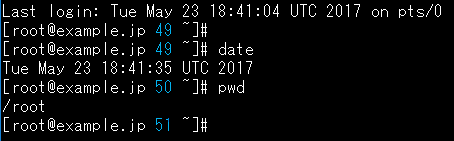
To display the command history number, add "\!"
export PS1="[\u@\H \! \W]\\$ "
Conclusion
I shared this in the hope that it would give you some hints on how to customize prompts to your own preferences.
Thank you for reading to the end.
The person who wrote this article
About the author









