

Use the top command like a seasoned engineer
2017.05.10





Hello.
I'm Mandai, the Wild team member in charge of development.
It is said that when so-called hackers bypass various monitoring and blocking measures and log into a server, the first command they type is the "w" command, but when a server administrator detects an abnormality, the first command they type is probably the "ps" command or the "top" command
This time, I'll be a little more serious and introduce how to use the top command in a way that will set you apart from the crowd
Before you begin
When you run the top command, it is divided into two areas: an upper summary area that displays the resources of the entire system, and a lower task area that displays the running processes
Many of the functions that we will introduce below affect one of these, and we will use them in the explanations, so please keep them in mind
How to type the top command
I'll start off by saying that after logging in via SSH, it seems a bit amateurish to just type "top" a little too quickly
The `top` command, like other commands, allows you to set arguments, so there's no reason not to use this feature.
It's best to have some time while logged in to think about what arguments you need.
For example, to see the complete command being executed, type
top -c
Let's assume that
Also, if you want to change the default screen refresh rate of 3 seconds,
top -d 0.5 # Update the screen every 0.5 seconds
Let's assume that
To issue both of the above at the same time:
top -c -d 0.5 # or top -cd 0.5 # the following is bad top -dc 0.5
Let's do that.
If you refresh the screen too quickly, the load will increase more than you might expect, so do it in moderation.
What you can do during execution
Summary area display switching
The summary area is broadly divided into three sections

- Uptime and overall load information (l) circled in red
- CPU and task information (t) enclosed in a green frame
- Memory and swap information (m) surrounded by a blue frame
You can display/hide these by pressing the corresponding keys (keys in parentheses)
Another important key is "1". If you press this key, the load on each core will be displayed individually if your CPU is multi-core
Task area display toggle
The default top screen allows you to understand the current system load, but it is also true that there are many items that are not displayed
While `top` is running, pressing "f" will display a list of items that `top` can show, allowing you to configure which items to show or hide.
On this screen, you can move the cursor up and down. Move the cursor to the item you want to display, and then press "d" or the spacebar to make it bold, and that item will be displayed.
Swap usage, which is surprisingly difficult to obtain, can also be obtained on the top screen
Furthermore, if you press right after moving up and down, the entire item will be selected, and if you press up and down in that state, you can adjust the display order of the items
The video below shows the swap usage displayed and brought to the forefront of the command

Signal transmission
For those unfamiliar with signals, please refer to Wikipedia or other sources, but a common example of sending a signal is killing a process
The equivalent of "kill [pid]" can be performed in top
To do this, press "k" while top is running. If you press it by mistake at this point, you can escape by pressing the escape key
The message "PID to signal/kill" will appear above the task area, so enter the process ID you want to kill
Next, you will see a message that says "Send pid [PID] signal [15/sigterm]", so send the signal name/signal number you want to send.
By default, it sends sigterm (15), so if the process doesn't crash with this, try sending sigkill (9).
I recommend this because you can kill processes while looking at the top screen
Split-window mode (alternate-display mode) for experts
For some reason, top has an alternate-display mode that splits the screen into up to four parts to view running processes
split mode (as we'll call it here;the translated version of man topcalls it "alternative display mode") and normal fullscreen mode is done with "Shift + a".
The screen layout at the moment you enter split mode is as follows:
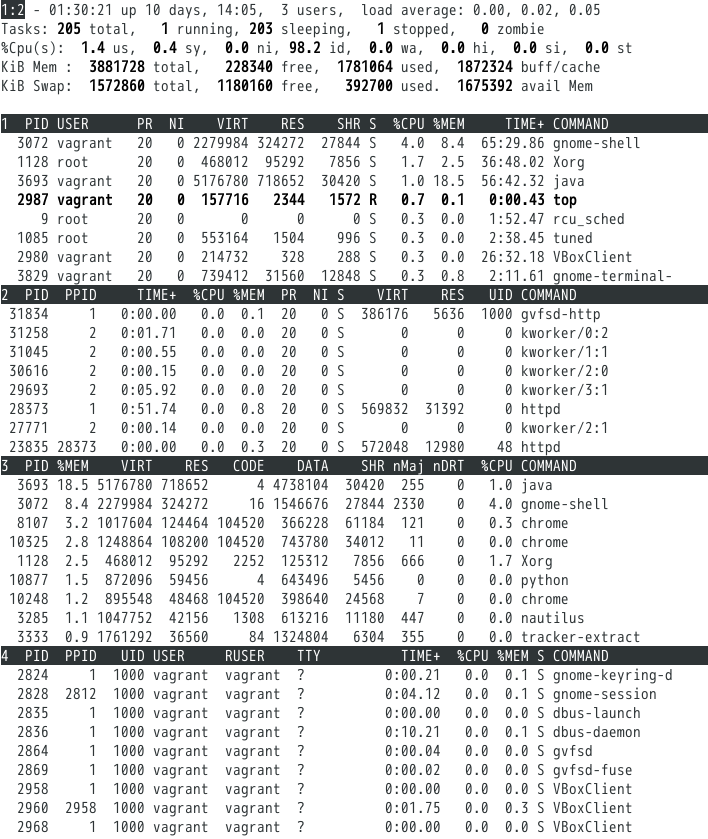
This isn't the usual top page! It's not a bug.
The idea is that you can have up to four different task areas, and you adjust the fields according to the items you want to display and switch between them.
The default screen is screen 1. To move to other screens, press "a" to move forward and "w" to move backward.
To move to a specific page, press "g" followed by a number from 1 to 4, but there are only four pages, so you probably won't need to use this method.
After moving to a different screen, press "Shift + a" to return to full-screen mode.
The task area will then be displayed in a different format, showing all processes across the entire screen.
For each of these screens, you can use "f" to adjust the fields and specify the fields to sort by, so you can make adjustments
If you exit the program after adjusting it in split mode, the changes will revert to their original state, so if you output the settings file described below, the changes will be reflected in the program from the next time you start it up
Predefine the output state at startup
When detecting an anomaly and checking the results using `top`, time is often of the essence, so running the command with arguments every time can be considered a waste of time.
In such cases, writing the arguments to a configuration file is one possible solution.
The configuration file that defines the display state is usually output to a file called "$HOME/.toprc" for each user
Setting it up is easy: just configure your preferred display in the top menu, then press "W" to finish.
Since it's a capital "W," if you have Caps Lock turned off, you'll need to type "Shift + w."
The resulting file looks like this:
top's Config File (Linux processes with windows) Id:i, Mode_altscr=0, Mode_irixps=1, Delay_time=3.0, Curwin=0 2 fieldscur=\¨³´»½ÀÄ·º¹Å&')*+,-./012568<>?ABCFGHIJKLMNOPQRSTUVWXYZ[\]^_`abcdefghij winflags=193844, sortindx=18, maxtasks=0, graph_cpus=0, graph_mems=0 summclr=1, msgsclr=1, headclr=3, taskclr=1 Job fieldscur=¥¦¹·º(³´Ä»½@<§Å)*+,-./012568>?ABCFGHIJKLMNOPQRSTUVWXYZ[\]^_`abcdefghij winflags=161076, sortindx=0, maxtasks=0, graph_cpus=0, graph_mems=0 summclr=6, msgsclr=6, headclr=7, taskclr=6 1 fieldscur=\º»<½¾¿ ÀÁMBNÃD34·Å&'()*+,-./0125689FGHIJKLOPQRSTUVWXYZ[\]^_`abcdefghij winflags=193844, sortindx=21, maxtasks=0, graph_cpus=0, graph_mems=0 summclr=5, msgsclr=5, headclr=4, taskclr=5 Usr fieldscur=¥¦§¨ª°¹·ºÄÅ)+,-./1234568;<=>?@ABCFGHIJKLMNOPQRSTUVWXYZ[\]^_`abcdefghij winflags=193844, sortindx=3, maxtasks=0, graph_cpus=0, graph_mems=0 summclr=3, msgsclr=3, headclr=2, taskclr=3 Fixed_widest=0, Summ_mscale=0, Task_mscale=0, Zero_suppress=0
To be honest, in this state it's completely unclear what's going on (although it's not impossible to read if you check each part individually), so I think it's best to avoid creating this file manually
Conversely, a properly configured file can be applied to other machines simply by copying and pasting it, so it can be easily reflected even when building using chef or ansible
Prepare multiple configuration files for the top command
If you start getting particular about the settings of your top screen, you'll probably want to prepare multiple screen settings and use them according to the situation.
However, the top settings file is "$HOME/.toprc" as mentioned earlier.
In fact, this was not the correct explanation
The correct format is "$HOME/.[top name]rc".
I experimented to see what the "top name" means.
# Check the current top path $ which top /usr/bin/top # Create a symbolic link to /usr/bin/top in /usr/bin/mytop $ sudo ln -s /usr/bin/top /usr/bin/mytop # Try running it $ mytop
This works fine and top opens as normal
Now, if you change any fields or display and save it, a file called "$HOME/.mytoprc" will be created
In this way, you can create symbolic links to write different configuration files.
Since you're running your customized version of top under a different name, it won't affect the regular top.
Start in batch mode
It's a big mistake to think of `top` as just a tool that displays the system status in real time on the screen. Like the `vmstat` and `sar` commands, it also has a batch mode that allows you to stream the output to standard output for processing and saving.
The following command streams the output of `top` to standard output.
top -b -n 5 -d 0.5
The "-b" option starts the program in batch mode, and the "-n" option specifies the number of times to display the output.
Furthermore, the "-d" option specifies the display interval.
In this case, the results of the top screen will be sent to standard output five times at 0.5 second intervals
Of course, you can pipe it to other commands, but the following command is often incorrect
top -b -n 5 -d 0.5 | head -n 5
If you try it, you'll understand what it means.
Looking at the command, you can probably imagine what kind of result is desired, but the `top` command is unsuitable for this purpose.
summary
The top command is a useful command that can be useful in many situations, but did you realize that it can become even more useful by customizing it?
This is what it looks like in its entirety, but what's interesting is that you can make it as elaborate as you like depending on your customization options
This is how we monitor our servers 24 hours a day, 365 days a year
That's all
The person who wrote this article
About the author









