

When developing with Vue.js, you should also use vue-devtools

This is Kusakabe from the development team.
I'd like to introduce vue-devtools, a very useful tool when developing with Vue.
Roughly speaking, it's a tool that lets you see the contents of data without having to output to the console every time!
vue-devtools is provided as a Google Chrome extensionand can be easily installed.
Once installed, all you have to do is open a page that has a Vue application, and vue-devtools will detect the Vue application
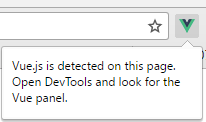
When detected, the Vue icon in the top right corner of your Chrome window will light up
Now, if you open Chrome's Developer Tools (F12), you will see a Vue tab added to the far right
In this article, I will give you a rough overview of what vue-devtools can do
Note
you want to try this with a local HTML file, you need to go to Chrome Settings -> Extensions and check the box for "Allow access to file URLs" for vue-devtools.

Furthermore, it seems that devtools doesn't respond to Vue applications within iframes
(I originally wanted to provide something that could be interacted with and checked using JSFiddle, but I had to abandon that plan due to this issue.)
Main topic
vue-devtools has three main display categories:
Let's take a look at them one by one
Components
This tab allows you to view the parent-child relationships of each component and the data they hold.
The display name of a component uses the upper camel case version of the child component name set in the parent component's components property.
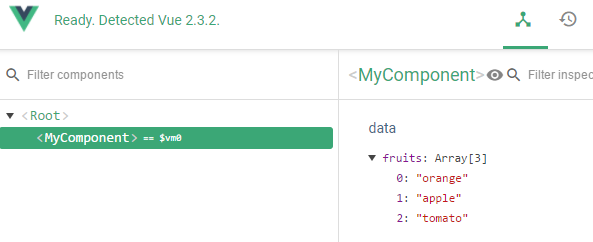
An example showing details of a child component passed as "my-component" to the root
If you are using a single-file component, the file name will be in upper camel case.
You can change how it appears in devtools by modifying the component's name property.
Vuex
When using Vuex, you can check the state of the store by selecting the [Vuex] tab
Specifically, the state of each state within the store and the values obtained from getters are displayed.
In addition, the history of mutation commits is displayed in chronological order.
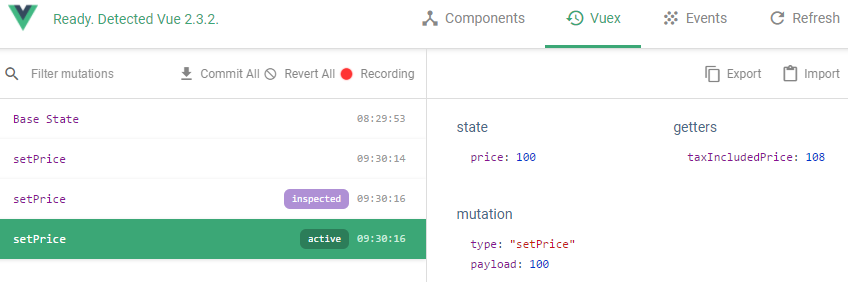
Clicking on each commit history entry will show you the values (payload) passed to the mutation at that time, the state after the commit, and the getter values.
Selecting a commit and clicking the [Time Travel] (clock icon) will rewrite the state to the state immediately after the selected commit was made. (The values on the screen will also change accordingly.)
The commit with the "inspected
"active" label indicates your current position in the timeline. (That is, when you move through time using [Time Travel], the destination becomes active.)
Events
In this tab, you can see the history of when an event was triggered
The $emit history is displayed regardless of whether the event was listened for with $on or not
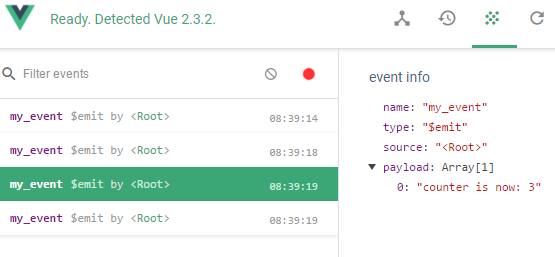
You can check the value (payload) passed to the event from the history
In the example image above, we are passing the string "counter is now: 3" to an event that simply displays the passed string




The person who wrote this article
About the author









