

I tried using Selenium IDE to automate browser testing
Hello.
This is Hase from the development team.
This time, I will introduce Selenium IDE, a tool that automates browser testing
What is Selenium IDE?
Selenium IDE is a tool for automating web browser testing and is provided as a Firefox add-on.
Besides Selenium IDE, there is also a library called Selenium WebDriver that allows you to perform tests programmatically.
Source:Various ways to install Selenium IDE
This tool is provided as a Firefox add-on, but it can also be used with other browsers such as Chrome and Internet Explorer.
I'll explain how to use it with Chrome and Internet Explorer in a future post.
introduction
Since we will be using FireFox as the browser this time, we will proceed under the assumption that FireFox is installed on your PC
thislink, click "+ Add to Firefox," and install Selenium IDE.
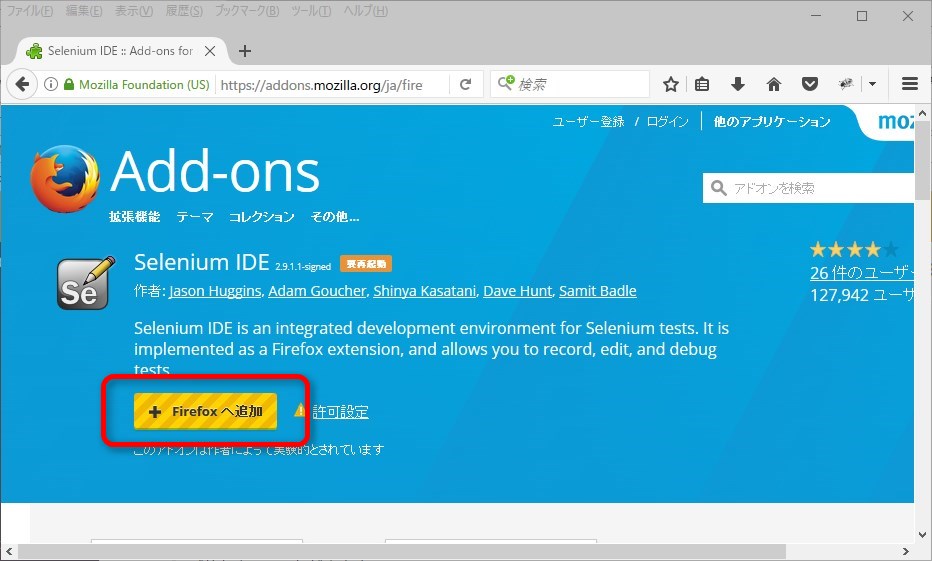
This is all you need to install.
It's very easy!
How to use
For example, let's create the following test:
1. Go to https://www.yahoo.co.jp/
2. Search for "biyondo Co., Ltd."
3. The search results should display "Is this not Biyondo Co., Ltd."
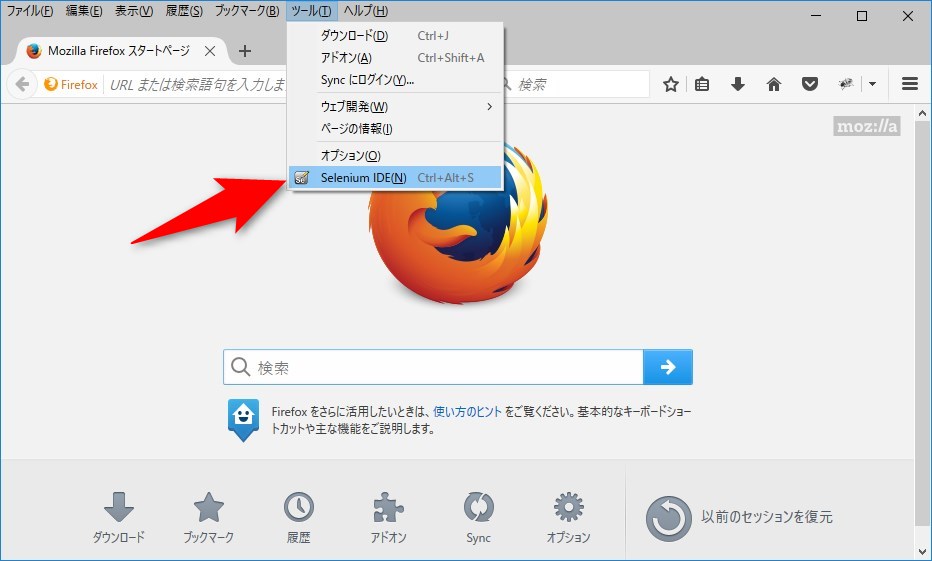
Launch Selenium IDE
Select Menu Bar → Tools → Selenium IDE to launch it
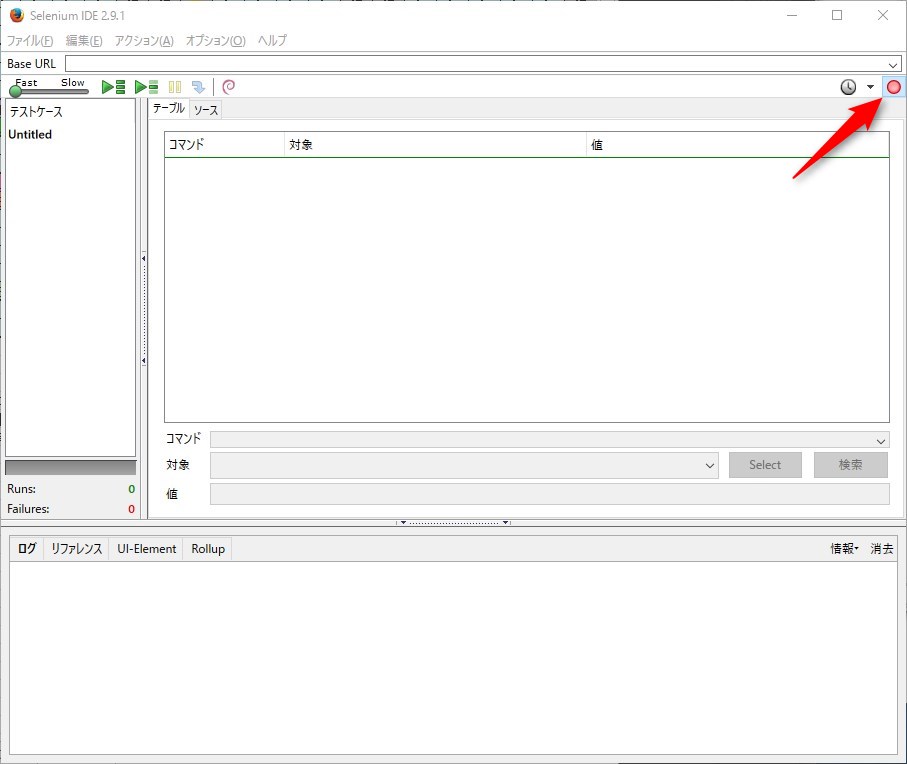
Start recording
Enable the red circle (record button) in the top right corner to start recording
Controlling the browser
Operate your browser as usual.
1. Go to https://www.yahoo.co.jp/
2. Enter "biyondo Co., Ltd." and search.
Your actions will be recorded in Selenium IDE
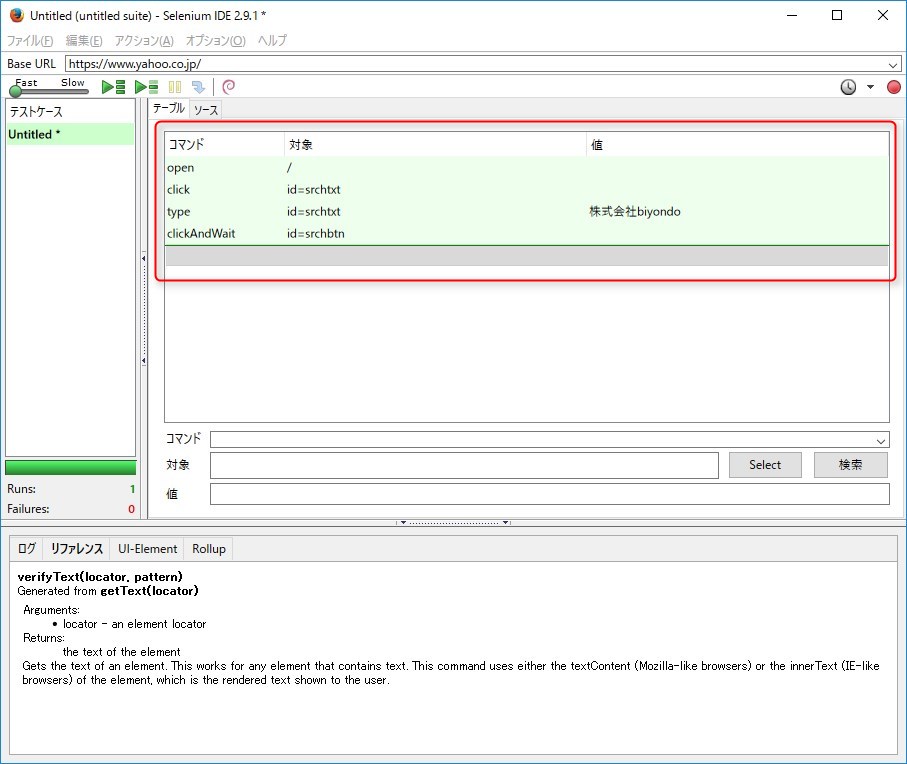
To confirm that the message "Is this Beyond Co., Ltd." is displayed,
drag the text, right-click, and select "verifyText...".
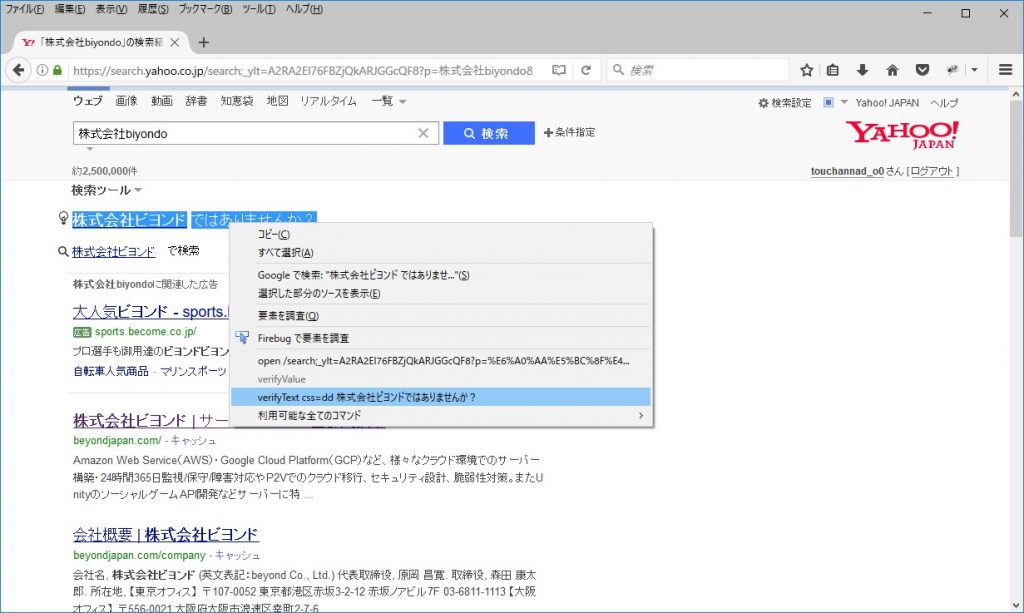
Now you can test that it is displayed
End recording
You can stop recording by clicking the red circle (record button) in the upper right corner again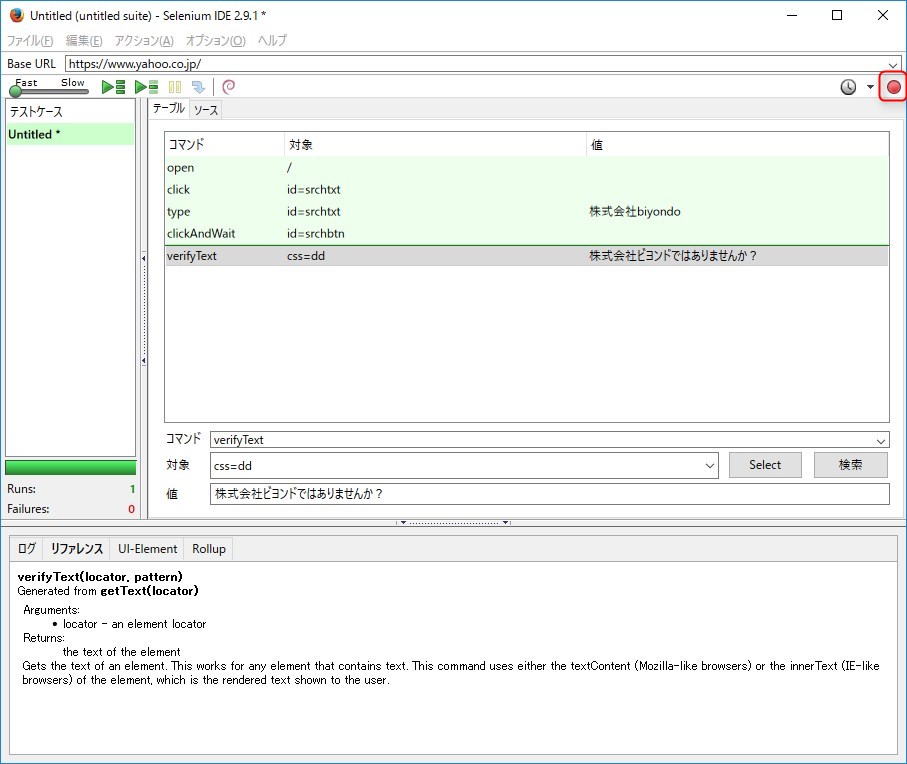
Execute
Play the test you created.
Pressing the play button (▶) will automatically open your browser.
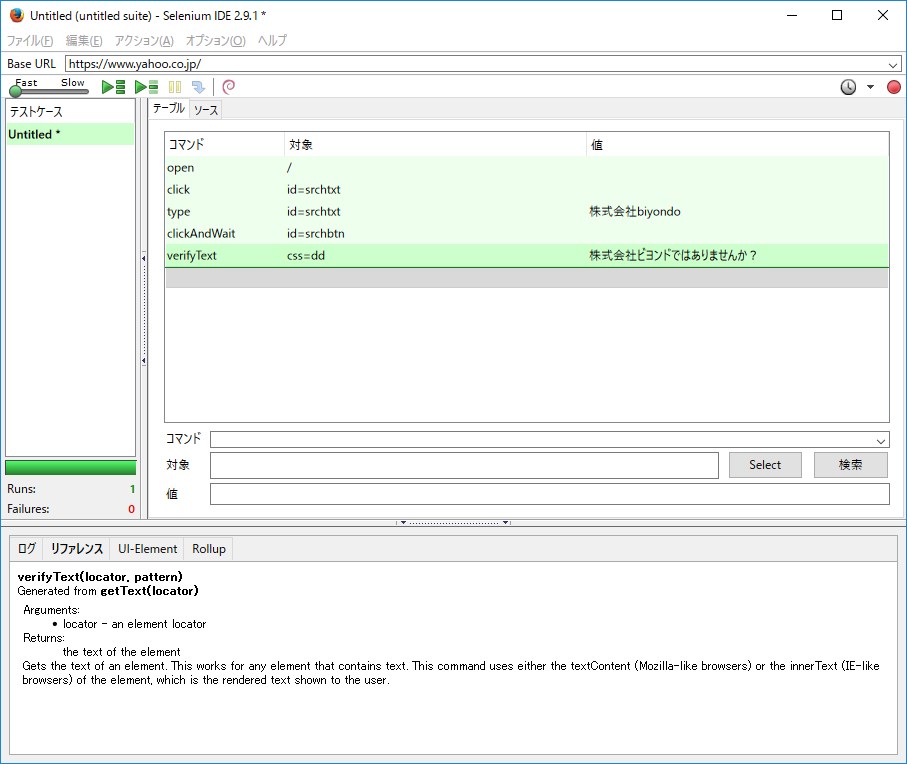
If the test is successful, it will turn green
Conversely, if the values are different and an error occurs, it will turn red as shown below.
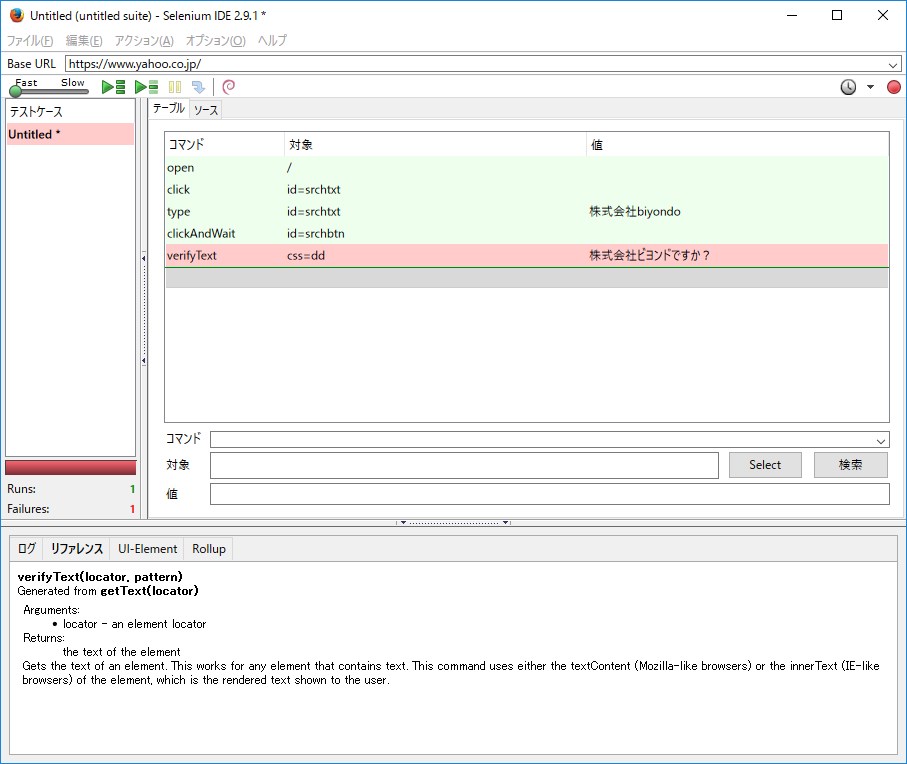
*An error occurred because the value of Verify Text was changed to "Is this Beyond Inc.", causing the values to not match.
Conclusion
This time we created the test using browser operations,
but of course, it is also possible to create it by directly entering commands without using a browser.
For a detailed list of commands and how to use them, to the official documentation
please refer
That's all




The person who wrote this article
About the author









