

Debugging Node.js with Visual Studio Code
Hello.
I'm Mandai, the Wild team member in charge of development.
What editor do you use when developing with Node.js?
If you asked me what editor I recommend, I would wholeheartedly recommend Visual Studio Code (VSCode) because its debugging tools are incredibly powerful!
This time, we will introduce how to use VSCode's extremely capable debugging tools
Installing nodemon for debugging
When it comes to tools for automatically restarting Node.js when source code is modified, I remember that the old one was "node-dev", but it seems that nodemon is being used these days
The official VSCode website also seems to use nodemon, so I'd like to join the trend and use nodemon here
Using nodemon is very easy; you just install it with npm.
I wondered if a global installation would be better, so I'll install it with the "-g" option.
# sudo npm install nodemon -g if necessary
This completes the preparations
launch.json settings
Next, we'll configure launch.json, which sets the startup options and other settings.
Selecting "Open Configuration" from the Debug menu should automatically create launch.json.
It's already partially configured, so you just need to make a few minor adjustments.
Clicking in the order of the numbers in the image below will add items to launch.json
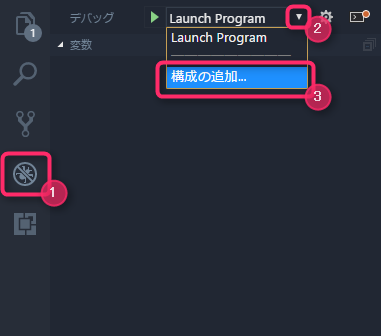
In the bottom right corner of the launch.json screen, you will see a button labeled "Add Item," so click it.
A new setting item will appear and the cursor will move, so scroll down the options and you will find an item called "Node.js: nodemon setup," so select it.
From here, you can change the settings to suit your individual environment
Here are some of the most common and frequently corrected issues
program
The program key specifies the file that will be the entry point for the Node.js application you are developing
"${workspaceRoot}" will be replaced with the path to the folder open in VSCode, so change the path from there as needed
Regardless of the "cwd" item described below, the directory path including ${workspaceRoot} is required
cwd
If set, the working directory will be changed before launching your Node.js application
It's a bit confusing, but you can start an application without setting cwd (because you specify an absolute path in the program key), but if you use a relative path within the application, the relative path starting from the current directory where the program is executed will be selected, resulting in a "file not exists" error
example
- Open the directory in VSCode
- /path/to/hoge
- Absolute path of app.js
- /path/to/hoge/node/app.js
In the above case, the values of the program and cwd keys are as follows:
- program
- ${workspaceRoot}/node/app.js
- cwd
- ${workspaceRoot}/node
args
When starting a Node.js application, the required arguments are defined as an array under the args key
Since it is not specified in key/value format, the value is expanded as an argument as is
"args": [ "-hoge", "--fuga=1", "-a 1", "--port 8080", "--socket", "/path/to/socket" ]
When you start a Node.js application with a launch.json file that has the args key as shown above, it will be launched with the following command:
nodemon --inspect=28106 --debug-brk app.js -hoge --fuga=1 "-a 1" "--port 8080" --socket /path/to/socket
It is important to note that values containing spaces will be written differently depending on whether you want to pass the string "-a 1" or specify 1 for the -a option
It may not seem quite right, but if you specify "-a 1", it will be converted into an argument as a four-character string, so the way to specify the args key when specifying 1 for the -a option is
"args": [ "-a", "1" ]
The values will be specified separately.
Therefore, the order of the args key array is important.
runtimeArgs
Specify the arguments for the program specified in `runtimeExecutable`.
`runtimeExecutable` defaults to Node.js, but you can choose from various options such as `nodemon` or `gulp`.
env
Specifies the environment variables to be specified at runtime
In Linux, it is the value passed to the env command, and in Windows, it is the value passed to $env
It may be difficult to tell which env, runtimeArgs, and args are which, but when running on Linux, it will look something like this:
env [env] node [runtimeArgs] app.js [args]
It's like a mathematical formula, so it might be easier to memorize it
Launch the app from VSCode
Once you have finished configuring launch.json, try launching it from VSCode
The startup procedure is simple; just follow the steps in the image below
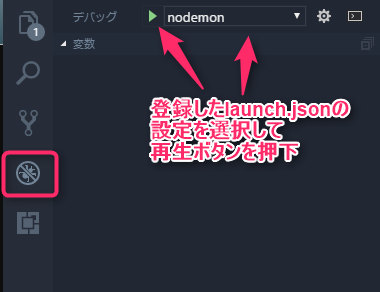
Once it starts up successfully, try accessing the application through your browser.
You should be able to access it as before.
You can set a breakpoint by clicking to the left of the line number in the editor, so if you stop at a suspicious part, you can also check the value of the variable at that time
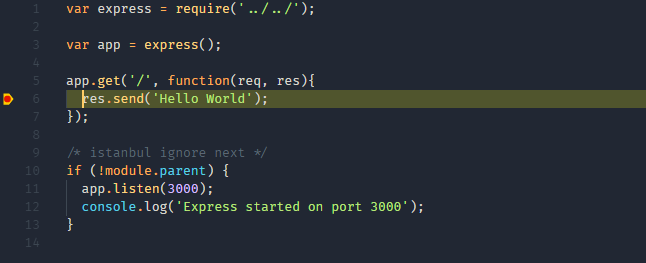
When a suspended program is being debugged, a bar like the one below will appear, allowing you to click on it to step through the program

Next, let's make good use of the watch expressions on the left side, which display defined variables and objects, the call stack, which shows the functions that were passed through before the breakpoint was processed, and the list of set breakpoints, to further improve our debugging efficiency!
Debugging for more than just Node.js
VS Code's debugging tools can debug not only Node.js but also Python. It
comes with preset templates for major frameworks like Django and Flask, allowing you to debug with the same ease as you would with Node.js applications.
summary
What did you think of VS Code's incredibly user-friendly debugging tools?
VS Code really seems to have inherited the best features of Visual Studio, from the ease of use of IntelliSense to the quality of its debugging tools.
That's all




The person who wrote this article
About the author









