

The icon has changed! Visual Studio Code Version 1.17 released

Hello.
I'm Mandai, the Wild team member in charge of development.
A while ago, Visual Studio Code (hereinafter referred to as VSCode) was updated
With this latest update, the icons have changed from blue to orange, which still feels a bit strange, but I'd like to take a look at the new features and improvements in this update
Why did the icon change?
At first glance, the most noticeable change is probably the icon.
However, it seems that the changes weren't limited to VS Code, but were made across the entire Visual Studio product suite.
The details of the change and the underlying philosophyhere, and it's interesting to read, but basically, it seems that the reason they changed the color of VSCode is because the logos for VSCode and Visual Studio Team Services had the same color.
I was disappointed because I preferred the previous logo.
Also, there's a huge uproar on GitHub, and it's unclear whether they'll revert to the old one or continue down this path. It's a situation that demands close attention.
Vscode New logo
New VS Code icon is ugly!
Everyone seems to be passionate about VSCode, and it's becoming a great product
Terminal behavior has changed
Due to the nature of my work, I often use the terminal, and the behavior of the VSCode terminal has changed
In a word, it's great!
And even better, it's molto (excellent)
Looking at the release notes, it was indeed mentioned.
Apparently, it's not just an improvement, but a complete overhaul of the rendering engine, resulting in a significant improvement in execution speed.
The release notes include a GIF showing the ls command being executed in a directory with many files, but since this depends on the machine's specifications, showing a screenshot isn't very helpful...
However, improvements have been made and it now runs smoothly
What I'm most happy about is that in previous versions, if you were looking at a log in progress, the terminal would scroll, making it difficult to calmly check the log. Now, the terminal only scrolls when the latest log is displayed
I was relieved from the daily grind of searching for the data I wanted while crying through the waterfall of logs, thinking, "Please turn off the debug messages before committing (although I often do that too /(^o^)\)"!
Also, I noticed that the font in the terminal had changed, but it turns out to be a bug that has been fixed in 1.17.2
You can now jump to output lines from the debug console
This is great.
Di molto bene.
You can just leave it as it is with console.log as you like... that's fine, but there's no longer any need to add an identifying string to each log that was console.logged, or count the number of lines in the log to calculate the output position
Please note that this is the debug console, not the terminal.
The terminal has a feature that allows you to jump to the relevant section of the error message.
I think both are very easy to use and great features
Code Folding Improvements
When working with long source code, you can use code folding (a feature that shows/hides code using the +/- icons near the line numbers on the left side of the editor) to display only the parts you need, but this feature has now become even more powerful
If you want to go beyond the code folding and fold into a larger region, you can now specify this in the comments using the region keyword
Currently, VS Code explicitly states that it supports eight languages: TypeScript/JavaScript, C#, C/C++, F#, PowerShell, and VB. The syntax differs slightly for each language.
This is due to differences in formatting between languages and is not a standard defined by VS Code itself.
Below are the methods for specifying regions that can be used in each language
- TypeScript/JavaScript: //#region, //#endregion, //region, //endregion
- C# : #region, #endregion
- C/C++: #pragma region, #pragma endregion
- F# : //#region, //#endregion
- Powershell: #region, #endregion
- VB: #Region, #EndRegion
I'm embarrassed to admit I wasn't aware of this feature, and I wasn't inclined to use it.
My reason is simply that it seems pointless to have words unrelated to the operation appear in the code (even more so than commented-out past code), and looking at Stack Overflow and other sites, it seems to be quite controversial, with a lot of people strongly disliking it.
It seems that VSCode should support features that exist as specifications, regardless of likes and dislikes
Dynamically suggest import paths in JavaScript/TypeScript
I've never built such a massive system with JS/TS, so it didn't really register with me, but apparently it didn't exist before.
It's really useful for situations where you have to manually define paths using imports!
IntelliSense now recognizes Markdown in JavaScript and TypeScript
What's that all about? Well, it means you can now write comments for each method in IntelliSense using Markdown.
You can even write comments for custom functions using Markdown, so it might be useful if you want to write comments that are easy to understand.
/** * This is my function * - Comment like this * - Comment like that */ function OrenoFunc(){ // Do some processing }
If you write it like this, it will be recognized by IntelliSense
Markdown code blocks now recognize and process programming languages
I see..
````js let test = 0; ```` ``css a { margin: auto;} ```` ````html <a href="beyodjapan.com">beyond</a> ````
For example, if you have the following code, press "Ctrl + /" within each code block
The result will be as follows
````js // let test = 0; ```` ````css /* a { margin: auto;} */ ```` ````html <!-- <a href="beyodjapan.com">beyond</a> --> ```
When copying code into Markdown, I usually create it separately and check that it works before copying it, so I don't see much benefit to it, but it seems like they've added some small features like this
The addition of these small features means that the full range of functionality is now available, which can be seen as a positive trend
Multi-root workspaces are now implemented! (Preview only...!)
One feature that is of great interest in future upgrades is the multi-root workspace, which allows you to set multiple document roots, and it has already been released in the preview version
A multi-root workspace is a feature that allows you to set multiple document roots for a workspace.
Previously, the concept was that the document root was synonymous with the workspace, but this expands the scope of what a workspace can do.
I only use the Windows version, so I haven't tested it on other environments, but it can be installed alongside the regular release version, so feel free to give it a try!
Let's compare the startup screens of the regular version and the preview version
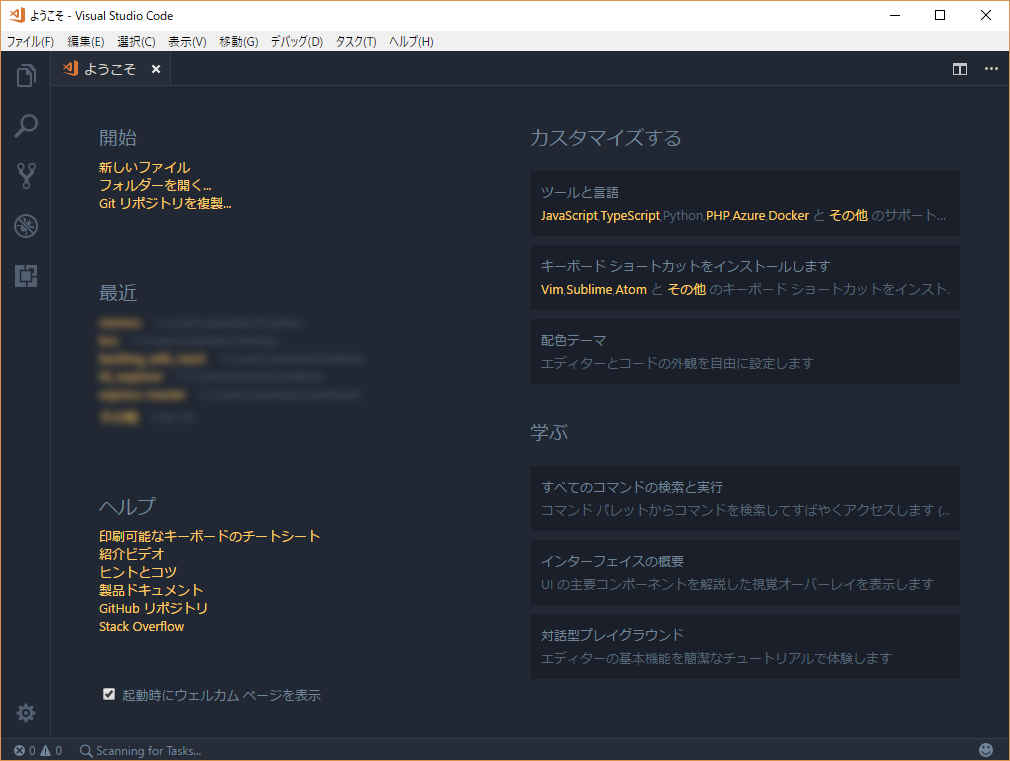
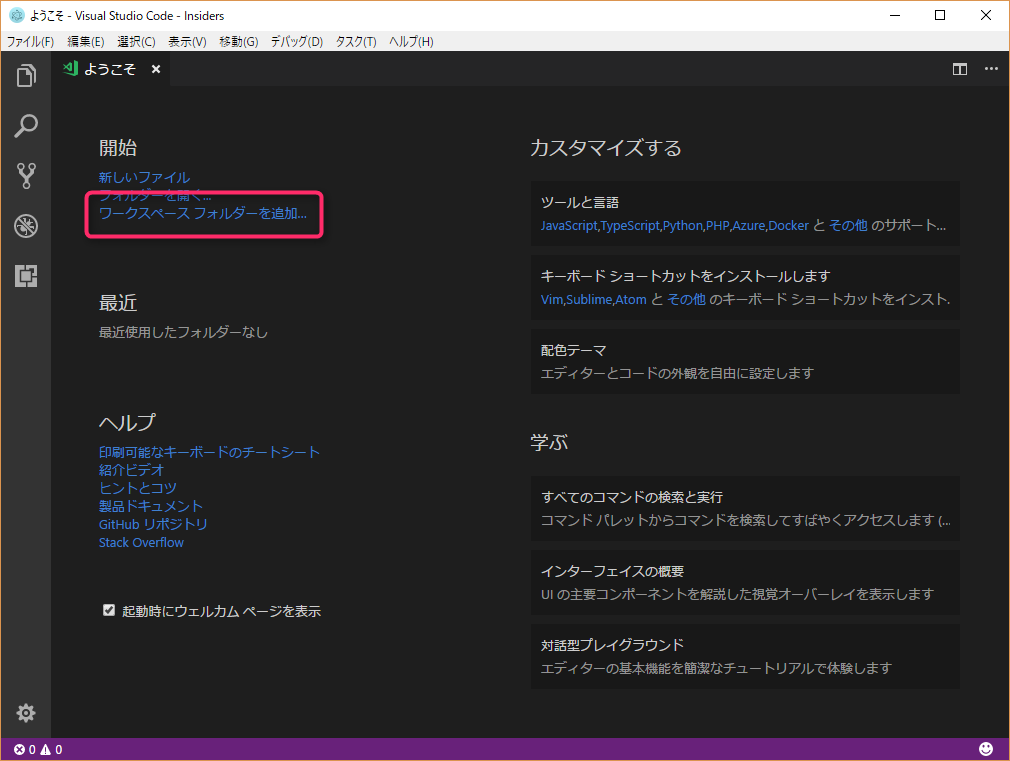
In the preview version, the features have been added in the boxed areas (but the git repository cloning command has disappeared)
It's easy to use and intuitive.
Previously, if you had separate workspaces for source code and documentation, you would have needed to open two windows, but now you can work smoothly within a single window.
However, having two windows has the advantage that it is easier to use on multiple displays (partly because we've been used to that style up until now), so in that case, you may still have the option of opening two windows as before
summary
This update includes significant changes to both the appearance and content, such as icon changes and a change to the terminal engine.
I was particularly impressed by the significant improvement in performance due to the terminal engine change, so I highly recommend you try it! (Although I don't get any benefit from promoting it.)
That's all




The person who wrote this article
About the author









