

3 Ways to See Saved Passwords in Google Chrome

Hello.
I'm Mandai, the Wild team member in charge of development.
Saving passwords in your browser is very convenient, but it can be a problem if you forget them when switching to a new PC.
Here are three ways to solve the problem of "I've forgotten my password, but I can still log in because it's saved" in Google Chrome.
In fact, Google Chrome is now visible
From the advanced settings in the settings screen, go to password management, and a list of saved passwords will be displayed. → Password screen (chrome://settings/passwords)
Find the site you forgot from this list, click the eye icon, and after user authentication, it will be displayed on the screen.
Please be careful not to have anyone behind you before viewing
Use Google Chrome's features to get a list of passwords
When migrating PCs, checking each password individually can be a tedious task.
For those who find this inconvenient, a method for obtaining a list of passwords is available.
Google Chrome has various hidden and preview features, and there are URLs set to enable these features. If you type
"chrome://flags" into your browser, a list of these features will be displayed, and one of them is "Password export" (chrome://flags/#password-export).
There are quite a lot of options, so search for "export" in the search box, or click the link above and set the options that appear to "Enabled," then restart Google Chrome
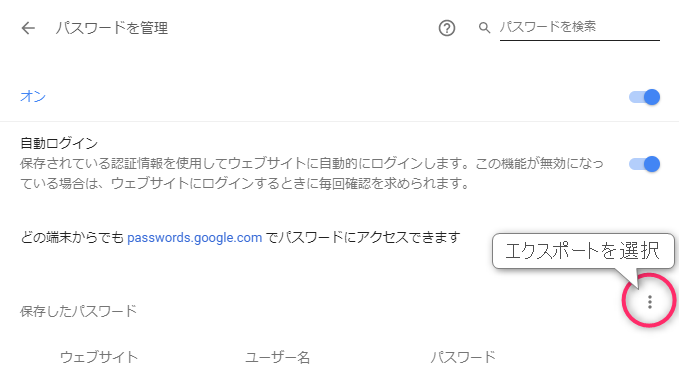
After restarting, go to Advanced Settings > Password Management (or type "chrome://settings/passwords")
Click the three vertical dots on the screen and select Export to export after user authentication
How to use DevTools instead of Settings if you're a developer
Google Chrome's DevTools allows you to inject JavaScript into the site you are viewing from the Console tab, so we will use that to display it
document.querySelectorAll("input[type=password]").forEach((o)=>{console.log(o.name, o.value)});

It's a bit rough because I had to enter it all on one line, but I think it will be displayed if you run it with autocomplete enabled
summary
I've introduced three ways to view your saved passwords, but the method for retrieving them all at once is perfect for PC migration.
I thought the JavaScript method would be cool for developers to be able to write in a single line, so I introduced it.
In Firefox, you can access this information by clicking the "Saved Login Information" button under "about:preferences#privacy".
There doesn't seem to be any user authentication required to view it, so it has a fairly relaxed feel.
That's all




The person who wrote this article
About the author









