

Coding with Power Mode in Visual Studio Code! (Includes all v2.2.0 settings)
Hello.
I'm Mandai, the Wild team member in charge of development.
When you want to get excited and get programming going, how do you get yourself in the mood?
Visual Studio Code (hereinafter referred to as VSCode) has a Zen Mode, so one way to do this is to use Zen Mode to hide all other screens, and I also think that listening to uplifting music is a good way to help you concentrate
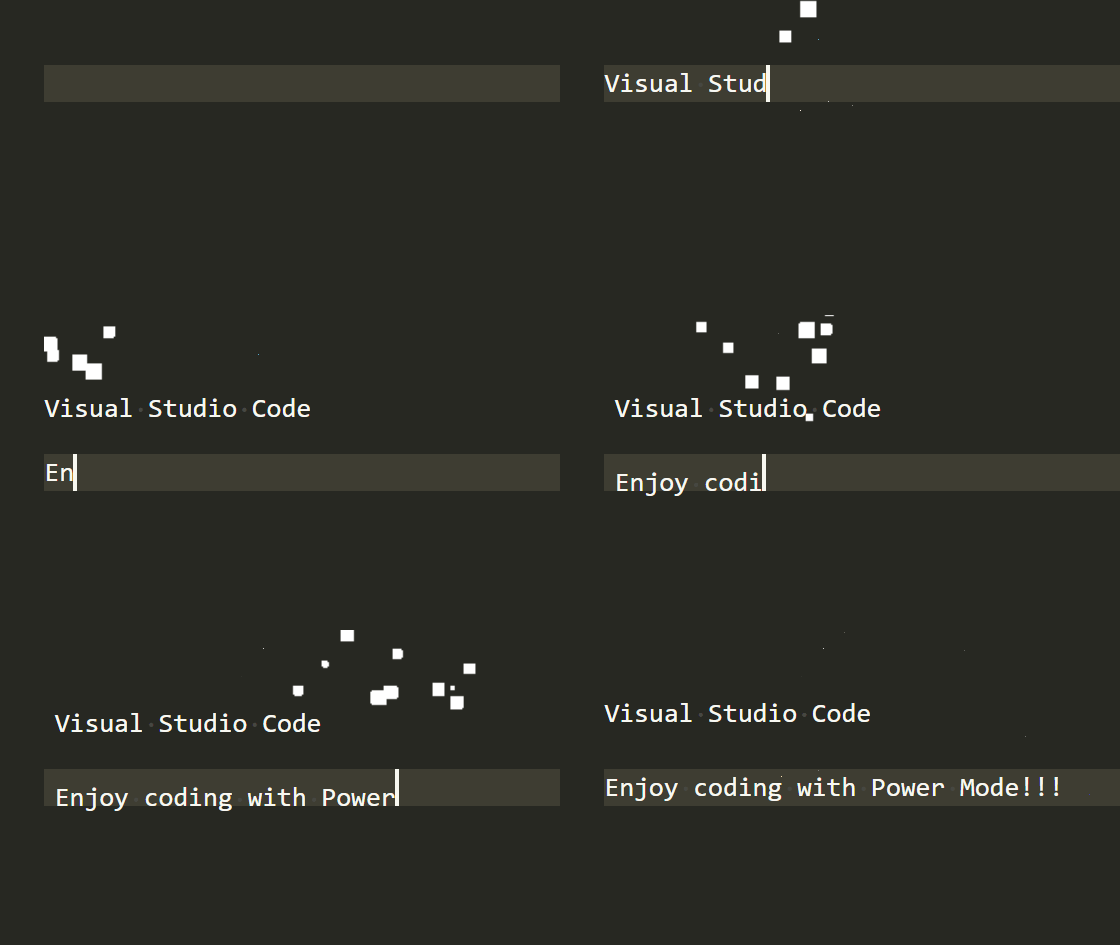
This time, I'll show you how to turn on VSCode's Power Mode and put more effort into typing
First, install the extension
On the extension search screen, type "power mode" and it will appear at the top
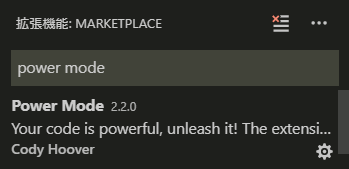
It is already installed, but if you haven't installed it yet, you will see "Install" in the bottom right corner, so just click it to complete the installation
Review the settings
Power Mode v2.2.0 has 19 settings.
While they're written in simple English, some can be difficult to understand, so let's go through them one by one!
powermode.backgroundMode
This setting allows you to choose between "mask" and "image".
Selecting "mask" will make the effect transparent, while selecting "image" will display the image as is.
If the effect is not displayed correctly, changing this setting may solve the problem
powermode.comboThreshold
This is the number of keystrokes required to enter Power Mode.
The default value is 0, so the effect will always be displayed if Power Mode is enabled. However, increasing this value will require a certain number of keystrokes to enter Power Mode.
As for when you would use it, I imagine there will be a scenario where you enter Power Mode after entering 20 characters and getting into the groove
powermode.comboTimeout
This indicates the number of seconds after which the combo counter is reset.
The default is 10 seconds, and the combo counter will reset to 0 if there is no input for 10 seconds.
If the combo counter reaches 0, Power Mode will be suspended until the combo counter reaches the number set by powermode.comboThreshold again
If you set the timeout to 0 seconds, it will not be reset, so you can use it to count the number of keystrokes
powermode.customCss
Add CSS to the effect
As for what kind of CSS can be used, the first use that comes to mind is probably manipulating the hue of an image or adding effects using the `filter` property.
It seems that the `filter` property doesn't work on preset images, so the main target will likely be images registered in `powermode.customExplosions`.
You can adjust the size using the width property, but this can be changed using powermode.explosionSize, so it's not suitable for this purpose
It's not too complicated as you just use properties as keys, but here's an example
"powermode.customCss": { "filter": "invert(100%)" }
powermode.customExplosions
You can use your own GIF images for the effects used in Power Mode.
Since it's CSS, all you need to do is set the URL of the image.
However, if retrieving from a network, SSL communication is required, and URLs starting with http:// will result in an error.
You can also set local files, but on Windows, you will need to replace one backslash with four. Also, since VS Code runs on Node.js, specifying with slashes is not a problem.
You can also set BASE64 encoded image files, so just specify a string starting with "data:image/gif;base64,".
The value of the powermode.customExplosions setting is an array, so if you specify multiple images, they will be displayed according to the powermode.explosionOrder setting
With a little trick, you can specify not only GIF images but also PNG images (this is probably because VSCode is based on Electron, although there are some restrictions), so your options are expanded!
This setting requires you to edit setting.json directly, so here's a sample
"powermode.customExplosions": [ "https://...", "C:\\\\Users\\\\mandai\\\\Downloads\\\\...", // Windows local path "C:/Users/mandai/Downloads/...", // Windows local path (specify path with slash) "data:image/gif;base64,R0lGODlh...", // BASE64 encoded image ]
Now that the GUI is in place, it may feel a bit of a hurdle to directly edit setting.json, but it's easy, so please give it a try
Also, several people have uploaded effects to GitHub Issues , so you can refer to those for information, including how to set them up
powermode.enabled
Since it's set to false by default, Zen Mode won't be enabled just by installing it!
Don't forget to set it to true!
powermode.enableExplosions
The setting key is `enableExplosions`, but it refers to the effects themselves.
If you set this to `false`, no Power Mode effects will be displayed.
However, for some reason, the combo counter is still counting
powermode.enableShake
In Power Mode, the behavior of randomly shifting the left margin of the editor when a key is pressed is called "Shake."
Here you can configure whether to enable or disable Shake.
When I'm typing Japanese, every time I shake, the characters in the editor and the characters I'm typing in the IME get out of sync, which is annoying, so I usually have it turned off
People who suffer from severe car sickness may get motion sickness
You can also turn it off visually by setting powermode.shakeIntensity to 0, but this is a more elegant way to do it
powermode.enableStatusBarComboCounter
This setting controls the display of the combo counter.
Enabling this will show the combo counter in the status bar.
If you are bothered by the numbers increasing with each keystroke, you may want to hide them
powermode.enableStatusBarComboTimer
This setting controls the timer display for the combo counter.
Enabling this will display a countdown timer in the status bar showing the remaining time until the combo counter resets.
If you find yourself distracted by the remaining time and unable to concentrate on inputting, it's more productive to turn it off.
powermode.explosionDuration
The setting key is explosionDuration, but this setting applies to the effect as a whole
You can set the duration of the Power Mode effect in milliseconds.
The default is 1000 milliseconds (1 second), and setting it to 0 will cause it to loop continuously, though it can be a bit annoying.
powermode.explosionFrequency
The key setting is explosionFrequency, but this is a general setting for the effect
This setting allows you to configure the number of keystrokes required for the effect to appear.
The default is 2, so the effect will appear once after two keystrokes.
Setting it to 100 results in almost no results at all, which is a little disappointing, so I think it's better to use a somewhat smaller number.
Even 1 would be fine!
powermode.explosionOffset
The setting key is explosionOffset, but it is a general setting for the effect
This setting adjusts the Y coordinate at which the effect is displayed; if it is greater than 0, it will be offset upwards, and if it is less than 0, it will be offset downwards
The display position varies slightly depending on the type of effect (probably depending on the display size of the gif file), so you will need to find a value in this setting that fits exactly on the cursor
powermode.explosionOrder
You can specify the display order when multiple effects are selected.
This setting does not work when using preset effects, but when multiple images are specified with powermode.customExplosions, the display order will be determined according to this setting.
The default setting is "random," which selects images randomly.
"Sequential" displays the images in the order they appear in the array, and specifying a positive number will display only that image.
This is basic knowledge for anyone who has worked with arrays in programming, but please note that if you specify a positive number, the first image will be set to 0
powermode.explosionSize
Specifies the display size of the effect
The x-direction is specified using `rem`, so the default value of 6 means the text will be displayed at six times the font size. The
y-direction size is specified using `ch`, so there's no need to worry about the original image being stretched unnaturally.
Incidentally, `rem` is a unit used in CSS, where 1 `rem` represents the font size of the root element (the `em` value of the root).
In VS Code, you can think of it as the value of `editor.fontSize`.
powermode.gifMode
When Power Mode effects are displayed consecutively, you can choose to rewind to the beginning or resume playback from where it left off. Selecting "
restart" will always start from the beginning, while selecting "continue" will resume playback from where it left off.
Basically, restart is fine, but if you set a slightly longer GIF file, you'll be able to see the rest of it every time you type, so if you set your favorite video, you can use it like dangling a carrot in front of your eyes (?)
However, please note that continue will not work if you specify a PNG file
powermode.maxExplosions
This setting allows you to specify the maximum number of simultaneous explosions.
The default is 1, which means that when the next effect is displayed, any previously displayed effect that was still playing will be hidden.
Increasing this value will cause the specified number of effects to remain.
However, they will disappear once playback is finished, so you'll need to intentionally create a situation where the screen is completely filled with effects.
Depending on the settings combination, if powermode.gifMode is set to continue, new effects will be displayed in the same state as the previous ones, resulting in multiple effects being displayed in the same state.
You could even try aligning their widths and intentionally displaying many of them side by side!
powermode.presets
Select an effect from the preset effects.
If powermode.customExplosions is set, that will take precedence.
powermode.shakeIntensity
If powermode.enableShake is on, specifies how much to shake the screen
If you specify a number that is too large, your eyes will not be able to keep up with the shaking on the screen, so be careful
There seems to be an issue where the Y-axis shake doesn't work when `editor.renderWhitespace` is set to `none`, and this hasn't been resolved yet.
Also, when `boundary` is set, the Y-axis shake doesn't seem to occur unless there are two or more spaces.
If you are using Shake, we recommend setting editor.renderWhitespace to all
summary
This time, I introduced Power Mode, a magical extension that will boost your mood while you type. I
'm not sure if it's suitable for use at work, but I believe that any means are good if it lifts your spirits and increases productivity, so I definitely encourage you to try it.
You'll probably be satisfied with the presets to some extent, but if you find a good GIF image, you should definitely register it as a custom one.
That's all




The person who wrote this article
About the author









