

More exciting than the Visual Studio Code 1.34 release: Remote Development with VS Code

Hello.
I'm Mandai, the Wild team member in charge of development.
Normally, I write articles picking out interesting features and tidbits from the latest release notes of Visual Studio Code (VSCode), but I'm more interested in Remote Development with VSCode, so this time I'd like to take a closer look at that.
I made the mistake of saying that the update was minor , but this is it.
Remote development has finally been announced.
Let's take a look at how it works and what's inside.
The development environment seems to be changing
At Beyond's development site, we don't use containers; development is mostly done in VMs. However, the development environment in general is constantly changing. I
haven't organized it in detail yet, but I think my environment is currently designed to maximize the efficiency of VS Code.
If there's anything that can accelerate this even further, we have no choice but to use it!
This time, I would like to examine what the "remote" in remote development refers to, as the definition is only vague from the title
preparation
As of the time of writing this article, extensions for remote development exist, but they only seem to work with insider builds, so we'll install them quickly.
Insider builds can be set up separately from existing environments, so we'll download and install them from here
Once the installation is complete, install the extension
In my case, I am testing this in a Windows environment, so please read accordingly
The name of the extension is "Remote Development", so search for it as shown in the screenshot below and install it
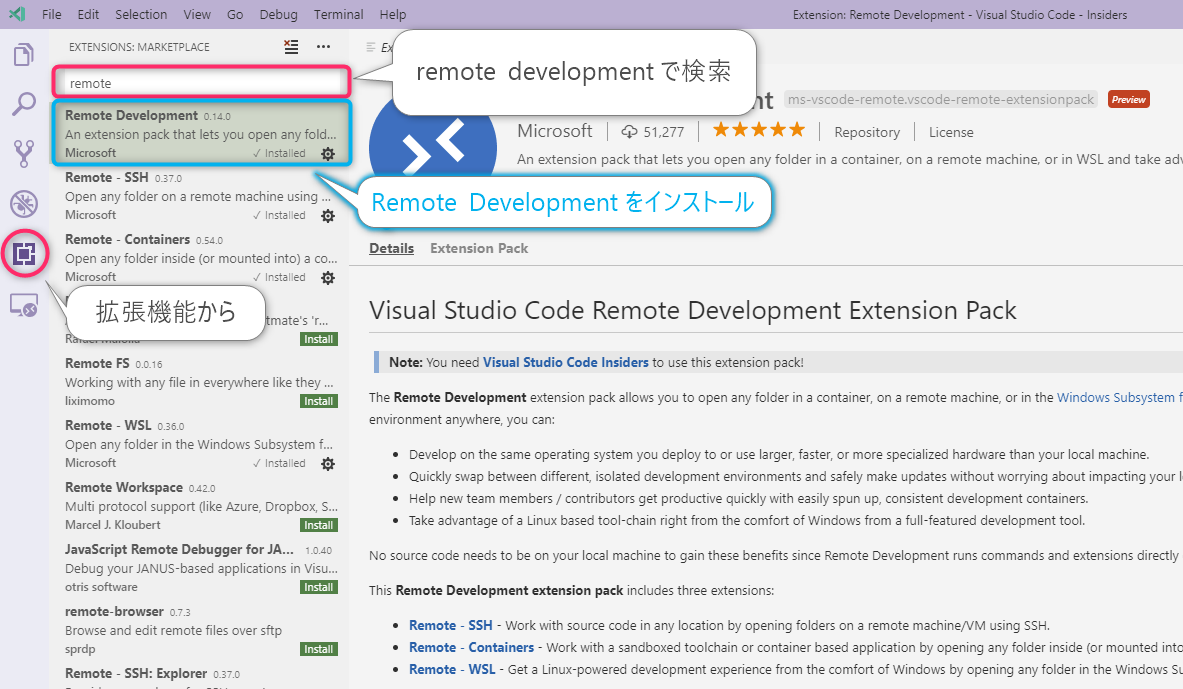
Once the extension is installed, you'll see an extra icon in the sidebar.
Enter your connection information here.
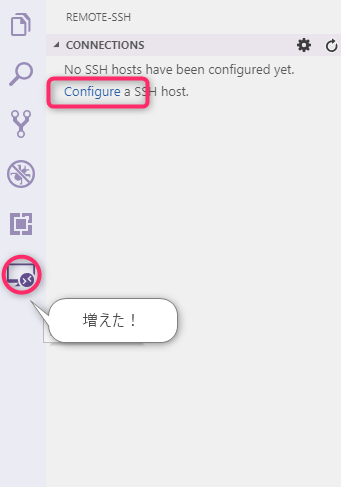
As shown in the screenshot below, locations where SSH settings are commonly located are readily available for selection
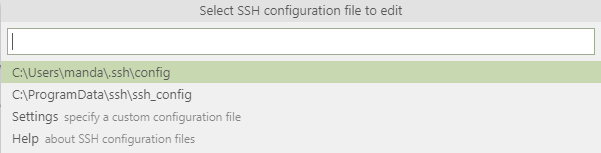
Now you have everything you need
Try connecting
This time, I'm going to try connecting to a different server, so I'll enter the path to ssh_config in Settings. I
thought I could enter the SSH information from scratch, but it seems ssh_config is required.
Since ssh_config doesn't exist in Windows environments, this part is a bit troublesome.
This time, I will connect to a VM in my local environment, so I wrote out the ssh_config using the following command
vagrant ssh > ssh_config
Let's specify the file that was created

Then, the connection destination you just added will be displayed in the sidebar
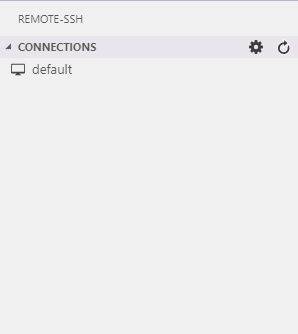
It seems that you can manage local and remote extensions separately

When I looked at the terminal, I saw a message saying "Please do not delete it as it is tunneled via SSH."

To prevent accidents, it would be nice if this kind of thing was done in the background, but since this is a trial version, let's not worry about the details
I've spent most of the time taking screenshots, and so far everything has gone very smoothly!
Great!
At this stage, opening a terminal will automatically open the remote terminal.
Previously, you would have had to open the local terminal with Ctrl + Shift + @ and then connect via SSH using commands like `vagrant ssh`, but now it's slightly easier to open the terminal this way.
Try opening the project
Since I've already confirmed that SSH access is possible, I'd like to proceed with opening the development environment, which is its intended purpose.
This VM already has an operating environment, so I'll skip the parts about setting up the execution environment and transferring all the files, but transferring files should be fine with git clone or similar.
When you select Open Folder from File, /home/vagrant is already entered.
This means that if you have an SSH connection, the folder you're selecting will be one in the remote environment.
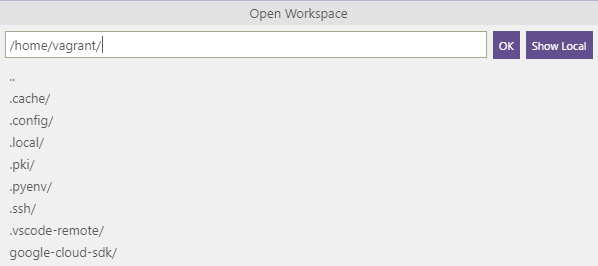
It was around this point that I started to realize how amazing it was, and I got goosebumps.
It's the kind of feeling that slowly sinks in: "Wow, this is incredibly convenient!"
Then, after entering the project root path and pressing OK, the window reloads, and the implemented files are displayed in Explorer as usual.
The git branch you were working on is also displayed, and everything looks the same as before.
I was so taken aback that I wondered if it was okay to continue working like this
Where to install the extension
Since I have two separate environments, local and remote, I wondered where I should install extensions and such. I couldn't come to a conclusion, so I decided to install PHP Intelephense , which is essential for PHP development
The installation was completed without any dialog box appearing asking which one to install to
It appears the extension was installed in the remote environment, and its status is "Reload Required."
It seems that hot reloading on the remote side is not supported.

I think hot reloading is an essential feature these days, so I think it will be implemented soon
When I opened the code, I saw that the intelephense indexing process was running smoothly, so it was working without any problems
Things that I thought would work completely locally, such as color themes, require the window to be reloaded every time, so it seems there is still room for improvement
Therefore, the conclusion seems to be that you don't need to worry about extensions one by one
Remote operating environment
Finally, I would like to summarize the operating environment on the remote side
First, the remote server must be Linux,
and specifically a 64-bit OS.
I haven't tried it myself, but the VS Code blog had an image showing Ubuntu running, so it seems there are no distribution restrictions.
My VM is CentOS 7, so I think it's safe to say that these two operating systems should work.
Next, the remote server needs to have bash, tar, and (curl || wget) installed.
I'm not entirely sure if you need to install curl or wget, but
they're all commonly used software, so even if you do need to install them, it shouldn't be a problem.
The two points above are limitations that exist for both SSH and containers.
Especially when running in a container, the installation of necessary software must be written in the dockerfile, so please note that modifications will be necessary if you are using an existing one.
There are many other restrictions
- Can't drag and drop to Explorer area
- PuTTY not supported
- Installing an extension requires a reload (this is the same as the previous one)
- If you are using git via SSH and either the SSH tunnel or git uses a non-password SSH key, git operations will be transmitted over HTTPS
At the time of writing, there are 74 issues registered, and although it seems like it will be difficult to fix them, I hope they can be resolved
summary
This time, it was an introductory article on Remote Development with VSCode disguised as a summary article of VSCode releases
- Connection is easy (it's just a hassle to create ssh config)
- It moves more smoothly than I expected
- It seems like it would work well for local VM development too
- It works for now. I'm sure there will be problems if I continue to use it
It seems that you can't manually disconnect the remote connection, so the solution is to close the window when you want to disconnect, which gives it a beta feel and is exciting
It may be a difficult time right now with many bugs, but I personally have a strong feeling that this will become the standard, so I recommend it.
Why don't you all try it out, even if you complain about it?
That's all




The person who wrote this article
About the author









