

How to use Bash with Windows 10 Anniversary Update
2016.08.08




My name is Ito and I am an infrastructure engineer
The Windows 10 Anniversary Update has finally arrived!
The most interesting feature is definitelythe "Windows Subsystem for Linux,
which lets you use Bash on Windows.
It seems that members of our development team were also playing around with the evaluation version.
Trying out the evaluation version of Bash on Ubuntu on Windows | Beyond Inc.
The Anniversary Update will be rolled out gradually through Windows Update, but for those who can't wait, it's also possible to update manually.
Please refer to the following for instructions:
How to get the Windows 10 Anniversary Update | Windows Blog for Japan
I thought I'd be able to use Bash right away after updating, but that wasn't the case. So, I'd like to share how to enable Windows Subsystem for Linux after the Anniversary Update
Enable it from the Control Panel
First, enable it as a Windows feature from the Control Panel
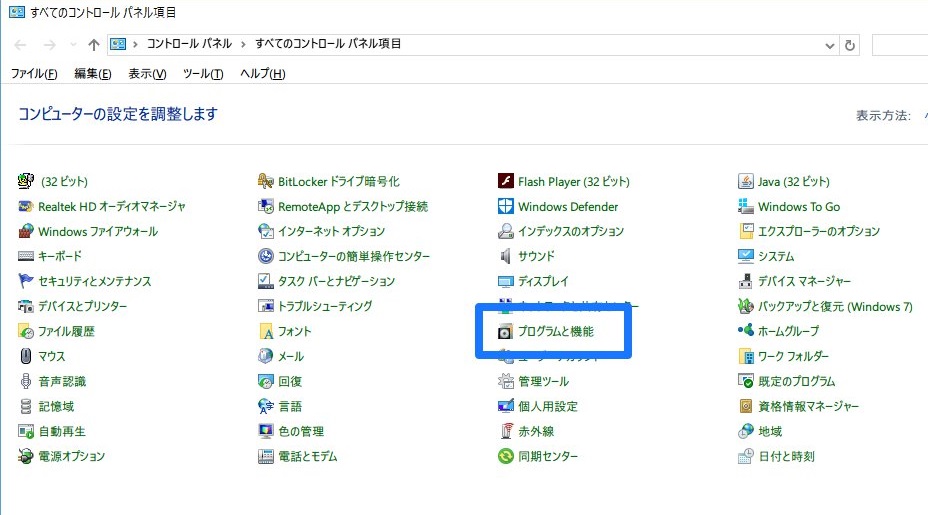
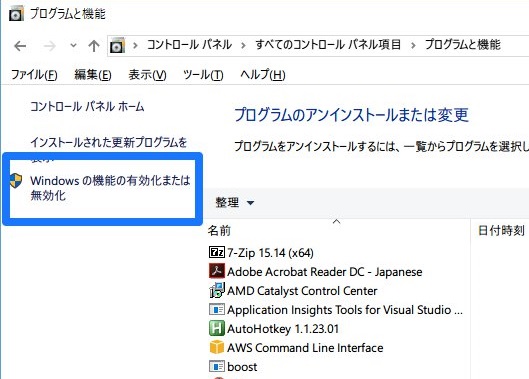
Go to [Control Panel] - [Programs and Features] - [Turn Windows features on or off] and
enable "Windows Subsystem for Linux".
Select "Programs and Features"
Select "Turn Windows features on or off"
In the Windows features screen, check the box for "Windows Subsystem for Linux (Beta)" and
click OK.
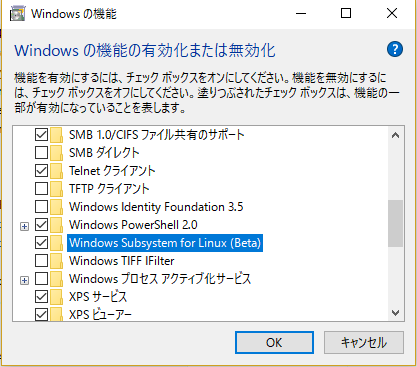
Press OK to activate it.
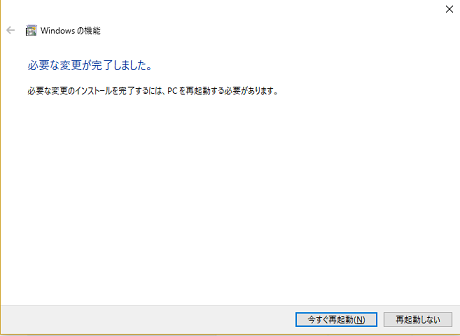
A restart is required after activation, so please restart your device.
Enable Developer Mode
Since "Windows Subsystem for Linux" is only available to developers, you need to
put Windows into developer mode.
Open the "Settings" app and go to "Update & Security."
(Why did they separate the Control Panel and the Settings app...?)
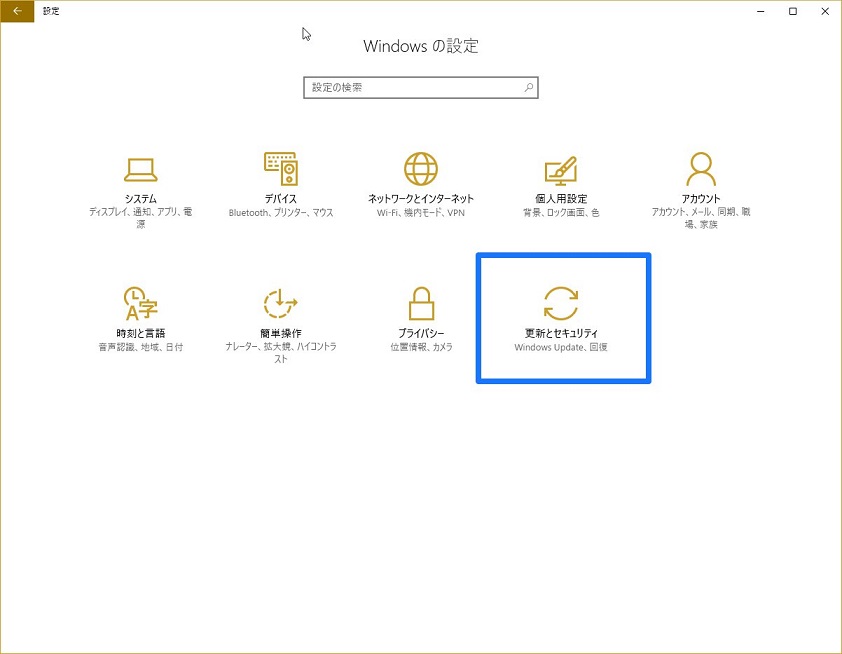
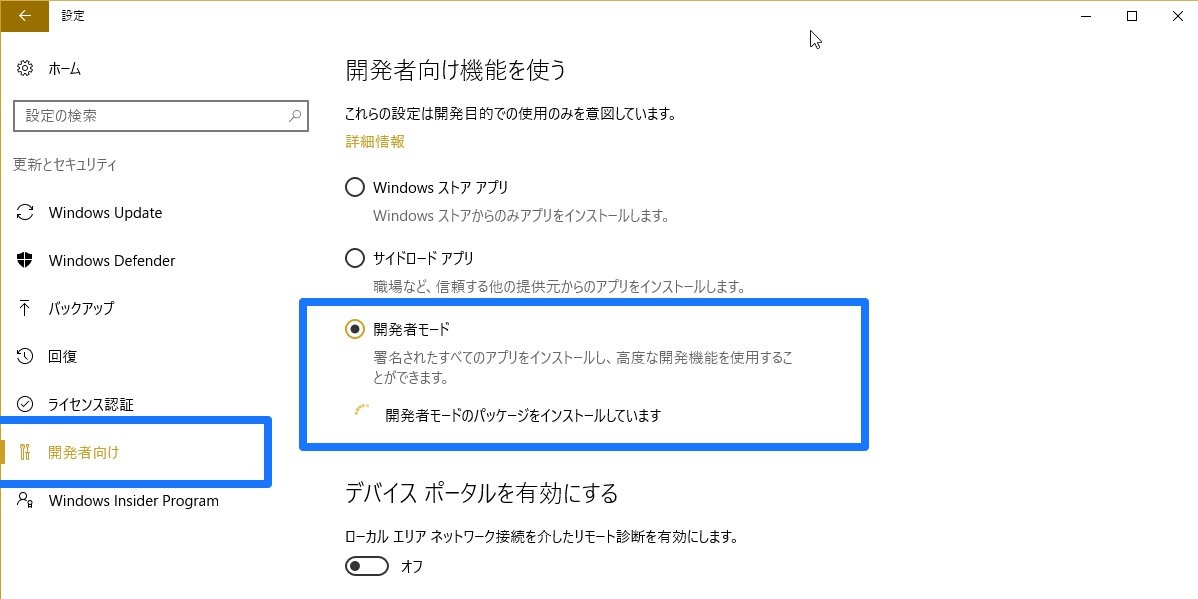
Navigate to "For Developers" and select "Developer Mode."
Once you select Developer Mode, the packages will begin installing.
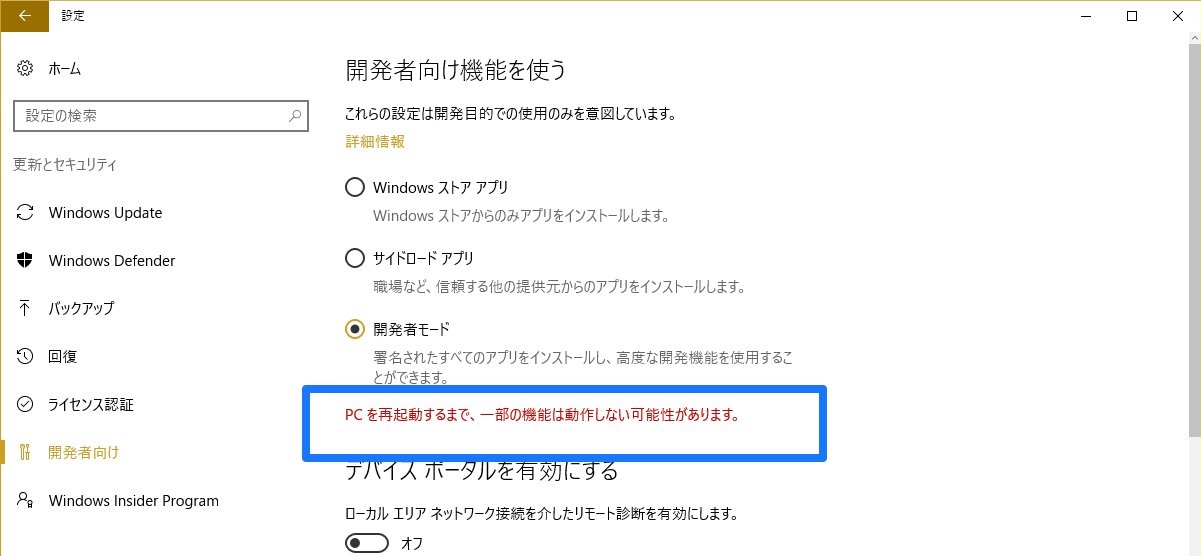
Once the installation is complete, you will be prompted to restart your computer, so please do so.
That's it, you're ready!
Finally, let's try using Bash
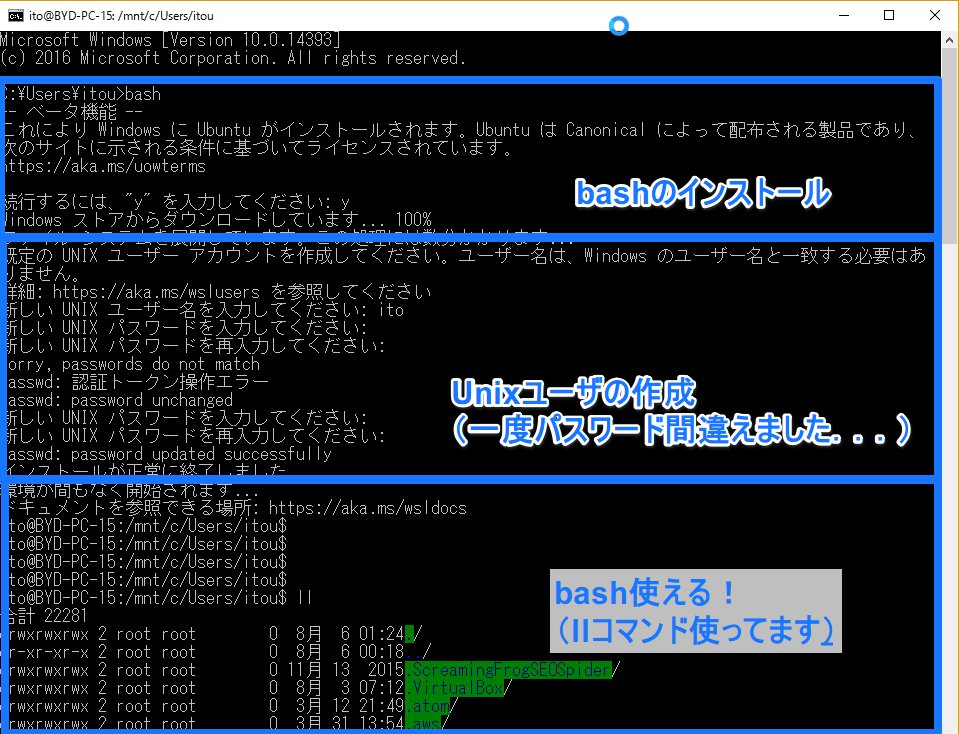
Start "bash" from the command prompt
Running the bash command will start the installation!
After installation, create a UNIX user.
Once the user is created, you're done!
Make sure you can use unix commands
This was a way to use Bash after the Anniversary Update.
That said, the command prompt is just too clunky...
First of all, I guess we need to figure out how to make that look cool
Please refer to this link for available commands and other information. (This is an evaluation version.)
Try the evaluation version of Bash on Ubuntu on Windows | Beyond Co., Ltd.
The person who wrote this article
About the author









