

[Tablet] For those who cannot run the Windows 10 Anniversary Update due to insufficient storage space [32GB]
Windows 10 Anniversary Update released!!
This is Yamada from the Systems Department
This is a bit of an old topic, but the "Windows 10 Anniversary Update" was released.
It's apparently the second major update since the release of Windows 10, and it includes enhancements to Xbox One, Cortana, Windows Hello, Windows Ink, and more.
Aswe've also mentioned on this blog, the implementation of Unix-like command functionality was probably welcome news for developers.
Even for those who aren't developers, I imagine they were thinking, "Oh, there's an update... do I need to run this...?"
Of course, as a computer-loving kid, I was really looking forward to it.
After the release, I tried to contain my excitement and went for the update!!! ...but... This time, I encountered a bit of a problem.
Not enough capacity
This update actually requires a considerable amount of storage space to run.
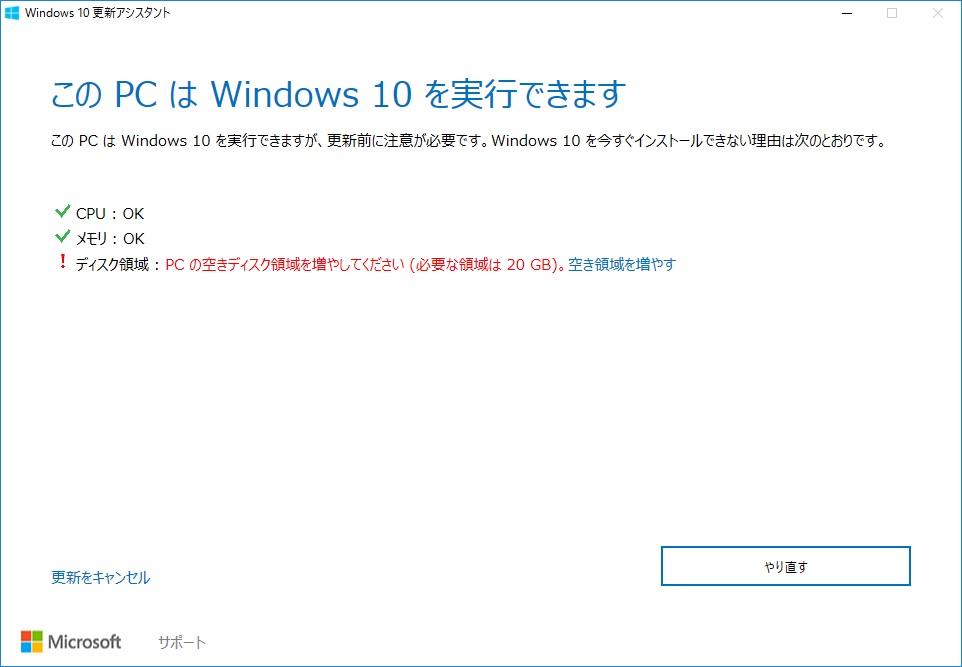
What...?!
I only have 20GB of free space... My PC has an old SSD (60GB) that I installed ages ago, so this is a real pain.
Even my other tablet (32GB SSD) says it needs 16GB. Half the space!
Clicking the section that says "Free up space" will run a disk cleanup, but
honestly, unless there are files remaining from before the upgrade installation, I don't think it will dramatically increase the free space.
In this day and age where low-capacity tablet PCs of 100GB or less are rampant, this kind of treatment is terrible! It's too much!
So,
if you have the same problem as me, please try this method.
Installing from MediaCreationTool
If the title rings a bell, you're right.
It's the upgrade media creation tool that was so useful when I upgraded to Windows 10.
Actually, if you perform the update using this method, you can update even if you don't have a huge amount of free space.
Of course, it will fail if there is too little free space, but
on my tablet, the update was successful with about 8GB of free space.
Here's how to do it
Settings ⇒ Update and Security
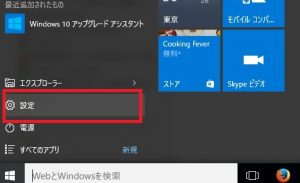
First, click the Windows button at the bottom left of the screen and click "Settings"
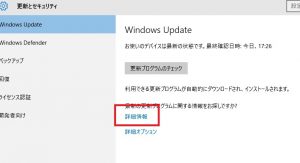
Click "Update and Security"
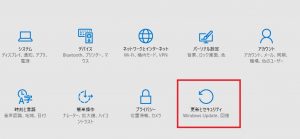
Clicking "More Info" on this screen will take you to the Microsoft update site
Download the tool from the Microsoft website
You might be tempted to click "Update Now" here, butdon't.
Instead, click "Download Tool Now" below it.
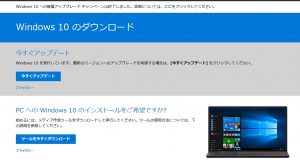
You should then be able to download "MediaCreationTool.exe".
Run the tool!!
Once downloaded, run "MediaCreationTool.exe".
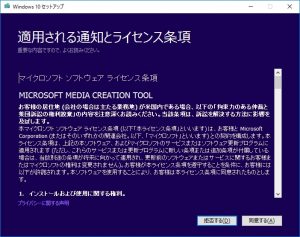
Click "Agree" on this screen.
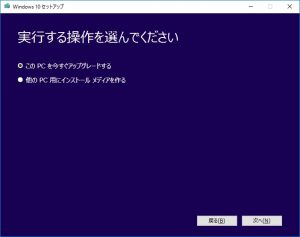
Click "Upgrade this PC now"
All you have to do is install it according to your preferences
lastly
I think many people with Windows tablets around 32GB of storage are having trouble with this upgrade. (Like me, for example.)
If that's you, please take a look!




The person who wrote this article
About the author









