

Emmet + Visual Studio Code: A golden experience of lightning-fast HTML coding that tickles your sense of omnipotence

Hello.
I'm Mandai, the Wild team member in charge of development.
Are you familiar with Emmet?
It might not be familiar to those who don't regularly code in HTML or CSS, but Emmet is well-known in that field as a tool for speeding up HTML/CSS coding.
However, in order to use Emmet, you need to use an editor that supports Emmet; unfortunately, it will not work with Notepad
Today, I would like to use my recommended Visual Studio Code (hereafter referred to as VSCode) to easily set up an Emmet execution environment and let you experience the greatness of Emmet
You'll definitely want to write unnecessary HTML and CSS
First, prepare VSCode
VSCode is a free, open-source software developed by Microsoft and is a successor to Visual Studio
Visual Studio Code - Code Editing. Redefined
When you access the website mentioned above, you will find links to installation packages appropriate for your environment. Download and install the appropriate package.
The installation procedure is very simple, so we will omit the details here.
Once the installation is complete, you've got the Emmet execution environment set up!
VS Code itself is a lightweight editor that can run in any language if you have the necessary extensions, so I highly recommend it.
As expected from something bearing the Visual Studio name, the IntelliSense user experience is excellent, and it has a lightness that Eclipse lacks.
about that"How to Use Visual Studio Code to Make Bookmarklet Creation Super Efficient | Beyond Inc."and "A Summary of Visual Studio Code Shortcuts Starting with Alt | Beyond Inc.", so please check those out as well.
Emmet's Beginnings
First, let's use Emmet to create some simple HTML
Create a new page by pressing "CTRL + N" and save it immediately by pressing "CTRL + S".
You can name the file anything, but make sure the extension is .html.
Now you're ready
Let's try typing "!" in half-width characters
Don't rush.
After typing the exclamation mark (!), slowly press the TAB key.
It will look like this
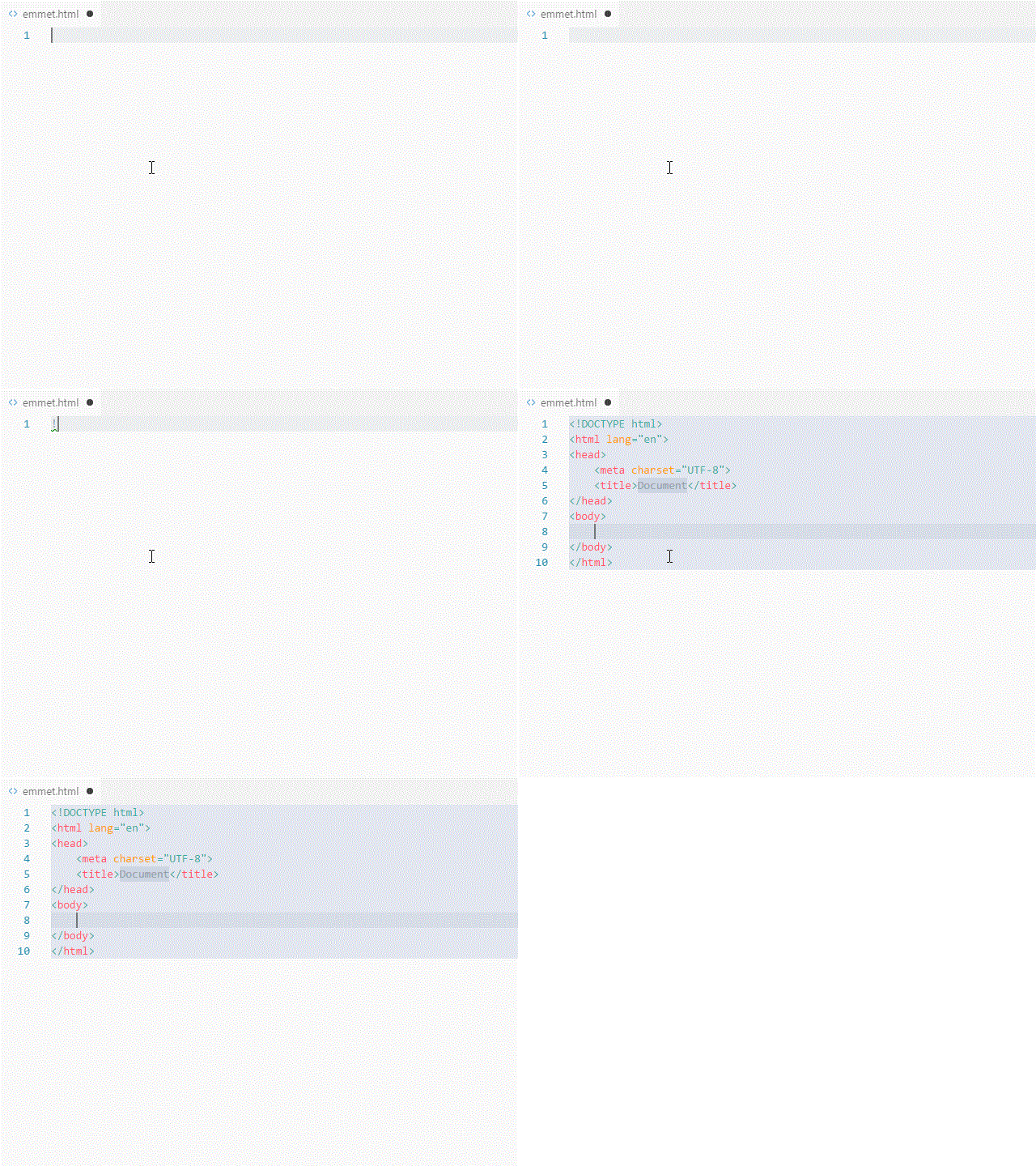
It's easy to imagine how "!" expands like this, dramatically speeding up coding
Emmet is capable of so much more!
Generating lists is also incredibly easy.
Let's try creating a list with a parent-child relationship between ul and li tags, and with four li tags in a row.
The following GIF shows the process of adding to the HTML we created earlier.

Just by typing "ul>li*4" you can quickly create a ul tag with four li tags
If you've gotten this far, you can probably guess how to handle ID and CLASS

If you understand this much, I think you'll think it's quite useful
Next, let's try writing the dl, dt, and dd tags all at once.
The dt and dd tags are written as sibling elements, not parent and child, which is just as you might expect.
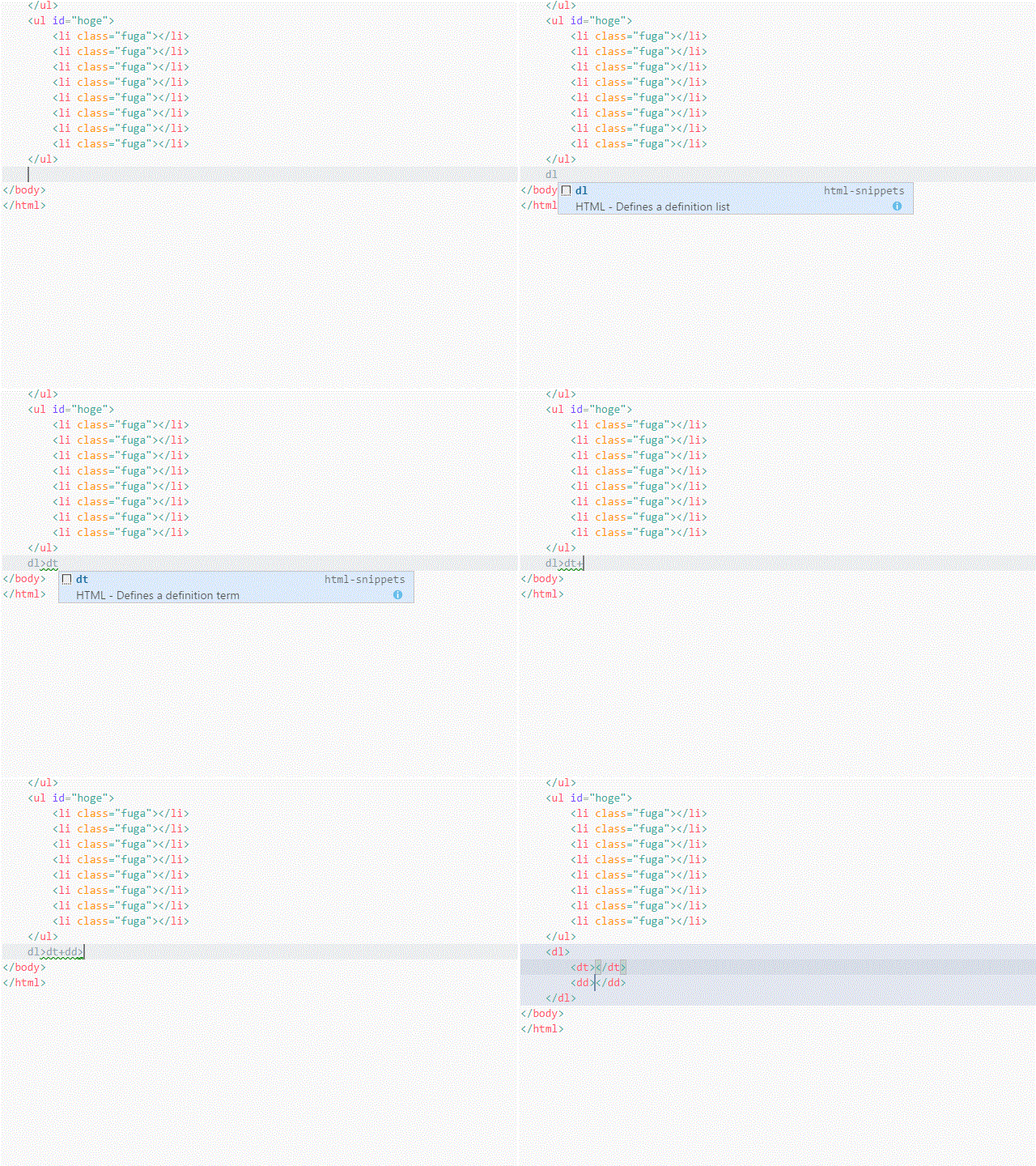
It also indents properly. In this video, I used a setting of four spaces, but you can also change it to two spaces or tabs in the VSCode settings
A tip is to write it out quickly, but if you don't put a ">" after the last element, it may not convert as expected, so be careful
Can you feel this sense of omnipotence running through your body?
Emmet is not just for HTML!
I understand that Emmet can generate HTML at lightning speed.
But Emmet is not just limited to that.
It's also an amazing tool that can handle CSS with ease!
However, the reality is that CSS has so many properties that there are many cases where you don't get to reap the full benefits.
For commonly used properties like display, margin, and border, there are abbreviations available, so you should definitely make use of them.
Here 's a cheat sheet; try to memorize only the things you use frequently.
It's said there are over 500 of them, so memorizing them all is incredibly difficult, and if you have that much memory capacity, you'd rather use it for something else, right?
However, there is one thing that I thought would be worth remembering, and although it wasn't included in the cheat sheet, it is a commonly used way of writing "margin: 0 auto;"
It seems like it will work with "m0-auto"!
It seems you can also expand multiple CSS properties at once using the "+" key.
Like this!
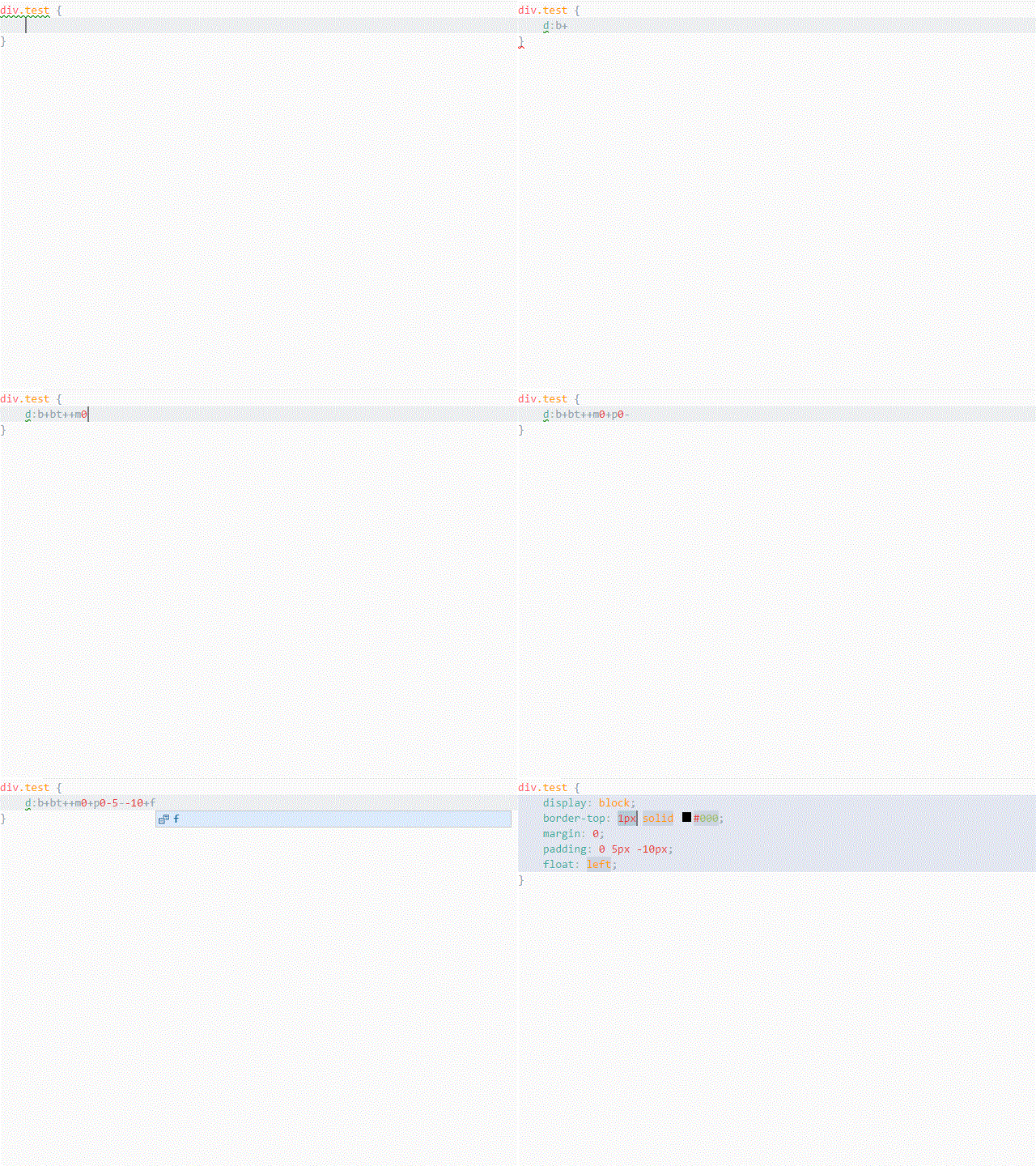
The original string is practically a code.
If you were to manipulate this and start coding, you'd probably get quite excited about it.
Emmet (ZenCoding) itself isn't a particularly new tool, but VS Code's relentless pursuit of new features makes it something to keep an eye on.
I have a feeling it's going to become an increasingly indispensable editor.
That's all




The person who wrote this article
About the author









