

[End of the Year] Clean up your slow PC after a year of use with CCleaner!
This is Yamada from the Systems Department.
There are only 10 days left in 2016.
This time, I'd like to introduce some ways to quickly clean your PC during the busy end-of-year cleaning.
"CCleaner Free" is a free software that can easily clean up a slow PC
This tool is a fantastic way to easily clean up your PC by simply clicking a few buttons to remove junk files and unnecessary applications that accumulate over time. And it's free!
You can download it by clicking "Download" under "CCleaner - Installer" here
How to install
Double-click the downloaded "ccsetup525.exe".
Then, simply follow the installer's instructions and click through to complete the process.
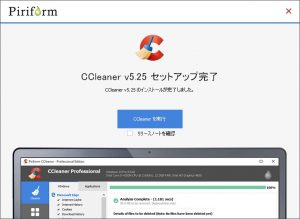
Once finished, click "Run CCleaner" to launch the software!
Delete unnecessary files
As you continue to use your PC, various files accumulate,
such as browser cache, Windows Update installers, and application log files
Let's start by deleting these junk files. This will
not only reduce the amount of data on your data drive, but you can also expect an improvement in your operating speed.
Open the "Cleaner" screen and click "Analyze (A)" to extract the files that can be deleted.
Clicking "Start Cleanup (R)" will automatically delete the extracted files.
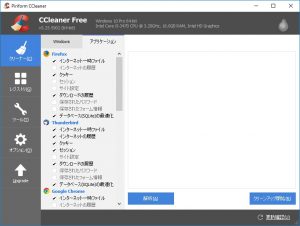
The current settings are sufficient, but if you are using Chrome or FireFox, I recommend checking the "Optimize database (SQLite)" box, as this will (I think) improve the browser's performance
Registry Cleanup
The "registry" is like a database where various settings used by Windows are stored in one place.
These days, you often hear that cleaning the registry is ineffective, but
it's still unsettling to have old DLLs that you no longer need lingering around, so let's just delete them.
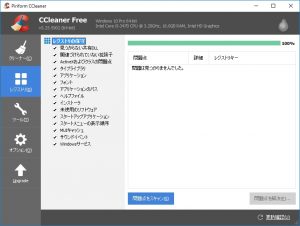
You can delete them by going to "Scan for problems (S)" ⇒ "Fix problems (F)".
You can back up your registry before deleting, so be sure to save it properly.
Startup organization
Finally, let's organize the startup programs.
While startup programs are configured to launch automatically when Windows starts,
some programs automatically register themselves in this list. This is
especially common with manufacturer-branded PCs, where many unnecessary programs are often registered.
Also, in my experience, people whose PCs start up extremely slowly tend to have a large number of programs registered in their startup programs.
Let's organize them.
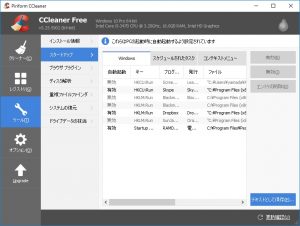
Based on the "Program Name," you can disable any programs that seem obviously unnecessary using the "Disable" button.
However, programs with "C:\Windows\~" in the "File" column may be system programs, so
if you don't know what program it is, leave it alone.
Restart Windows
Once you've finished these steps, try restarting Windows.
If you notice that "it boots up faster!" or "the browser runs much more smoothly!", then you've succeeded.
This software is very useful, so it's a good idea to use it regularly, not just once a year.
If you have any problems with your company's infrastructure, please contact us here !




The person who wrote this article
About the author









