

Let's get started with Phalcon webtools

Hello.
I'm Mandai, the Wild team member in charge of development.
I previously wrote a blog post about the phalcon command, but unfortunately it has so many options that it seems like it would take some time to master it
In such cases, it might be a good idea to learn phalcon commands little by little later and try using the quick and easy phalcon webtools
Create a project that can use phalcon webtools
If you want to enable webtools from scratch in a new project that has not yet been created, the command is as follows:
phalcon project --name [project-name] --enable-webtools
Installing phalcon webtools into an existing project
You can also add webtools to an already created phalcon project
phalcon webtools --enable
Uninstall phalcon webtools
There will come a time when webtools is no longer needed, such as when the setup or development is complete.
At that point, you can easily uninstall it using the phalcon command.
phalcon webtools --disable
Try displaying the top page
Once you've enabled webtools, try viewing it in your browser.
If you've set the document root to the project's public directory on your web server, you can access it at http://localhost/webtools.php
If something is displayed but the stylesheet is not working properly, add write permissions to public/css and public/js and access webtools.php again
cd /path/to/project_root/public/ chmod a+w css js
The actual CSS and JS files are located in the resources directory within phalcon-devtools, and a process is executed to copy them to the development environment during the initial request.
In this case, if you do not have write permissions to the directory, the files cannot be copied.
Here is the homepage with all the necessary elements included
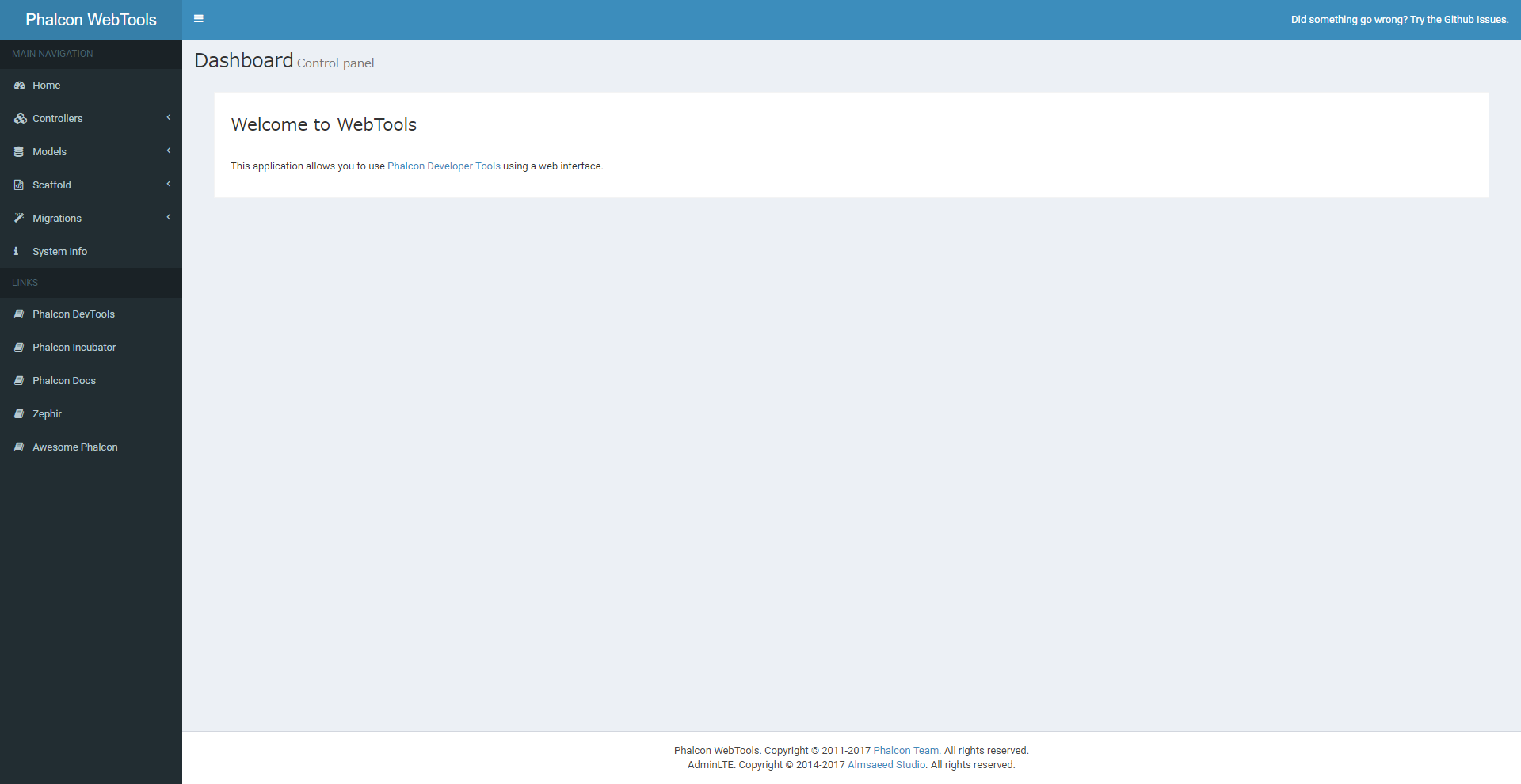
This was created with Phalcon dev-tools 3.0.4, and the layout has changed significantly from previous versions
Some features have been changed, and it's no longer possible to configure settings from webtools.
Therefore, database settings and other configurations must be done outside of webtools beforehand.
If you can't access
There are probably several patterns, but I'll list the ones I've encountered
Access from IP addresses other than those set in webtools.config.php
In this case, you will encounter a screen like this:
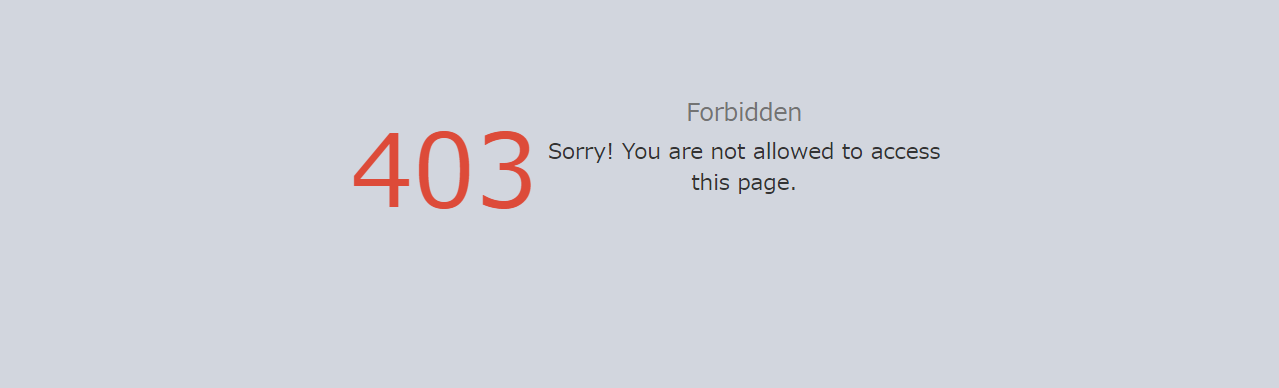
The file webtools.config.php generated under public contains the IP addresses that can be accessed
By default, the IP address range is specified as 192.168.0.0/16.
I happened to want to take a screenshot and needed to access it from outside VirtualBox, but I ran into this setting problem.
If the link is somehow wrong
There are several links on the homepage, but if they are in the format of "/webtools.php/webtools.php?_url=/info", check the baseUri setting.
If you have set the document root to "project root + public", you do not need to set baseUri in config/config.php, so just set it to "/".
In the case of invo , which is also mentioned in the official documentation , the /invo/ directory is set.
When creating a controller or model, I get the error "An unexpected error has occurred."
This is the same reason why CSS and JS cannot be loaded: you do not have write permissions to the controller or model directories
I often struggle with insufficient write permissions in my local environment, and since it's troublesome to revert and reconfigure all the directory permissions I've tweaked during development before moving to the production environment, changing the user running the web server might be one solution.
Also, if you find "SELinux" when grepping /var/log/messages, it means SELinux is interfering in some way.
sudo setenforce 0
There are also some taboo moves that involve:
That's all




The person who wrote this article
About the author









