

How to use your favorite fonts in Windows on your own website
This is Yamada from the development team
In recent years, CSS frameworks have become so sophisticated that even someone like me with no design knowledge can create a decent-looking website.
However, if you don't know how to use them effectively, your website tends to end up looking similar to other sites.
This time, I'll show you how to use your favorite fonts that you use in Windows on your own website to add a little personality!
*Please be sure to check the license of the font you use!*
What you need
First, to convert Windows fonts to web fonts, install a free software called Woff Converter.
Download it from the following website and run "woffconv230.msi".
There aren't many options to choose from, so just agree to the terms of service and select the installation location.
Window's Forest WOFF Converter (External Link)
Finding font files on Windows
Find the free fonts you installed on Windows.
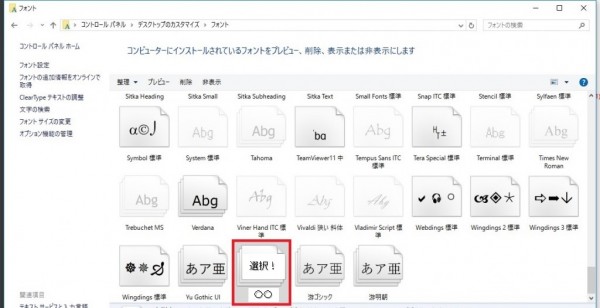
The font files are located in "Customize Desktop Fonts in Control Panel." (For Windows 10)
Simply type this into the address bar of File Explorer!
Entering the above path into the address bar of File Explorer will take you to the location of the font files, so
let's select the desired font from there.
Convert fonts with Woff Converter
Once you've found the font file, it's time to convert it to a web-ready font file, known as "woff".
Launch the "woff converter" you installed earlier,
and drag and drop the font file you selected into the "File to convert" text box.
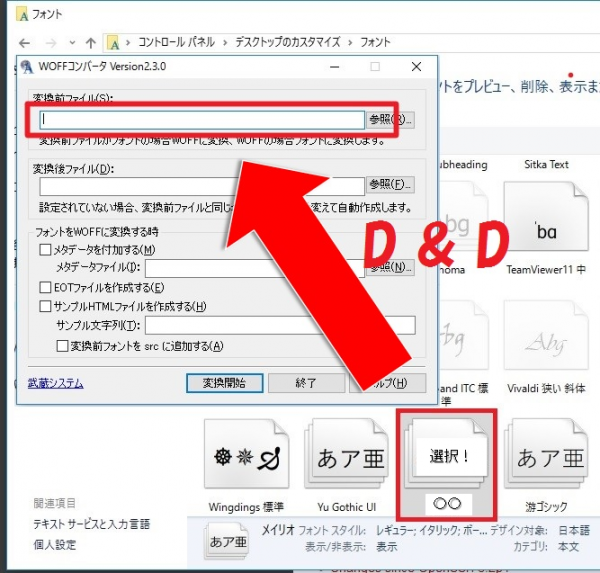
The converted file will automatically have its filename determined based on the original file, so you don't need to enter anything.
Alternatively, you can simply set the output folder.
Next, check the box for "Create EOT file."
Select the other options as needed based on your requirements.
Once you've done this, click "Start Conversion"!
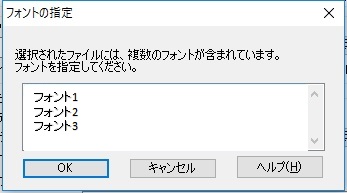
A dialog box titled "Specify Font" will appear, so select the font that best suits your needs
If the file generation is successful, "Conversion completed successfully" will be displayed!
Load the created font with CSS
Finally, let's load the font file we created using CSS and actually reflect it on the website
First, upload the three files you just created—"〇〇.woff," "〇〇.eot," and "〇〇.ttf"—to the server.
* "〇〇" is the name you specified when creating the font, or the original font name if it was automatically generated.
Once uploaded, load the font file using the CSS below
@font-face { font-family: "myFont";w src: url("[Upload path]/〇〇.woff") format('woff'), url("[Upload path]/〇〇.eot") format('eot'), url("[Upload path]/〇〇.ttf") format('truetype'); } .myFont{font-family: "myFont";}
*Please change the "〇〇" part of the file name as appropriate
Now you're ready to use the font file you created! All
you have to do is use the font file you loaded in your HTML.
<div class="myFont">Text for which you want to change the font</div>
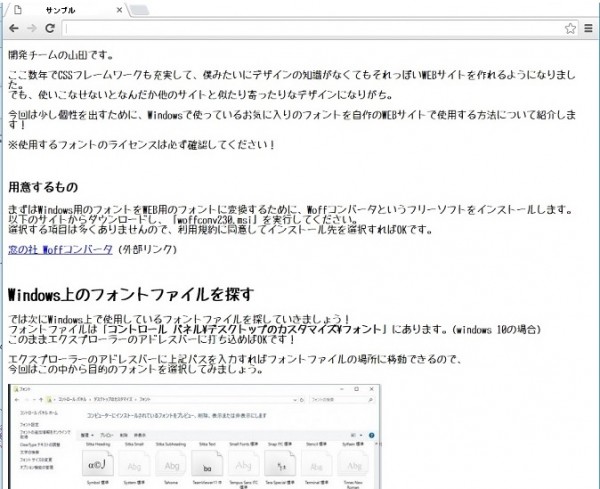
When actually applied to this blog it looks like this!
summary
How was it?
Using this method, you can differentiate your website with just a little effort!
Furthermore, if you apply it, you can even import custom characters for names created on your PC as custom fonts, so
it can handle situations where you absolutely need to use custom characters due to system limitations!
See you next time!
If you want to consult with a development professional
At Beyond, we combine our extensive track record, technology, and know-how in system development with OSS technology and cloud technologies such as AWS to provide contracted development of web systems with reliable quality and excellent cost performance
We also handle server-side/back-end development and proprietary API collaboration development, making full use of our technology and know-how in building and operating web system/application infrastructure for large-scale, high-load games, applications, and digital content
If you have any problems with your development project, please visit the following website
● Web system development
● Server-side development (API / DB)




The person who wrote this article
About the author









